You're viewing an older version of the aµtoPULSE help. For the latest version, visit online help 1.3.
The User Account Management feature in aµtoPULSE allows you to assign roles and control access to restricted settings. This helps keep multiple users organized and prevents unauthorized access to the instrument.
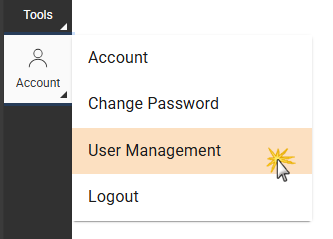
You can manage users from the User Management page, which is accessible from the Account navigation bar. To manage users, you must log in to an account that has administrator privileges.
Selecting the User Management Option

User Management Page
There are two user roles:
 Regular User: As a regular user, you can access core instrument functions, such as creating and running protocols. A regular user is also granted access to edit basic account info.
 Administrator: As an administrator, in addition to accessing core instrument functions, you can set up and manage user accounts through the User Management page. Only administrators can access advanced functions.
See the table below for more detailed functions each role can access:
| Accessible Functionality | Description | Regular User | Administrator |
|---|---|---|---|
| Create, Edit, and Run Protocols | Access all features in the Explorer and Editor pages. | ✔ | ✔ |
| Runtime Status | Access the Status page to monitor the current protocol status; view, and download the protocol summary. | ✔ | ✔ |
| Event Log | Export the instrument logs from the Reports menu. | ✔ | ✔ |
| Audit Trail | Export all user actions and instrument logs from the Reports menu. | ✘ | ✔ |
| Protocol Results | View, download, and/or remove the results of previously run protocols from the Reports menu. | ✔ | ✔ |
| Labware Manager | Access the Labware Manager page to recalibrate the registered labware. | ✘ | ✔ |
| Calibrate the Scales | Recalibrate the scales on each Station from the Tools menu. | ✔ | ✔ |
| Manual Control |
Access the Manual Control page from the Tools menu for instrument calibration and/or troubleshooting functions, including:
|
✔ | ✔ |
| Sequencer | Create and run manual tasks for labware transfers and profiles directly from the Sequencer page. Volume tracking is not required, and these sequences are not part of a protocol. | ✔ | ✔ |
| User Account Info | View and change user account info such as Name, Email, and Password from the Account menu. | ✔ | ✔ |
| User Management | Create, edit, and/or reset user accounts from the User Management page. | ✘ | ✔ |
| Software Update and License Activation | Update the software version and activate the license from the About page. | ✘ | ✔ |
In the User Management page, click  .
.
Enter the new user’s account information in the provided fields as follows:
Username
Password
Important: aµtoPULSE generates a temporary password for first login. Copy it before clicking CREATE, and share it with new users; they will be prompted to change it at login.
Name
Email (optional)
Role (select Administrator or Regular User)
Click CREATE.

Create New Account Dialog
To edit your account:
Click Account from the navigation bar, then select Account.

Selecting the Account Option
In the Account dialog, edit the Name and Email.

Edit Account Dialog
Note: Username and Role cannot be changed.
When you’re done, click SAVE.
To edit an existing account (Administrator only):
Open the User Management page and select the account you want to edit. Then, click Edit  .
.
In the Edit Account dialog, change the user’s information as follows:
Name
Role
Account Status:
Note: Username cannot be changed.
When you’re done, click SAVE.

Edit Account Dialog
Note: This instruction applies only to your own account.
Click Account from the navigation bar, then select Change Password.
.png "Selecting the Change Password Option")
Selecting the Change Password Option
Enter your current password and new password in the provided fields.

Change Password Dialog
Important: The Password must follow the specific format as shown in the tooltip .
.

Password Format Tooltip
Click SAVE. Your new password is ready to be used on the next login.
A password needs to be reset if the user experiences login issues or forgets their password.
Open the User Management page. Then, select an account and click Reset .
.
Click RESET PASSWORD to confirm.

Reset Password Dialog
aµtoPULSE generates a temporary password for the account’s owner. Copy and share this password for the user to log in with.

Generated Temporary Password
Once logged in, the user will be prompted to change their password.

Change Password Dialog

|
|
| APOWH-V12R125 |