Putting Rovers In/Out of the System Through the Rover Load Port Door
Required Items:
1 ea - 3% Hydrogen Peroxide
1 ea - Kimwipes or something similar
Prerequisite:
Wear PPE. At a minimum, gloves should be worn.
To Take Rovers Out of the System:
Section 1: Moving a Rover to Rover Load Port via Rover Dashboard
Open the Cellmatic Suite software and go to Instrument Control > Fleet Manager-1.
On the Dashboard page, make sure that the Fleet Manager (FM) status is Active. If the status is Inactive, press the Power
 on the right side and select Activate FM.
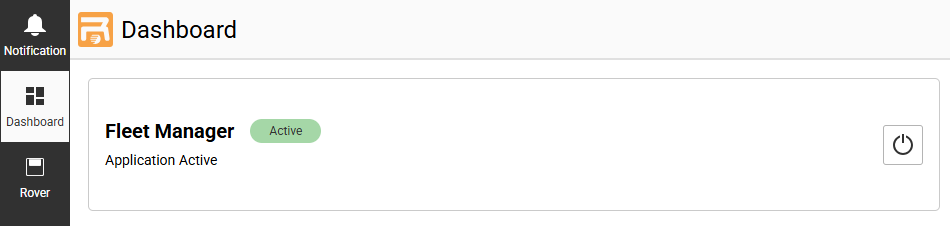
The Fleet Manager Status is Active
Select a Rover to move to the rover load port. The right sidebar shows the details of the selected Rover.
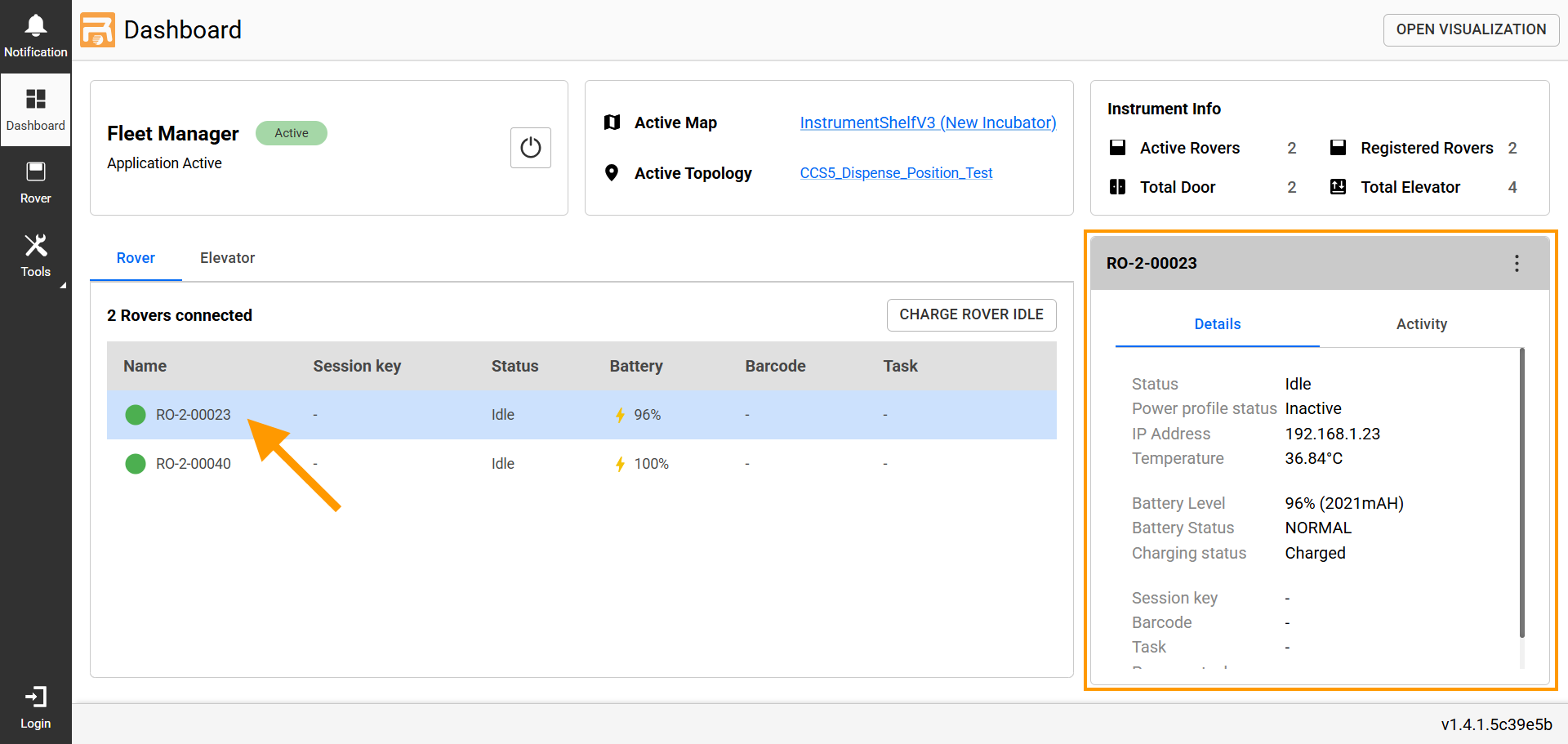
Selecting A Rover To Move
Click the Three Dots
 on the top right of the Rover Detail panel (the panel on the far right, highlighted in the image above).
Select Manual Control.
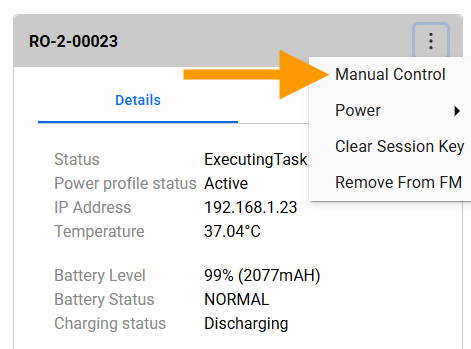
Selecting the Manual Control
Select Move To and then Waypoint.
Set the destination to rover.loadport.
Click Execute to proceed. The selected Rover should now start moving to the rover load port.
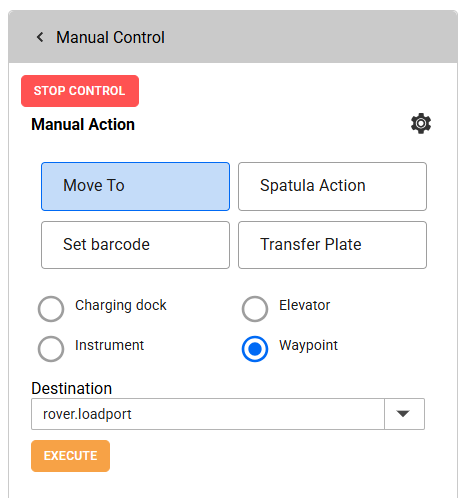
Moving the Rover to the Rover Load Port
Section 2: Taking the Rover Out of the System
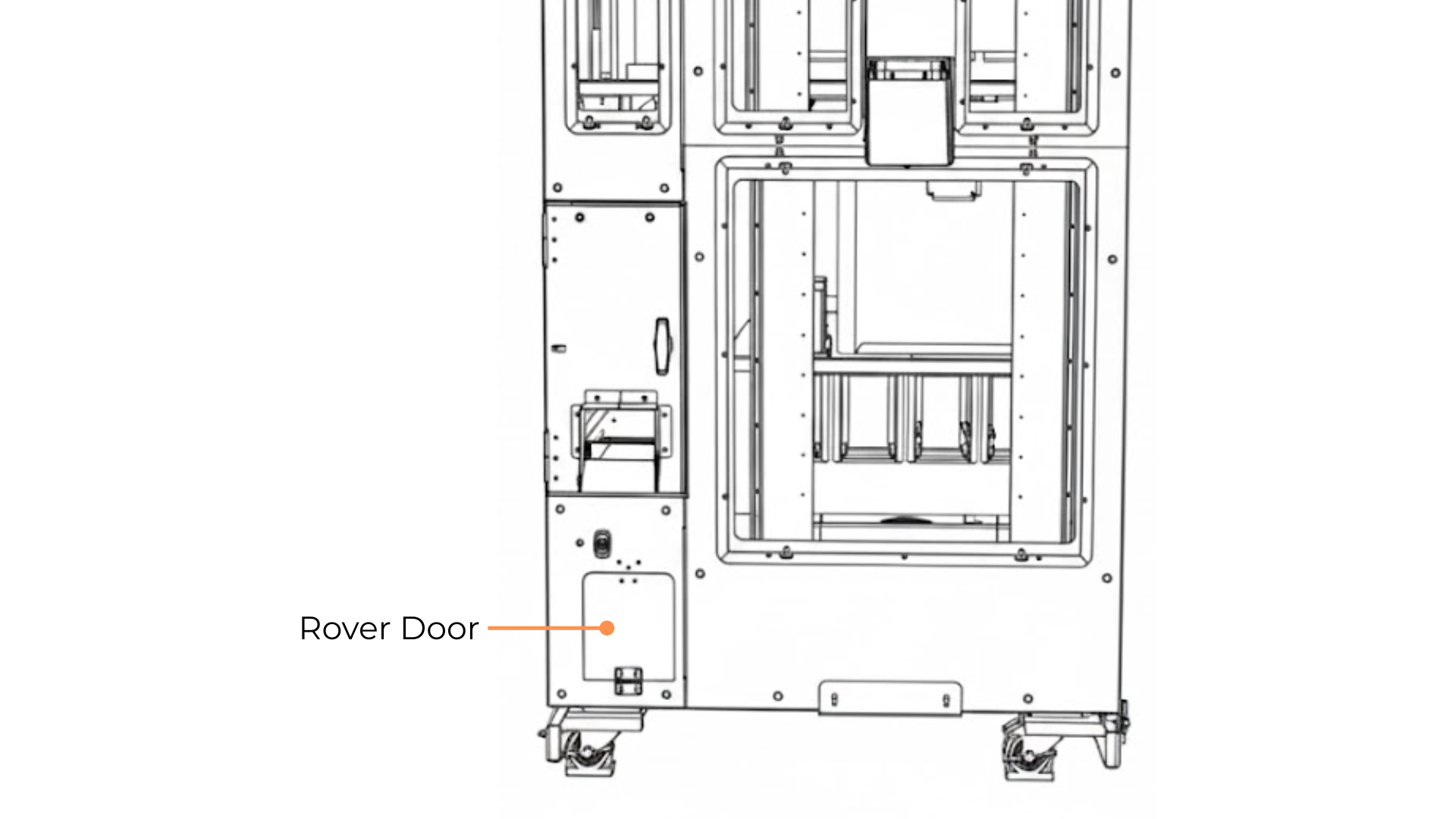
The Rover Door in Instrument Cabinet 2
Press the rover door (located in the bottom left corner of Instrument Cabinet 2) to open it.
Gently pull the door outward to fully open it.
Remove the Rover from Instrument Cabinet 2.
Close and press the rover door to lock it.
Section 3: Unregistering Rover via Rover Dashboard
Open the Rover Dashboard software.
Select Rover on the sidebar. A Rover page with two columns should appear.
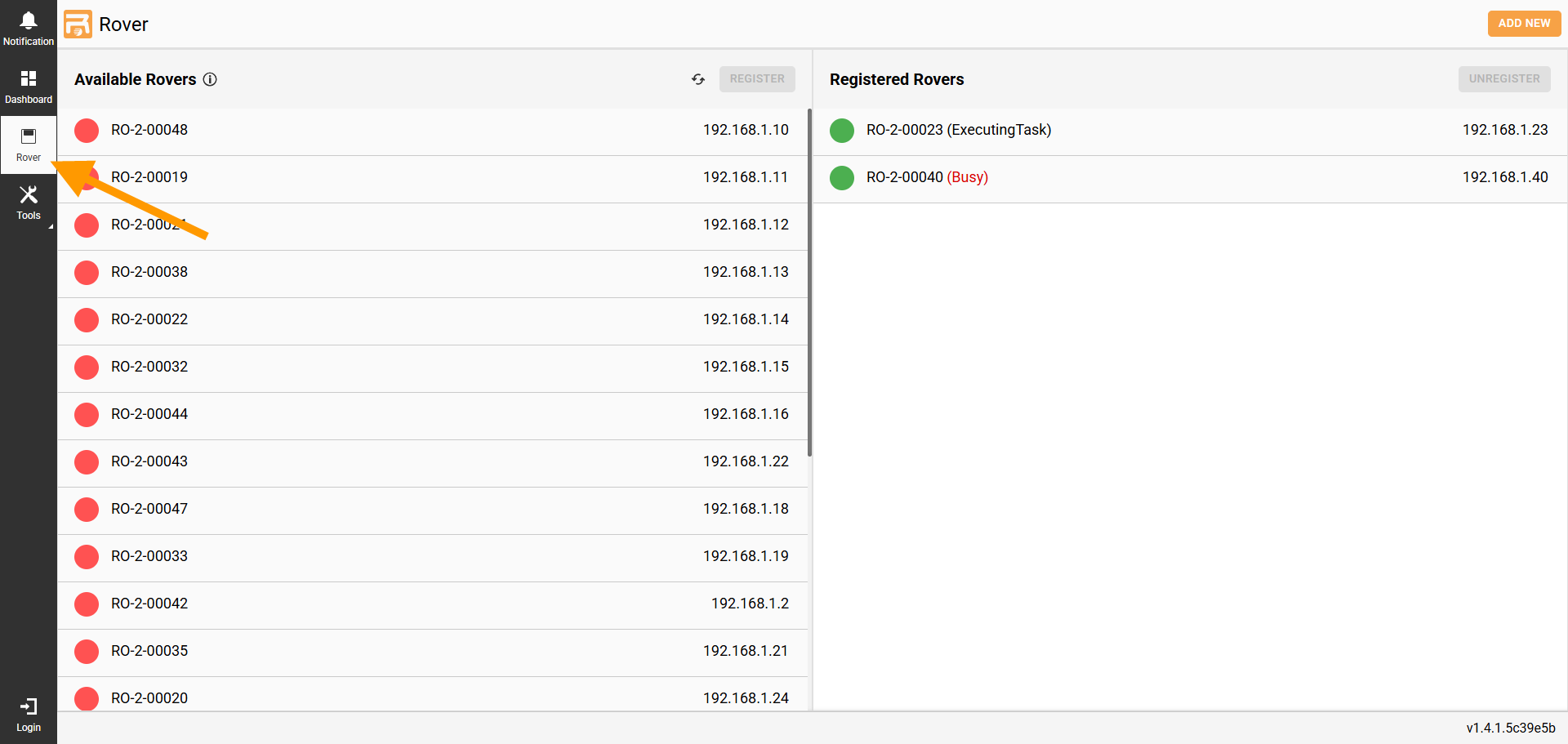
The Rover Page Shows Lists of the Registered and Running Rovers
Available Rovers: This column lists all Rovers that have previously joined the network.
Registered Rovers: This column shows the Rovers that are currently operating in the system.
Note
A Red Circle
indicates the Rovers are offline, while a Green Circle
means they are online.
In the Registered Rover column, select the Rover to unregister. The Unregister button should turn red.
Select the Unregister button. A message box appears, confirming that you have removed the Rover from the system.
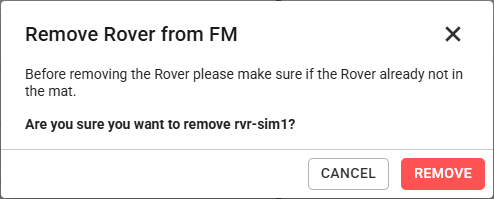
The Confirmation Message Before Unregistering Rover from FM
Click Remove to proceed. The unregistered Rover should move to the Available Rovers column on the left.
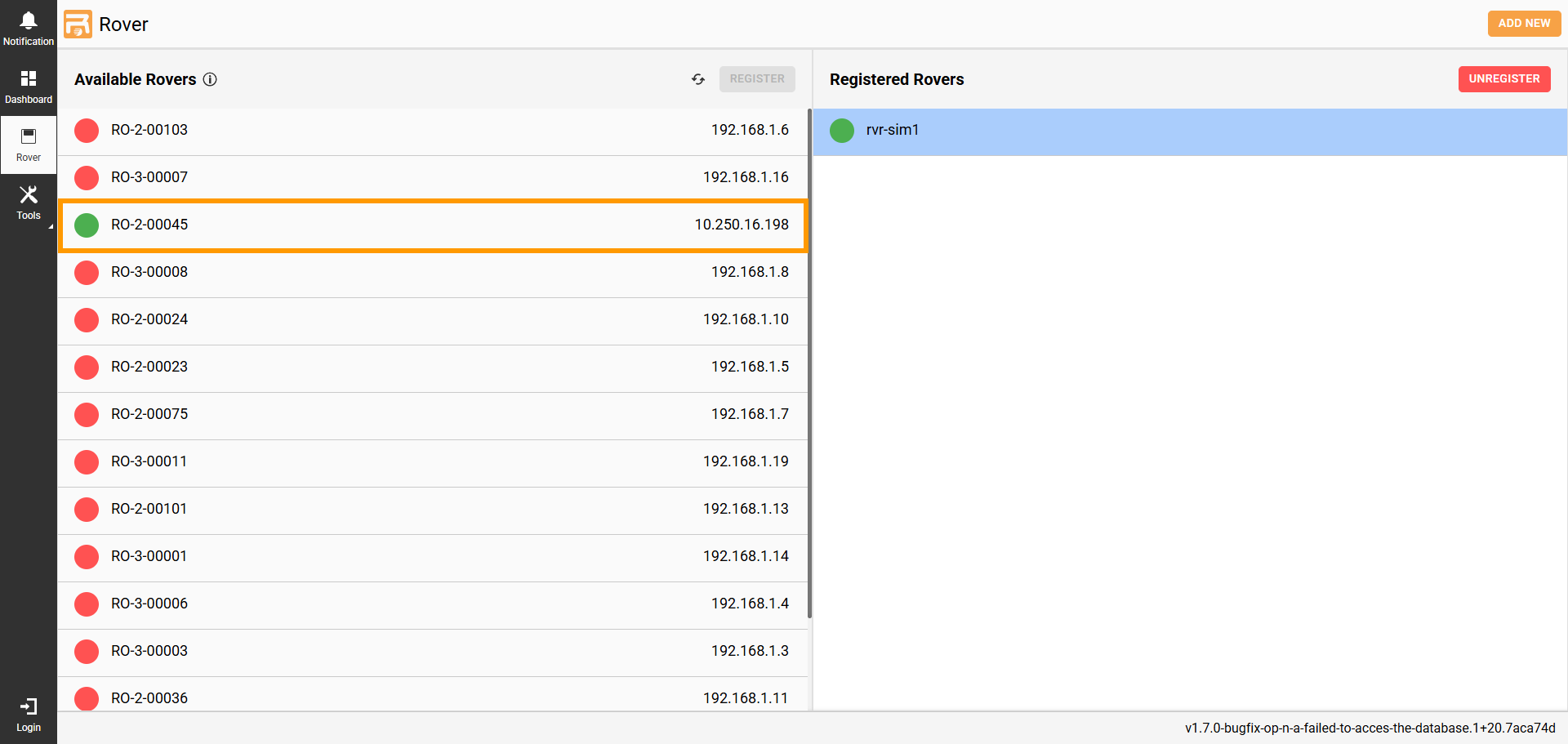
The Rover Has Been Unregistered
Flip over the Rover and press the blue button underneath to turn it OFF. Once it’s off, the Rover is ready for maintenance.
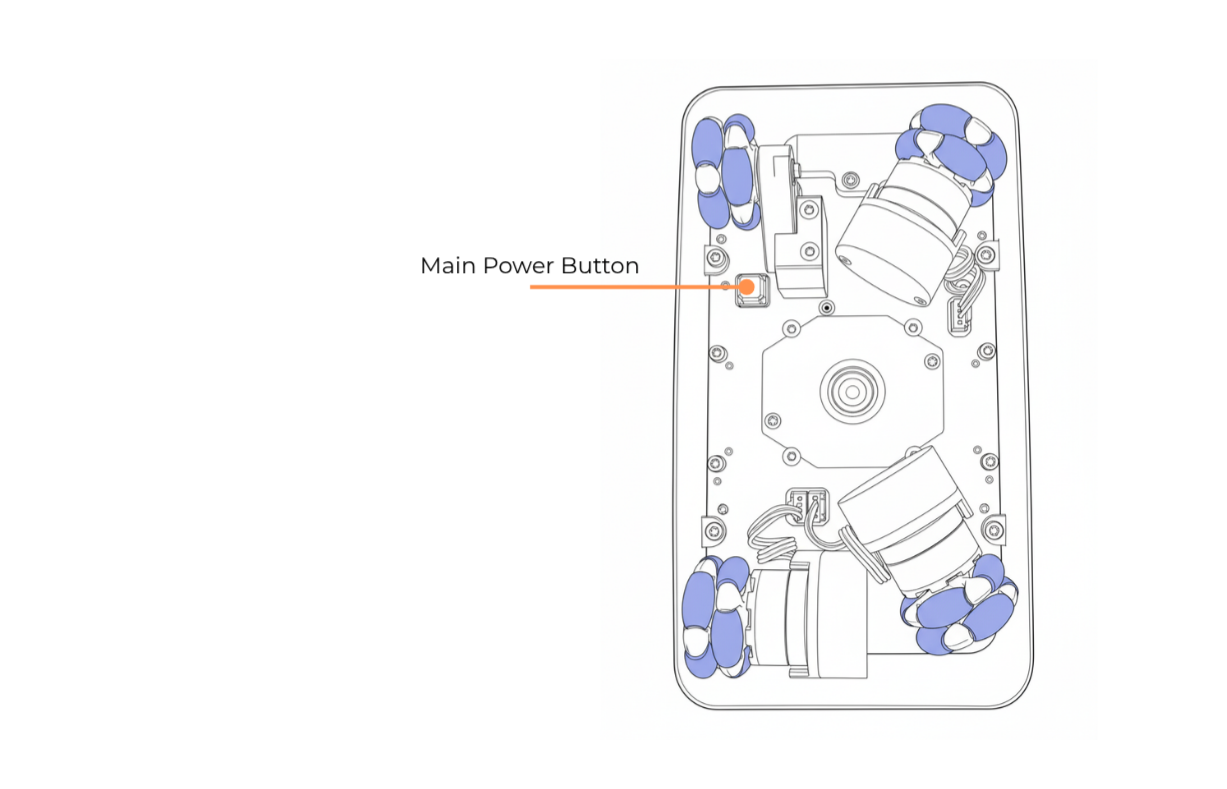
The Rover’s Power Button
Note
Contact cell.support@formulatrix.com for help with replacing Rovers or their parts.
Related Topics