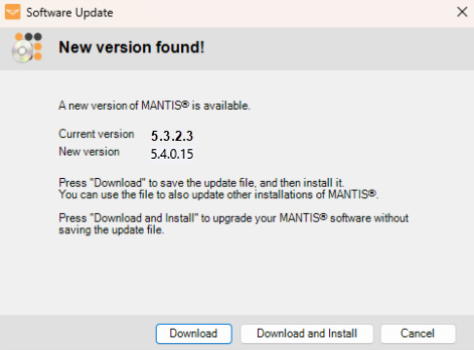
When the software detects a newer version release, the Software Update notification will automatically appear to remind you to update your software version.
This notification occurs when your license is active and your Mantis connects to the internet and FORMULATRIX server.
Software Update Notification
You can also manually check any updates by going to the Check for Updates option under the Help menu.
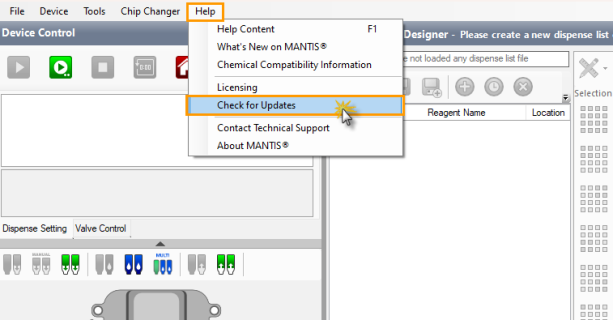
Check for Updates Option
Follow the tutorial below to update the Mantis software.
Select the following options in the Software Update window to download the new Mantis software installer file:
Click Download to save the installer file in the preferred location of your local drive. Click Save.
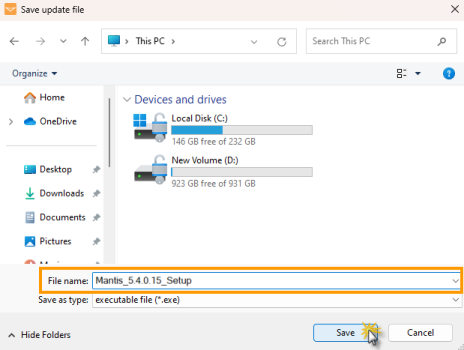
Save the Installer File in the Local Directory
Select Download and Install to download the new software installer file without saving it.
The download process may take a few minutes.
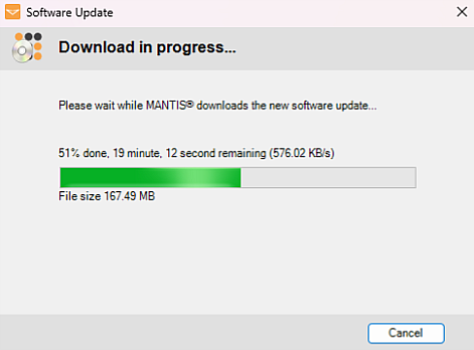
Installer File Download in Progress
When it’s finished, click Install Now to proceed. At this stage, the Mantis software will automatically close.
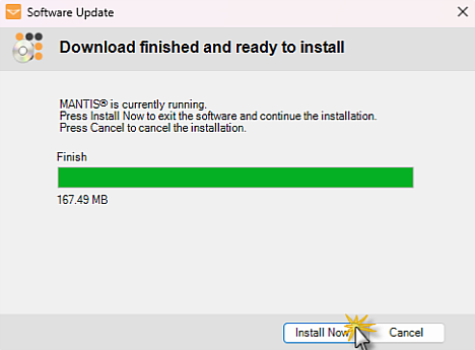
Click Install Now
Click Yes on the launcher to start the installation.
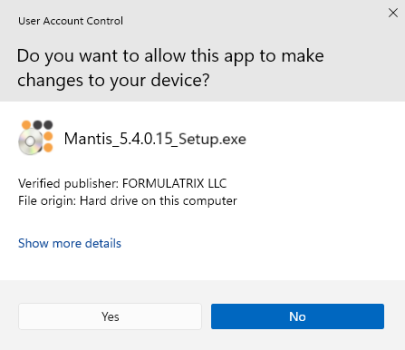
The Mantis Software Launcher
Note: If the Mantis software is currently open, close the software and click Retry in the Mantis Setup confirmation window to proceed with the update.
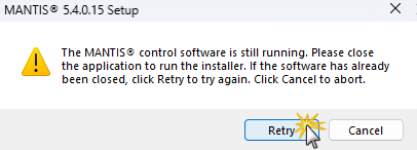
Click Retry to Proceed to the Installation
In the Mantis Setup wizard, click Next.
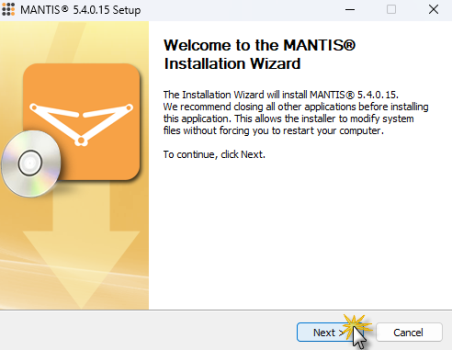
The Mantis Setup Wizard
In the Select Installation Type section, select Upgrade Mantis Software [Default], and then click Next.
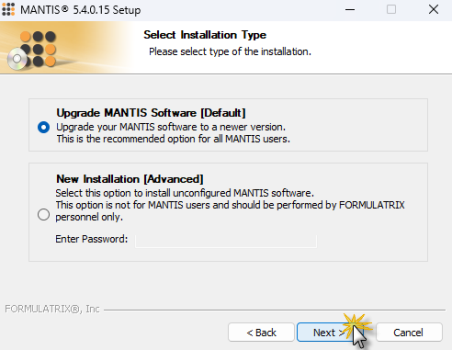
Select the Installation Type
In the Upgrade Destination section:
Specify the software directory by choosing from the following options.
Select the location of the Mantis software installation that you wish to update.
Note: Mantis will list all available installations detected on your PC/computer.
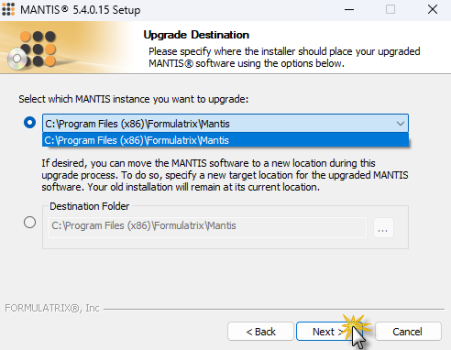
Selecting the Mantis Software Installation Directory
OPTIONAL: Select a Destination Folder to move the software to a new location. For example, to copy an existing software installation from the USB to a location in your local drive. To specify the directory, click the Browse_33x25.png "Browse Button") button , and choose from the Browse For Folder window. Click OK to confirm the selected location.
button , and choose from the Browse For Folder window. Click OK to confirm the selected location.
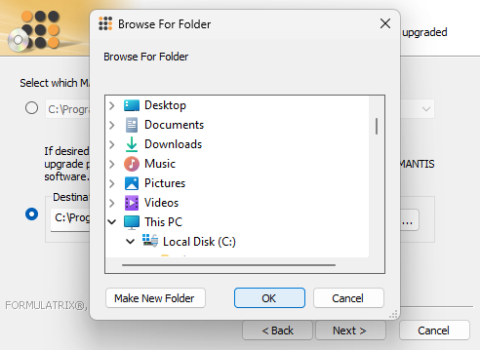
Select the New Installation Location
Click Next to proceed.
At this stage, Mantis will check the available storage space in the selected directory. This may take a few seconds.
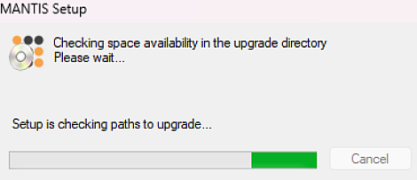
Checking the Directory Storage Availability
Mantis will inform you of the available and required space. Click Next to proceed.
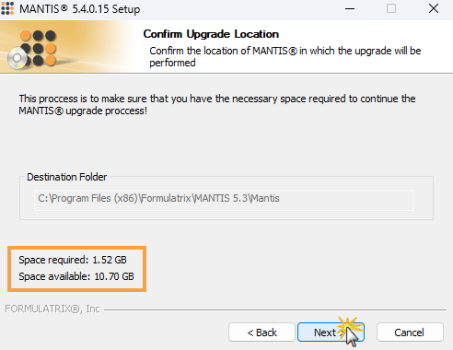
Available Storage Information
Note: If the selected directory storage is insufficient, go back to the previous section and select another location by following step 6.
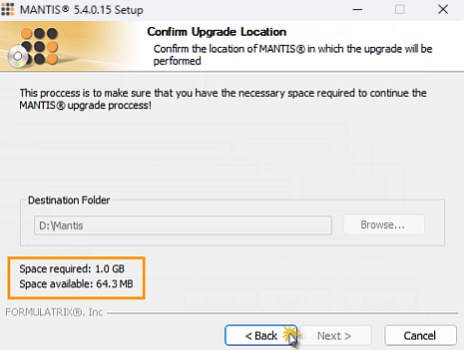
Insufficient Storage Information
When the confirmation pop-up appears, click Yes to continue.
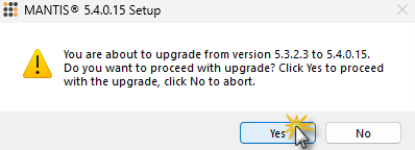
Confirm Software Update Notification
OPTIONAL: If your license is inactive, you will be prompted to manually activate the license. Click Browse to locate and validate the license file. Click Next if the license is successfully activated.
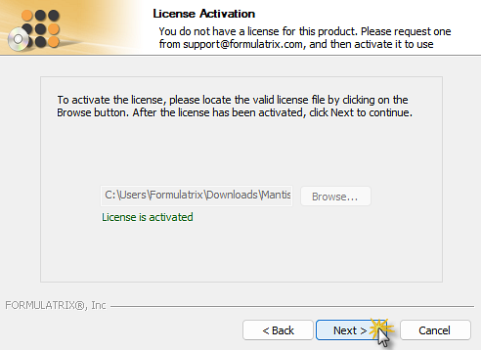
The License is Successfully Activated
If the selected license file is expired, browse another active license file or contact licensing@formulatrix.com for license requests.
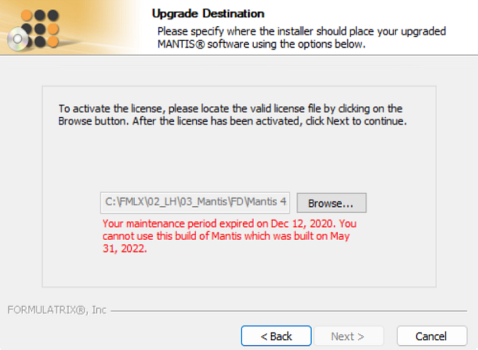
The License is Expired and Failed to be Activated
A summary of the installation information will be displayed in the Confirmation Installation section. Click Install.
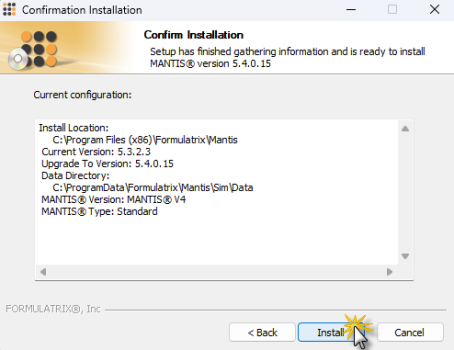
Confirm the Installation
Please wait while the software is updated. Then, click Next when the update is completed.
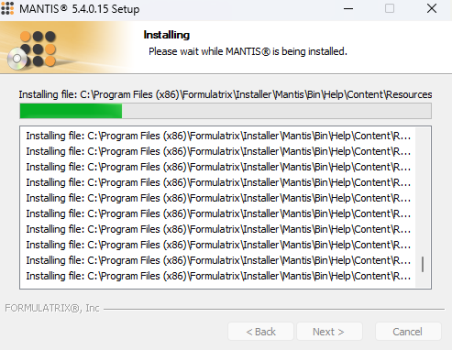
Mantis Software Installation Progress
Congratulations! The Mantis software update is completed. Click Finish to close the wizard.
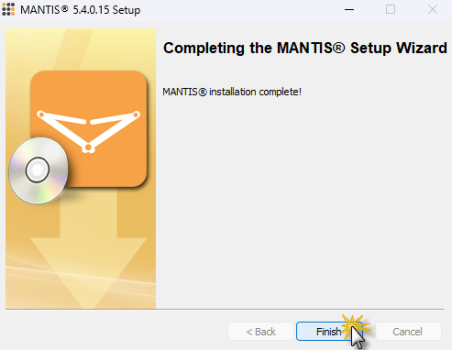
Mantis Software Installation is Finished

|
|
| MAOWH-V54R126 |