 .
.It's important to prime the chips before every dispense to ensure the reagent flows through the chip to the dispense point and prevents air from being dispensed.
.
Right-click on a reagent in the Input Control Panel and select Attach Input to Hand.
OR
Click the reagent number.
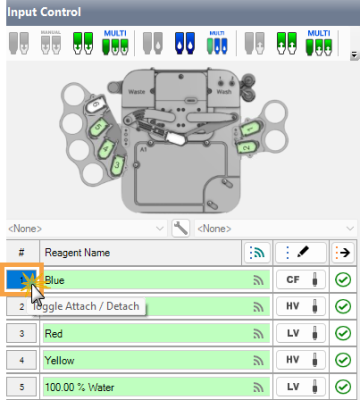
Click the Reagent Number to Attach the Chip
Click the Manual Prime button  on the Input Toolbar to display the Manual Prime window.
Click the Start Prime button to prime the chip until you see a drop of reagent coming out of the bottom of the chip. The priming volume displayed in the window will be automatically updated as you click the Start Prime button.
Click Stop Prime if the priming volume is reached.
When you’re finished, click Done.
Note: Select the Apply as Prime Volume to this Input option to save the achieved priming volume for the current input. If you deselect this option, Mantis will use the default priming volume as defined in the Prime Volume for future dispenses.
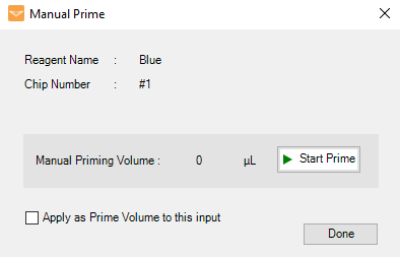
Manual Prime Window
OR
Click the Auto Prime button  if you want to prime the chip with the fixed prime amount (as defined in the input options menu).
Click the Prime Selected Inputs button  to open the Prime Inputs Selection window.
Select the reagents you want to prime, or check the Select All box to select all reagents assigned in the Input Control panel. You can also search for a reagent by typing the name in the Search field.
OPTIONAL: Click Select From Dispense List to only select the assigned reagents listed in the dispense list.
Click Prime.
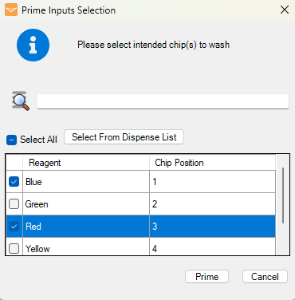
Prime Inputs Selection Window

|
|
| MAOWH-V54R126 |