If your question doesn't appear below, please email support@formulatrix.com and we will respond within 24 hours, Monday through Friday.
If you are attempting to open or close the dispense design using a spreadsheet program, such as Microsoft Excel, it can take a few moments for the software to translate your actions. Please wait for a while.
Make sure that you are not in Summary View or Volume Error View. Activating them will disable the rest of the software's functionality. Switch to Designer View by clicking the button above the Selection group in the plate designer.
Physical Setup
Make sure the power cord and the USB cable are properly connected with no loose cables.
Find the power button on the back of the Mantis, and turn it “ON”.
Confirm the blue light is visible and that the Mantis arm is locked when moving it with your fingers.
If the problem persists, test the different USB ports with different USB cables and repeat steps 1-4.
PC/Laptop Setup
Ensure the proper drivers are installed from the Mantis software downloads page.
Confirm that the PC account has full admin rights.
If your Mantis needs an internet connection, check if the PC connected to Mantis has any firewall or network restrictions. You can confirm this with your IT department.
Open the Mantis software directly from its drive directory without using any shortcut: Mantis\Bin.
Run the software as an administrator. To do this, right-click the software application and select Run as administrator.
Copy and paste the software folder from the USB drive to the local drive/desktop and run it to check if the USB drive has failed.
Check that the Windows permissions are not denied. To do this, right-click the Mantis software and go to the Properties. Under the Security tab, ensure all permissions are allowed except the Special Permissions.
Make sure that USB Serial Converter A and USB Serial Converter B appear in Device Manager → Universal Serial Bus Controllers when the hardware is ON.
Next, run the software. The indicator box in the Status Bar should be green after the instrument is detected.
If the problem persists, please check your instrument version and contact FORMULATRIX support for further assistance.
Contact the FMLX support team by following the steps below.
Important: Ensure your computer has an Internet connection.
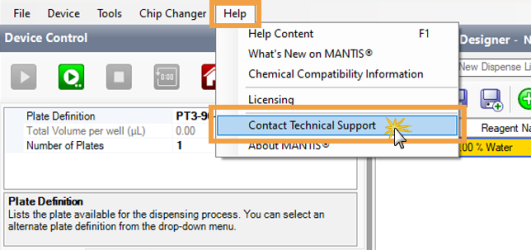
Click the Contact Technical Support option under the Help menu.
The Contact Technical Support Option under the Help Menu
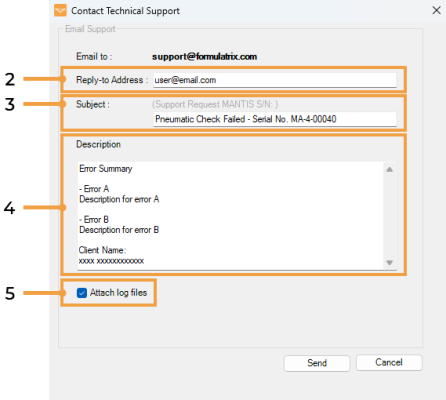
Type a valid email address in the Reply-to Address field. The support team will use this email address to respond to your request.
Then, type a brief description of the issue and insert your Mantis system serial number in the Subject field (e.g. Pneumatics Check Failed- Serial No. MA-4-00040).
Type a more detailed description of the issue in the Description box.
OPTIONAL (recommended): You can select the Attach log files option under the Description box if you want to include the latest Mantis log file. The main purpose of including the log file is to provide the support team with more information on all recent events that have occurred in the Mantis software.
Finally, click the Send button. If your request has been successfully sent, you’ll see it in the Inbox folder of your email. At this point, Mantis technical support will investigate the reported issue and contact you promptly.
Note: If Mantis failed to send your report, please check your Internet connection and try again.
Contact Technical Support Window
Note: If you haven’t included the log file, you can still resend it later. To do so, select the Open Log Folder option under the Tools menu to locate all available log files. Then, open the corresponding support email thread, and send the desired log file(s) as attachment(s) to the Mantis technical support team.
Yes, you can still operate the Mantis instrument if your license is expired. However, you cannot update the software to access new features that were released after the expiration of your license. Contact support@formulatrix.com for assistance.
FORMULATRIX recommends keeping your software up to date with the most recent stable release. Contact support@formulatrix.com for assistance.
To view and edit the experiment data of the current dispense list, click the Excel Editor button
in the Dispense List Designer. For more information, see Using Excel to Edit a Dispense Design.

Use a pipette with distilled water to flush the Wash Station with pressure. If it does not unclog, use a syringe to apply suction to clean the Wash Station.
This issue can be fixed by calibrating the chip port positions.
The cause of this issue is the wash station’s position misalignment and clogging.
For misalignment of the wash station position, fix this problem by tuning the wash station position from the Wash And Waste Station Tuning wizard. See the Tuning Wash and Waste Station for more information.
Note: This is only applicable to the Mantis hardware V4.
For wash station clogging issue:
Fill a pipette tip with 1000 µL and put it into the clogged wash station output.
Use a pipettor or syringe to manually pull the water out of the wash station outputs. Ensure the water flows out of the wash station, indicating a possible air gap was causing the issue.
Note: If the issue persists, pushing the water with the tip might help to remove the blockage by flowing the water back into the wash station sources/tubes.
OPTIONAL: You can try using 0.1 N NaOH and letting it sit in the wash tubings for some time. After some incubation time, try to push or pull the cleaning solution to remove the cloggings.
If the issue persists after the 3 steps above, contact support@formulatrix.com for further assistance.
Yes, Mantis is gentle and maintains cell viability. A third-party shaker can be used to maintain the homogeneity of suspension in the reservoir.
Splashing occurs when liquid drops fall directly into the center of the well. This can be reduced by adjusting the A1 well offset and dispensing close to the well. For detailed instructions, refer to Troubleshooting.
Yes, Mantis can dispense liquids with viscosities up to approximately 25 cP.
To dispense reagents with up to 700 cP, a high-viscosity CF chip is available.
For more information about liquid classes in Mantis, see Managing Liquid Classes.
The Mantis requires calibration only for Continuous Flow chips. Go to Calibrating Continuous Flow Chips to calibrate the CF chips. Apart from CF chips, annual PM (Preventive Maintenance) from FORMULATRIX will cover all testing and calibration that is required. Contact FORMULATRIX support for assistance.
Silicone chips are compatible with most liquids. However, using PFE chips for harsh liquids is advised. For details, refer to the Chemical Compatibility guide.
The reservoir for CF needs to be fully air-tight. We suggest using the brand Corning or BD Falcon tube that is compatible with CF harness caps.
You can wash and reuse the chips multiple times. Chip replacement depends on the usage rate. However, you should expect to use a single chip for many months with proper chip care.
Mantis comes with pre-installed plate type options, including 24, 96, 384, and 1536. To add custom plate types, open the Plate Type Editor wizard from the Tools menu, and follow the on-screen instructions. More information is available in the Plate Type Editor.
Chips should be washed after each dispense run.
Go to Washing the Mantis Chips (to clean the regular chips), or Cleaning the Continuous Flow (CF) Chips (to clean the CF chips). See Maintenance to guide you in maintaining the chips’ lifetime.
Yes. The available Molecular Grade Chips are RNase and DNase-free, and they can be used to dispense DNA and RNA. Normal chips can also be used for dispensing DNA and RNA, but they need to be decontaminated with 0.1 N NaOH → water → 70% Ethanol → water. For more information, see Molecular Grade (MG) Chip Cleaning Procedure.
10% solution of commercial bleach followed by distilled water can be used to decontaminate the surface of Mantis. Ethanol (70%) followed by distilled water can also be used to clean the surface. Make sure to wipe the surface with distilled water to avoid surface corrosion of the Mantis instrument.
The core technology of Mantis comprises diaphragms and valves. Internal pressure and vacuum pumps actuate diaphragms to measure metered volumes of liquid, while valves regulate the dispense cycle.
CF dispensing pressurizes a source bottle and opens an output valve to allow pressure to force liquid through the chip at a constant rate. CF can dispense much larger volumes in a much shorter period than diaphragm chips, with flow rates reaching around 600 μL/sec.
Pre-dispense: Fills nozzle and dispenses a small amount of fluid to prepare the chip for a plate dispense. It creates a small hanging drop on the nozzle to ensure accurate volumes in the first well.
Dispense: Push liquid out from the chip output into each plate's well according to the predefined liquid volume.
Recovery: Pulls liquid from the chip and input tubing back into the source reservoir, so it can be reused later.
For more information, go to Input Control Panel.
Yes, Mantis supports on-deck accessories with SBS footprint. It should be noted that the maximum height of the accessory and plate should not exceed 53 mm.
No, Mantis doesn’t sense liquid level in any way. However, the bookend QC confirms that Mantis did not run out of reagent during the dispense.
|
|
| MAOWH-V54R126 |