Configuring Mantis with Rock Maker V2–V3
Prerequisites
- You are running Mantis 5.1 or newer.
- You are running Rock Maker 2.0 or newer.
Step 1: Set up Rock Maker – Mantis Integration
-
Open the Mantis.exe.config file located in the Mantis installation directory Mantis\Bin with a text editor.
-
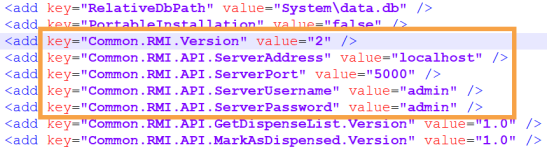
In the file, set and verify the values of the following key string.
-
Set the “Common.RMI.Version” value to 1.
-
Specify the user setting location in the “UserSettings.Location” value to create the extension folder.
-
Verify that the “Common.SharedFiles.Location” value matches the Shared folder location of Rock Maker.

Set the Config Keys in the Mantis.exe.configR
-
-
When you’re done, save the changes.
Step 2: Test Mantis – Rock Maker Integration
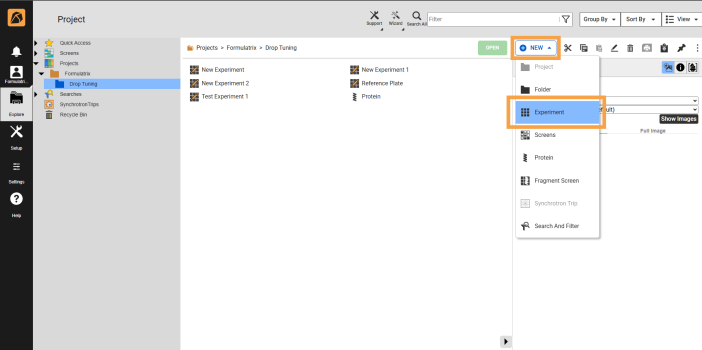
- Open the Rock Maker software and create a new experiment:
From the tree, right-click a project or a folder within a project and select New Experiment.
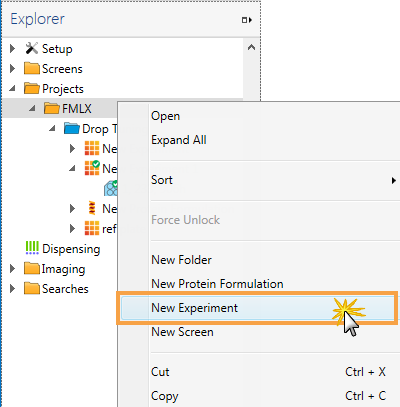
New Experiment in Rock Maker
Rename the experiment by typing over the default name on the tree. Use a name as descriptive as possible.
Fill in the fields on the Experiment tab, such as Plate type.
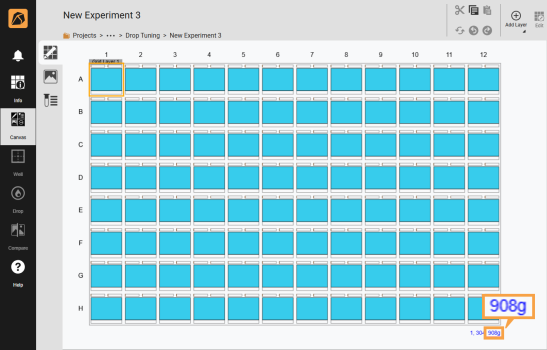
Go to the Canvas tab and make a new grid layer consisting of ingredients, and then select the protein layer to insert proteins.
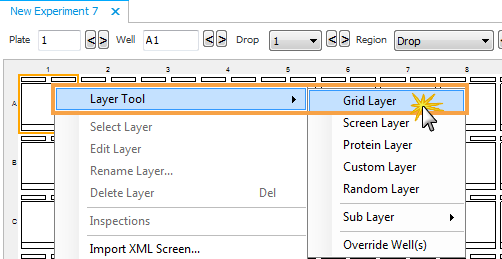
Rock Maker Canvas Tab
- Save your changes by selecting Save from the File menu, or by pressing Ctrl+S. The experiment barcode displays in the Explorer.
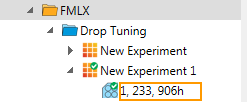
Rock Maker Explorer
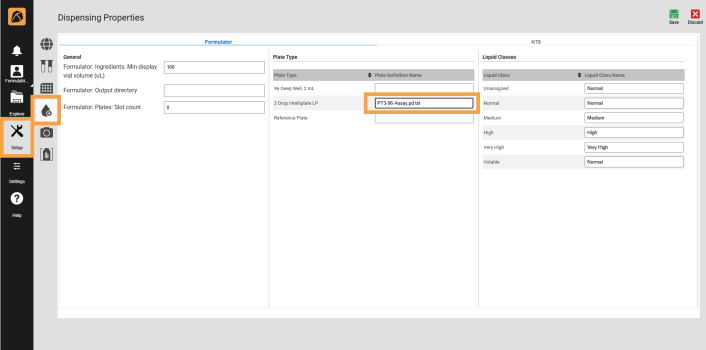
- Point to Dispensing folder, right-click Run Queue, and click Dispense Properties.
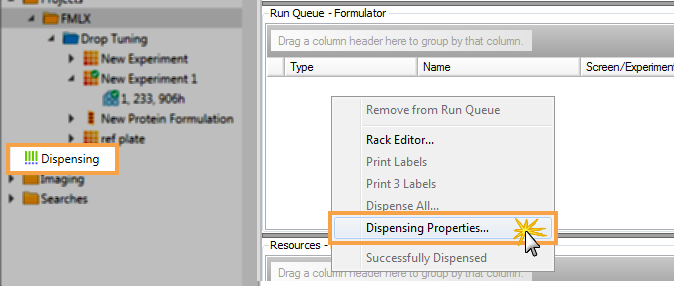
Dispensing Folder in Rock Maker
Select the Plates tab and change the plate specific properties based on the plate type used in your experiment.
Next, go to the Formulator: Plate definition file name column. We need to get the exact name of the plate definition file name from the Mantis directory, so open the Mantis directory and go to Mantis\Data\User\Plates.
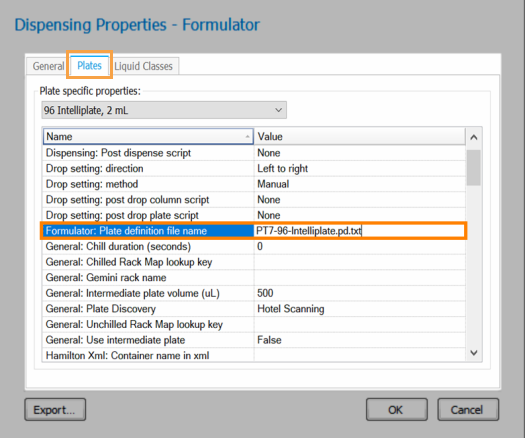
Dispensing Properties
- Click OK to confirm.
-
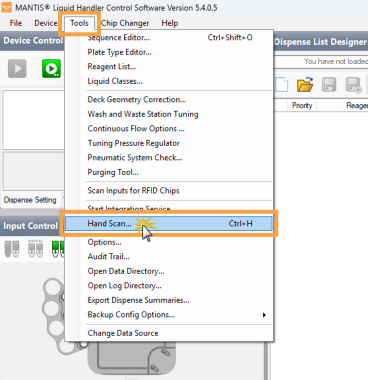
In the Mantis software, go to the Tools menu, click Hand Scan (Ctrl+H).
-
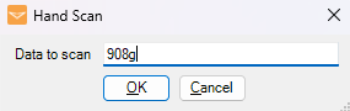
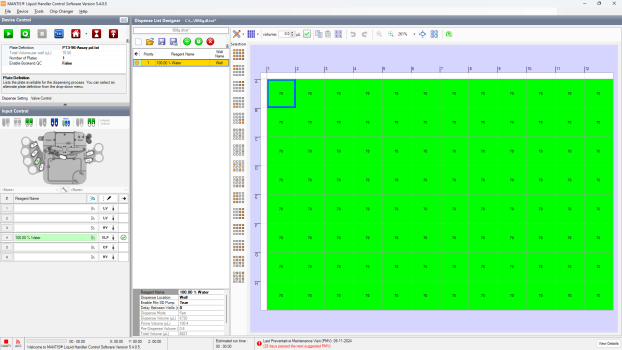
Type the last four digits of the experiment barcode number in the Data to scan box. If Mantis successfully reads and validates the barcode, your dispense list, design, and settings will display.
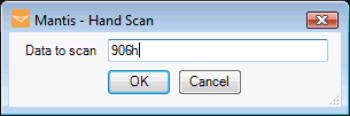
Hand Scan