Open the Input Option window by clicking the Input button of the assigned reagent.
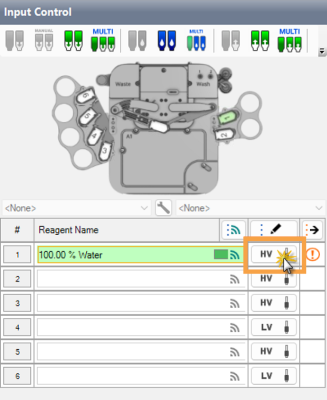
Assign a Reagent and Click the Input Button
-
Select the Check to enable option to activate the Auto Prime settings.
-
Define the Consecutive Drops Requirements for Auto Prime value to 5, or based on your preference. More drops will reduce the risk of air bubbles in the input tubing. Fewer drops reduce the reagent to waste.
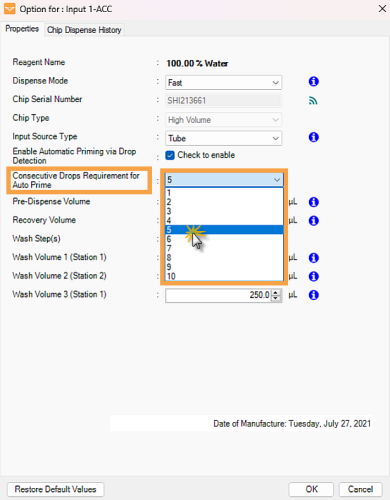
Define the Consecutive Drops Requirements for Auto Prime
-
Click OK to save the changes.
Note: You can also configure the Auto Prime settings from the Reagent List. The settings in the Input Option and Reagent List windows are synchronized. For more information, see Reagent List.
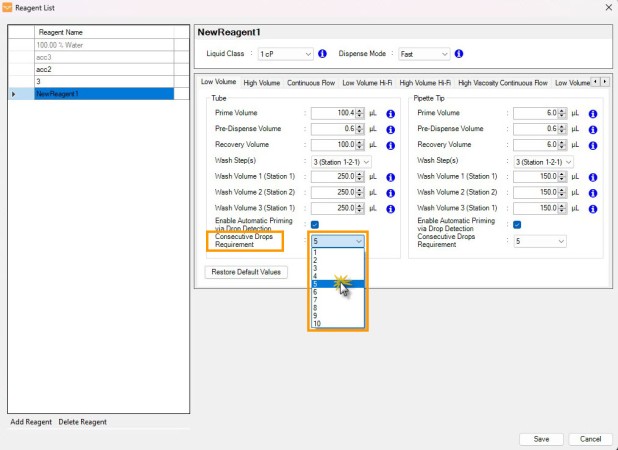
Auto Prime Settings in the Reagent List Window
Attach the chip to the Mantis hand.
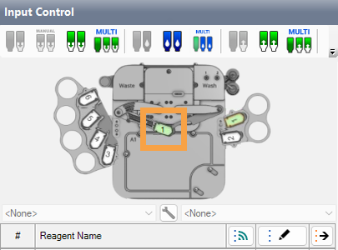
Chip on the Mantis Hand
Click the Prime Check button to detect liquid drops based on the priming settings in step 2.
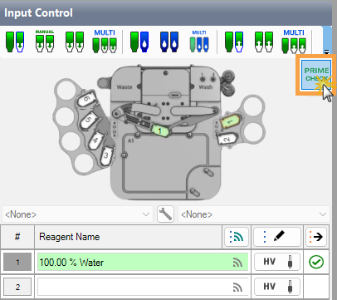
Click the Prime Check Button
Start priming and check the liquid drop on the Waste Station. The indicators turn green as the QC Station detects liquid drops.
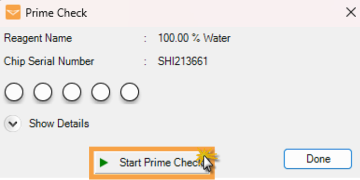
Click the Start Prime Button to Run the Prime Check
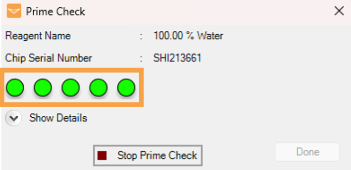
Prime Check Progress Indicator
Click Show Details to display the liquid drop and diaphragm pulse count.
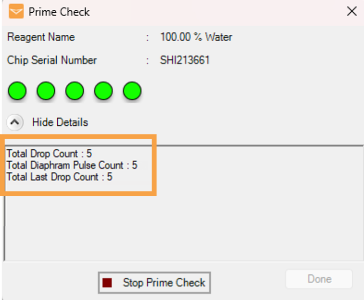
Drops and Diaphragm Pulse Count Information
-
Total Drop Count — The total number of drops detected during the prime check, including both successful and failed attempts. If the process restarts after a failure, the new count is added to the previous total.
-
Total Diaphragm Pulse Count — The total number of small and large diaphragm pulses during the prime check, regardless of whether drops are produced or not.
-
Total Last Drop Count — The number of consecutive successful drops detected during the prime check. If the process fails or restarts, this count resets to 0. This information is available only when using QC Station V2.
