


The Device Control panel provides buttons to operate the MANTIS device. Verify that you have designed a dispense before assigning reagents to chips or executing a dispense.
The Device Control Panel is divided into four areas:
The buttons at the top of the device control panel execute various actions on the Mantis.
| Button | Description |
|---|---|
|
|
The RunDispense button starts the plate dispense. This button changes to a pause button when clicked. |
|
|
The Run Dispense with Protocol button starts the plate dispense using the saved protocols available |
|
|
The Skip Dispense button tells the Mantis to skip to the next reagent on the dispense list (not visible for ACC Mantis). |
|
|
The Stop button stops the dispense. |
|
|
The Pause Dispense button pauses the dispense. This button will appear when you are running a dispense. |
|
|
The Home button homes the Mantis motors, which can help if the Mantis is not dispensing as precisely as normal. |
|
|
The Move to Idle Position button moves the Mantis arms and hand to the rest position. |
|
|
The Move to Install Chip Position button extends the Mantis arms and hand so that you can more easily place the chip into place. |
|
|
The Move to Install Input Position button moves the Mantis arms and hand to a position that enables you to easily attach the pipette tip or input tube to the chip input. |
|
|
The Estimate Dispense Time button shows you the estimated dispense time in the Status Bar at the bottom of the window. This button is enabled after you have dragged all reagents into position on the Input Control Panel. |
The available options in this tab are:
Plate Definition: The plate name used in the current dispense list. You can change the plate by selecting from the available plates in the list. Note that you can only change between plates with the same number of wells.
Total Volume per Well (µL): This field shows the total volume in µL if each well has the same total volume. If not, it will display “Various”.
Number of Plates: Specify the desired number of plates to be dispensed. It is typically used for running a multi-plate dispense with a single dispense list.
Enabled Bookend QC: This option is available in Mantis V4 software version 5.1 (or newer) with the active QC Station license. Set this option to True to verify drops coming out of the chip's nozzle after pre-dispense. For more information, see Configuring QC Station Settings.
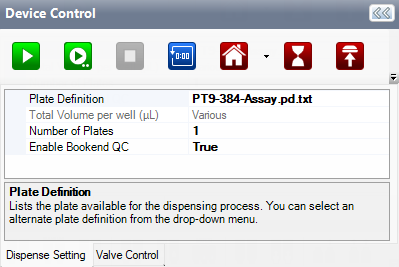
Dispense Setting Tab
The Valve Control tab provides a visual representation of the microfluidic chip. Inside the microfluidic chip is a valve cluster that controls liquid circulation. This valve cluster has two micro-diaphragms, 0.1 µL (small) and 0.5 µL (large) in a low-volume chip and 1 µL (small) and 5 µL (large) in a high-volume chip.
Both chips have two valves: input and output valves. The graphic display allows you to manually open (green) and close (red) the valves by clicking on the corresponding area.
.png "Valve Control Tab")
Valve Control Tab
The Plate Clamp locks and aligns your plate during dispensing, keeping it in place for accurate dispensing results. It will automatically be active (green) when you run the dispensing process and is inactive (red) after the dispensing process is completed. The plate clamp is pneumatic. Changing its state will activate the pump for a few seconds to actuate it
Note: If you use Mantis V4, you can set the Force Plate Clamp lock/unlock motion speed to 1 (slow), 2 (medium), or 3 (fast) to adjust with your plate type usage. For an optimal dispense with PCR plates, set the speed to 1 to avoid the plate from bending.
Plate Clamp Movement
The Air Pump turns the air pump on and off. It provides adequate pressure and vacuum for Mantis to run the dispensing, priming, and washing processes. Red indicates that the air pump is inactive, and green indicates that it is active. It will also automatically activate when you run dispense, prime, and wash.
When you run the dispensing process, it takes two seconds for the air pump to start. The air pump will need to stabilize the pressure and vacuum before Mantis runs the dispensing process. When Mantis has finished running the dispensing process, the air pump will become inactive after reaching its timeout limit.
The Pressure and Vacuum toggle turns the pressure in the bottle on and off. A Continuous Flow (CF) chip should be attached to the Mantis hand to pressurize the bottle. A green toggle indicates that the vacuum is active, and a red toggle indicates that the pressure is active. The Pressure and Vacuum toggle is available only when using a CF chip for dispensing.
 | |
| MAOWH-V54R126 |