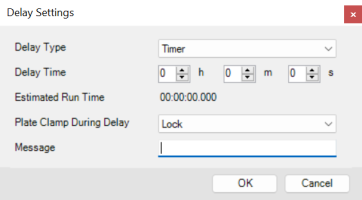
A dispense delay is used to pause at a certain point during dispense list execution. In Mantis, there are two types of dispense delay: Delay Between Reagents and Delay Between Wells. You can add a delay period to a dispense to pause the Mantis between reagents or wells.
This type of delay enables you to add a delay between reagents, allowing Mantis to pause the dispense for some time after a certain reagent has been dispensed.
The Delay Between Reagents Settings
See the table below for detailed explanations of each option in the Dispense Delay settings.
| Option | Default Setting | Description |
|---|---|---|
| Delay Type | Timer |
Selecting Timer for the delay type enables you to set a finite delay time, after which the dispense will automatically resume. Selecting UserInput pauses the dispense process and waits for you to take further action. You can either continue or cancel the dispensing process at that point. |
| Delay Time | 0 |
Determines the duration for your dispense delay in hours, minutes, and/or seconds. Note: This option is only available if you choose Timer for the Delay Type. |
| Estimated Run Time | 00 |
Displays the estimated time in hours, minutes, and/or seconds (and milliseconds) for the Mantis to run a dispense with dispense delays. Note: The software will automatically generate the Estimated Run Time. |
| Plate Clamp During Delay | Lock |
Determines whether or not the plate clamp is locked during a dispense delay. |
| Message |
Write custom messages in the Message box to display while the dispense delay is in progress. This feature can be used to add on-screen instructions associated with a delay, such as "Add a reagent to chip 1". |
Click a dispense list item to select it.
Click the Add Delay button .
.
Double-click the Delay row to configure the delay settings.

Adding a Delay Between Reagents
In the Delay Settings window, choose a Delay Type (UserInput or Timer) from the Delay Type list.
Note: If you select Timer from the Delay Type list, you must then type the desired delay time (hours, minutes, or seconds) in the Delay Time field.
Then, select whether you want to Lock or Unlock the plate clamp during the delay from the Plate Clamp During Delay list.
OPTIONAL: You can also leave a message in the Message box to be displayed while the dispense delay is in progress.
When you’re done, click OK.
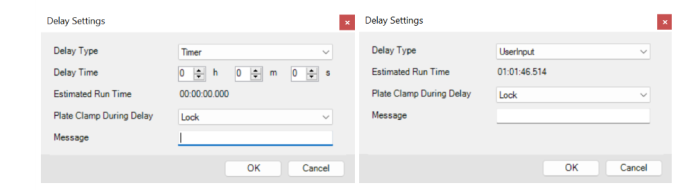
The Timer (Left) and UserInput (Right) Delay Types in the Delay Settings Window
Note: By default, the Mantis will automatically turn off the pump for any dispense delay lasting for longer than five minutes. To disable this feature, please set the Disable Pump for long delay value in the Advanced Options to False. If you want to modify the default time, contact FORMULATRIX support for help.
Tip: You can reorder the reagents and delays in your Dispense List by dragging them to the desired position.
This type of delay enables you to add a delay after each well is dispensed, so that Mantis dispenses a well, pauses for the specified amount of time, and then dispenses the next well. This way, you can allow the reaction between your reagents to develop for an exact amount of time before continuing a dispense. Simply set the delay time in the Delay Between Wells (s) box at the bottom of the Dispense List Designer to apply it to your experiment plate.
 Option_335x160.png "The Delay Between Wells (s) Option")
The Delay Between Wells (s) Option
Click a dispense list item to select it.
Type the desired number of seconds for the delay in the Delay Between Wells (s) option in the bottom part of the dispense list designer.
Click Enter on your keyboard to save the delay between wells (s) setting.
Repeat step 1-3 to add the delay between wells (s) for other selected dispense list items.
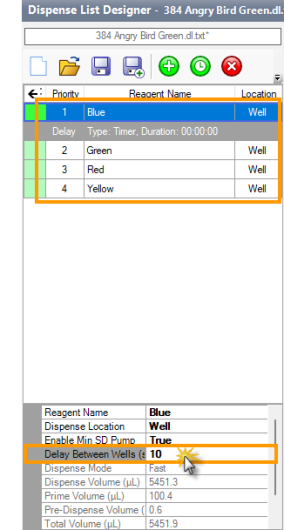
Adding a Delay Between Wells (s) on the Dispense List Designer

|
|
| MAOWH-V54R126 |