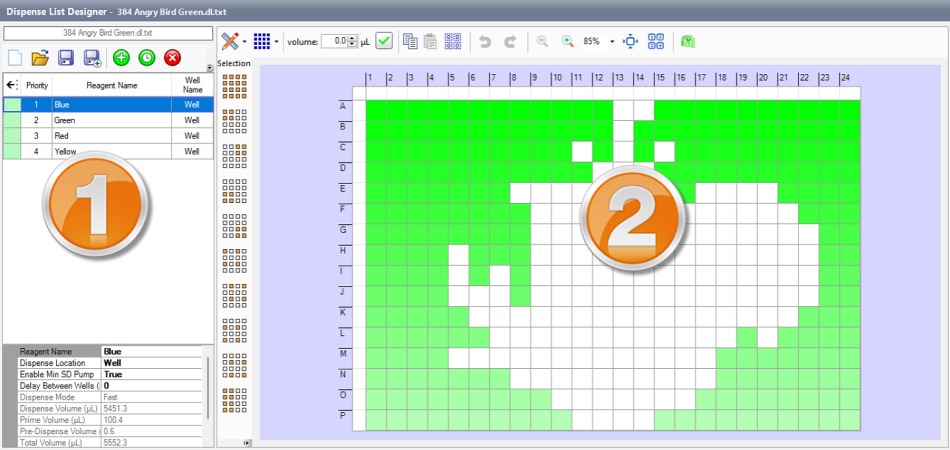
Dispense List Designer serves as the platform for creating or accessing dispense lists and plate design. It is divided into 2 sections: Dispense List Panel and Plate Designer Panel.
Note: Create or load a dispense list to access all button functions in the Dispense List Designer.
Dispense List Designer
Dispense List Panel allows you to define the reagents you want to use for a dispense. Within this panel, you can see the dispense list file name, utilize the toolbar buttons to manage dispense list items, and view reagent details. This panel provides the following sections:
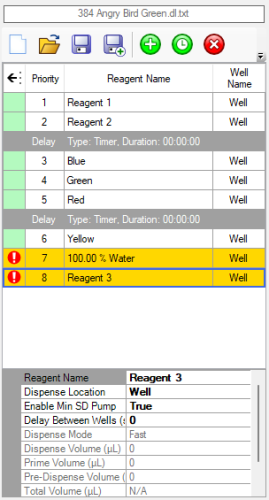
Dispense List Panel
Dispense List toolbar is equipped with a set of buttons to facilitate various actions, such as:
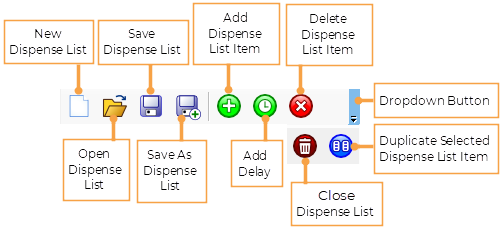
Dispense List Buttons
Dispense List contains a list of dispense list items, including reagent names and delay settings. Within this section, you can perform the following actions:
 .
.For more information, see Dispense List.
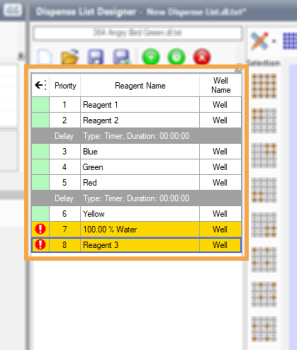
Dispense List Items
Located under the Dispense List section, the Reagent Information Box displays the information that changes based on which reagent is highlighted in the Dispense List. See the available details in the image below. Items in bold text indicate that the value is editable.
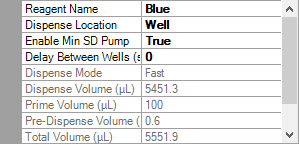
Reagent Information Box
The Plate Designer Panel is where you design a dispense layout using the reagents in your Dispense List. See the following sections:
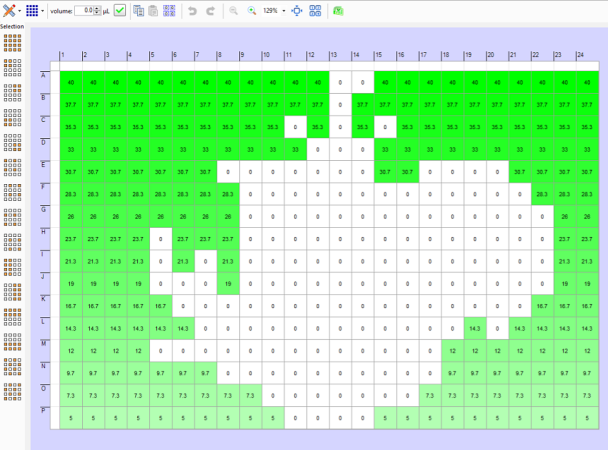
Plate Designer Panel
The Plate Designer toolbar provides quick access to:
Switch between Designer View, Summary View, and Volume Error View. The default view is Designer.
Define the volume in each well.
Adjust the volume fill type.
Note: The default setting is Constant Volume, but you select from the available options. For more information about the types of fills, see Volume Fill Types.
Copy, paste, and clear wells.
Use the undo and redo function.
Adjust the well's display using the zoom in/out buttons. You can also set the zoom level from the Display Percentage field.
Change the virtual plate fit.
Edit a dispense design via spreadsheet editor.
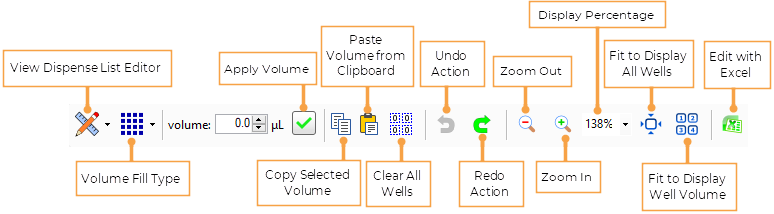
Plate Designer Toolbar Buttons
Note: Some button options will be disabled for the Freehand custom plate, including Volume Error View and Volume Fill Type (except Constant volume).
The Plate Designer section is a graphical representation of your plate design. Here, you can set the well selections and assign volumes. Features include:
This section also provides Selection pattern options for quick multiple-well mapping, especially for a large number of wells. For more information, see Well Selection Patterns.
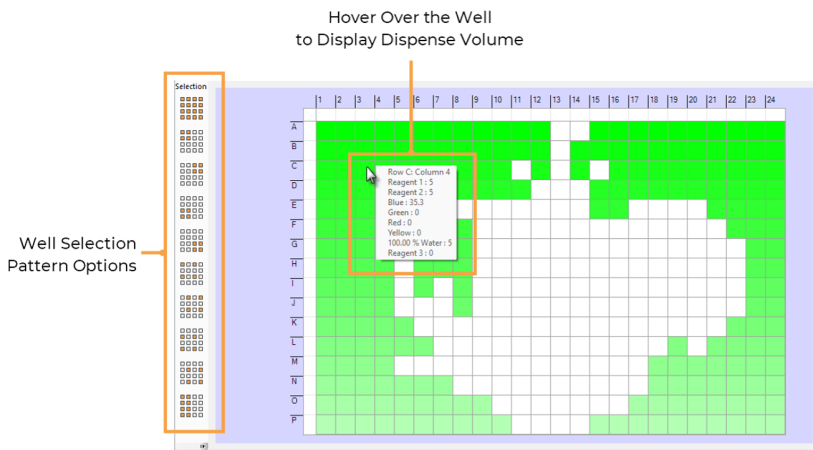
Well Selection Pattern Options in Plate Designer
Note: The Well Selection Pattern options will be limited for the dispense list designed with a Freehand custom plate. For more information on custom plate types, see Plate Type Editor.
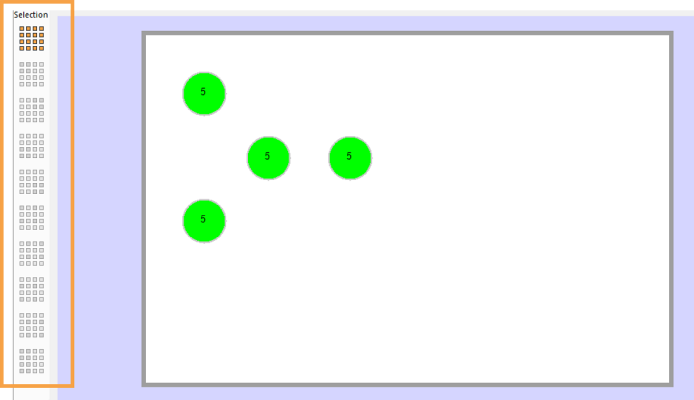
Limited Selected Pattern Option for Freehand Custom Plate

|
|
| MAOWH-V54R126 |