Plate Menu
The Plate Menu is where you interact with the plates inside your imager. It comprises two tabs: Load Port and Search.
Load Port Tab
The Load Port tab is available under the Plate menu and displays plate data. Designed to visualize the hardware, this tab depicts the 7 Load Port slots, six of which are for the one-slot-height plates, and the last one is for the two-slot-height plate.
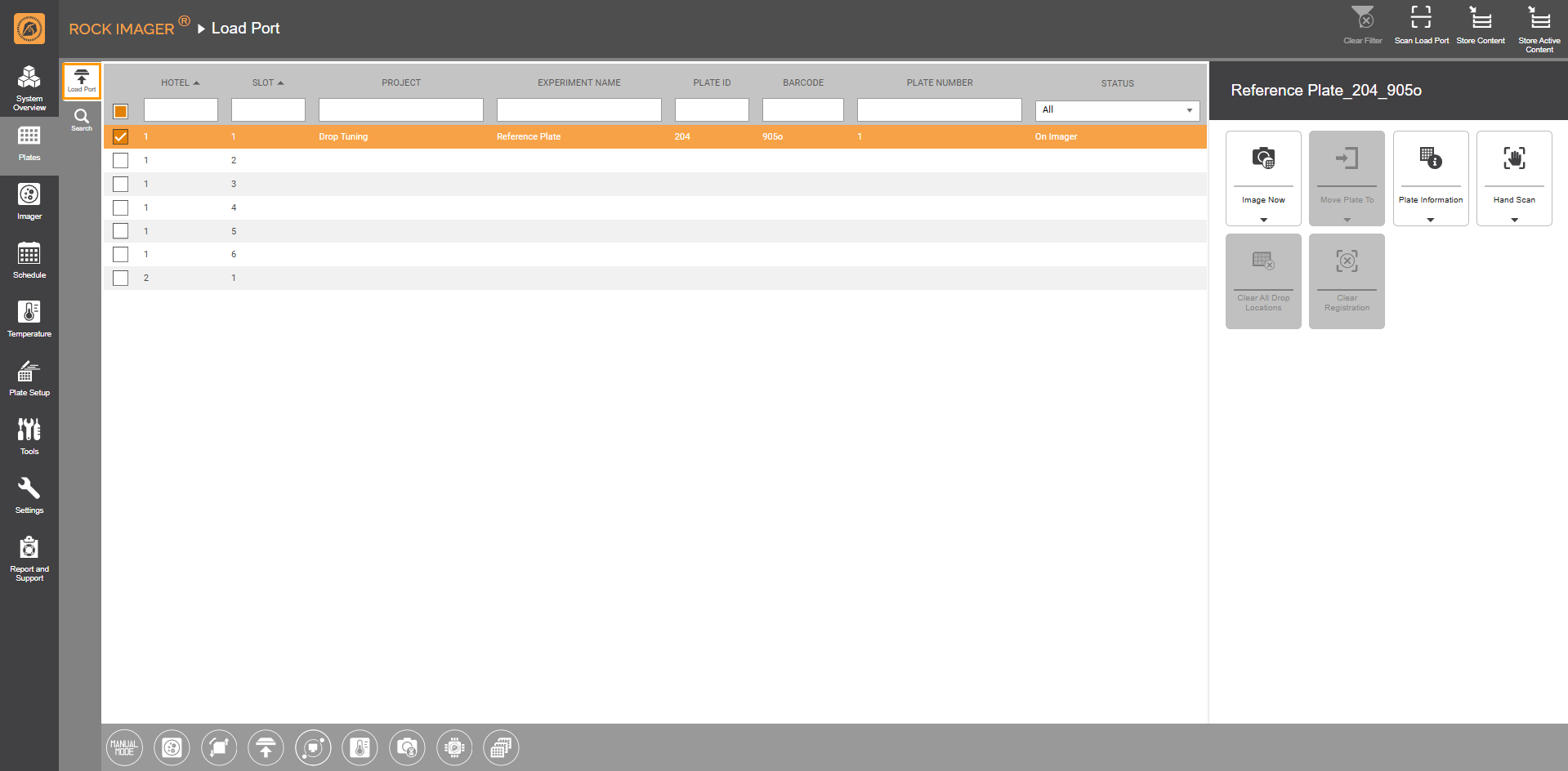
Load Port Tab
Note: The yellow highlight and the On Imager status indicate a plate is under an imager.
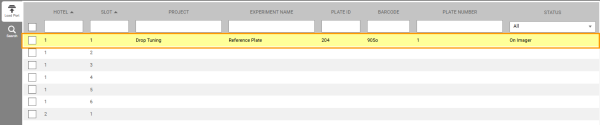
Yellow Highlight
There are four icons on the upper-right corner of the screen.
| Item | Description |

|
Allows you to reset your search parameters. |

|
Allows you to add plates to the system. After scanning, plates will stay in the Load Port until you give further commands. This prevents delays in manual imaging because you don’t have to move the plate from the Storage. |

|
Moves all plates to Storage at once. |

|
Informs ROCK IMAGER® to only move plates with ongoing schedules (the Status column is Active) to Storage. |
Tip: Learn more on how to add plates to ROCK IMAGER®.
Search Tab
The Search tab allows you to quickly find registered plates inside the system’s Storage facility or Load Port. You can use available search criteria, such as project name, barcode number, and dispense date.
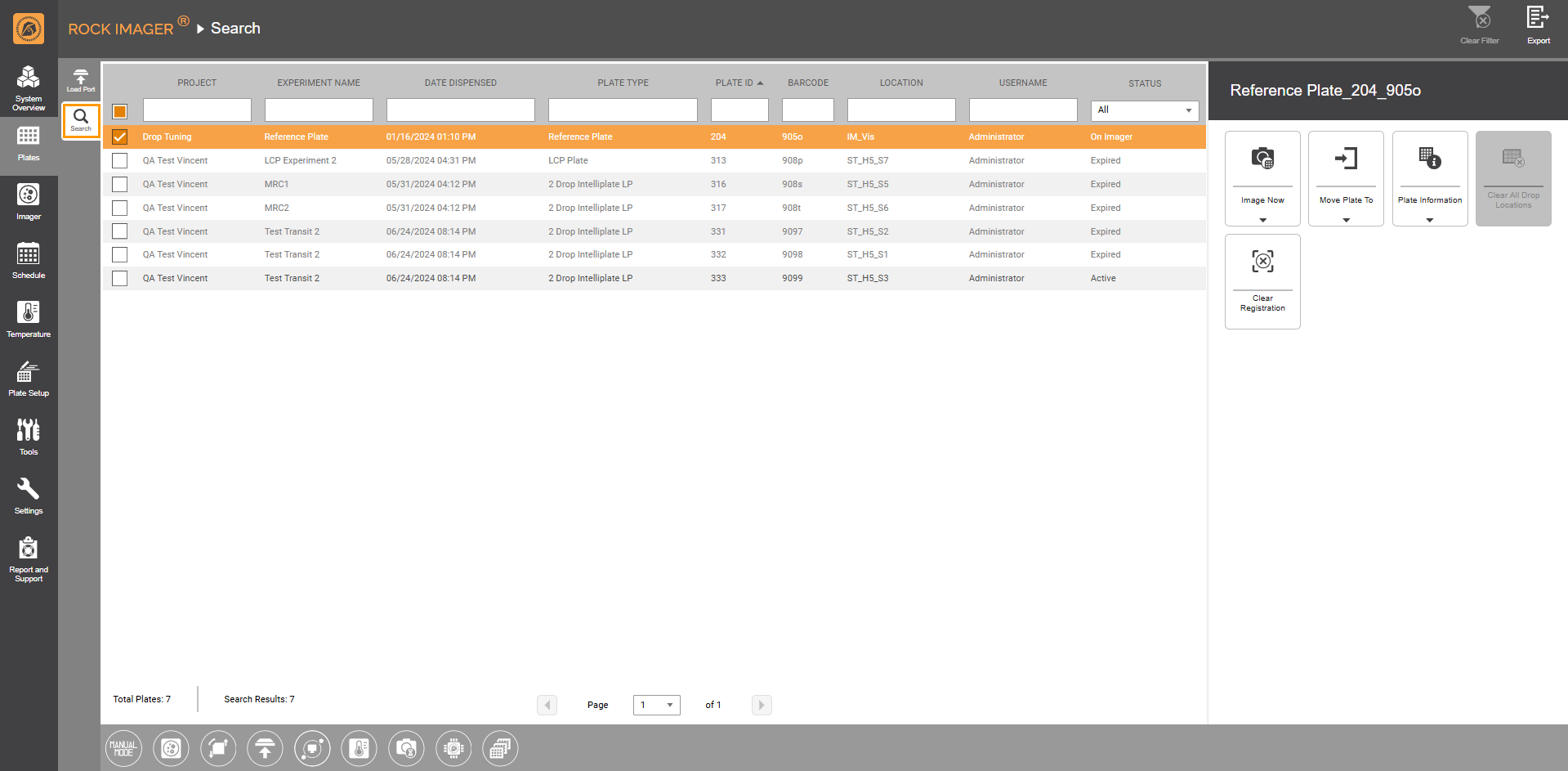
Search Tab
Note: The yellow highlight and the On Imager status indicate a plate is under an imager.
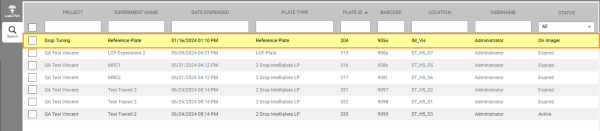
Yellow Highlight
Tip: You can perform a plate search to find out if any expired plates, indicated by the STATUS column, should be removed from the system.
There are two icons on the upper-right corner of the screen.
| Item | Description |
|
|
Resets your search parameters. |

|
Saves your search results to your local computer. |
Command Panel
The Command Panel on the right side of the window becomes active when you click any plate row in either the Load Port or Search tab.
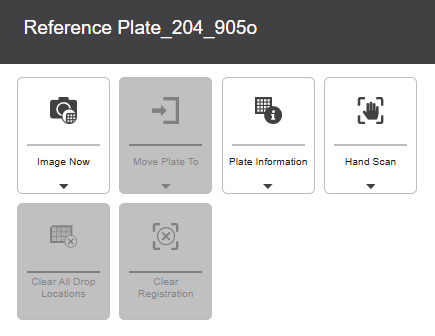
Command Panel
The panel offers the following options.
| Item | Description |
|---|---|

|
Allows you to image a plate immediately. Learn more about Initiating On-demand Imaging Sessions. |

|
Moves the selected plate(s) to Storage or Load Port. You can also move a plate to imager(s) if you want to inspect its content. |

|
Displays plate information and its imaging schedule.
Plate Information (Left) and Plate Schedule (Right) |

|
Important: Hand Scan is available only in the Load Port tab. Lets you manually add a plate to the Load Port by inputting an experiment's barcode. |

|
Resets all drop locations on each plate in case drops grow beyond the original size.
Note: This option will be unavailable if your current plate has no drop locations. |

|
Removes a plate from the imaging schedule. |

The Plate Status
The Status column in the Search and Load Port tabs informs the status of plates inside the imager. The drop-down list in the Status column filters the plate statuses.
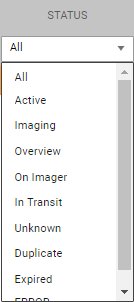
Plate Statuses
Below are the terms in the Status column and what they indicate.
- All: All plate statuses.
- Active: The plates are active and queued for imaging.
- Imaging: A plate is being imaged.
- Overview: ROCK IMAGER® is trying to locate a drop.
- On Imager: The plate is under an imager.
- In Transit: The plate is being transported from the Load Port, Storage, or Imager.
- Unknown: The plate is not registered in the system. The most common example is that the system doesn’t recognize the barcode number.
- Duplicate: ROCK IMAGER® recognizes two plates with a matching barcode number.
- Expired: A plate has been imaged.
- ERROR: Some plate information, such as the barcode number or plate name, is missing. You can prevent this by double-checking your experiment in ROCK MAKER.
related topics
- Searching for Plate
- Adding and Removing Plates
- Initiating an On-Demand Imaging Session
- Drop Location Sub-menu

|
|
| RIOWH-V43R425 |