Open topic with navigation
Printing Plate Labels
Once you finish designing a plate, the next step is to print a barcode label to affix to the plate.
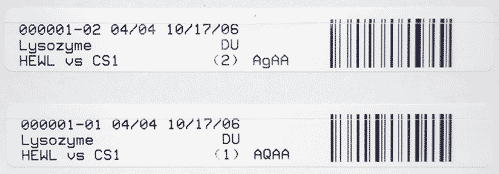
Plate Barcode Labels
To print plate barcode labels:
- Click the experiment or project in the Explorer, then click the Print Barcode button
 in the Explorer group of the Home tab.
OR
- Right-click on an experiment or project in the Explorer, right-click, and select Print Barcode.
OR
- Multi-select several experiments or plates in the Explorer, right-click, and select Print Barcodes.
OR
- Click the Print Barcode button in the Tasks group on the Design tab to print a barcode for the currently active plate on the canvas.
Print Barcode in the Tasks Group
Note: Administrators can adjust and modify the default value of label printing properties through the Label Printing Properties in Global Preferences.
Related Topics
|  |
| RMC-V311R018 | |