You're viewing an older version of the aµtoPULSE help. For the latest version, visit online help 1.3.
You can externally generate Labware and Profile data in CSV format and upload them to the aμtoPULSE software using the Import feature in the Editor page. This streamlines protocol design, as the software will convert the CSV files into:
Ready-to-use templates are available for you to fill out, upload, and modify as needed.
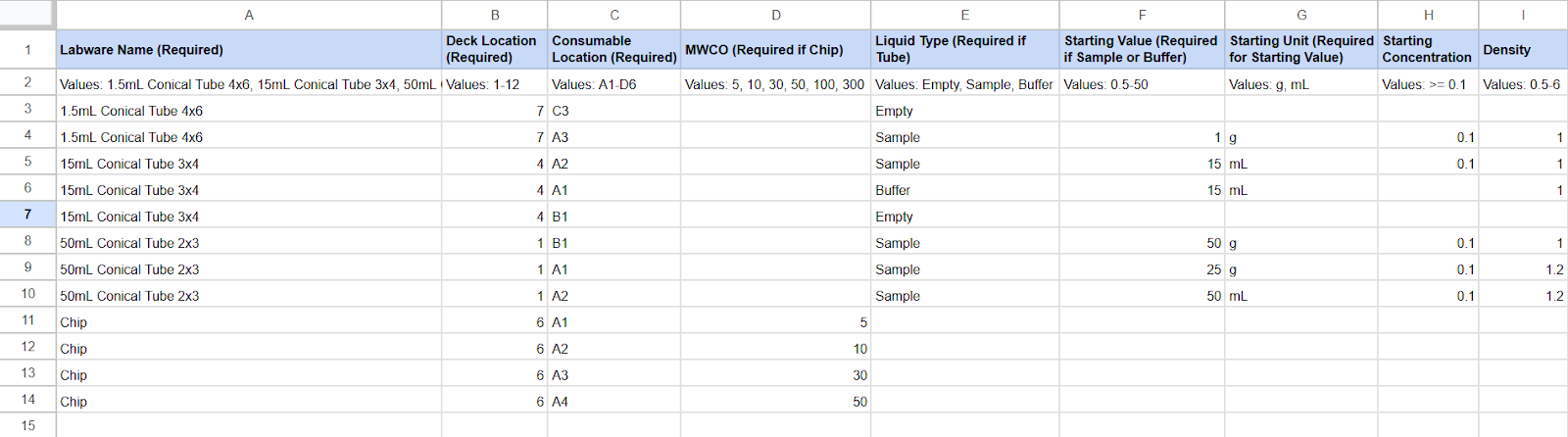
Labware CSV File Template

Profile CSV File Template
Always use the provided templates for initial imports and keep an original copy for future use. To download the templates:
Go to the Editor page, and click Import .
.
In the Import CSV dialog, select Get Profile Template or Get Labware Template.
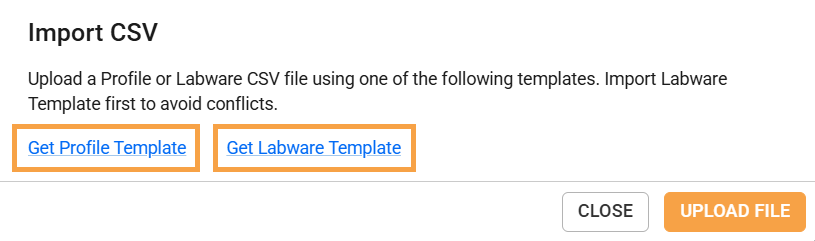
Select the Template
The headers in the template are required. Do not change, remove, or rename them.
The second row contains details on the accepted values for each header column. Do not modify or delete this information.
Follow the format in the second row and verify the values to prevent invalid entries. For example, the MWCO column must be a whole number without "kDa".
Ensure you fill all required fields in each row used.
Some fields have additional rules, see the headers below:
| Template | Header | Required Entry |
|---|---|---|
| Labware | Starting Value (Required for Sample or Buffer) | Enter a valid value between 0.1-50. |
| Starting Concentration | Value: ≥ 0.001 | |
| Profile | Start Exchange (Required for Buffer Exchange) | Final Target ≤ value ≤ total Starting Sample Value |
| Step Size (Required for Buffer Exchange) | 0.1 mL ≤ value ≤ (tube capacity - Start Exchange) | |
| Exchange Volume (Required for Buffer Exchange) | 0.1 ≤ value ≤ total Starting Buffer Value | |
| Final Target | 0.25 - Starting Value or Tube Capacity | |
| Buffer Recovery Volume | 0.1 ≤ value ≤ (tube capacity - Final Target); leave it blank to disable. |
Maintain template column order. Do not rearrange or remove any headers.
Review all data entries before importing. If errors occur during upload, check the error messages and correct the CSV file before re-importing. See step 2 below.
Ensure modified files are saved in .CSV format.
When importing Labware and Profile files together, upload the Labware file first.
Note: If any entry in the Profile template contains an invalid value, the profile will be imported with a warning icon (1).png "Warning icon") . Review and correct the values before running the profile.
. Review and correct the values before running the profile.
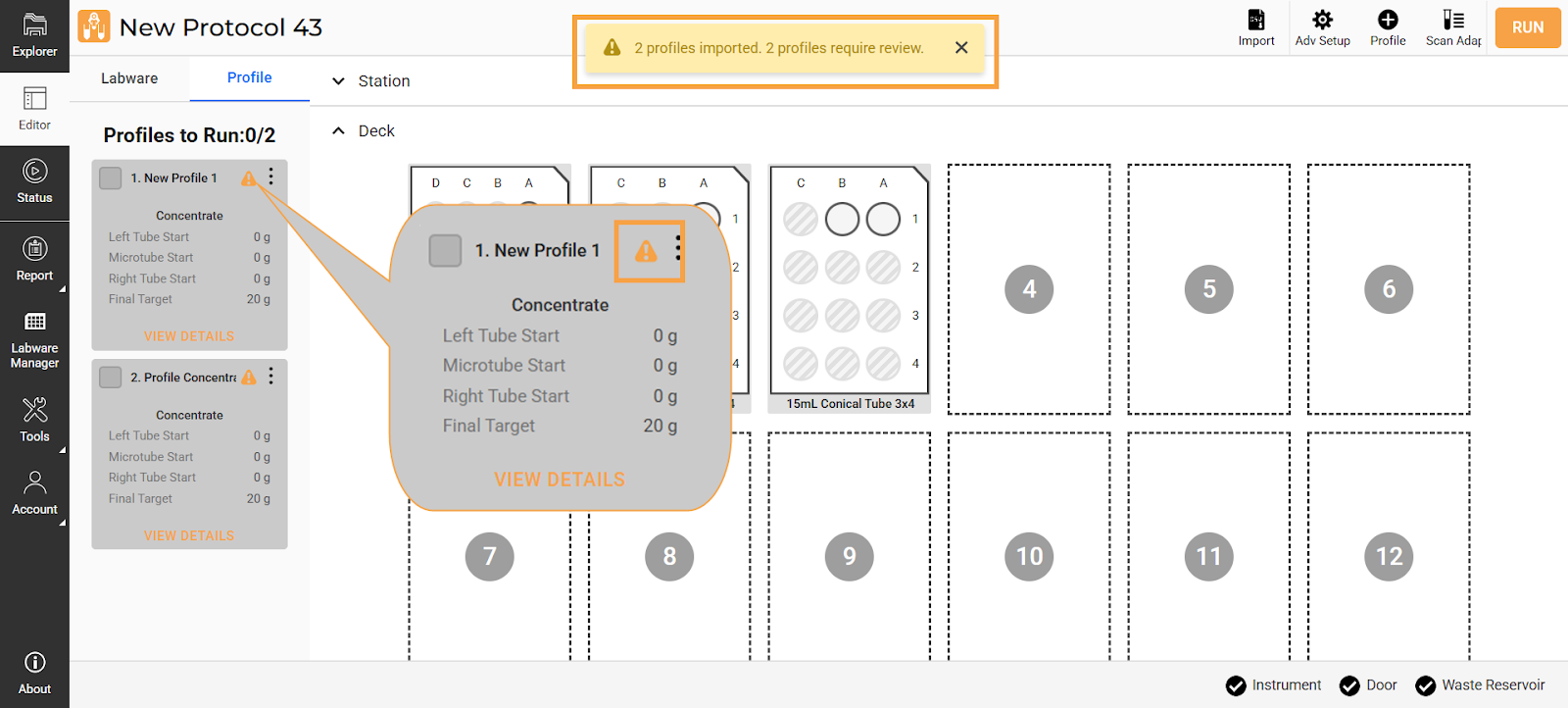
Profile Imported with Warning Icon
In the Editor page, click the Import button on the Command Bar.
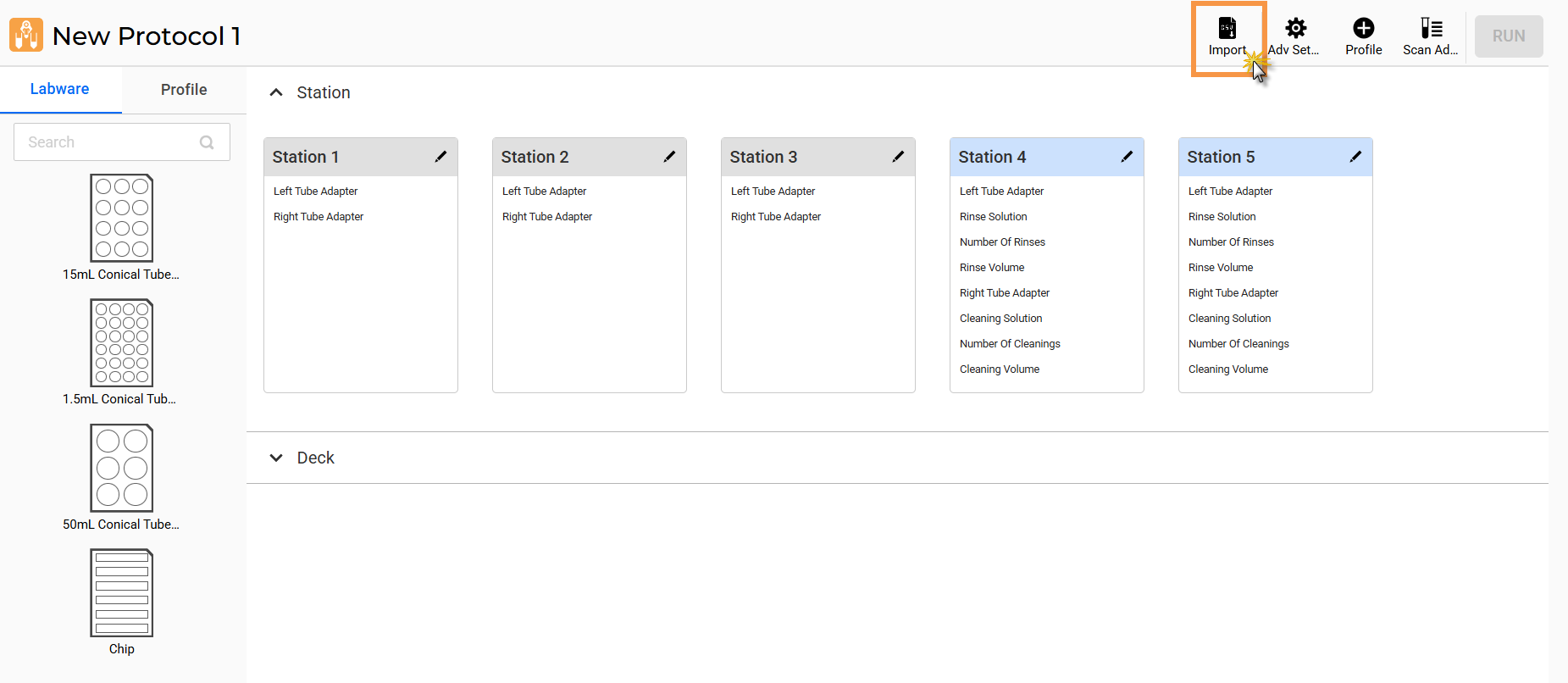
Import Button in the Editor Page
Click UPLOAD FILE and select the CSV file from your computer. If you want to upload the Labware and Profile files at the same time, upload them accordingly.
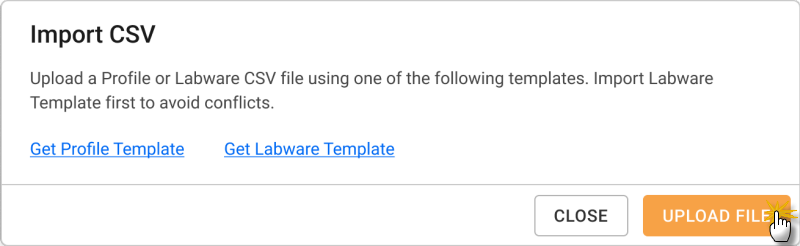
Click UPLOAD FILE
Important: When uploaded, invalid values or conflicting data will prompt an error message listing all errors with the imported file. Correct the displayed errors in your CSV file before re-uploading.
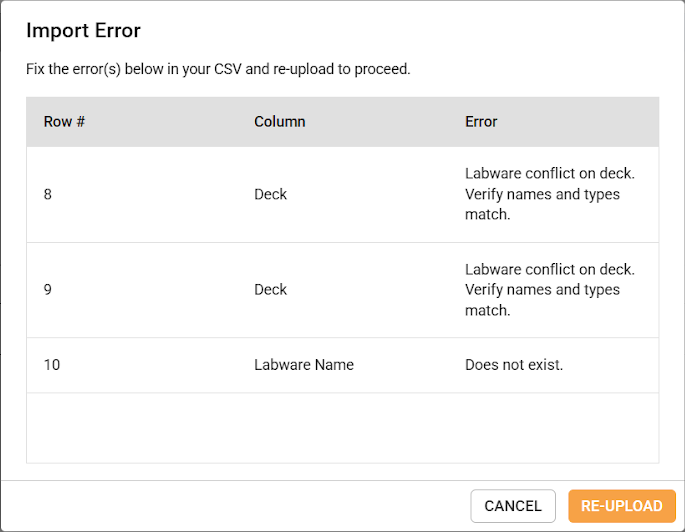
Labware Import Error
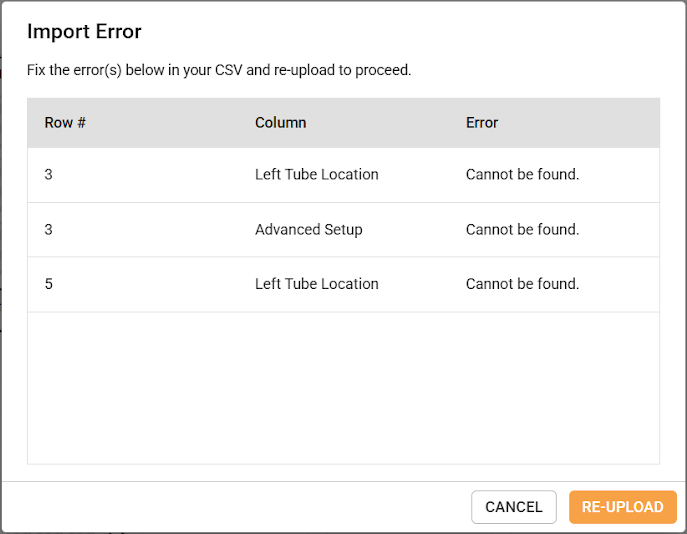
Profile Import Error
Once the upload is successful, the labware/deck and profile configuration will be automatically created on the Editor page. Be sure to review the imported labware and profile data settings before running the protocol.
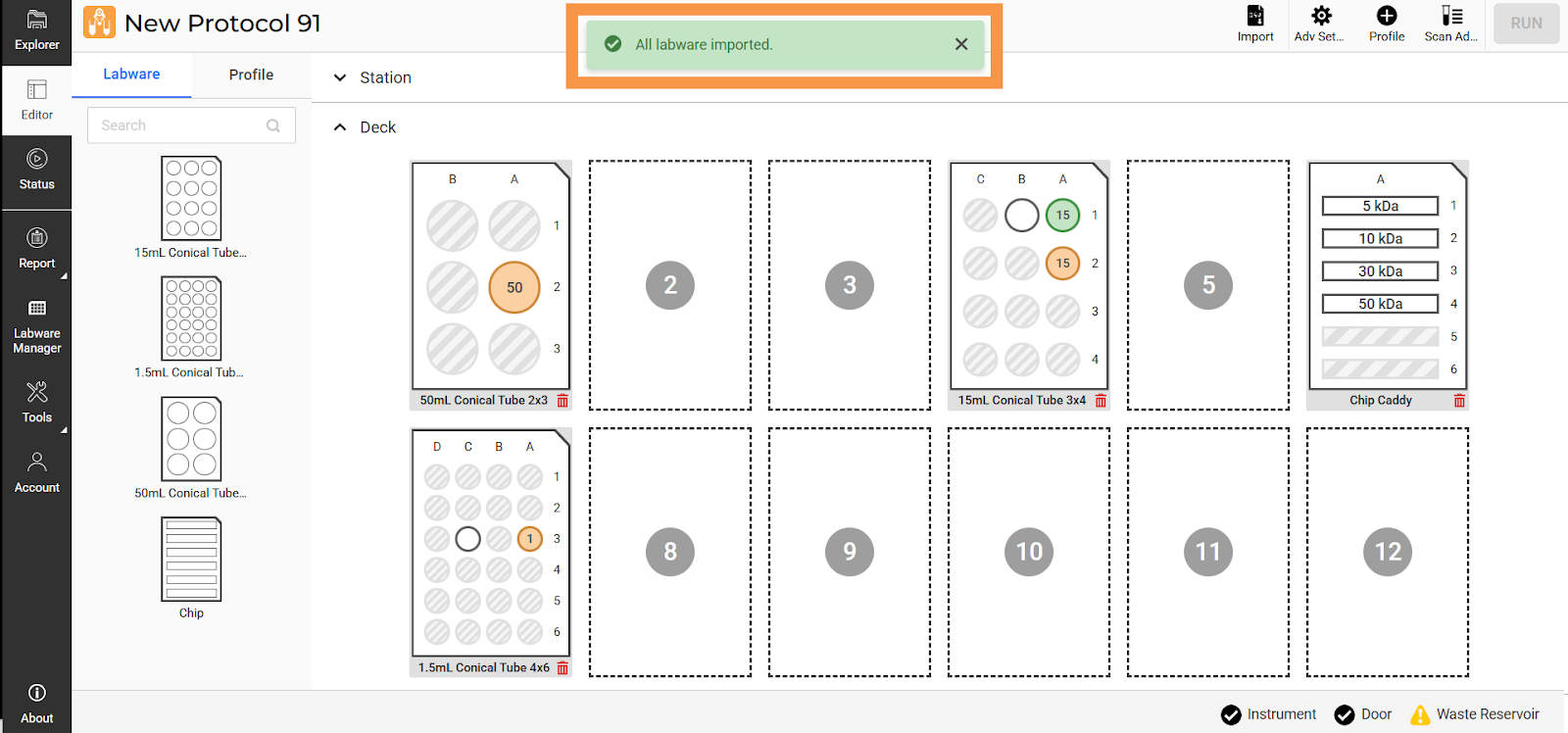
Labware Imported

|
|
| APOWH-V12R125 |