Open topic with navigation
You're viewing an older version of the aµtoPULSE help. For the latest version, visit online help 1.3.
You are here: Tutorials > Setting Up the aµtoPULSE
Setting Up the aµtoPULSE
Follow the instructions below to set up the aµtoPULSE instrument before creating and running a protocol. If you are unfamiliar with hardware components, see Instrument Overview.
Starting Up aµtoPULSE
To prepare the instrument:
-
On the right side of the instrument:
- Find the Power Entry and use a power cord to connect the aµtoPULSE instrument to the power source.
- Turn on the Power Switch next to the Power Entry to supply voltage to the instrument.
- Press the Power Button to turn on the instrument.
Note: The Power Button will flash red if the instrument was recently unplugged for a long period of time. You must wait until it stops flashing before the instrument will start up again.
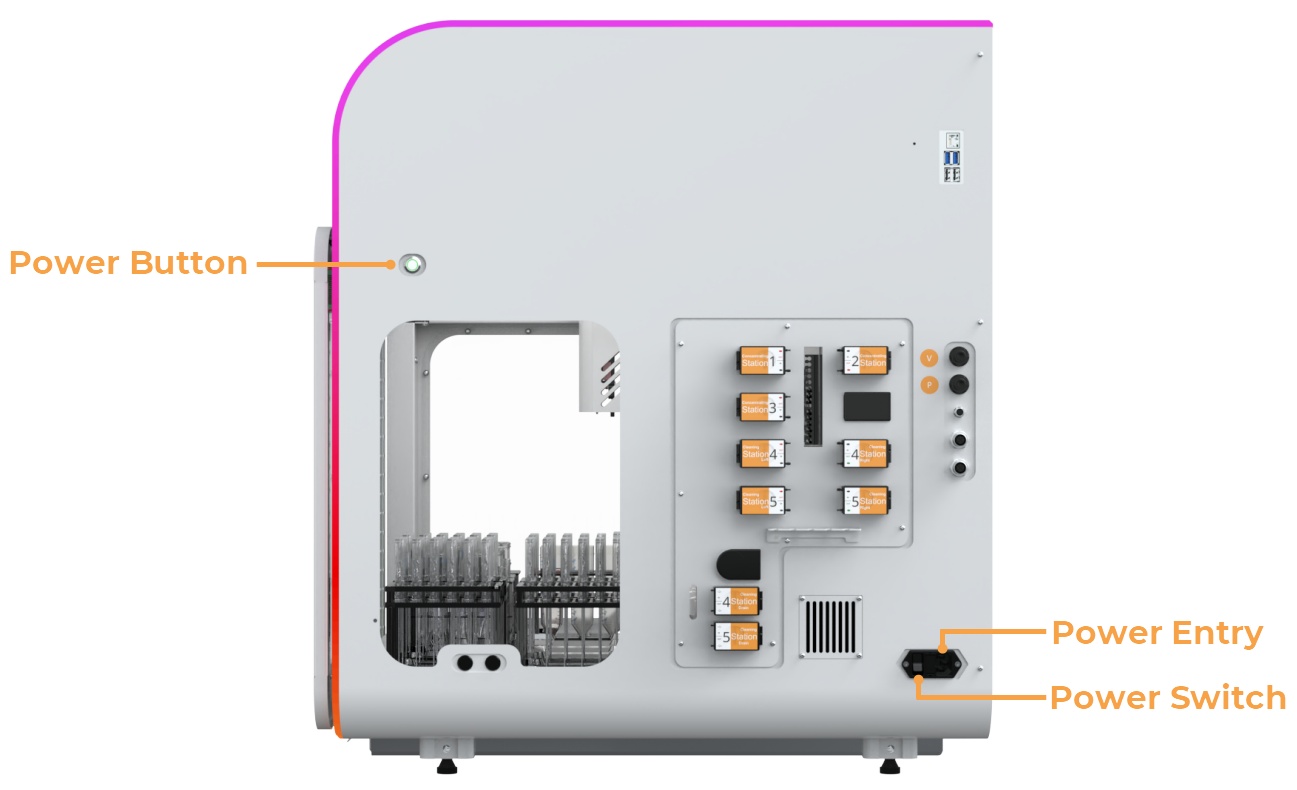
Power Entry, Power Switch, and Power Button
-
Allow the instrument to finish the initialization process. Once finished, the LED bar will glow multicolored.
-
In the Pump Box:
-
Check that the pressure and vacuum tubings are properly connected.
-
On the back panel, make sure the Power Entry is connected to the power source.
-
If the pump box is off, turn it on using the Power Switch.
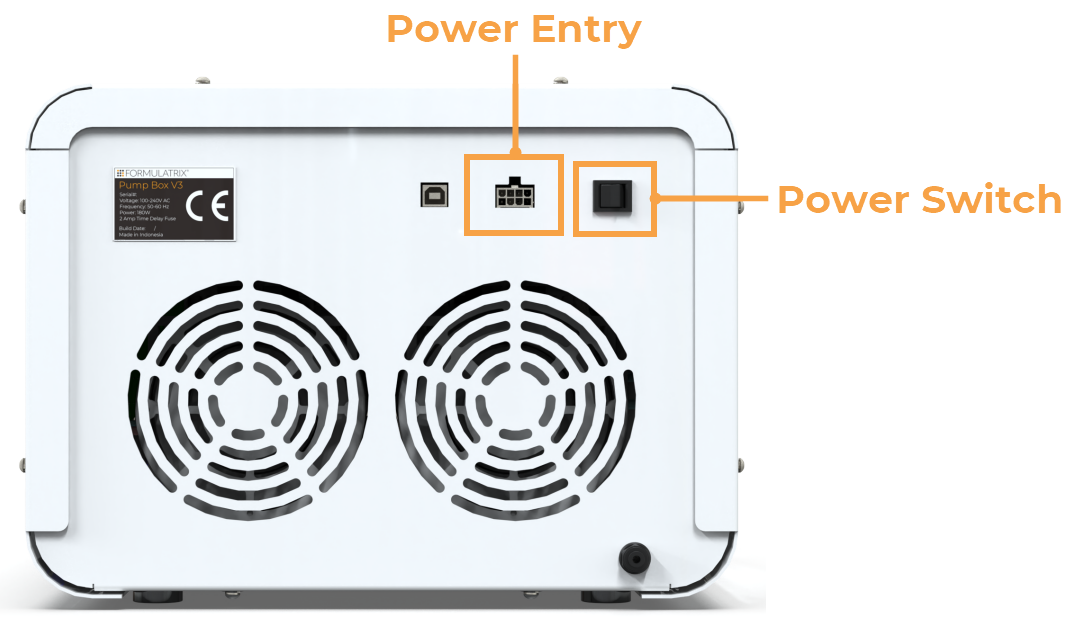
Pump Box from the Back View
-
Verify that the pressure and vacuum values in the P/V indicators turn green.
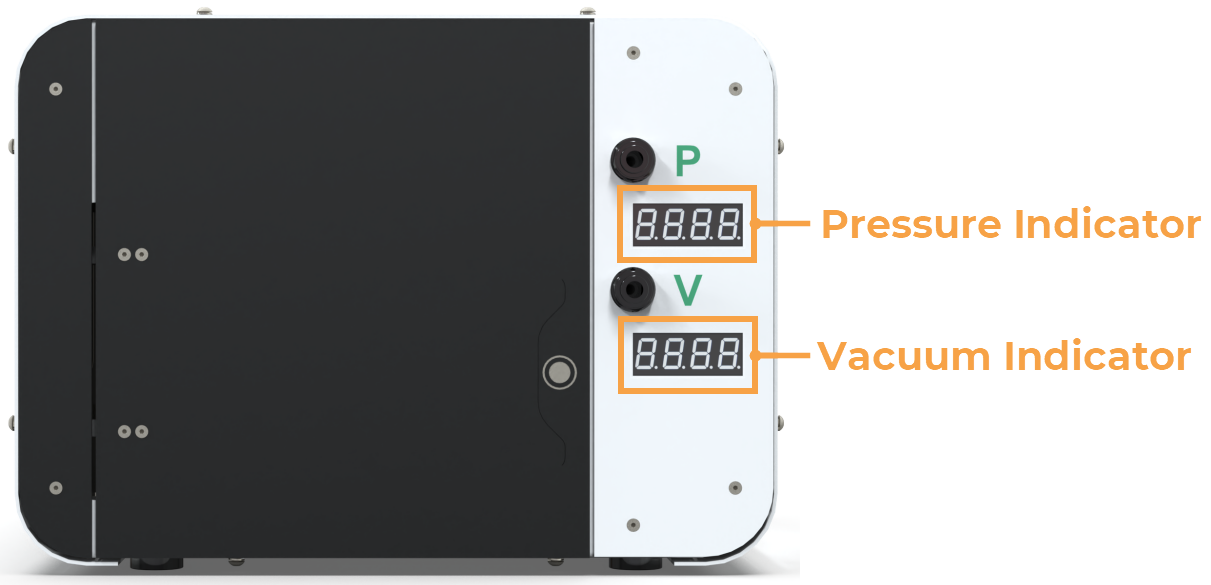
Pressure and Vacuum Indicators
Once the instrument is powered on and initialized, proceed to connect to the local network.
To connect to the local network:
-
On the upper right side of the instrument, plug one end of the LAN cable into the LAN Port.
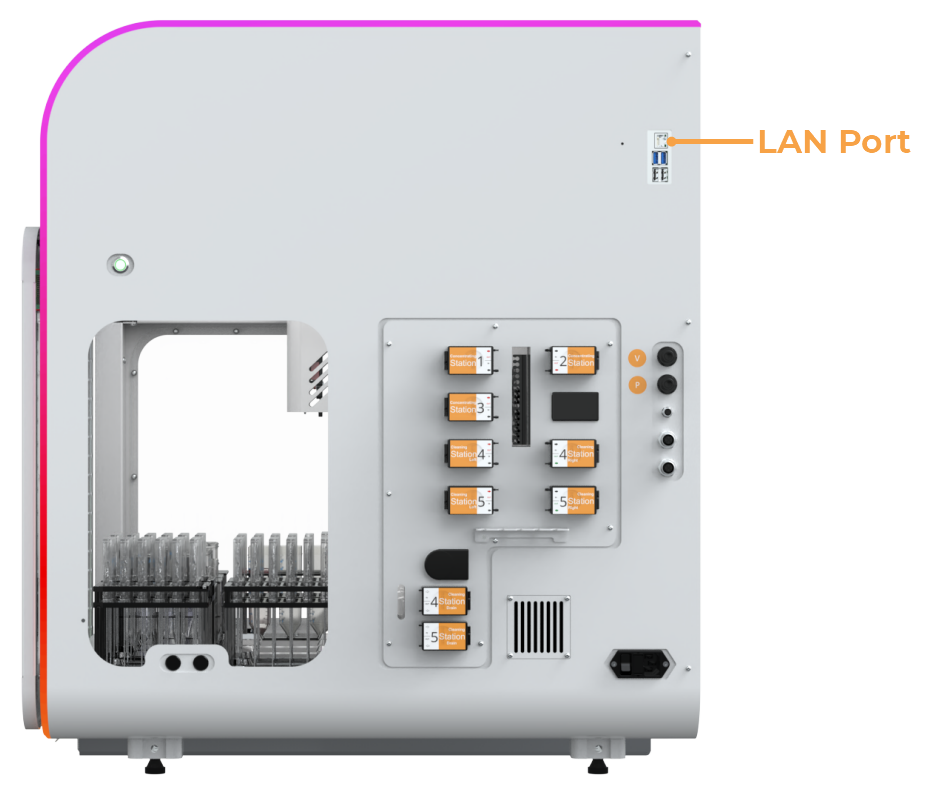
Instrument’s LAN Port
-
Plug the other end of the cable into the computer’s LAN port or an available port on the network switch.
After establishing the network connection, you can now access the aµtoPULSE software.
To access the aµtoPULSE software:
-
Access the aµtoPULSE software on your browser by filling in the address using the serial number of the instrument: http://autopulse-[device serial #].local . E.g., http://autopulse-4/local for instrument AP-1-0004.
-
Enter your username and password to log in.
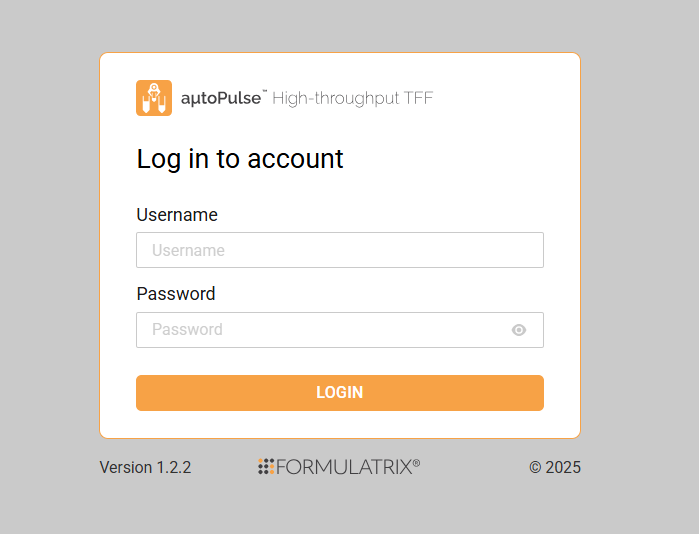
aµtoPULSE Software Login
Once logged in, proceed with setting up the necessary accessories.
Preparing the Accessory
Setting Up the Reservoirs
The reservoirs supply the necessary buffer and cleaning solutions required for the run. Follow the steps below to properly set up the reservoirs.
Required Tools and Materials:
Prerequisites:
-
You have prepared the required tools and materials.
-
You have filled the cleaning reservoir with the recommended solution and the buffer reservoir with a buffer solution of your choice.
Note: If you plan to use the same solution for the buffer and cleaning, you can combine them in a single container.
-
You have placed the waste container and buffer/cleaning reservoirs in a dedicated place.
Important: For smooth liquid transfer and recirculation into and out of the station, place the cleaning/buffer reservoirs within 0.5 meters of the Peristaltic Pump area, either beside or below the instrument. Do not position the waste container higher than the instrument.
To set up the reservoirs:
-
Identify the peristaltic pumps and tubings on the right side of the instrument. Verify the correct tubing connections from the pumps to the stations. The number of pumps depends on the station configuration, e.g., 3-2 or 4-1 station configuration.
The reference below is an example of a 3-2 station configuration: 3 Concentration Stations + 2 Cleaning Station.
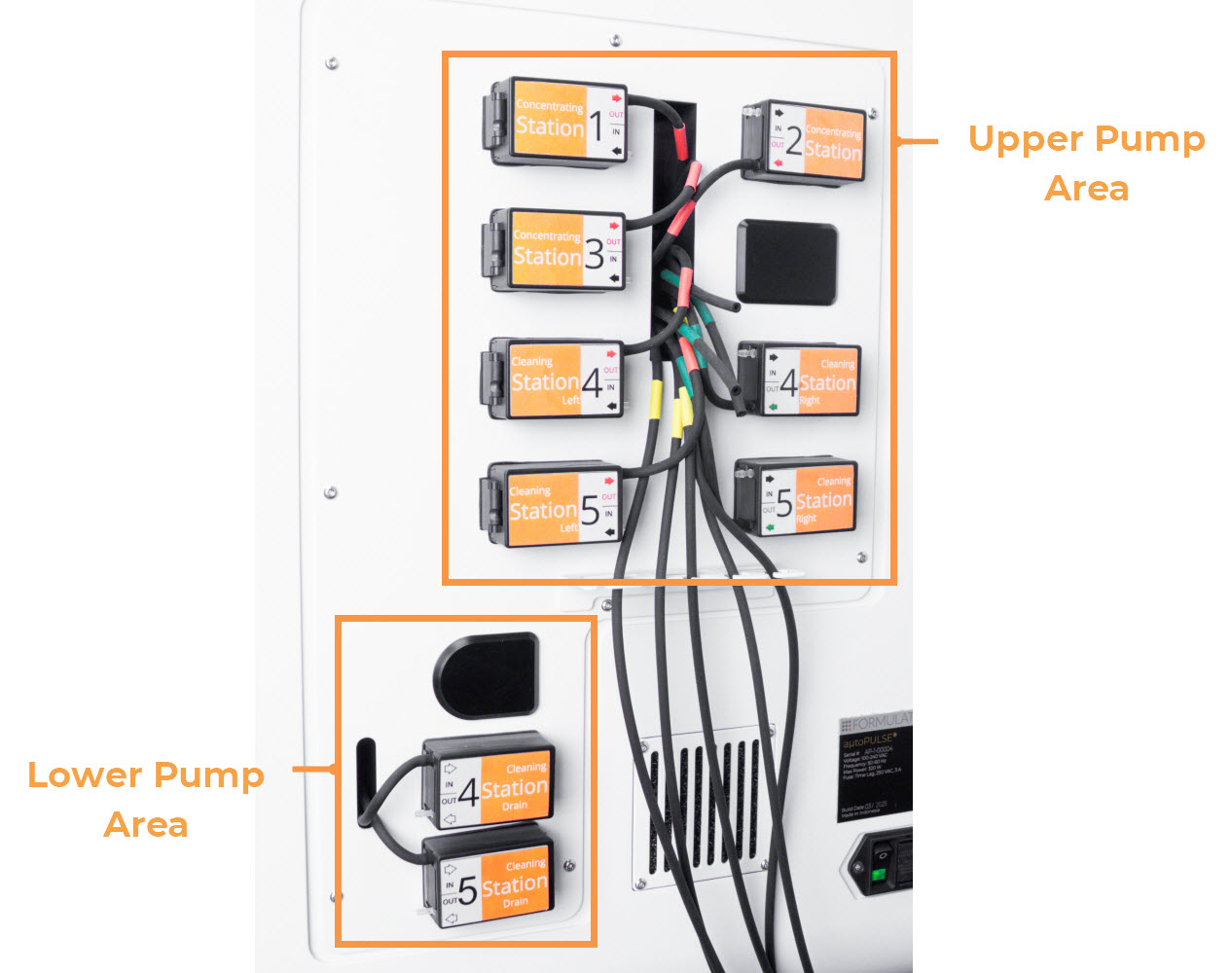
Peristaltic Pumps for 3-2 Stations Configuration
The peristaltic pumps from the image above consist of:
- 3 pumps for Concentration Stations are labeled as Concentrating Station 1, 2, and 3.
- 4 pumps for the Cleaning Stations are labeled as Cleaning Station Left 4 and 5, Cleaning Station Right 4 and 5
- 2 pumps for the Waste Drain, labeled as Cleaning Station Drain 4 and 5.
Each pump is connected to the internal tubings through the IN/OUT port. The tubings are marked with different color tapes, indicating the following:
- Yellow: Waste/permeate tubing
- Red: Buffer tubing (connected to T1)
- Green: Cleaning tubing (connected to T3)
Note: The tubings marked with green tape are not attached to any containers or reservoirs.
-
Route and submerge the waste/permeate tubings inside the instrument with yellow tape into the waste container.
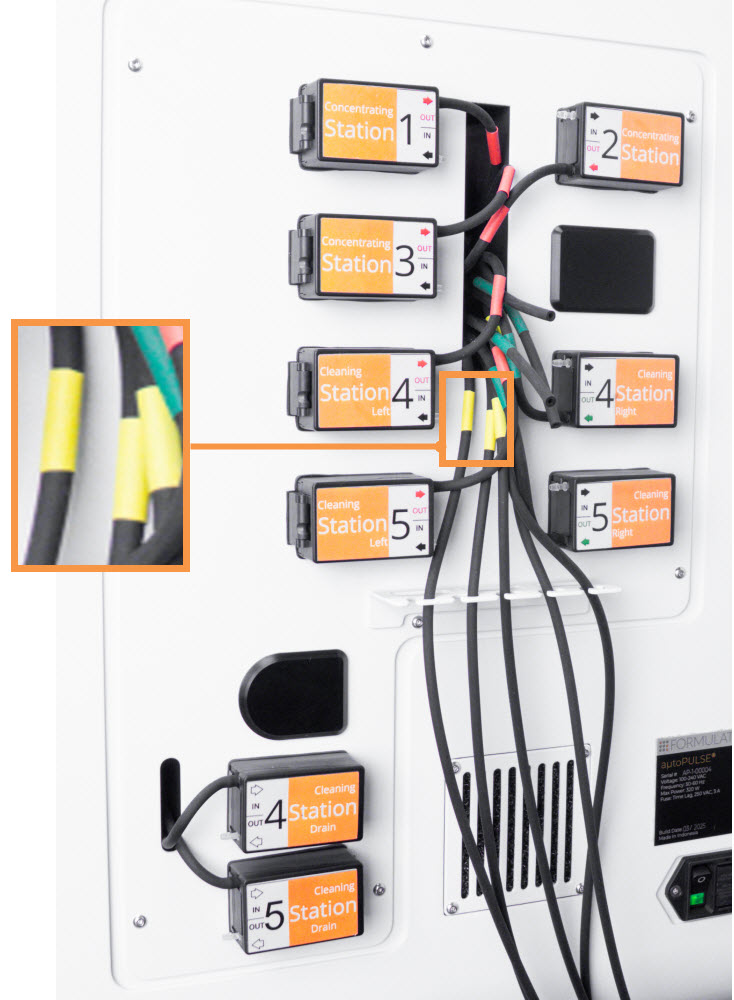
Waste/Permeate Tubings
-
OPTIONAL: Remove the existing tubing section from the pumps labeled IN. Cut a new length of tubing from the roll for each pump to connect it to the buffer/cleaning and waste reservoirs.
-
Connect the tubing to the IN and/or OUT port of each pump as follows.
-
Buffer Reservoir
-
Insert one end of the tubes into the IN port of all Concentrating Station pumps.
-
Insert one end of the tubes into the IN port of all Cleaning Station (Left) pumps.
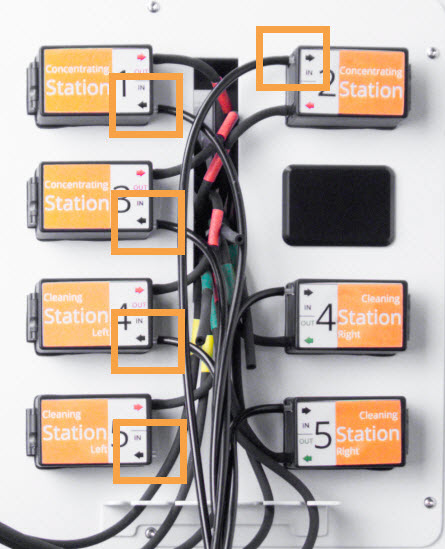
Attach Tubing in IN Ports
-
Submerge the other end of the tubes into the buffer reservoir.
Note: The buffer used for cleaning is necessary to rinse and neutralize the cleaning solution. It can be the same or a different buffer than the buffer used for buffer exchange. The chip is purged between the cleaning and concentrating steps to minimize any carryover of buffer.
-
Cleaning Solution Reservoir
-
Insert one end of the tubes to the IN port of the Cleaning Station (Right) pumps.
-
Submerge the other end into the cleaning solution reservoir.
-
Repeat steps a-b to other Cleaning Station pumps (if any).
.jpg "Attach Tubing in Cleaning Station (Right) IN Ports")
Attach Tubing in Cleaning Station (Right) IN Ports
-
Waste Container
-
Insert one end of the tube into the OUT port of the Cleaning Station (Drain) pump(s).
-
Route the other end into the waste container.
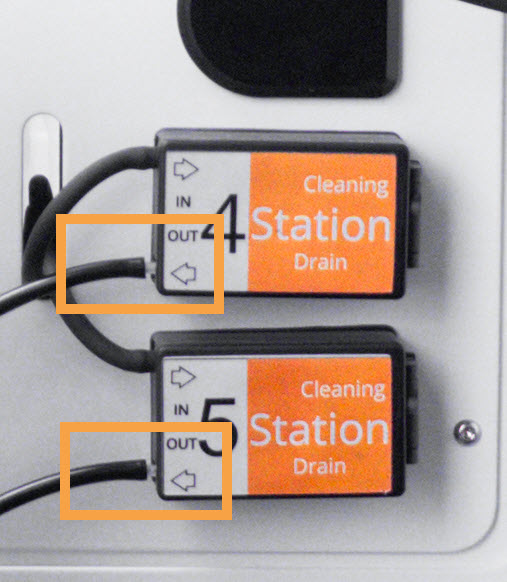
Insert the Tube to OUT Port
See the complete tubing setup below.
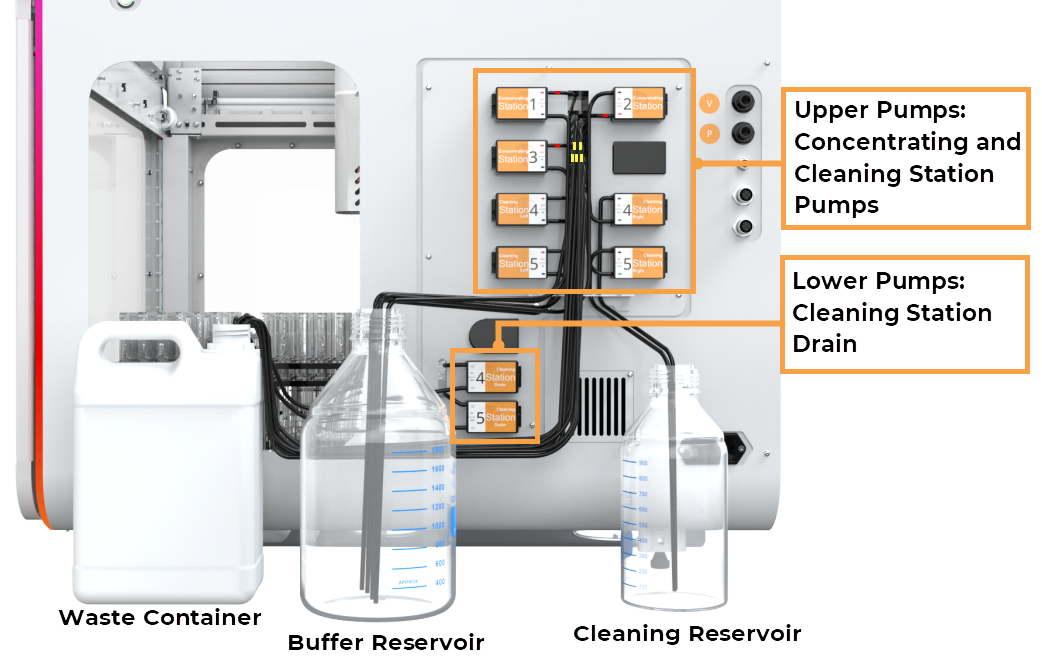
Complete Tubing Setup
Note: The tubing in aµtoPULSE is pre-configured and typically does not need replacement unless damaged or spilled. For maintenance, refer to the Peristaltic Tubing Harness Replacement Guide or contact support@formulatrix.com.
Setting Up the Deck
The deck has 12 slots to place the labware, including a tube rack and chip rack to hold the tube and chip. The proper setup ensures the efficient and safe operation of the aµtoPULSE system.
Prerequisites:
- You have prepared the labware, including the tube (1.5 mL, 15 mL, or 50 mL), tube rack, chip, and chip rack.
To set up the deck:
-
Specify the correct deck slots (1-12) for placing the tube and chip racks.
Note: Decks #1-6 represent the back deck (close to stations), and decks #7-12 are the front deck (close to the door). We recommend positioning the chip rack near the stations to reduce movement and minimize the risk of contamination during chip transfer.
Important: If you want to place chip racks in the front row, do not place any tube racks behind them. Otherwise, there will be a risk of contamination.
-
Setup the tube:
-
Select the appropriate tubes for your protocol.
-
Place the tube rack of the selected tube size in its assigned slot.
-
Insert the tubes into each well in the rack. Ensure a secure and proper tube placement to prevent misalignment during the protocol run.
-
Setup the chip:
-
Select the appropriate Molecular Weight Cutoff (MWCO) for the chip required for your protocol. You can identify the MWCO size from the top side of the chip or scan the barcode.
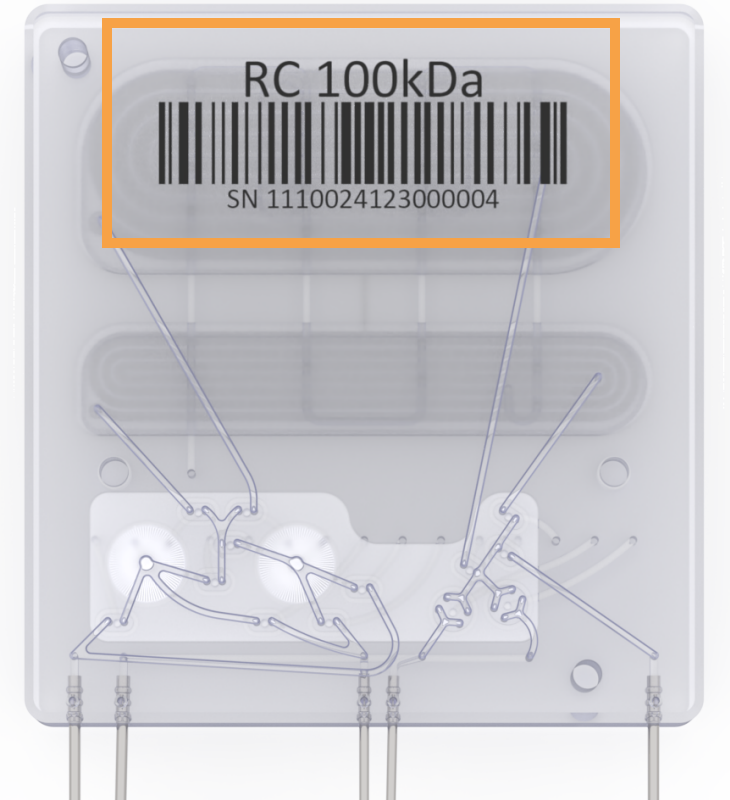
Chip MWCO
-
Place the chip rack in its assigned slot in the deck.
Note: The chip rack can only be oriented with the notched corner in the top right side while placing it on the deck.
-
Carefully place the chip(s) into the rack with the label facing you. To verify alignment, ensure all chips are level and the racks are at the same height. If the chip or rack appears tilted or does not fit fully into the slot, it might be misaligned. Try rotating it for proper placement.
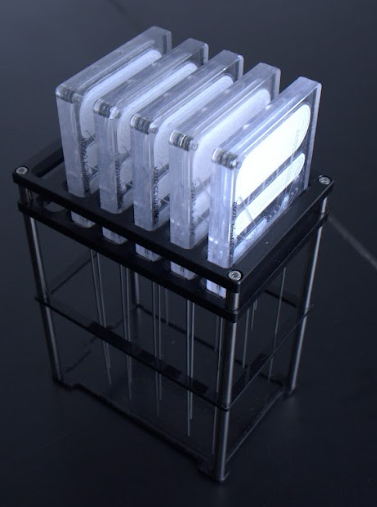
Chip Placement on Rack
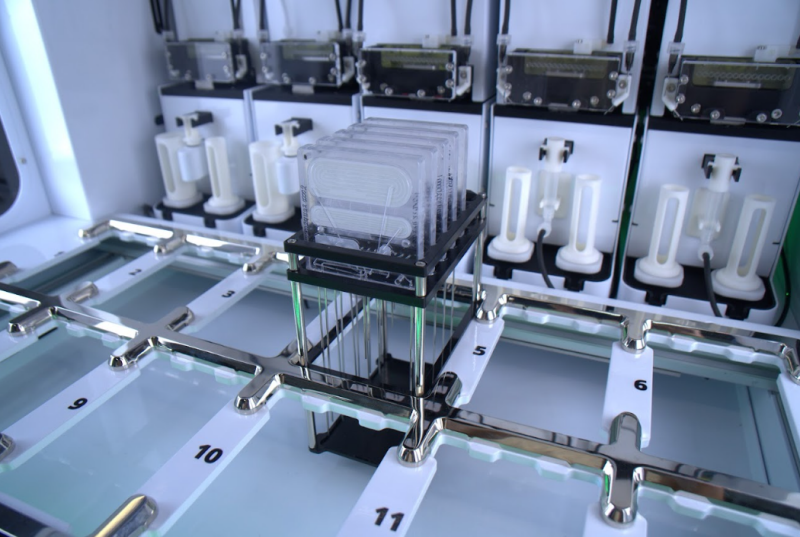
Chip Rack Placement on Deck
Setting Up the Stations
Proper station setup is critical for ensuring the aµtoPULSE operates at its best.
Prerequisites:
- You have set up the deck.
- You have prepared the tube adapters based on your tube size selections: 1.5 mL, 15 mL, or 50 mL.
To set up the stations:
-
Place the selected tube adapter (15 or 50 mL) on the right or left scale. For the 1.5 mL tube adapter, position it on the hook above the Microtube scale.
Important: The 15 and 50 mL tube adapters come with 2 magnets underside to align with each scale. Make sure there is no gap between the adapter and the scale.
-
Place 15 mL tube adapters on the left and right scale of all Cleaning Stations. Insert empty 15 mL tubes in both adapters.
Important: The 15 mL tubes may require manual emptying if a run is aborted during the cleaning process. Please wear gloves and take caution as the tubes may contain a cleaning solution.
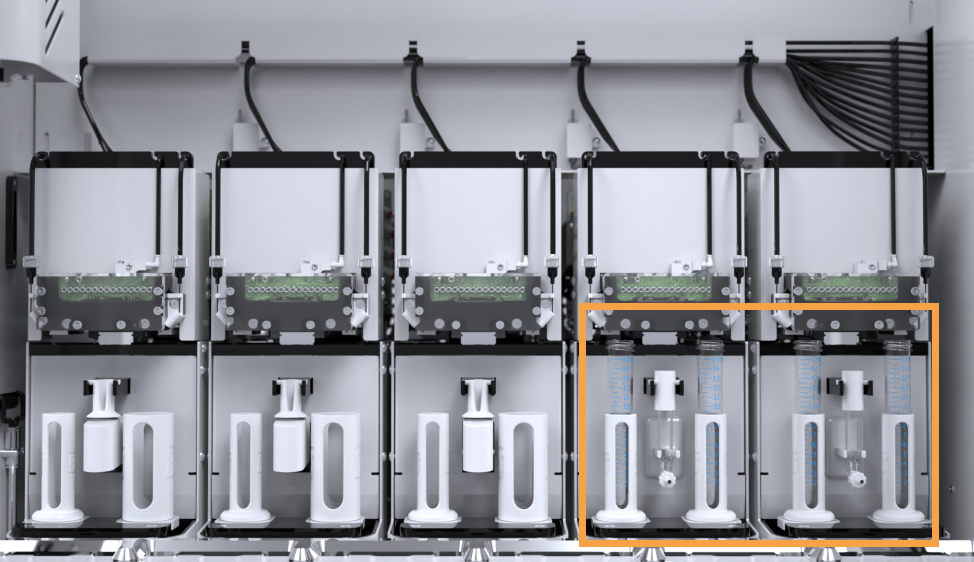
Proper Tube Adapter Installation on the Station
-
Verify that the black tubing inside the instrument is securely attached to the stations to prevent leaks or collisions during a protocol.
Related Topics:
|
|

|
| APOWH-V12R125
|
|