
You're viewing an older version of the aµtoPULSE help. For the latest version, visit online help 1.3.
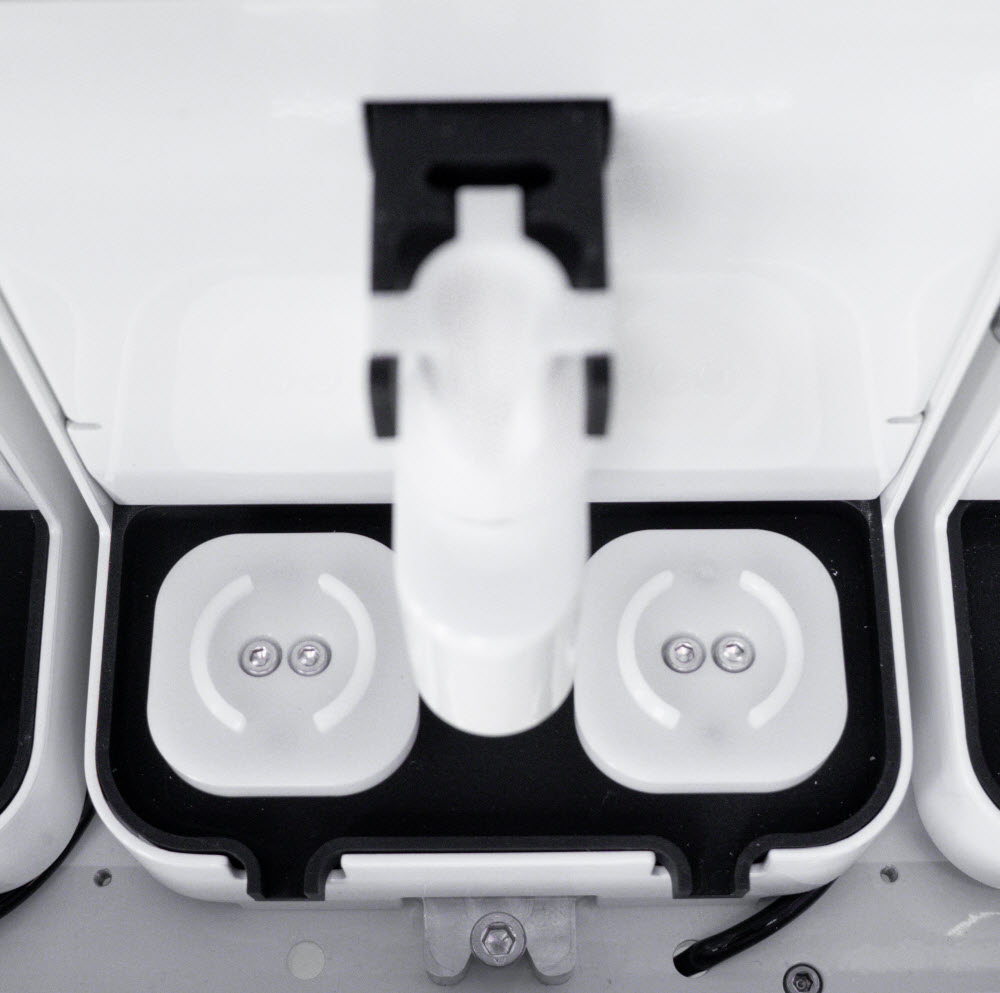
The scales in the aµtoPULSE are designed to measure tube and liquid weight using a load cell sensor. With high precision, the load cell ensures accurate volume control during protocol runs. The scales are available in each station with different configurations:
|
|
|
| Scales in Concentration Station | Scales in Cleaning Station |
Over time, factors such as mechanical and electrical drift or environmental conditions can lead to inaccurate measurements. To maintain accuracy and prevent performance issues, periodic calibration is essential. Each scale must be calibrated individually. Follow the steps below.

|

|
| 100 and 10 g Calibration Weight | |
In the aµtoPULSE main menu, go to Tools and select Calibration. Then, navigate to the selected Station panel (for example, Station 1).

aµtoPULSE Calibration Page
See Last Calibration on the upper-right corner of the panel to check the calibration timestamp. Click EDIT to enable the button functions and configure the calibration settings.

Last Calibration Time
Do the following for each scale:
Left Scale and Right Scale (calibrate individually)
Click TARE to zero the scale.
Carefully place the 100 g Calibration Weight in the center of the scale. Ensure proper placement, as seen in the image below.

|

|
| Proper Calibration Weight Placement | Incorrect Calibration Weight Placement |
Tip: If the calibration weight appears tilted or unstable, place it upside down for better stability.

Upside-Down Calibration Weight Placement
In the Calibration Weight field, enter 100 g.
Click CALIBRATE to initiate the calibration process. The system will fine-tune the scale and display the adjusted weight reading as the Calibrated Weight. The value should match the Calibration Weight.

Calibrated Weight Value Matches the Calibration Weight
Note: The system allows a tolerance of ≤0.1 g on the Calibrated Weight. Recalibrate the scale if the value exceeds this range (e.g., 100.2). If the issue persists, contact support@formulatrix.com.
Repeat steps a-d to calibrate the other scale.
Low Volume Scale
Important: The low volume scale is fragile—even a light touch can exceed its limit. We highly recommend following each step carefully and avoiding direct contact with the scale to prevent damage.
Attach the low volume tube adapter. It prevents the calibration weight from direct interaction with the load cell.
Activate the Low Volume Scale Movement toggle to lift the scale.
Click TARE to zero the scale.
Turn off the Low Volume Scale Movement toggle to lower the scale.
Carefully place the 10 g Calibration Weight in the center of the tube adapter.

|

|
| Proper Calibration Weight Placement | Incorrect Calibration Weight Placement |
Tip: If the calibration weight appears tilted or unstable, place it upside down for better stability.
Activate the Low Volume Scale Movement toggle to lift the scale.
In the Calibration Weight field, enter 10 g.
Click CALIBRATE to initiate the calibration process. The system will fine-tune the scale and display the adjusted weight reading as the Calibrated Weight. The value should match the Calibration Weight.
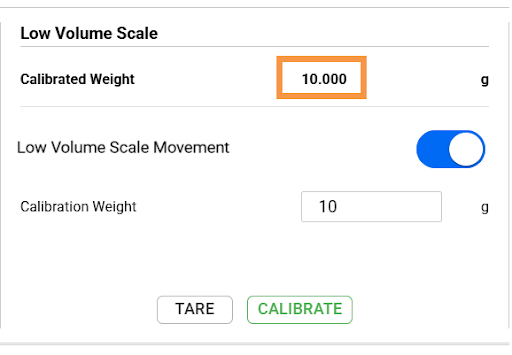
Calibrated Weight Value Matches the Calibration Weight
Note: The system allows a tolerance of ≤0.02 g on the Calibrated Weight. Recalibrate the scale if the value exceeds this range (e.g., 10.03). If the issue persists, contact support@formulatrix.com.
Turn off the Low Volume Scale Movement toggle to lower the scale.
Important: Do not skip this step. Damage can occur if the microtube scale is left in the upward position.
Click the SAVE button to keep the current calibration settings.
Remove the calibration weight after calibration.
Repeat steps 2-5 for the remaining stations.

|
|
| APOWH-V12R125 |