Using the Advanced Setup
The Advanced Setup allows you to define chip settings for each profile, including cleaning, mixing, and pressure control. You can access it during profile creation or from the Advanced Setup page.
Overview
Advanced Setup Page
Open the Advanced Setup page from the Explorer menu to view, manage, or create setups. aµtoPULSE includes a built-in default setup that is automatically assigned to new profiles and is read-only. To use a different setup or set it as the default, see Managing Existing Setups.
To see the setup parameters and their assigned protocols, click Show Info  .
Note
A blue check icon
indicates the default setup.
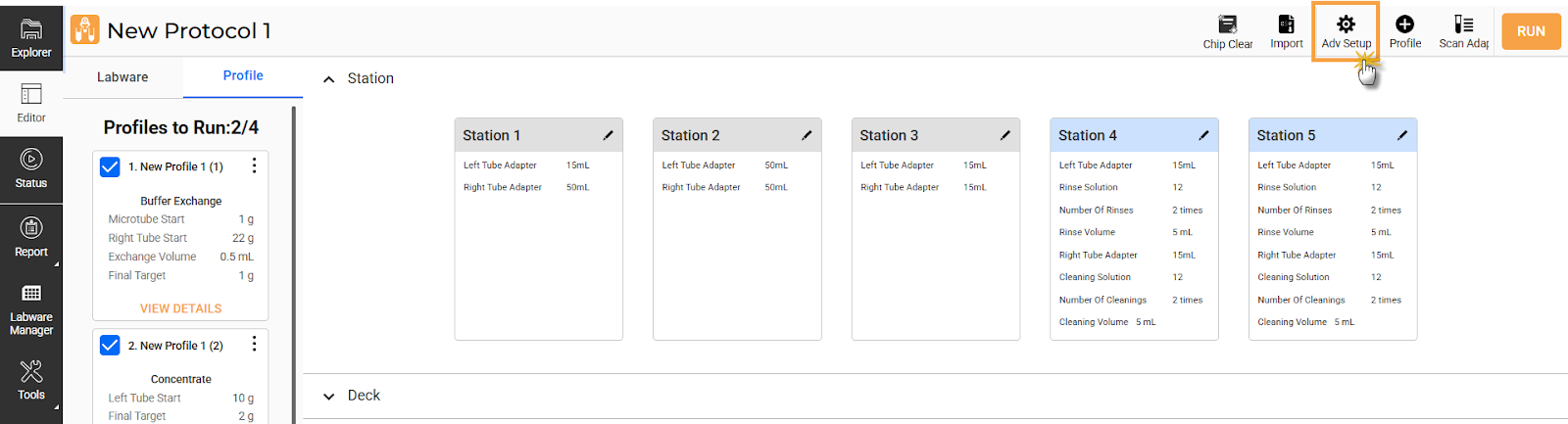
Click Advanced Setup
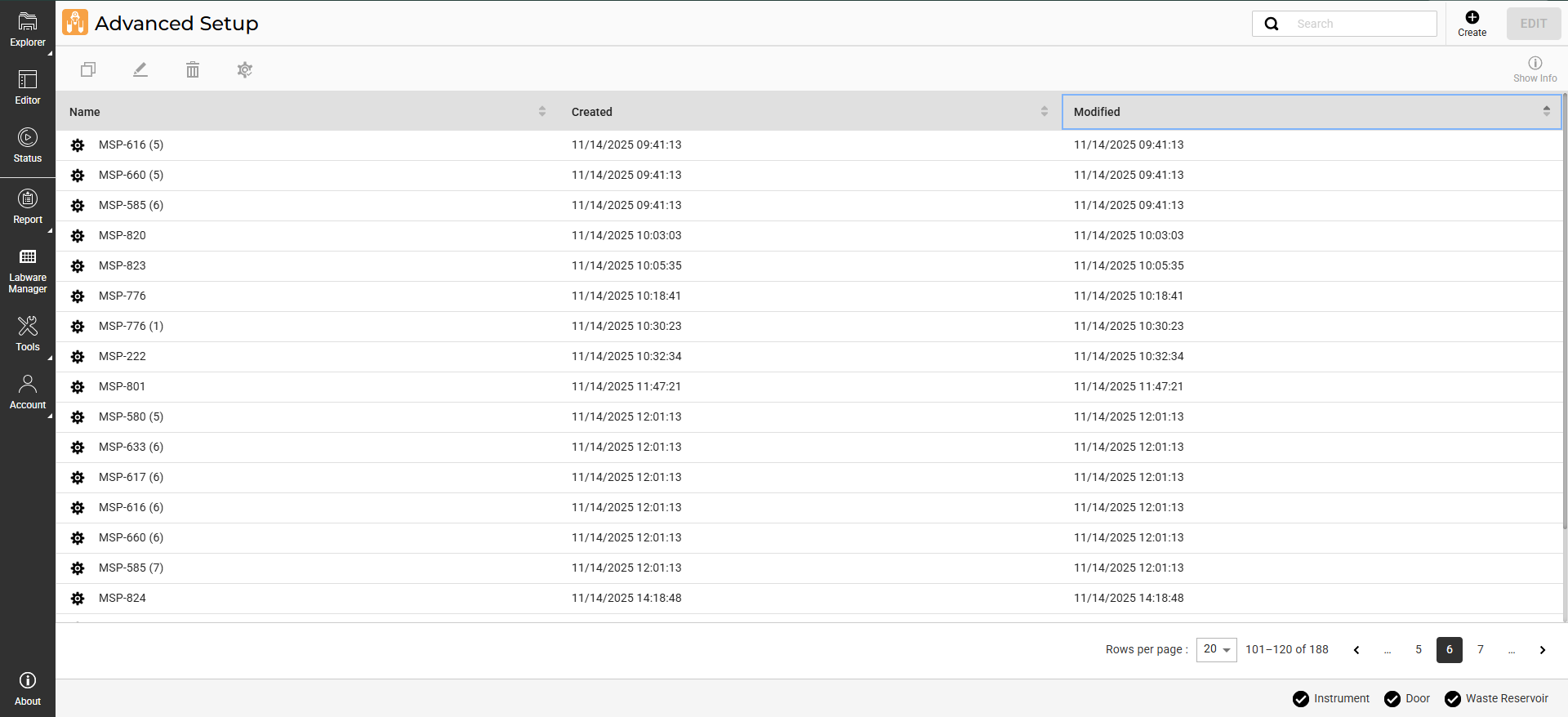
Advanced Setup Page
Advanced Setup Settings
The Advanced Setup settings are divided into the following tabs:
General:
Chip Cleaning: Enable/disable chip cleaning before sample processing.
Note
New chips must be cleaned before use. Disable this setting only if the chips will be cleaned in a different profile.
Mixing: When enabled, aµtoPULSE periodically circulates the sample to minimize concentration gradients and prevent localized clogging.
Mixing Every: Set the time interval between each mixing cycle.
Mixing Cycle: Define the length of each mixing cycle (in pumps).
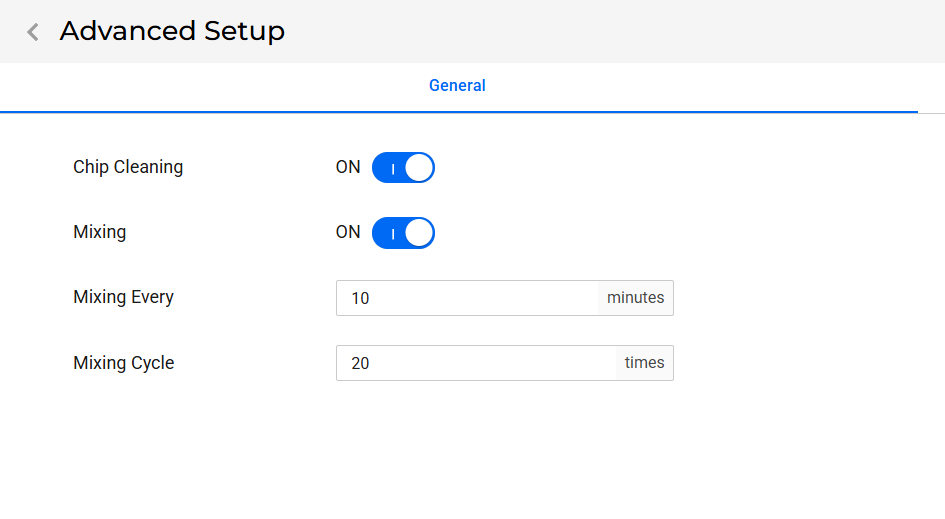
General Tab
Cycle:
Important
Feed Pressure applies to all cutoffs, but Retentate Pressure must be set for each specific cutoff.
Feed Pressure: Controls pressure at the membrane inlet using the diaphragm pump. Higher values increase transmembrane pressure and crossflow.
Time Multiplier: Adjusts the diaphragm pump timing duration. Increase proportionally with sample viscosity to improve transfer and recovery.
Note
Thicker fluids need a higher multiplier to achieve optimal performance and recovery.
Retentate Pressure: Controls pressure at the membrane outlet using the regulating valve. Higher values increase transmembrane pressure but reduce crossflow.
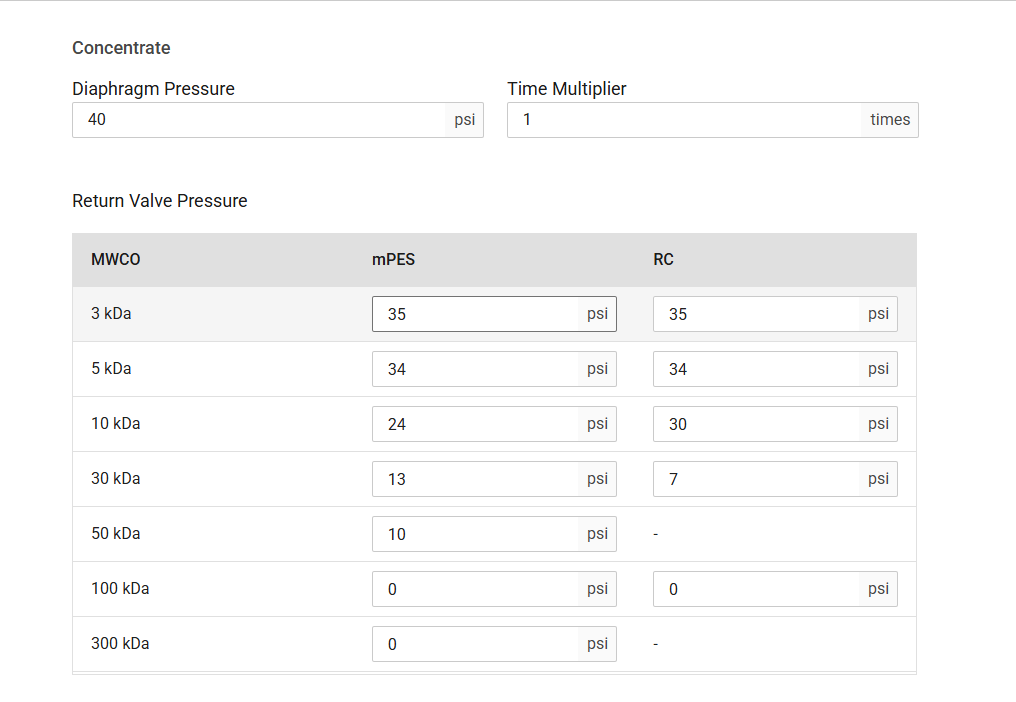
Cycle Tab
Creating a New Setup:
Choose from the following options:
On the Advanced Setup page, click Create
 .
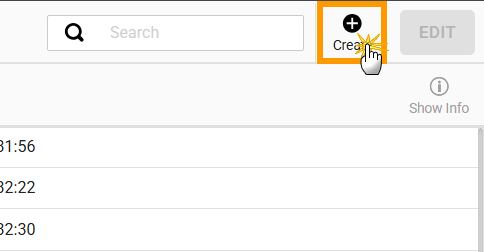
Click Create in the Advanced Setup Page
Open a profile and click the Create
 button.
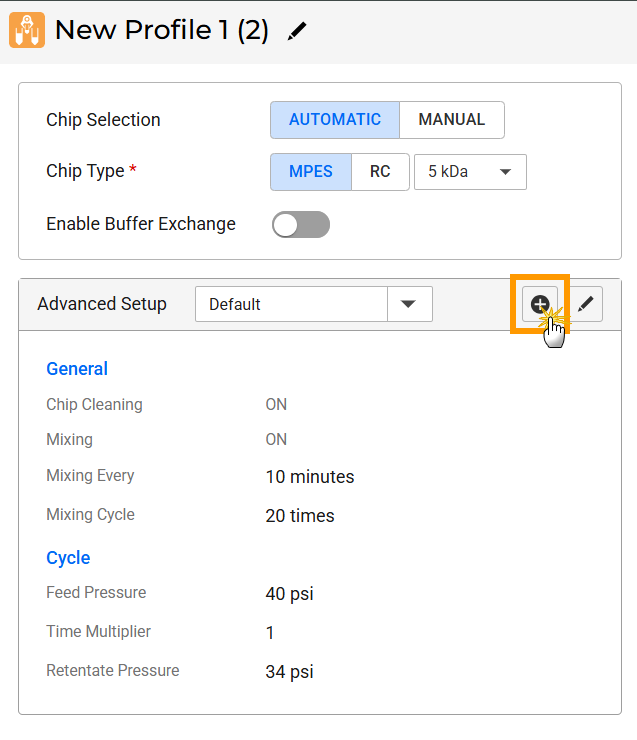
Advanced Setup in Profile Editor
Open the General tab, define the chip’s cleaning and mixing settings.
Open the Cycle tab, specify the chip’s pressure-control settings.
Enter a new name and click CREATE to create a new setup.
Repeat steps 1-4 to create more setups.
Managing Existing Setups

Advanced Setup Management Bar
Set a Default: On the Advanced Setup page, select a setup and click Set as Default
 .
Duplicate, Delete, or Rename: Select a setup then click the Duplicate
 , Delete
 , or Rename
 .
Important
You cannot delete setups that are already assigned to any profile or protocol.
Modify a Setup: Choose from the following options:
On the Advanced Setup page, select a setup and click EDIT
 .
While creating or editing a profile, select a setup from the Advanced Setup drop-down menu and click Edit
 .
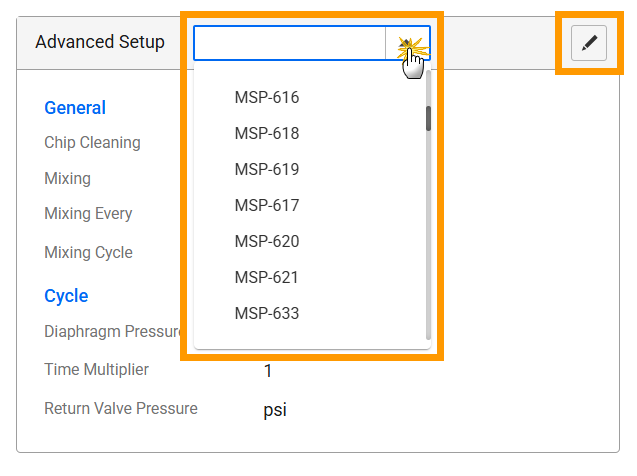
Advanced Setup Panel