ROCK MAKER Lite
Important
ROCK MAKER Lite comes as an add-on feature within the ROCK MAKER license. Please contact support@formulatrix.com for further details.
ROCK MAKER Lite—an upgraded version of ROCK MAKER Web— provides a more secure platform to allow you to quickly and easily navigate your images and manage image scoring.
The data in ROCK MAKER and ROCK MAKER Lite are synchronized, ensuring changes made in one are reflected in the other.
Accessing ROCK MAKER Lite
To access ROCK MAKER Lite, enter the URL of your HTTP port in your browser. For example, if your HTTP port is 5000, the URL is http://localhost:5000/.
Software Overview
ROCK MAKER Lite comprises the main page and experiment page.
Main Page
Notification Panel
Notifies you of updates and ongoing processes.
Notification Panel
User Menu
Displays and lets you modify your login information.
User Menu
Home Menu
The Home menu is the landing page when you open ROCK MAKER Lite. It comprises Recently Opened and Hits Image, displaying the following.
Recently Opened: Files you access recently.
Hits Image: Latest experiments (up to 10) with hit scores.
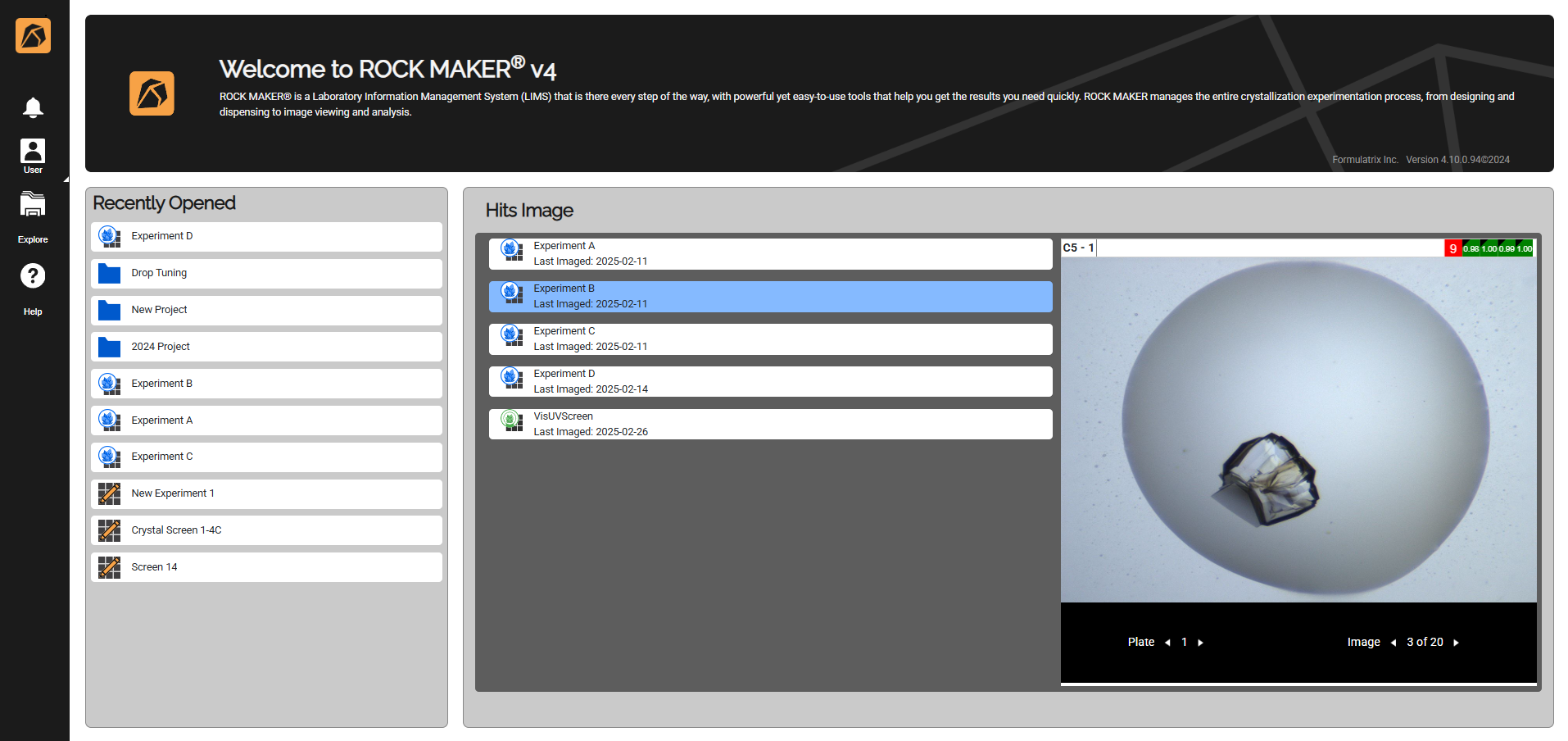
Home Menu
Explore Menu
Navigates you to the Projects node
 where you can access all your projects
  and folders
  .
.Important
Screens, proteins, fragments, and seeds are inaccessible through ROCK MAKER Lite.
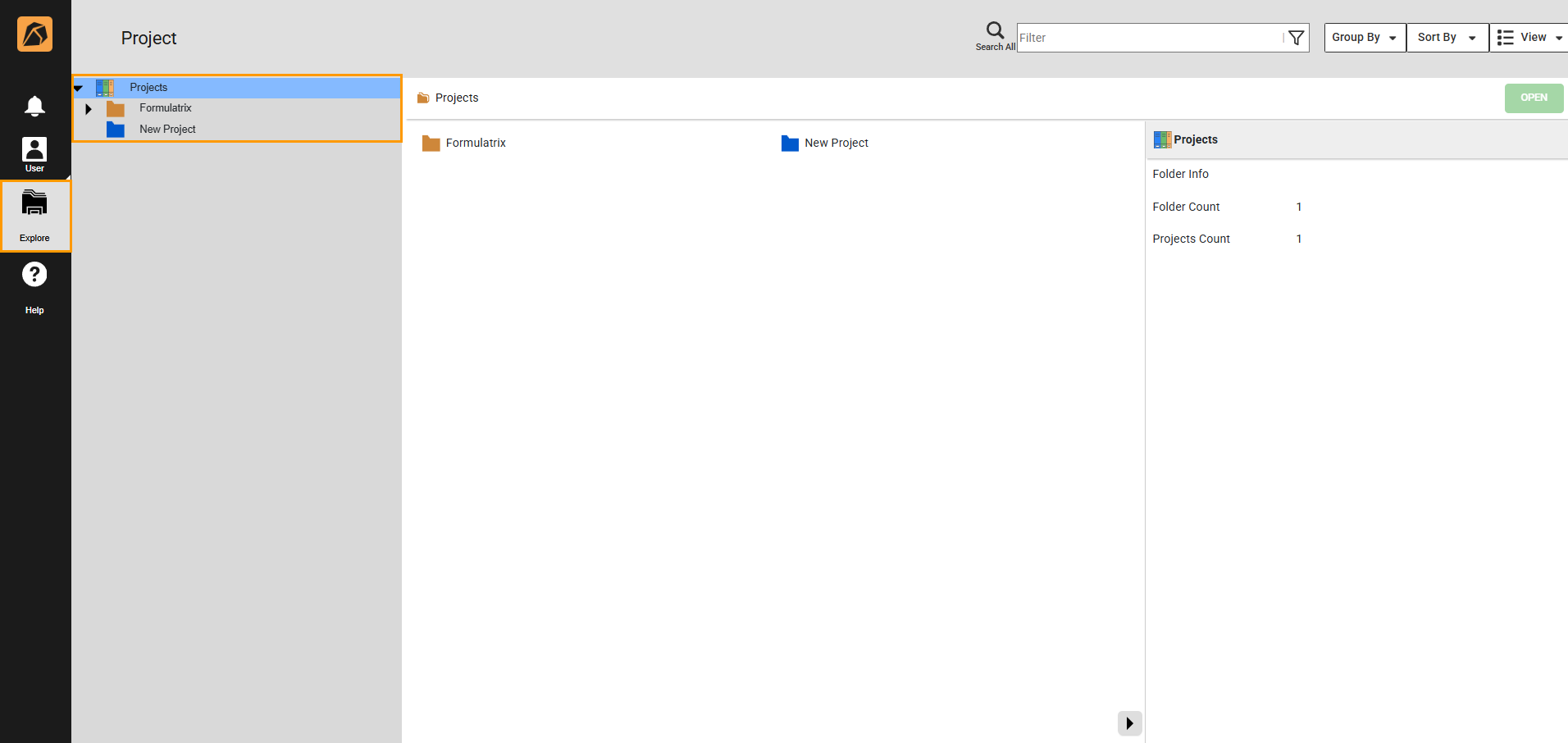
Explore Menu
Help Menu
Navigates you to the ROCK MAKER Lite help page.
Help Menu
Experiment Page
Notification Panel
Notifies you of updates and ongoing processes.
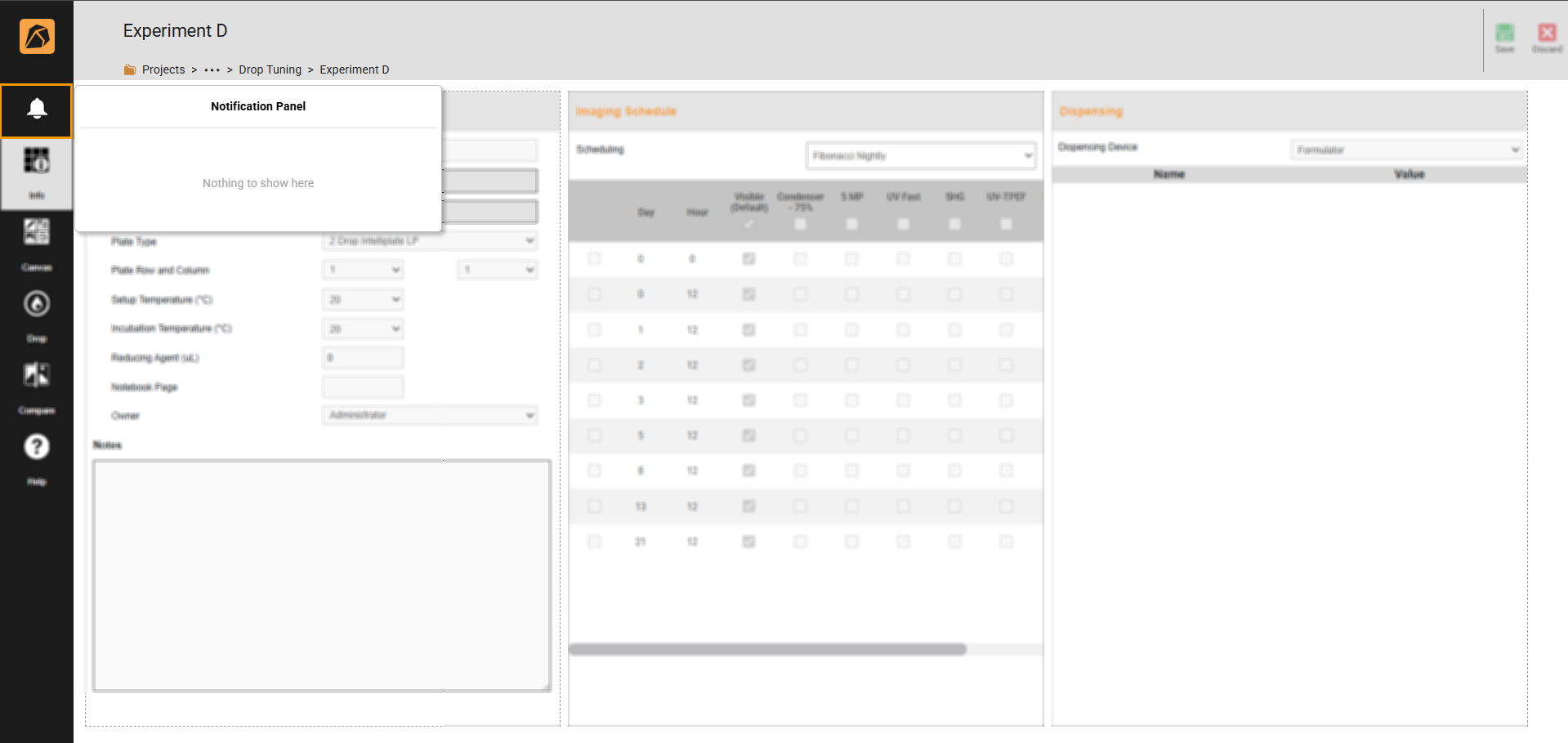
Notification Panel
Info Menu
Displays the experiment information, imaging schedule, and dispensing properties.

Info Menu
Canvas Menu
Displays your experiment’s canvas in either Image view or Score view.
Image: Displays drop images.
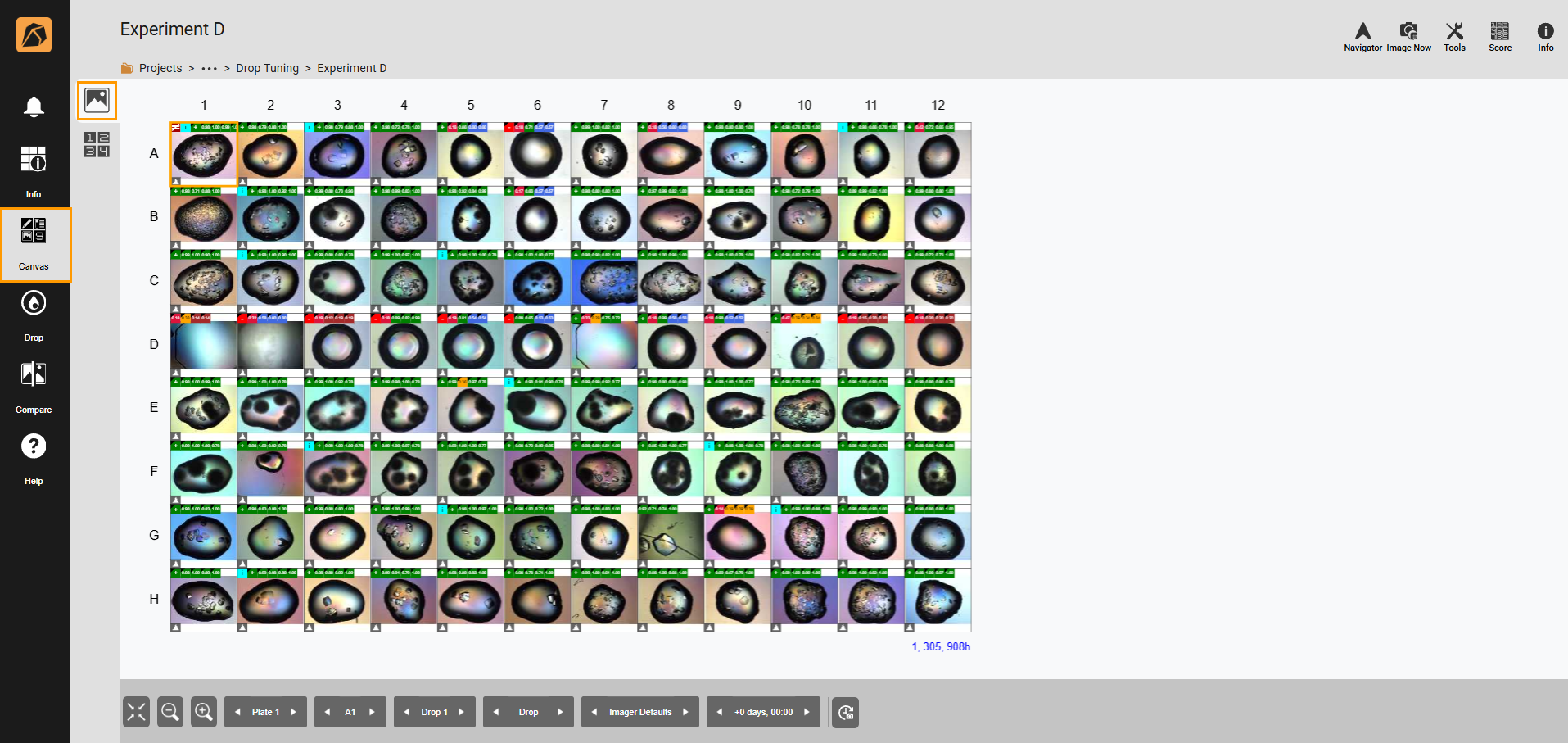
Image Submenu
Score: Facilitates drop scoring and displays the results.
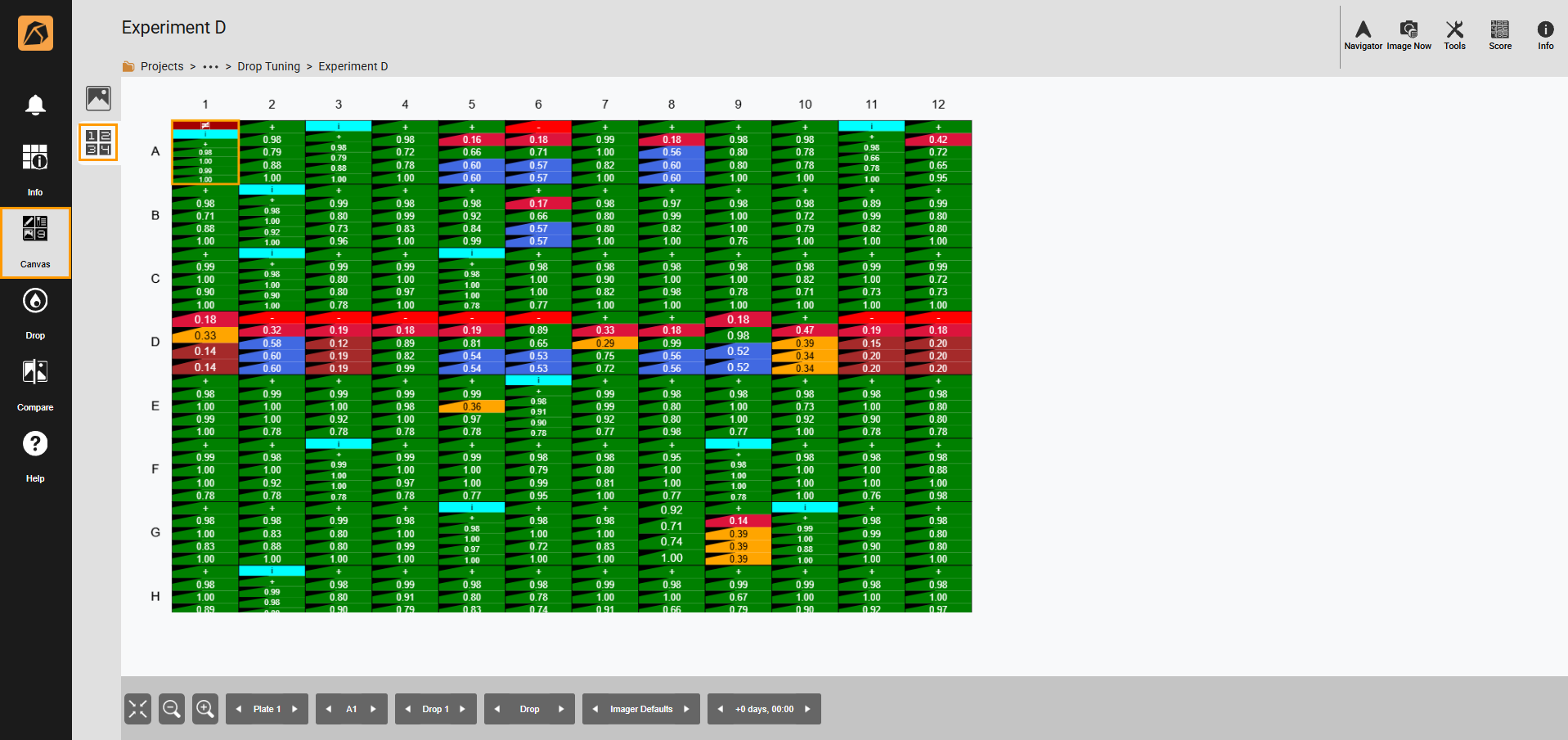
Score Submenu
Drop Menu
Displays a full-size image of a single drop.
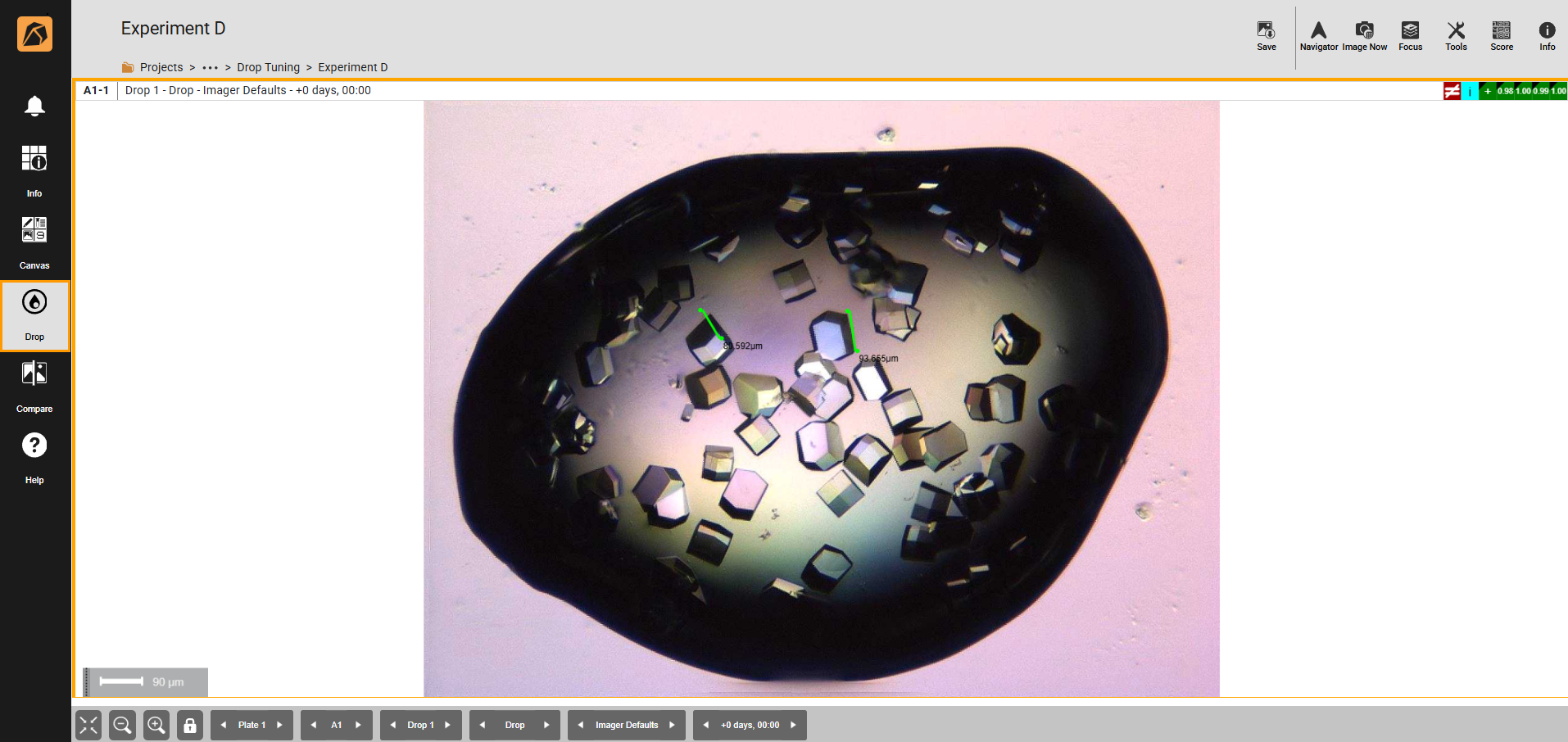
Drop Menu
Compare Menu
Compares up to four drop images of the same drop but with different settings or time points.
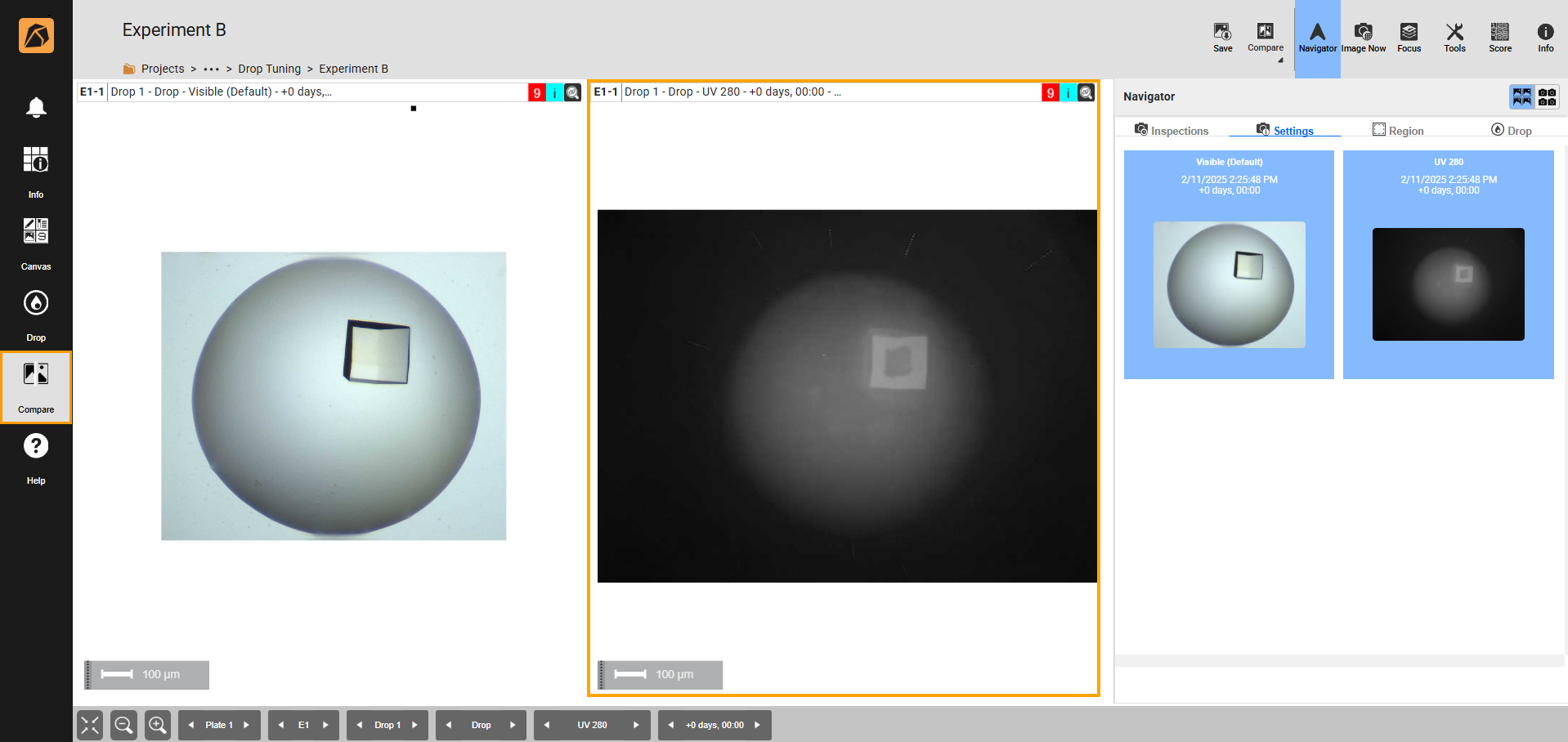
Compare Menu
Help Menu
Navigates you to the online help site.
Help Menu
You can access various features and functionalities in your experiment page from the menu bar.
Navigator
The Navigator panel is accessible through the Navigator button
 on the top right bar. It allows you to browse plates, wells, drops, regions, imaging settings, and imaging sessions.
Navigator Panel
Image Now
Accessible from the top bar buttons, Image Now
 lets you initiate an on-demand imaging session.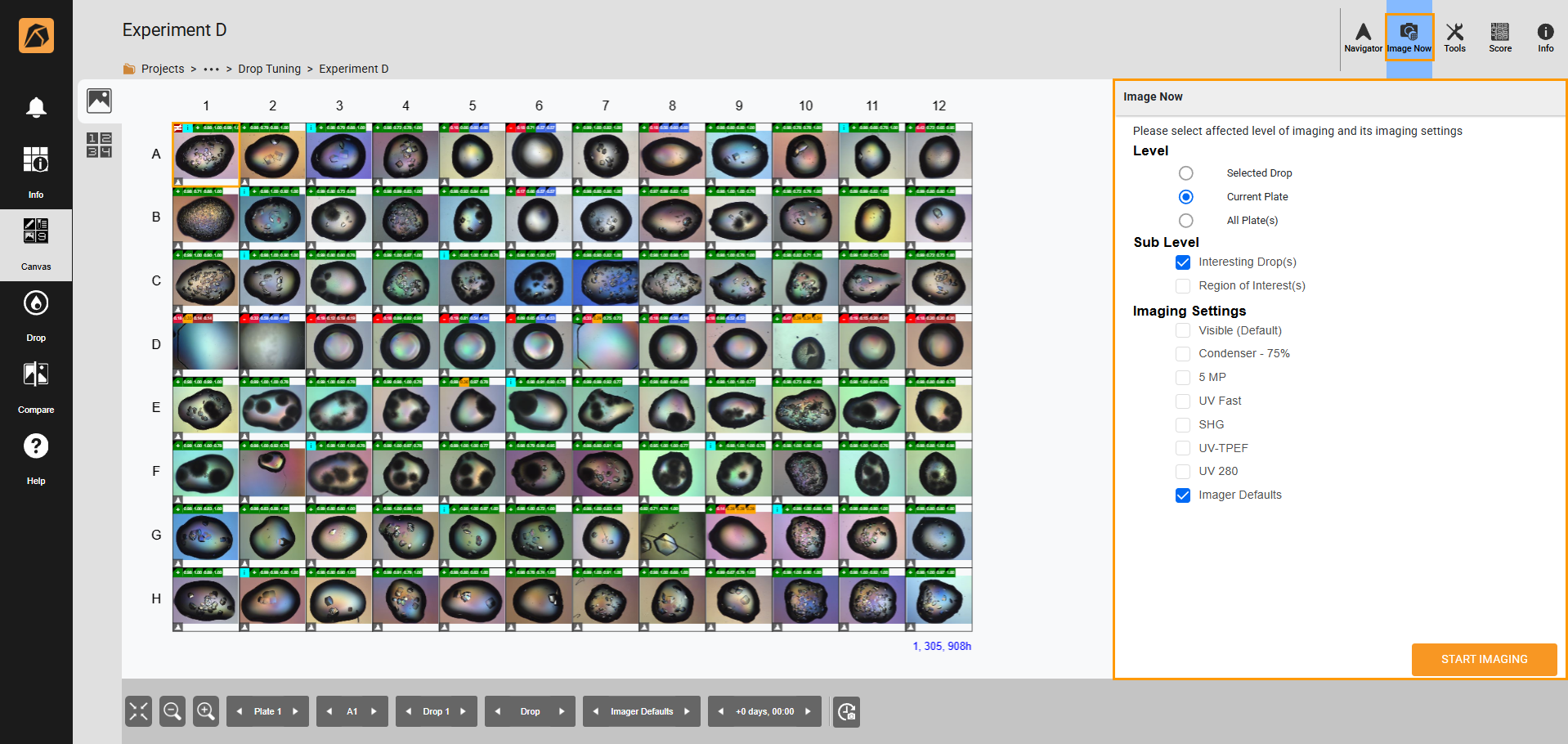
Image Now Panel
Tools
The Tools panel is available in the Canvas, Drop, and Compare menus. It allows image modifications, including disabling imaging, tuning images, defining regions of interest, adding notes, scribbling, and measuring crystals.
Note
The settings in the Canvas menu’s Tools panel apply to the entire experiment.
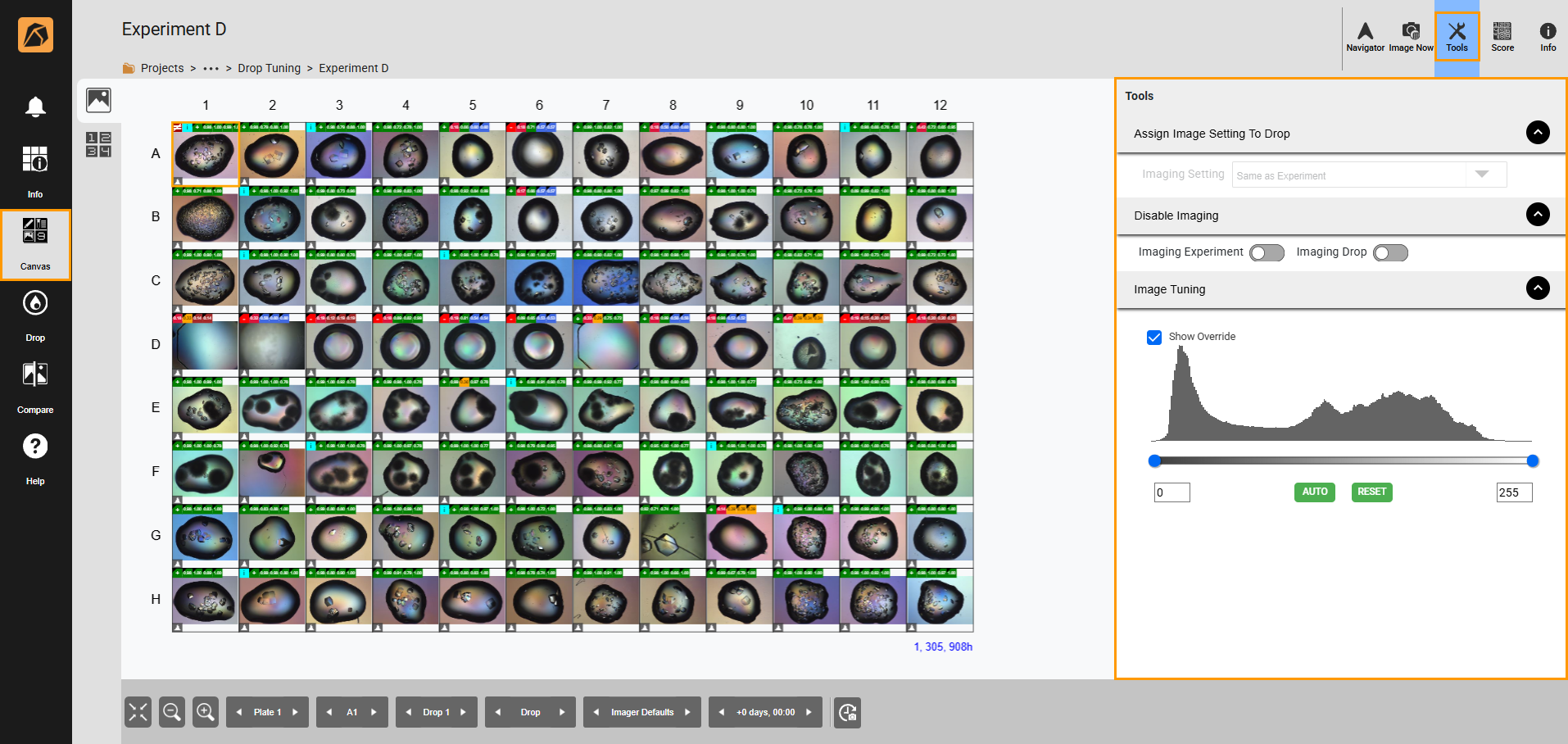
Tools Panel in Canvas Menu
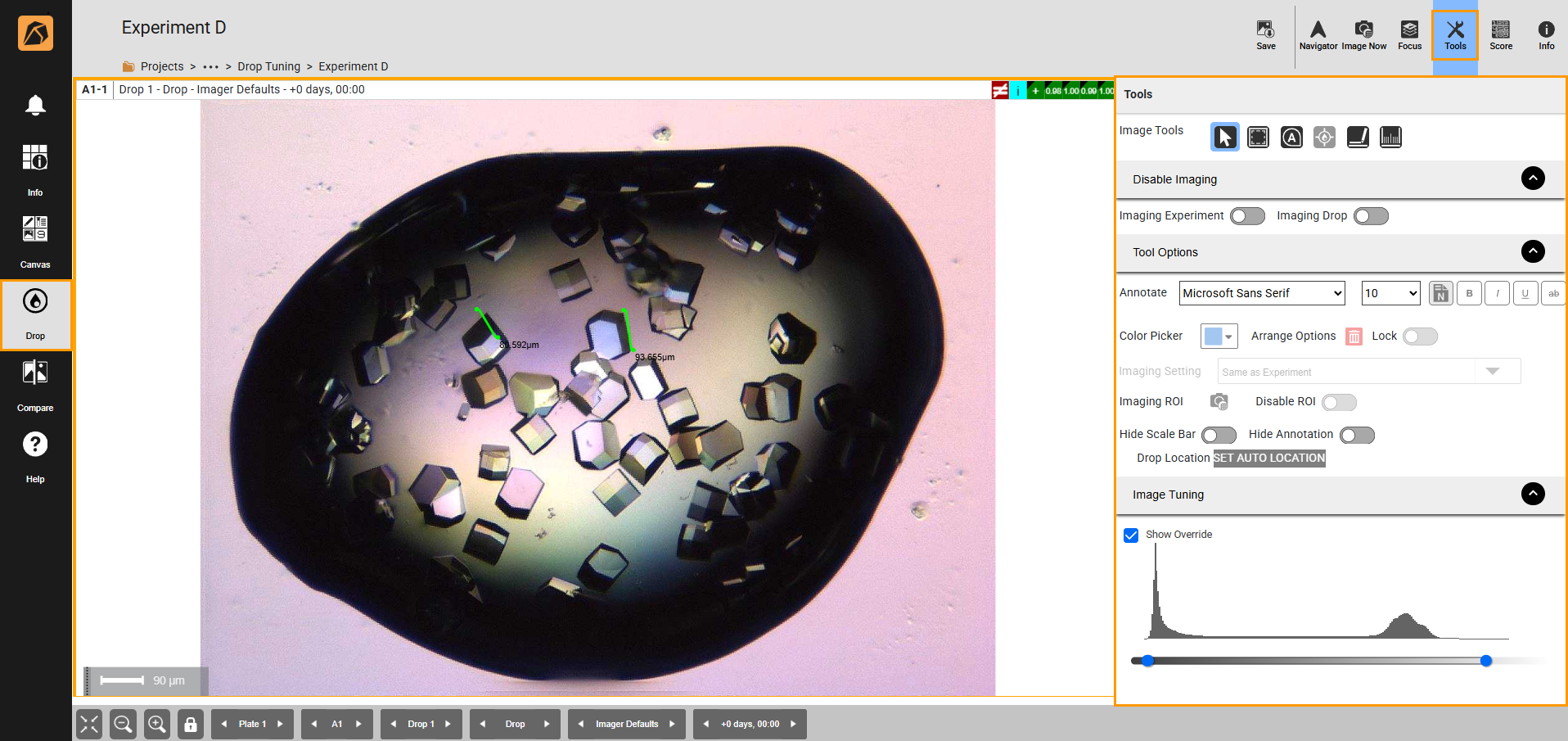
Tools Panel in Drop and Compare Menu
Score
The Score panel, accessible through the Score button
 in the top bar buttons, lets you view and assign scores to your images.
Score Panel
Each tab in the panel facilitates the following functionalities.
Filter: Lets you filter the score through the Filter Score dropdown, marks or unmarks images as interesting, enables or disables the auto selection of the next-well, and hides or shows auto scores.

Filter Tab
Scores: Lets you manually score images using default scores.

Scores Tab
Auto Score: Lets you send your inspection for auto scoring and view the results.
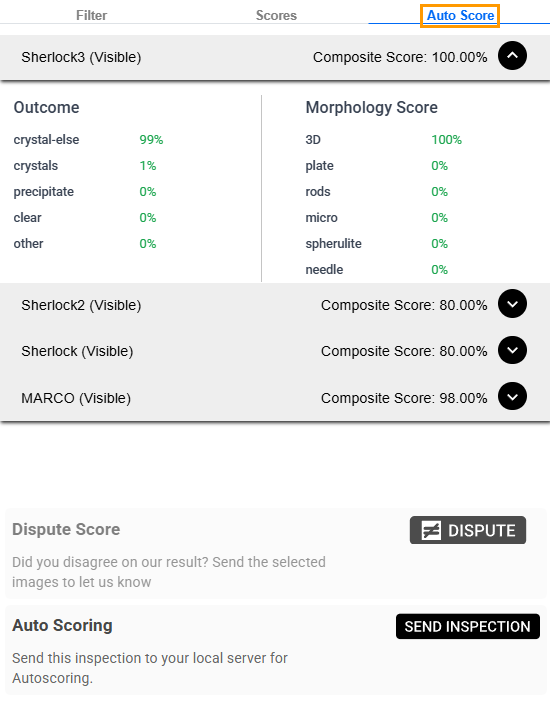
Auto Score Tab
Info
The Info panel, accessible through the Info button
 in the top bar buttons, displays the experiment details.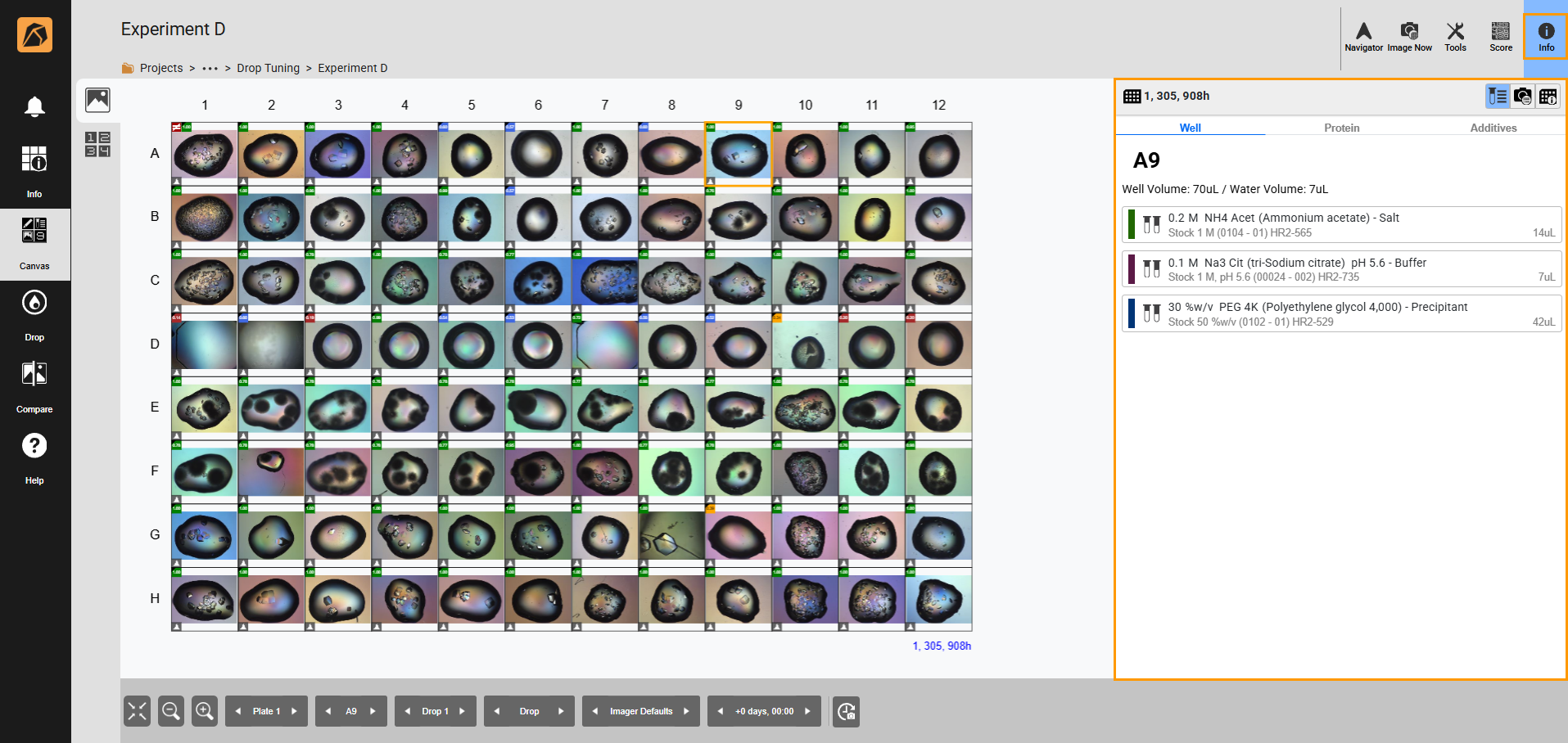
Info Panel
Each tab in the Info panel offers the following functionalities.
Ingredient Info
: Displays the ingredient information of a selected well, including ingredients in the Well tab, proteins in the Protein tab, and additives in the Additives tab.Image Info
 : Displays the imaging schedule.
Plate Info
 : Displays information about the experiment plate, including plate ID, experiment name, dispensed date, imaging date and time, and plate location.