Info Menu
The Info menu is the default view when you create a search and filter file, from completing the file information, specifying and defining your search query (the criteria you define), saving your preferred search settings, and performing the search.
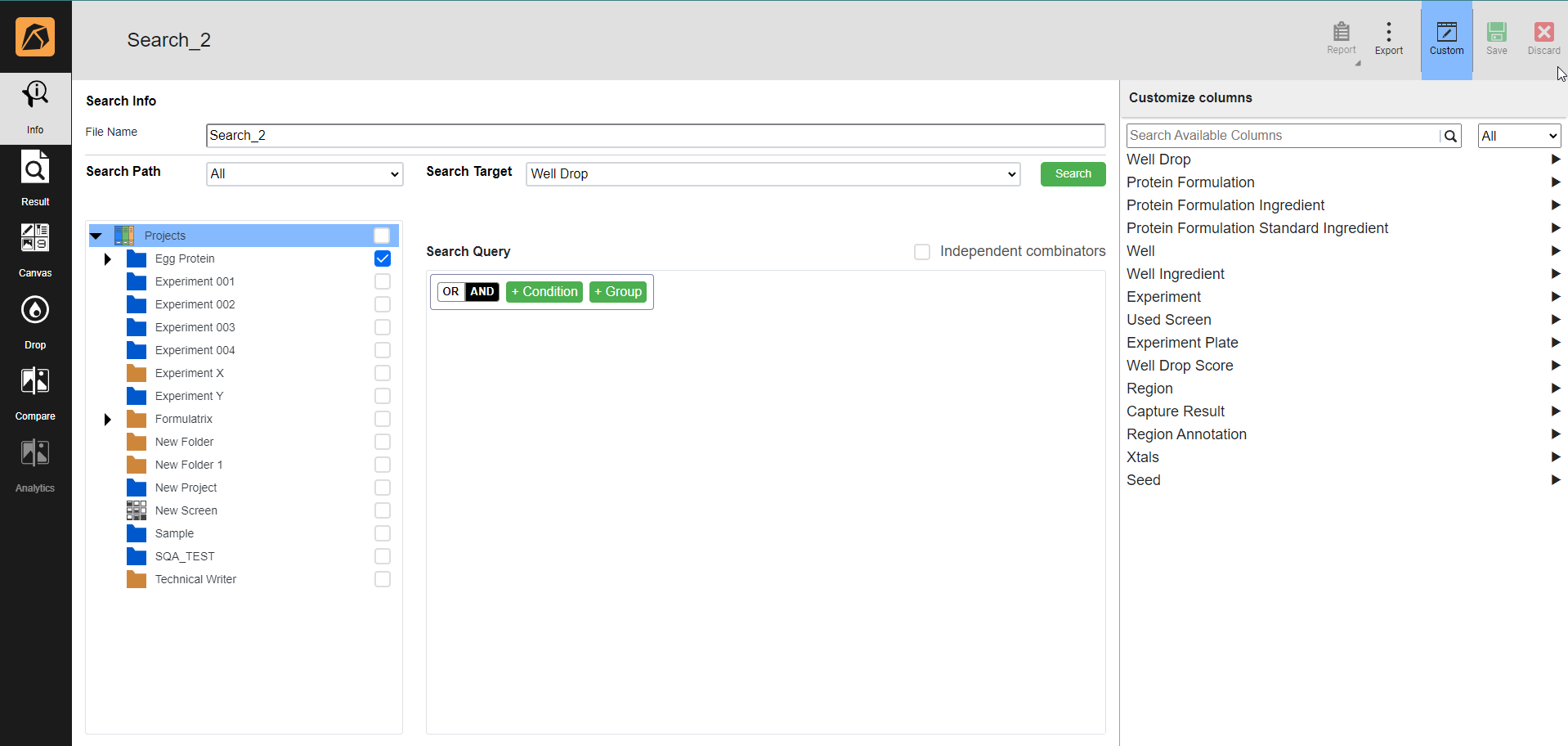
Info Menu
Search Info Section
The Search Info section is the main workspace where you specify your preferred search settings in the search and filter file through the File Name field, Search Path section, Search Target dropdown, and Search Query section.
File Name Field
The File Name field is where you enter the search file name.

File Name Field
Search Path Section
The Search Path section is where you select the target location(s) of your search.
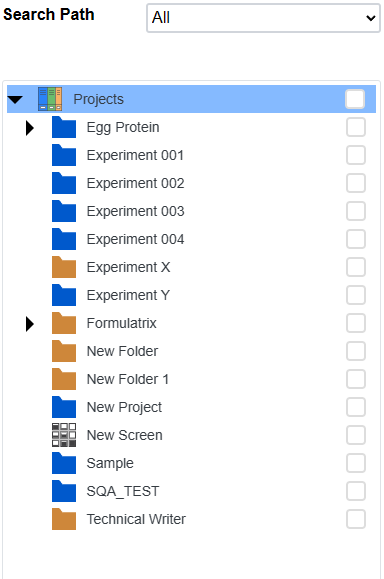
Search Path Section
A dropdown on the top right of the section allows you to choose the location(s) to display.
All: both selected and unselected locations.
Selected: the selected location(s) only. The selected location(s) determines the search results.
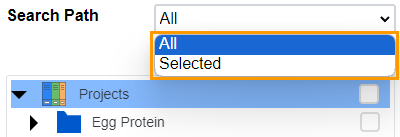
Options in the Search Path Section
Search Target Dropdown
The Search Target defines which parameter to return when searching the selected folders (Search Path). A list of the Search Targets, along with associated information, will be displayed in the results. All search target results are returned as a list of rows along with associated information that is configurable using search parameters. Well Drop and Drops By Score search targets also return corresponding images of drops in the drop view.
Select from the following targets to search for:
Project — Details of existing projects where you create and keep your experiments, proteins, seeds, fragments, and screens.
Experiment — Details of existing crystallization experiments, such as experiment name, date prepared, and incubation temperature.
Protein Formulation — Details related to existing protein formulations, such as protein formulation name, ID, class, and date prepared.
Experiment Plate — Details related to plates used in existing experiments, such as experiment plate type, name, plate number, and plate barcode.
Well — Details related to a certain well(s) in an experiment, such as experiment name, plate barcode, and well number.
Well Drop — Specific drop-related details within wells across various existing experiments, such as experiment name, well drop number, and capture result profile name.
Well Ingredient — Information related to different well ingredients being used in an experiment, such as well ingredient short name, concentration, pH, and volume.
Region Annotation — Annotation-related information in experiments, such as region annotation text, type name, and type icon. Read more about Region and Annotation.
Screen — Experiment results related to screens used in experiments, such as screen name and screen ingredient name.
Screen Hits — Screen scores marked as hits, encompassing crystallization drops with positive results such as well-formed crystals, microcrystals, or even crystalline-like materials. The search target will return parameters such as screen name, well number, hits, and hit rate. To run this search target, define screen hits by clicking the SCREEN HITS SCORE button.
Seed — Details associated with the seed in existing experiments, such as seed name, creation date, seed plate, seed well, seed drop, and seed protein name.
Drops By Score — Details of drops and experiments with their corresponding imaging settings and score information, such as capture result profile name, score value, and group name. Specific scores are assigned to drops automatically (through auto-scoring models) and manually. The same drop can have multiple results if imaged with multiple imaging settings.
Xtals — Harvested crystals in existing experiments. The search target will return parameters such as crystal name, crystal data collection, crystal structure, crystal resolution, and crystal date frozen.

Search Target Dropdown
The SEARCH button  is active upon search target selection in the dropdown field. Your search result will be displayed in the Result menu.
Search Query Section
It is where you define the condition(s) of a selected target (the target you select in the Search Target field).
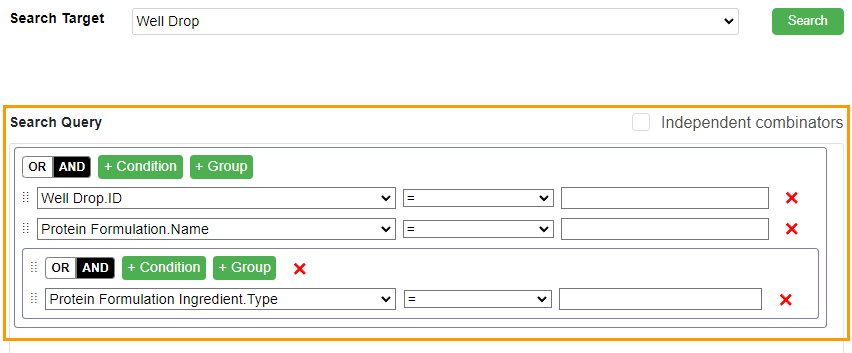
Search Query Section
You can use the following buttons and checkbox to refine the results.
The OR and AND buttons are operator buttons.
OR sets any conditions as true.
AND sets all conditions as true.
The CONDITION button allows you to add a condition.
The GROUP button allows you to add a group.
The Independent combinators checkbox allows you to add individual operators (OR and AND) for each condition if ticked.
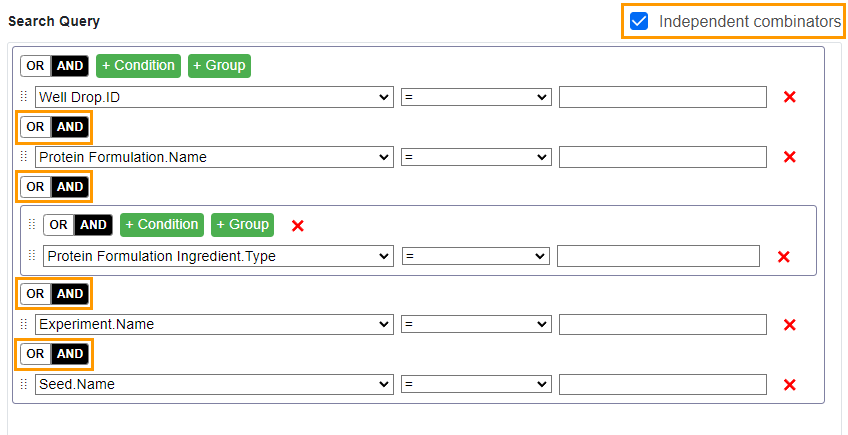
Independent combinators Setting
Read more on Working with Search Query Section.
Customize Columns Panel
This panel enables you to select the table headers displayed in the Result menu. Each search target (in the Search Target dropdown) has its default parameters. The default parameters are those marked with gray checkboxes in the Result menu.
Defining the table headers can be done before (in the Info menu) or after (in the Result menu) performing the search.
Note
The default table headers are unchangeable.
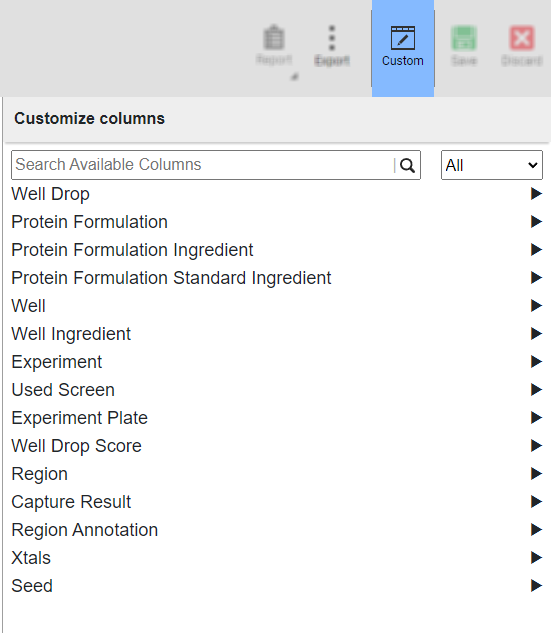
Customize Columns Panel
Select the following options to display the search results for:
Well Drop — Specific drops within wells across experiments based on the provided parameters.
Protein Formulation — All crystallization conditions linked to a protein formulation. This filter allows you to quickly find and display all crystallization conditions that are linked to a specific protein formulation.
Protein Formulation Ingredient — Crystallization conditions that include specific ingredients commonly used in protein formulations. The column with this header displays all conditions containing what you consider important ingredients.
Protein Formulation Standard Ingredient — Conditions containing standard ingredients used in protein formulations of your interest.
Well — Parameters related to a certain well(s) in an experiment.
Well Ingredient — Various parameters related to an experiment containing a combination of different well ingredients.
Experiment — Parameters related to crystallization experiments.
Used Screen — Experiment results related to screens you use in your experiments.
Experiment Plate — Parameters related to crystallization experiment plates.
Well Drop Score — Drops assigned a specific score automatically (through auto-scoring models) and manually.
Region — Created regions (ROI). Read more about ROI.
Capture Result — Imaged experiments. Although the ROCK IMAGER’s hotel may store both imaged and unimaged plates, the column with this header displays only the imaged ones.
Region Annotation — Annotation-related parameters. Read more about Region and Annotation.
Xtals — Parameters related to harvested crystals.
Seed — Parameters related to seeding experiments aimed at growing bigger crystals.
Read more on Using Customize Columns Panel.
Related Topics: