Standing Order for Consumables
Customers may need recurring deliveries of consumable items on a fixed schedule, such as weekly or monthly. Managing these recurring deliveries manually by repeatedly creating the Shipment records for the same Sales Order is hard to keep up with and raises the risk of missed or inconsistent deliveries.
The Standing Order feature allows the Admin team to plan and automate these recurring deliveries from a single Sales Order for Consumable items. Instead of creating shipments one by one, the Admin team defines the delivery schedule once by specifying:
The start date of the first delivery.
The shipment frequency (for example, weekly or monthly).
The quantity to be delivered in each shipment.
Based on this configuration, TIGA automatically generates all required Shipment records with Scheduled status. Each shipment represents a planned delivery cycle and can be processed individually when its estimated shipment date approaches. This process continues until the total Quantity of the Sales Order has been fully fulfilled.
Note
To help teams track pending deliveries and prepare upcoming shipments, TIGA sends a daily report to the Finance and Shipping teams listing all standing order shipments that are still in Scheduled status.
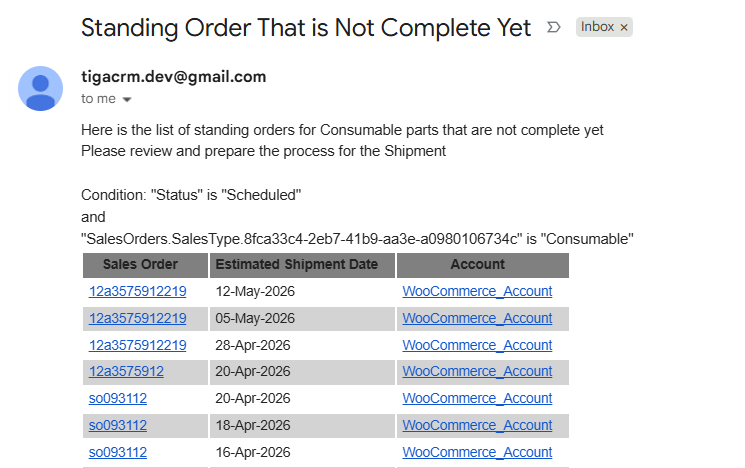
Standing Order Report Email
Standing Order Shipment Process
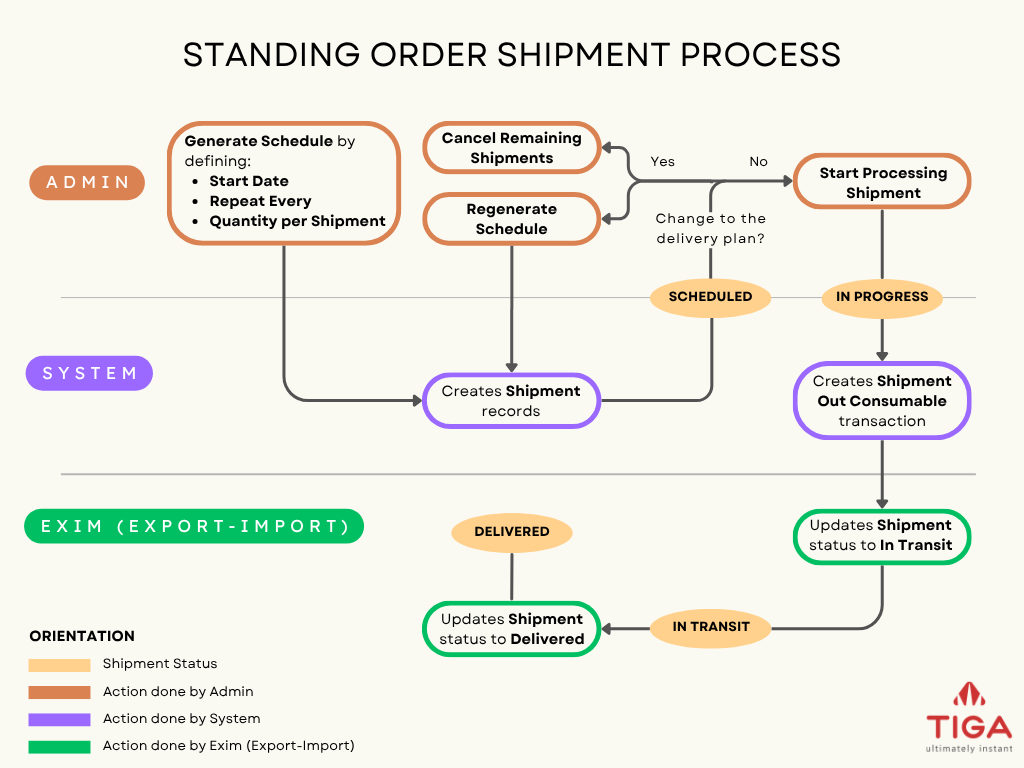
Standing Order Shipment Process
Each shipment generated from a Standing Order follows the shipment status flow shown below.
Status |
Description |
|---|---|
Scheduled |
The Shipment record is automatically created based on the defined standing order schedule. At this stage, the shipment is a planned record that has not yet started processing. |
In Progress |
The shipment process is triggered by the Start Processing Shipment action. The system automatically creates a Shipment Out Consumable transaction to prepare the items. |
In Transit |
The Exim (Export-Import) team manually updates the Shipment status to In Transit after confirming that the items have been handed over to the courier. |
Delivered |
The Exim team manually updates the Shipment status to Delivered after confirming that the customer has received the items. |
Important Notes
The following scenarios should be considered when using the Standing Order feature:
The Standing Order schedule cannot be generated if Shipment records already exist for the Sales Order.
Once a schedule is generated, the Quantity in the Sales Order Line Items cannot be modified. To make changes, the schedule must be regenerated.
If the total Sales Order quantity is not evenly divisible by the Quantity per Shipment, the final shipment contains a different quantity.
Shipments in Scheduled status are not processed automatically. They must be manually processed by initiating the Start Processing Shipment action.
Cancel Remaining Shipments permanently deletes all Scheduled shipments and cannot be undone.
Generate Standing Order Schedule
When a customer regularly orders the same consumable items, you can automate those deliveries by defining a shipment schedule. TIGA will calculate and generate all required Shipment records based on the configuration until the total order quantity is fully allocated.
Important
Once a schedule has been generated, the Quantity in the Sales Order Line Items table cannot be edited.
Prerequisites:
You are a member of the “Sales Order Processors” group.
The Sales Order has a Consumable sales type.
The Sales Order status is not Closed.
The Sales Order Line Items do not contain duplicate items.
No Shipment record has been created for the Sales Order.
To generate a standing order schedule:
Open the Sales Orders table in the CRM application.
Select a record with the Consumable sales type.
From the Actions menu, select Generate Schedule.

Generate Schedule Action
Review the wizard that displays the eligible Sales Order Line Item records.
Note
Only stockable items are included in the schedule generation. Items with Non Stockable Item selected are excluded.
Set the Start Date for the first shipment. The date must be today or a future date.
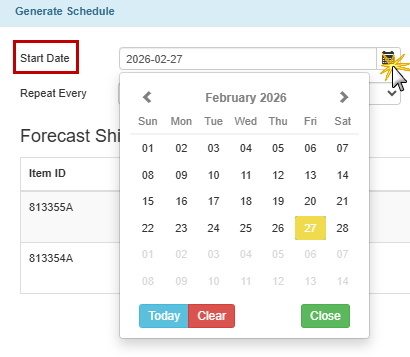
Start Date Field
Define the Repeat Every value by selecting a duration type:
Once
Day
Week
Month
Year
Then, enter the repetition number (for example, 1, 2, 3, etc).
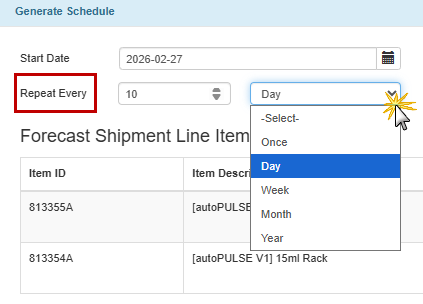
Repeat Every Field
Note
When Once is selected, the repetition number automatically defaults to “1”.
Enter the Quantity per Shipment for each listed item.
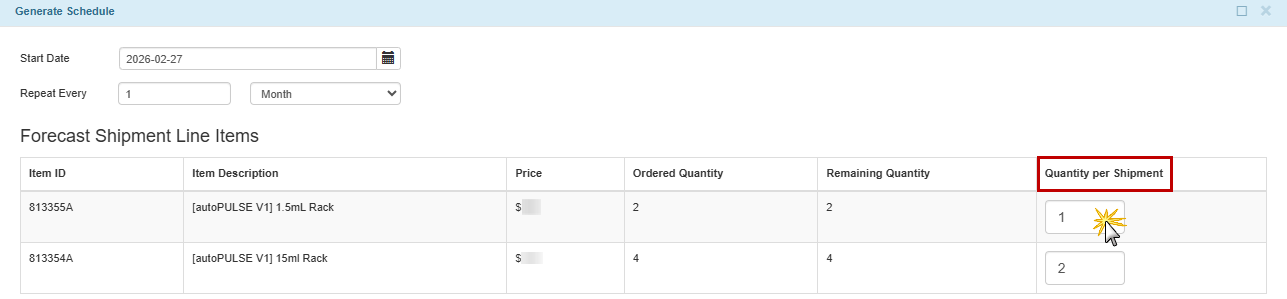
Quantity per Shipment Column
Select OK to generate the schedule.
Post Conditions:
TIGA automatically:
Populates the Standing Order section in the Sales Order record with the configured Start Date and Repeat Every values.
Updates the Shipped Discrepancy value in each Sales Order Line Item based on the ordered quantity.
Creates Shipment records and corresponding Shipment Line Items based on the total SO Quantity and the defined Quantity per Shipment.
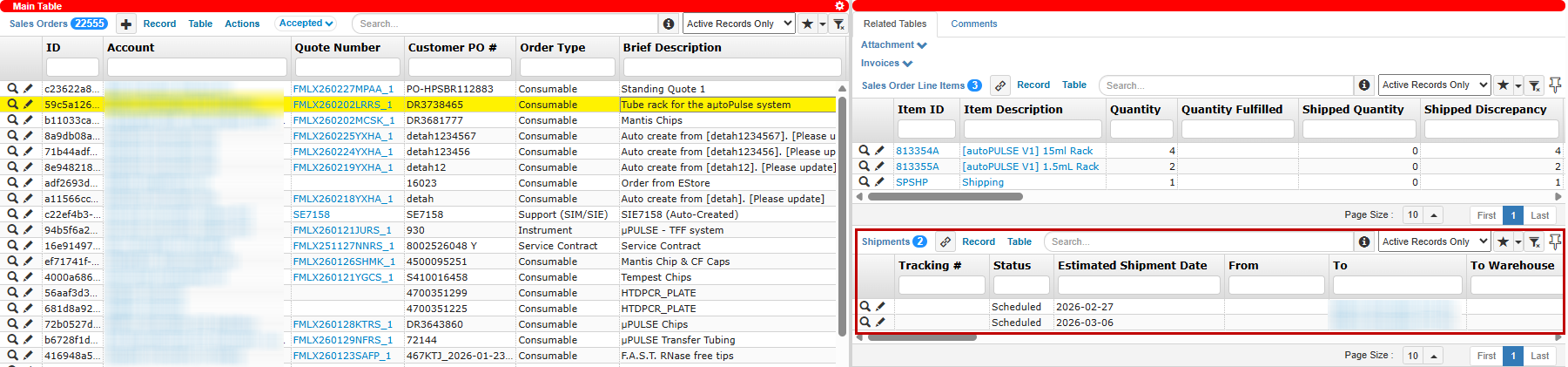
Generated Shipment Records
Assigns an Estimated Shipment Date to each Shipment record based on the Start Date and Repeat Every configuration.
Sets all generated Shipments to Scheduled status.

Shipment Status and Estimated Shipment Date
Note
Shipment records are created with basic information copied from the Sales Order, such as the customer account and address. Other required shipment details must be completed manually before further processing can proceed.
Regenerate Standing Order Schedule
Customers may request changes to their delivery plan, such as adjusting the start date, shipment frequency, or quantity per shipment. You can apply these changes by regenerating the schedule. When the schedule is regenerated, TIGA updates only the remaining planned shipments, while keeping completed or in-progress shipments unchanged.
Prerequisites:
You are a member of the “Sales Order Processors” group.
The Sales Order (SO) record has a Consumable sales type.
The SO Status is not Closed.
At least one linked Shipment is in Scheduled status.
Any related Transaction Line Items have been Confirmed.
To regenerate a standing order schedule:
Open the Sales Orders table in the CRM application.
Select a record with the Consumable sales type.
From the Actions menu, select Regenerate Schedule.
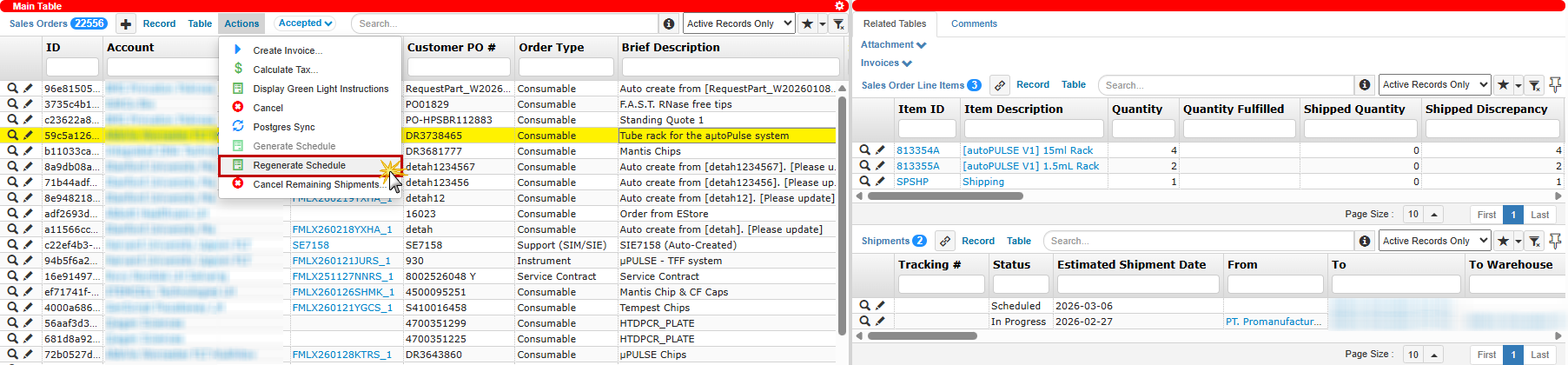
Regenerate Schedule Action
Review the wizard that displays the current schedule and the listed Sales Order Line Items with their existing Quantity per Shipment.
Enter a New Start Date for the revised schedule. The date must be today or a future date and cannot be set in the past.
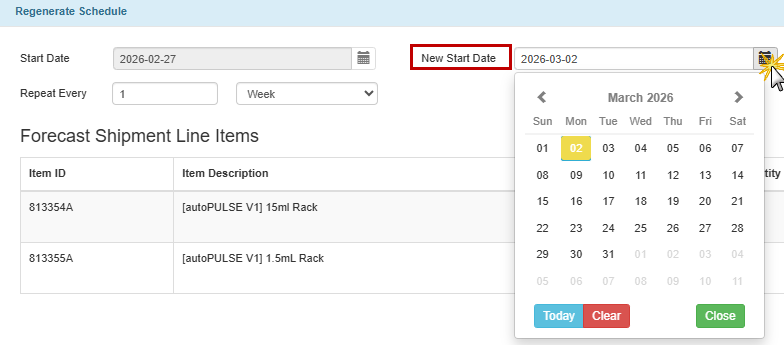
New Start Date Field
Update the Repeat Every value if the delivery frequency needs to change.
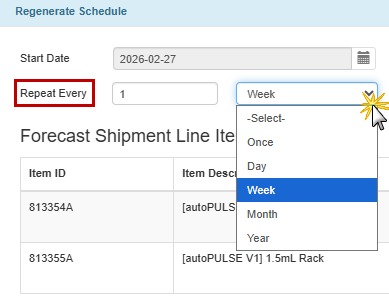
Repeat Every Field
Adjust the Quantity per Shipment for each item if required.
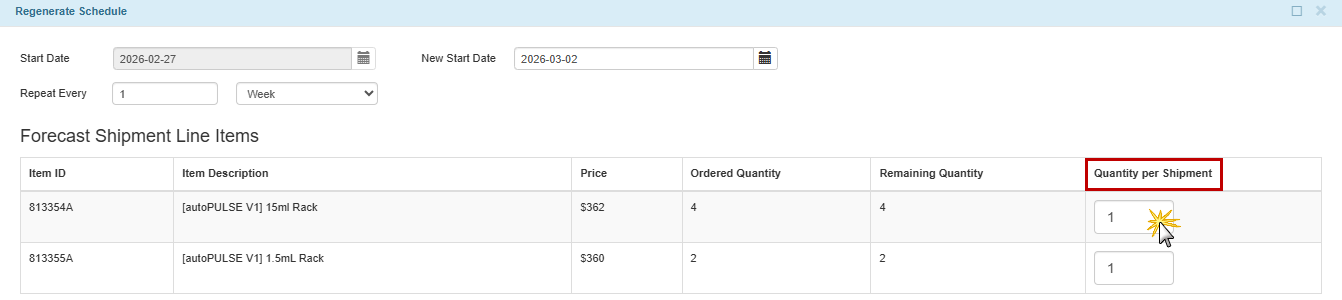
Quantity per Shipment Column
Select OK to apply the changes.
Post Conditions:
TIGA automatically:
Updates the Standing Order section in the Sales Order record based on the latest configuration.
Updates the existing Scheduled shipments or regenerates them depending on the changes applied.
If only the Start Date is changed, TIGA updates the Estimated Shipment Date of the existing Scheduled shipments without changing the number of shipments.
If the Repeat Every or Quantity per Shipment is changed, TIGA deletes the existing Scheduled shipments and generates new ones based on the updated configuration.
Note
Shipments that have already progressed beyond Scheduled status are not affected.
Start Processing Scheduled Shipment
As the estimated shipment date approaches, the shipment must be prepared for execution.
Prerequisites:
The Shipment record is linked to a Sales Order with the Consumable sales type.
The Shipment record has Scheduled status.
The Shipment record has been completed with the required shipment information.
To start processing a scheduled shipment:
Open the Shipments table and select a record with a Scheduled status.
From the Actions menu, select Start Processing Shipment.

Start Processing Shipment Action
In the confirmation dialog, select Start Processing to proceed.
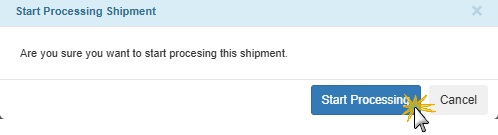
Start Processing
Post Conditions:
TIGA automatically:
Updates the shipment status to In Progress.
Creates a Shipment Out Consumable transaction with an Open status and In Progress shipping status.
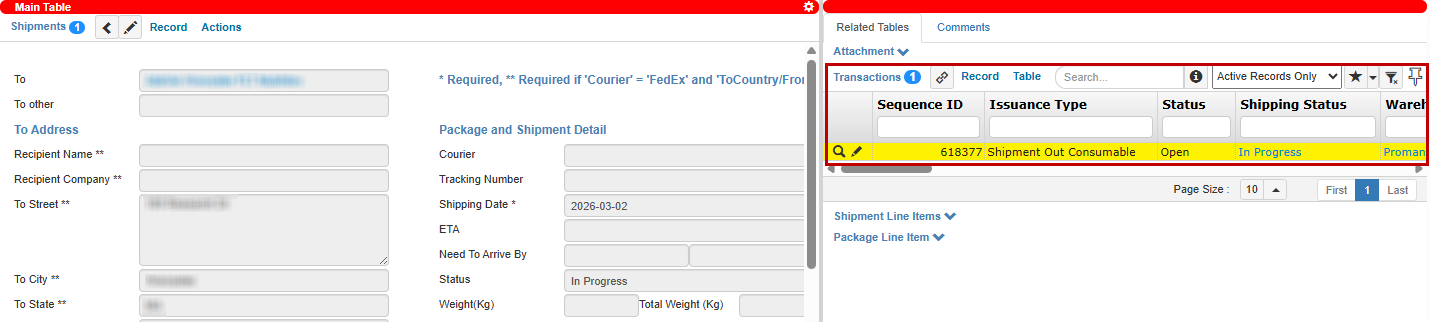
Transaction Record Created
Generates Transaction Line Item records with Unconfirmed status based on the Shipment Line Items.
Sends a notification email to the relevant recipients, including the user who initiated the process, Warehouse, and Exim teams, to inform them that a Shipment Out Consumable transaction is ready for processing.
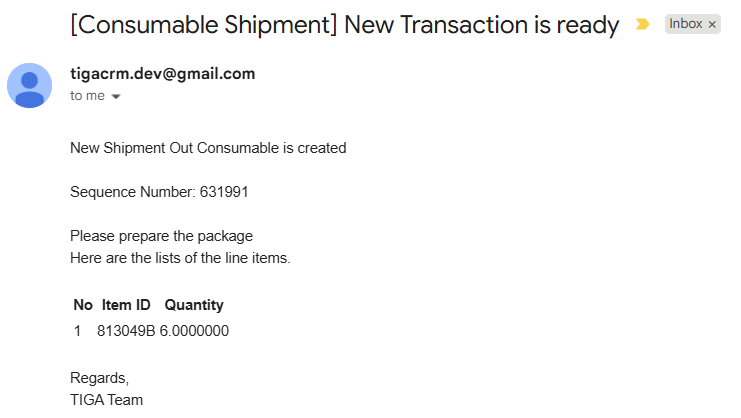
Consumable Shipment Email Notification
Note
After the system creates the Shipment Out Consumable transaction, the Warehouse or Exim team must confirm the transaction to proceed with the shipment. This confirmation indicates that the items have been prepared and are ready to be shipped.
Upon confirmation:
The Shipped Quantity in the related Sales Order Line Item is updated based on the confirmed quantity, and
The Shipped Discrepancy is reduced accordingly.
After the items are handed over for delivery, the Exim team manually updates the shipment status to In Transit.
Once the customer receives the items, the status is manually updated to Delivered.
Cancel Remaining Scheduled Shipments
If future deliveries of consumable items are no longer required, you can cancel the remaining Scheduled shipments. This action removes all pending shipments that have not yet started processing.
Important
This action cannot be undone.
Prerequisites:
You must be a member of the “Sales Order Processors” group.
The Sales Order (SO) record has a Consumable sales type.
The SO Status is not Closed.
At least one linked Shipment is in Scheduled status.
To cancel remaining scheduled shipments:
Open the Sales Orders table in the CRM application.
Select a record with the Consumable sales type.
From the Actions menu, select Cancel Remaining Shipments.
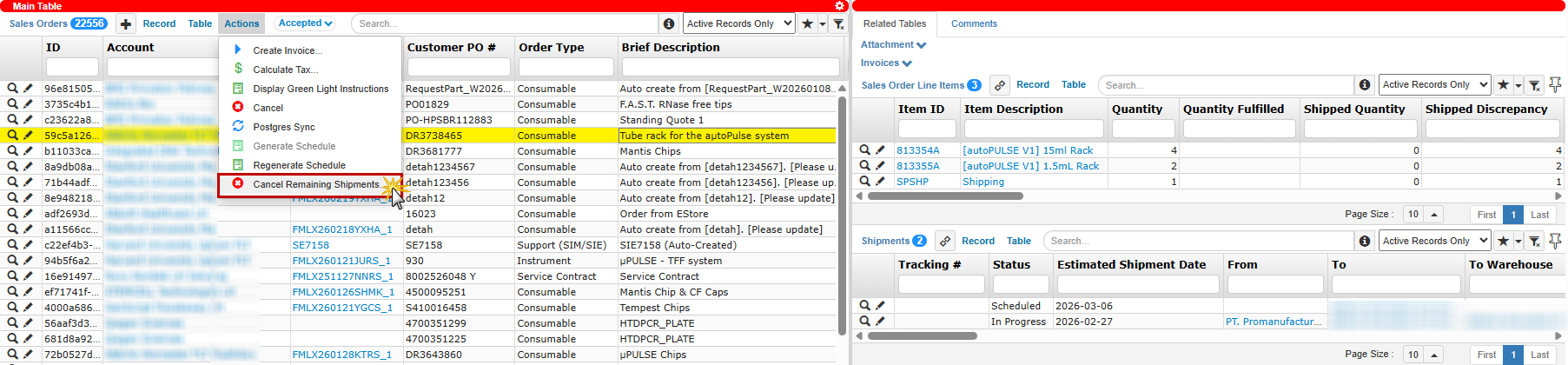
Cancel Remaining Shipments Action
Select OK to confirm the cancellation.
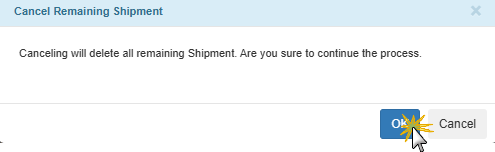
Cancel Remaining Shipment
Post Condition:
TIGA automatically deletes all linked Shipment records that remain in Scheduled status.
Note
Shipments that have already progressed beyond Scheduled status (In Progress, In Transit, or Delivered) are not affected.