Info Button
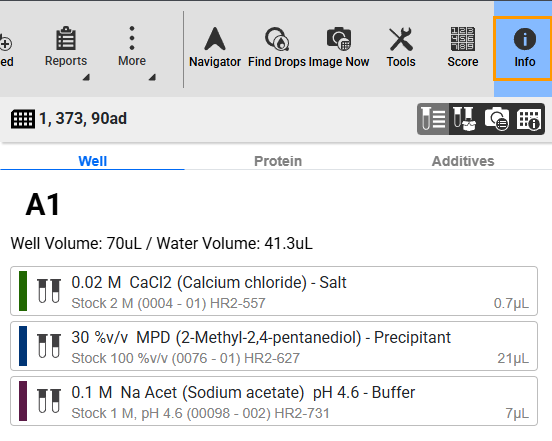
Accessible from the Canvas, Drop, and Compare menus, the Info button comprises four tabs:
Info Button
Clicking the Info button  will open its panel and display the Ingredient Info tab by default.
Ingredient Info Tab  

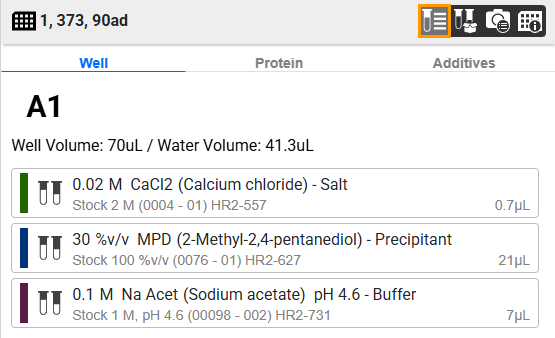
Ingredient Info Tab
The Ingredient Info tab displays the ingredient information of a selected well as set up in the Layers Design tab of the experiment page side panel, including its:
Ingredient(s) in the Well tab.
Drop’s protein(s) in the Protein tab.
Additives in the Additives tab.
Required Stock Tab  

The Required Stock tab lists all ingredients used in an experiment.
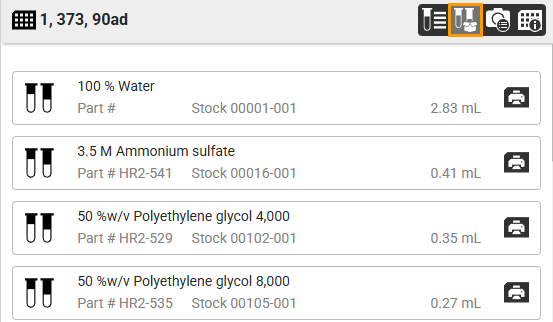
Required Stock Tab
Image Info Tab  

The Image Info tab displays detailed information on imaging settings and schedules in the corresponding sub-tabs. Clicking its button will open the Imaging Settings sub-tab by default.
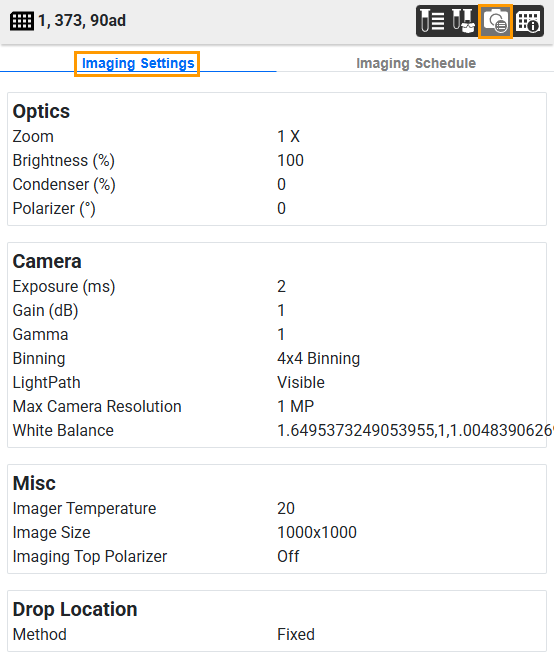
Imaging Settings Sub-tab
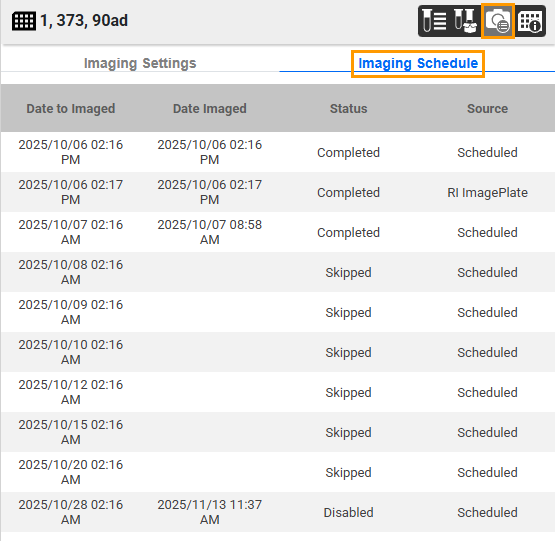
Imaging Schedule Sub-tab
Plate Info Tab  

The Plate Info tab displays information about the plate used in an experiment, including plate ID, experiment Name, Dispensed date, Imaged date and time, and plate Location.
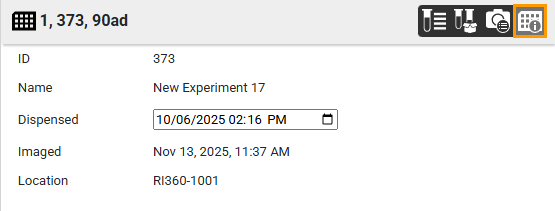
Plate Info Tab
Related Topics: