User Preferences Submenu
As authorized ROCK MAKER users, manage your preferences from the
User Preferences submenu  .
This feature is accessible from the User menu
.
This feature is accessible from the User menu  .
The RESET PREFERENCES button at the bottom bar allows you to reset all property settings to the parent settings, either Group Preferences or Global Preferences.
.
The RESET PREFERENCES button at the bottom bar allows you to reset all property settings to the parent settings, either Group Preferences or Global Preferences.
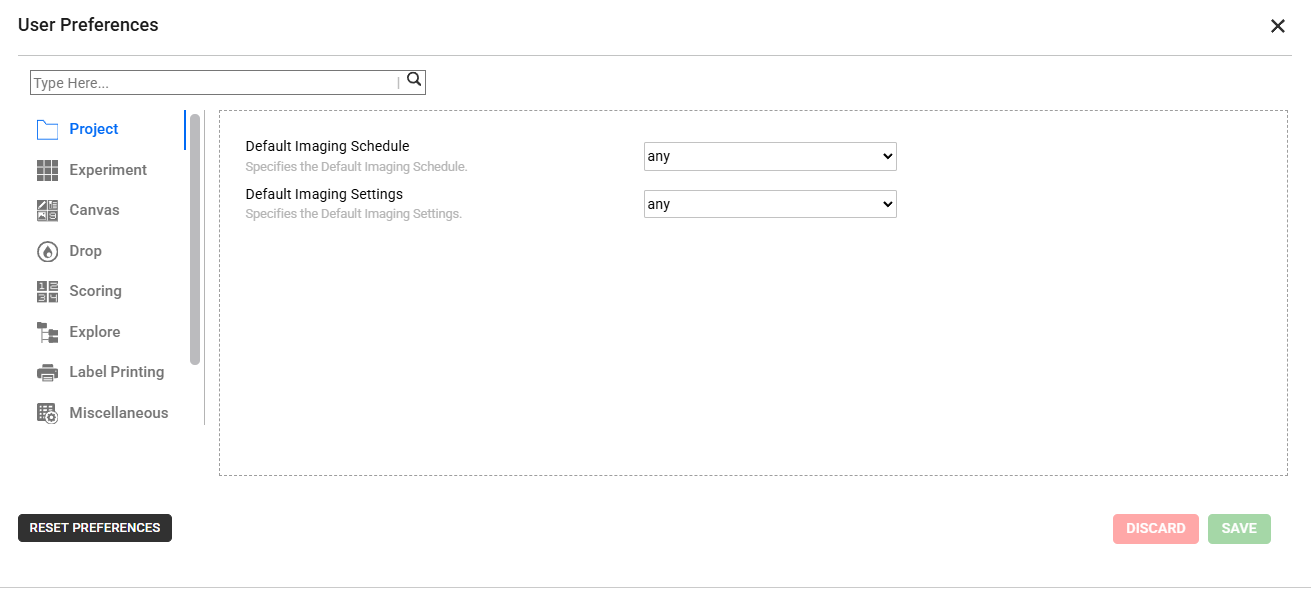
User Preferences Dialog Box
The User Preferences dialog box consists of some system properties. The Project property is the default view when you open the dialog box. You can use the Type Here field for a quick search.
Project
System Property |
Description |
|---|---|
Default Imaging Schedule |
Sets the default imaging schedule from the available options. |
Default Imaging Settings |
Sets the default imaging settings from the available options. |
Experiment
System Property |
Description |
|---|---|
Default Plate Type |
Sets the default microplate type from the available options. |
Incubation Temperature |
Sets the default incubation temperature from the available options. This is the temperature at which the plate is stored to grow crystals. |
Plate Column |
Defines the number of columns on plates in the experiment’s canvas. |
Plate Row |
Defines the number of rows on plates in the experiment’s canvas. |
Setup Temperature |
Sets the temperature at which the plate is set up from the available options. |
Experiment Default Imaging Schedule |
Sets the default imaging schedule from the available options. |
Show prepared status in stock picker |
Shows the prepared status when adding or editing a standard ingredient if enabled. |
Canvas
System Property |
Description |
|---|---|
Canvas: Selected Well Color |
Sets the color of the selected well from the available options. To change, click the CHANGE button. |
Canvas: Selected Layer Color |
Sets the color of the selected layer from the available options. To change, click the CHANGE button. |
Protein Layer’s name based on Protein Formulation name |
Shows the Protein Layer’s name, which is based on the Protein Formulation name on the canvas, if enabled. |
Navigator: Vertical Image Prefetch Count |
Determines the number of adjacent images to prefetch when navigating up or down in the Navigator panel of the Canvas menu to minimize loading delays. |
Navigator: Horizontal Image Prefetch Count |
Determines the number of adjacent images to prefetch when navigating to previous or next images in the Navigator panel of the Canvas menu to minimize loading delays. |
Drop
System Property |
Description |
|---|---|
Annotation text default font |
Defines the annotation’s default font. |
Reset Drop Location in Overview image |
Resets drop location in the overview image if enabled. |
Point of Interest Crosshair Color |
Sets the crosshair color of the Point of Interest from the available options. To change, click the CHANGE button. |
Vertical Image Prefetch Count |
Determines the number of adjacent images to prefetch when navigating up or down in the Drop menu to minimize loading delays. |
Horizontal Image Prefetch Count |
Determines the number of adjacent images to prefetch when navigating to previous or next images in the Drop menu to minimize loading delays. |
Scoring
Enables the toggle buttons to:
System Property |
Description |
|---|---|
Move to next well after scoring |
Automatically navigate to the next image when assigning a score to an image in ROCK MAKER if enabled. |
Delete score via hotkey |
Delete scores using Hot Keys if enabled. |
Restart from first well once the last is reached |
Automatically return to the first image after assigning a score to the last image in ROCK MAKER if enabled. |
Receive Auto Score emails |
Receive MARCO auto scoring results by email if enabled. The result is sent to the experiment owner’s email. This will only be applicable if there are images defined as Crystal. |
Explore
System Property |
Description |
|---|---|
Show Print Barcode menu in Tree |
Shows the Print Barcode button in the Explore menu if enabled. |
Show Confirmation Dialog when Moving any Items in Tree |
Confirms when you are about to move items in ROCK MAKER if enabled. |
Follow Me |
Highlights experiment activities to allow an instant return to a current experiment if enabled. |
Tree Width |
Defines the default explorer tree’s width in pixels. |
Show top images by score |
Automatically displays the top images by score in the side panel of a project or experiment in the Explore menu. |
Default number of top images by score(Max 100) |
Determines the default number of top images by score to display in the project or experiment side panel of the Explore menu. |
Default score group of top images |
Determines the default score group of top images in the project or experiment side panel of the Explore menu. |
Default imaging setting of top images by score |
Determines the default imaging setting of top images by score in the project or experiment side panel of the Explore menu. |
Label Printing
System Property |
Description |
|---|---|
Label Printer |
Defines the full name of the label printer. |
Miscellaneous
System Property |
Description |
|---|---|
Default Export Path |
Defines the default path of an exported experiment. |
Show Rotate Canvas MessageBox |
Shows a dialog box before ROCK MAKER switches the screen 180°. |
Show Navigator Bar |
Displays the Navigator bar. |
Format Timepoint Display |
Sets inspections’ grouping based on the imaging date from the available options. |
Search & Filter - Enable Canvas |
Includes canvas when using Search and Filter if enabled. |
Slide Show - Slide change interval |
Sets the time (in seconds) to move between drops in Slideshow from the available options. |
Show what’s new at upgrade |
Shows “What’s New in This Release?” when upgrading from the previous version if enabled. |
Protein Formulation - Show API Data |
Displays the API data stored by the protein formulation data importer (used by some users) on the protein formulation’s graphical user interface. |
Protein Formulation - API Data Label |
Specifies the label on the protein formulation’s graphical user interface stored by its data importer (used by some users). |
Protein Formulation: Default Liquid Class |
Sets the default liquid class of the protein formulation from the available options. |
Plate
Note
The Plate properties allow you to set each registered plate’s preferences. The plate types listed in the Plate Type Name dropdown match those in the Plate Types Submenu.
System Property |
Description |
|---|---|
Plate Type Name |
Selects the plate type. |
Plate Default Imaging Schedule |
Selects the plate’s default imaging schedule. |
Related Topics: