Custom Layer
In a custom layer, you can define a different set of ingredients in each well.
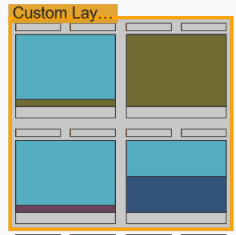
Custom Layer Example
Layers Design Tab
The Layers Design tab on the right side of the ROCK MAKER window facilitates users with Layers and Conditions subtabs to design layers. All existing layers are accessible through the section above the two subtabs.
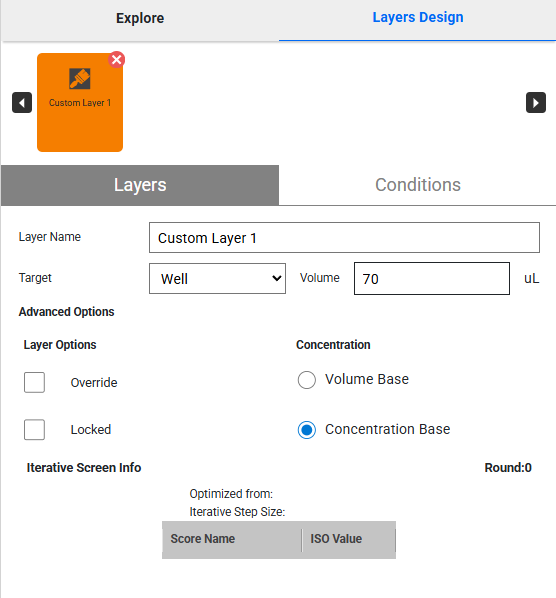
Layers Design Tab in Custom Layer
List of Layers displays all created layers. The right and left arrows are used to navigate.
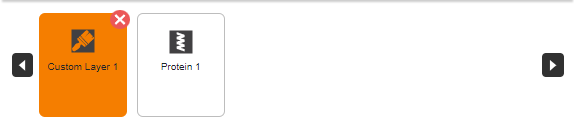
List of Layers Example
Layers subtab allows you to:
Item
Description
Layer Name
Use the default layer name or type in a name.
Target
Select a well or drop.
Volume
Type in the desired volume.
Layer Options (a part of Advanced Options)
Select Override, Locked, or both.
Concentration (a part of Advanced Options)
Select Volume Base or Concentration Base.
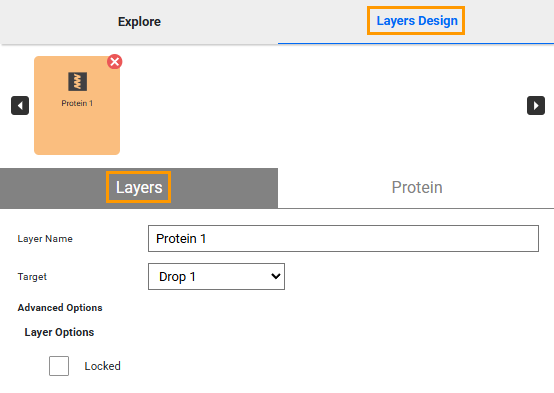
Layers Subtab
Note
In an optimized experiment, all information in the Iterative Screen Info section will be provided. For more information, read Iterative Screen Optimization (ISO) in Optimizing Experiments.
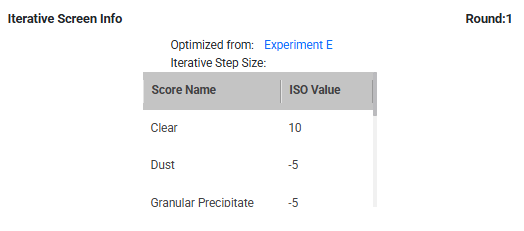
Iterative Screen Info
Conditions subtab allows you to:
Item
Description
Max conditions
Discover the maximum number of conditions.
Available conditions
Discover the number of added conditions.
Add Conditions
Define one or more conditions at once.
Condition#
Add a condition by clicking
 .
.Add ingredients by clicking
 .
.Copy a condition by clicking
 .
.Note
Double-click the button to cancel copying.
Paste a condition by clicking
 .
.Delete a condition by clicking
 .
.Note
You can modify an ingredient using the Edit
 and Delete buttons.
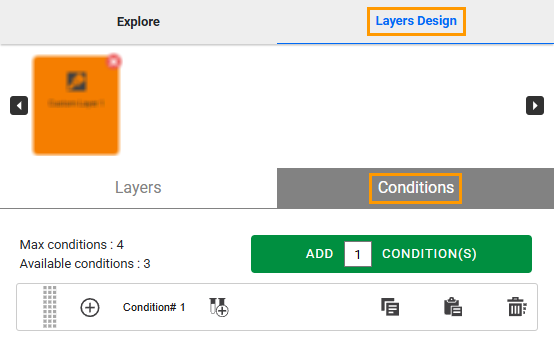
Conditions Subtab
Changing the Condition Order
Conditions are dispensed in the order they appear in the Conditions subtab of the Layers Design tab. You can change the order by dragging each condition up or down.
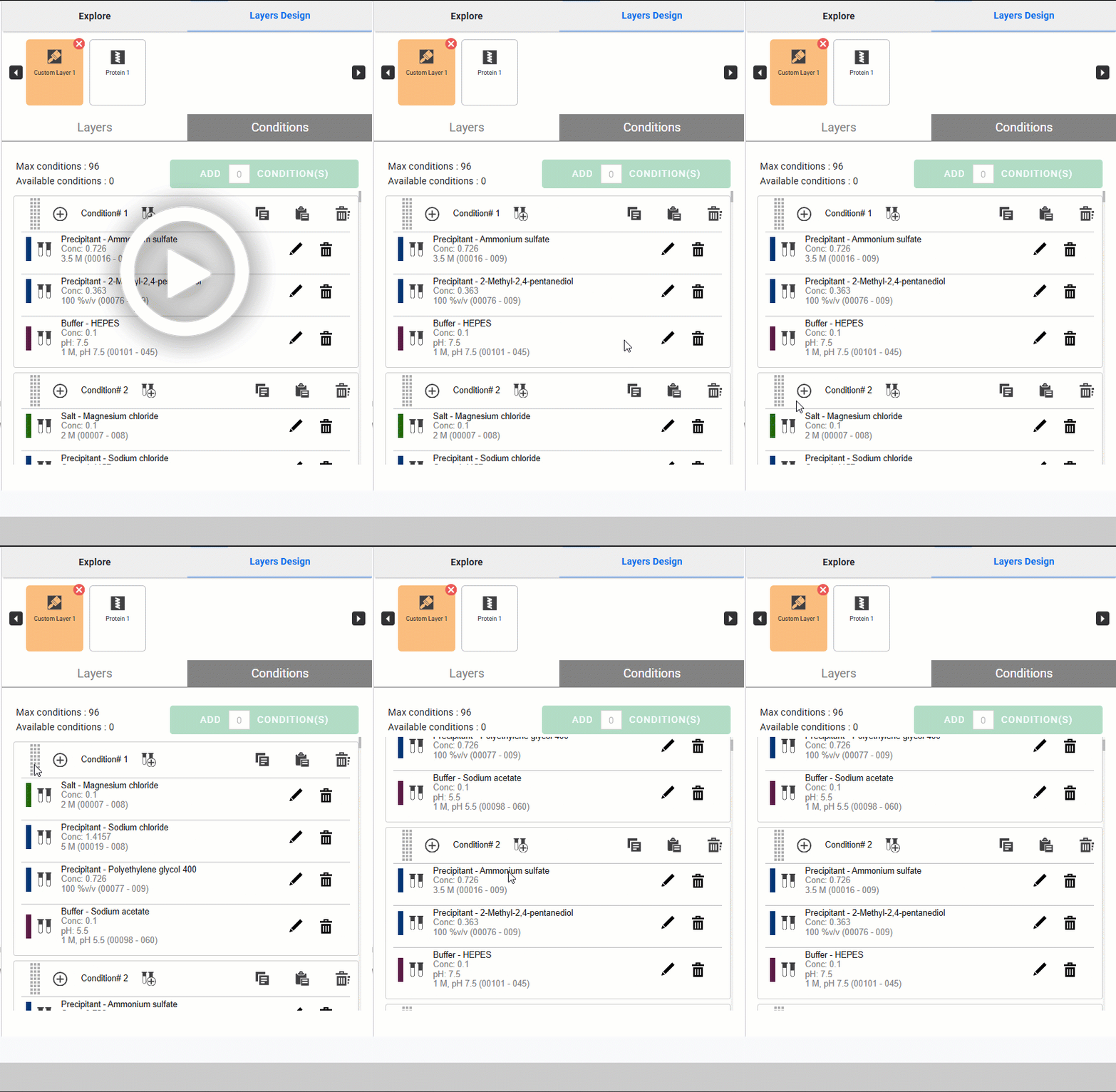
Changing the Condition Order
Related Topics: