Using Navigator Button
The Navigator button allows you to browse through plates, wells, drops, regions, imaging settings, and imaging sessions. The Navigator panel is accessible from the Image view in the Canvas menu.
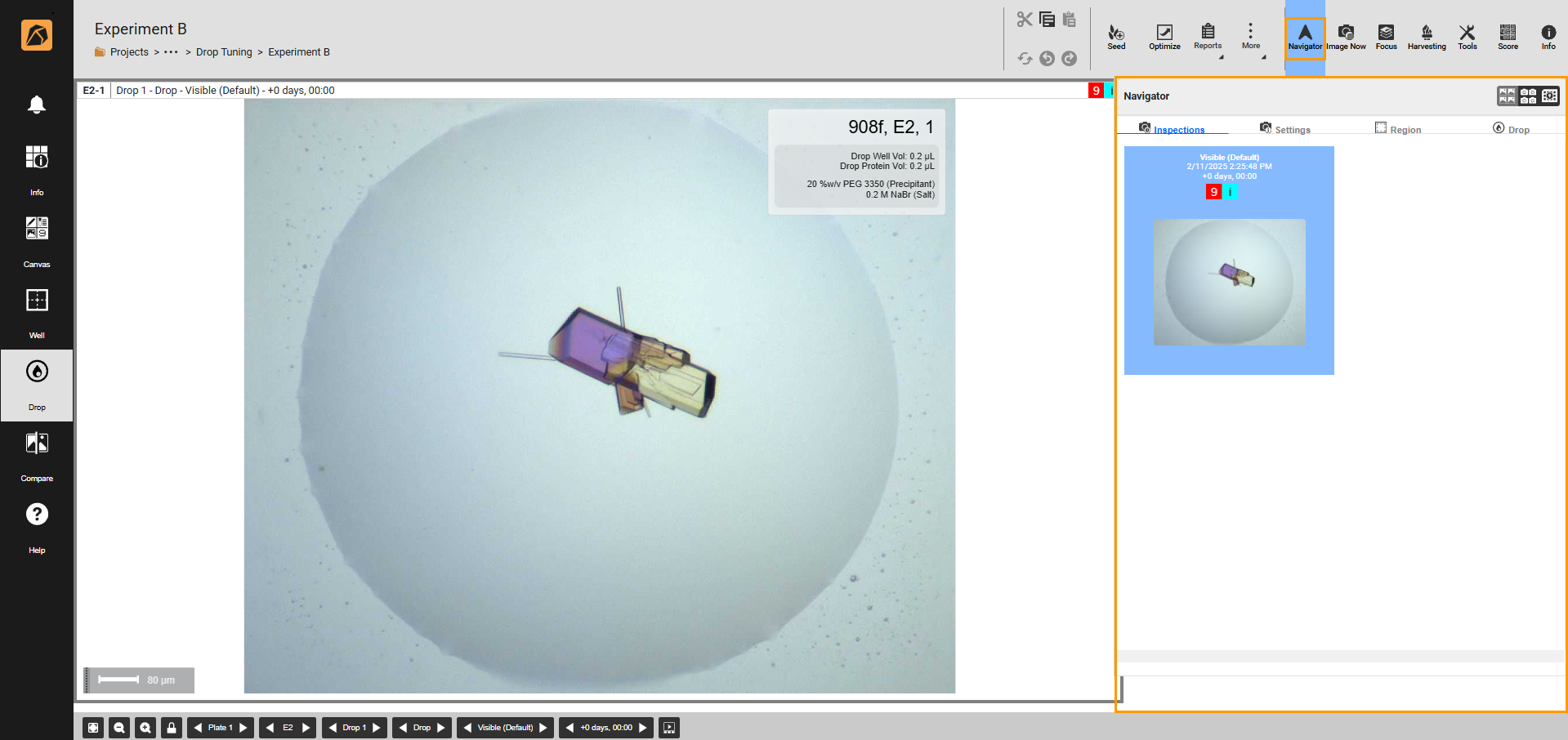
Navigator Button and Panel
There are three view options in the Navigator panel: Thumbnail Navigator  , Composite Navigator
  , and Canvas Map
  .
.
Composite Navigator
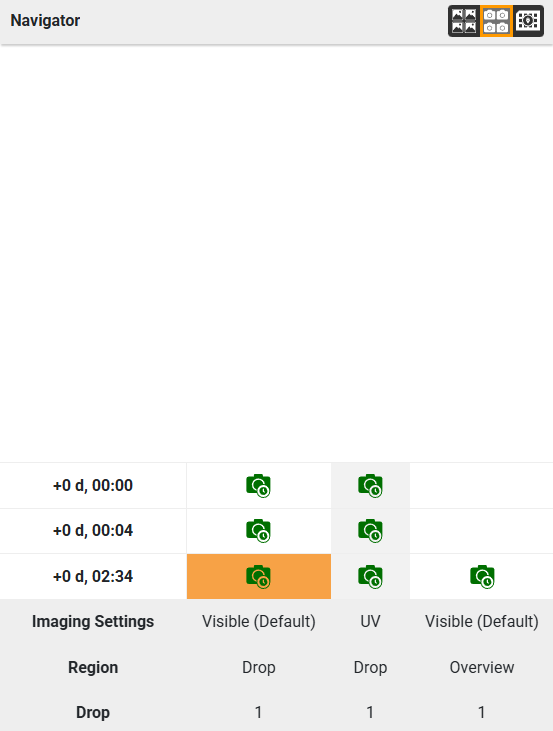
Composite Navigator
Click the Composite Navigator button to display the information about Inspection Date, Imaging Settings, Region, and Drop.
Tip
You can compare up to four images by going to the Thumbnail Navigator or Composite Navigator and pressing Ctrl on your keyboard while selecting the images from the same tab (Inspections, Settings, Region, or Drop). The following example compares two images from different settings.
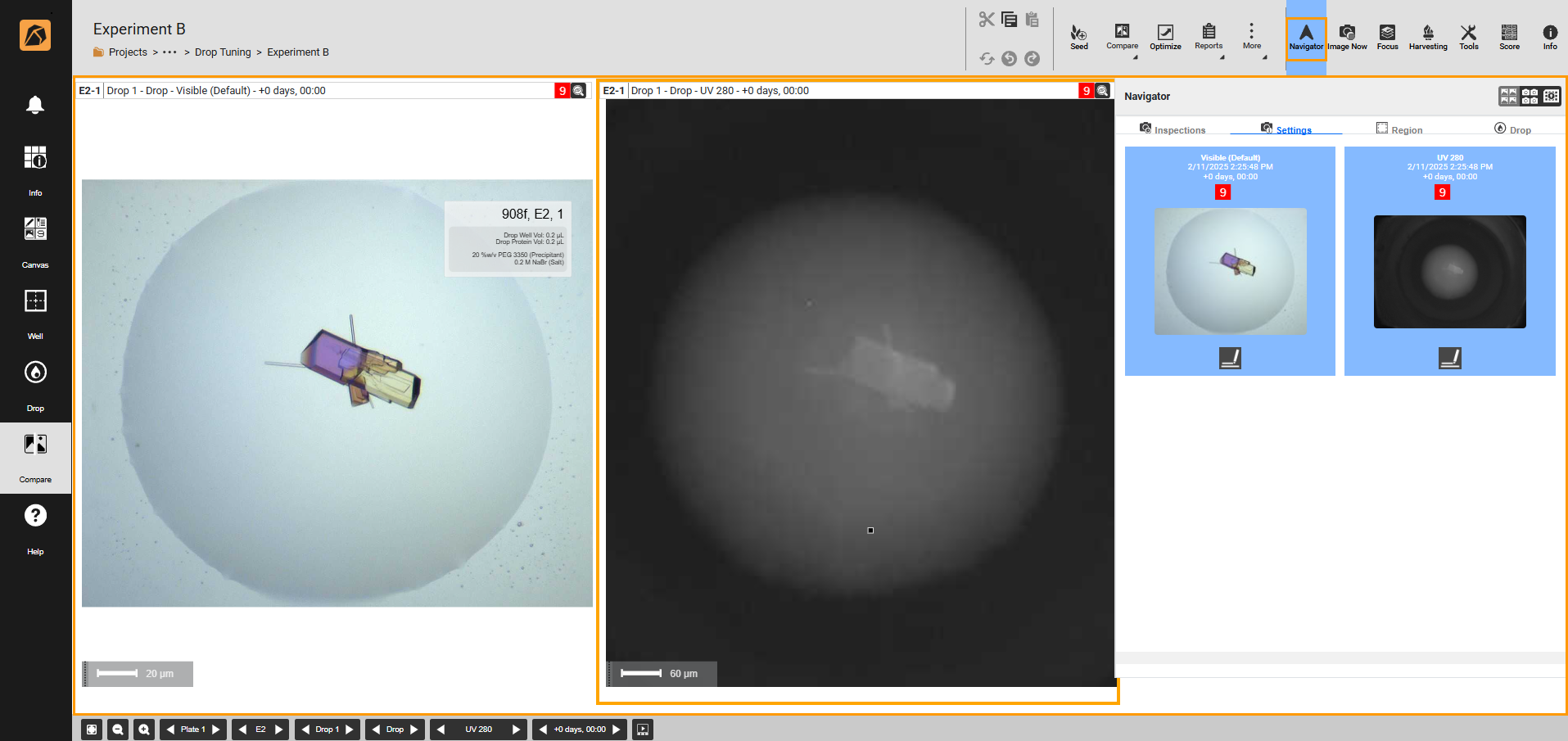
Image Comparison Example
Canvas Map
The Canvas Map helps locate your position on the plate and allows you to easily move to another well.
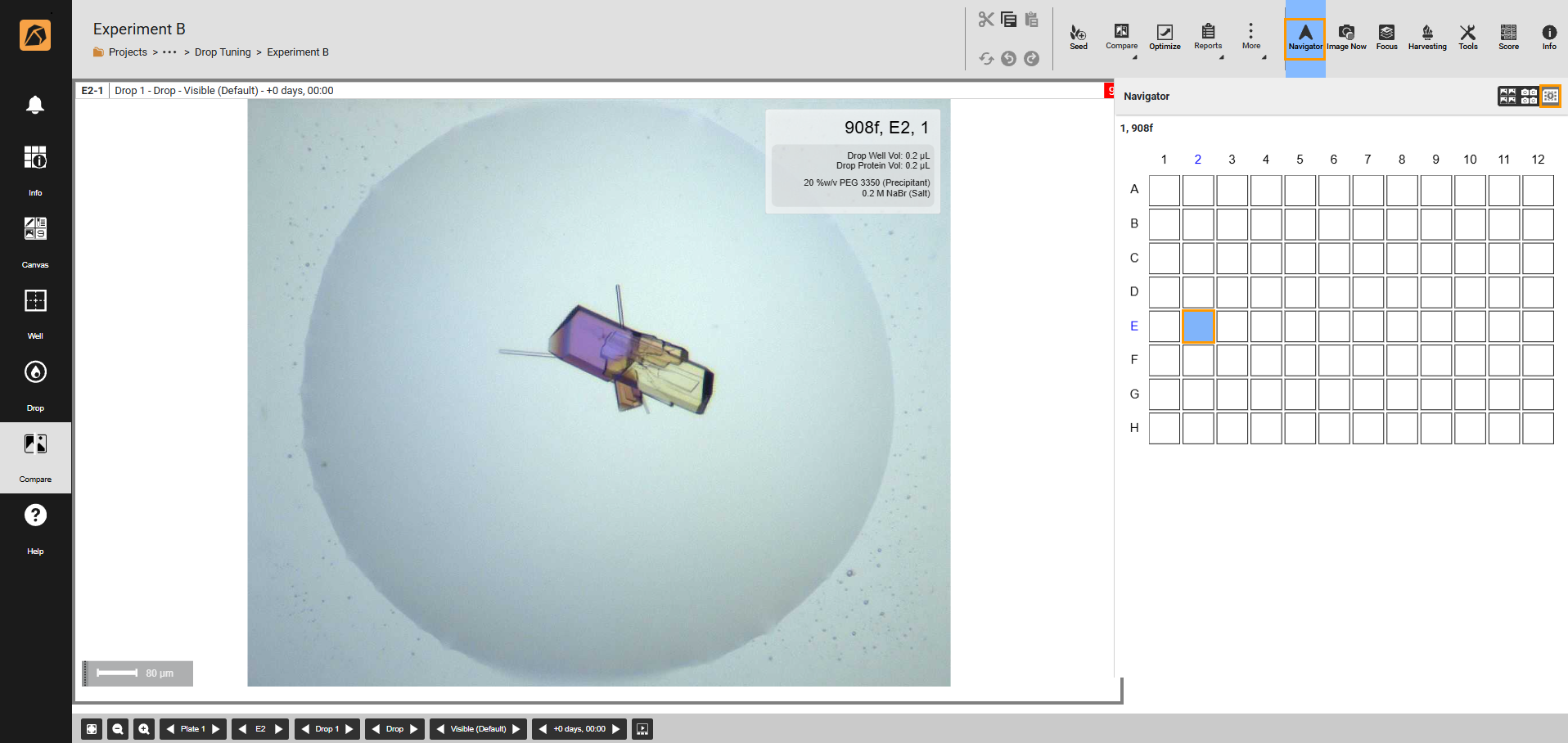
Canvas Map Example
Manually Scoring Compared Images
The Navigator panel enables you to manually score images you compare.
Click an image you want to score in the image area.
Click the Score button
 on the top right bar. The Filter tab will open by default. Then, select Manual Scores from the Filter Score dropdown.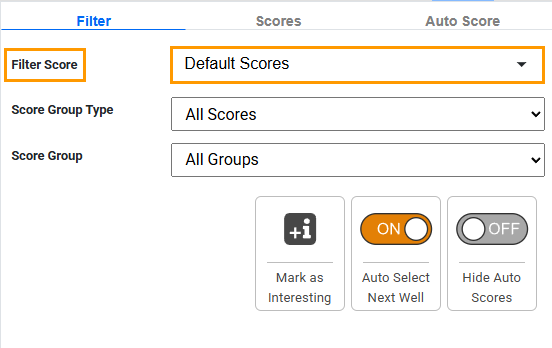
Filter Score Dropdown
Go to the Scores tab and define the image score by doing one of the following.
OPTION 1: Select a score you think suits the image.
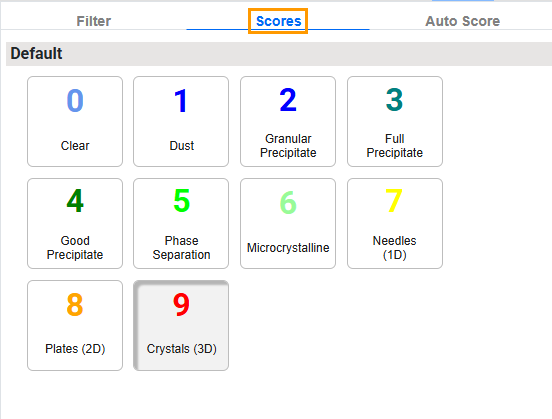
Scores Tab
OPTION 2: Press the numeric key on your keyboard corresponding to the number in the Scores tab.
You will see the score in the top right corner of the selected image.
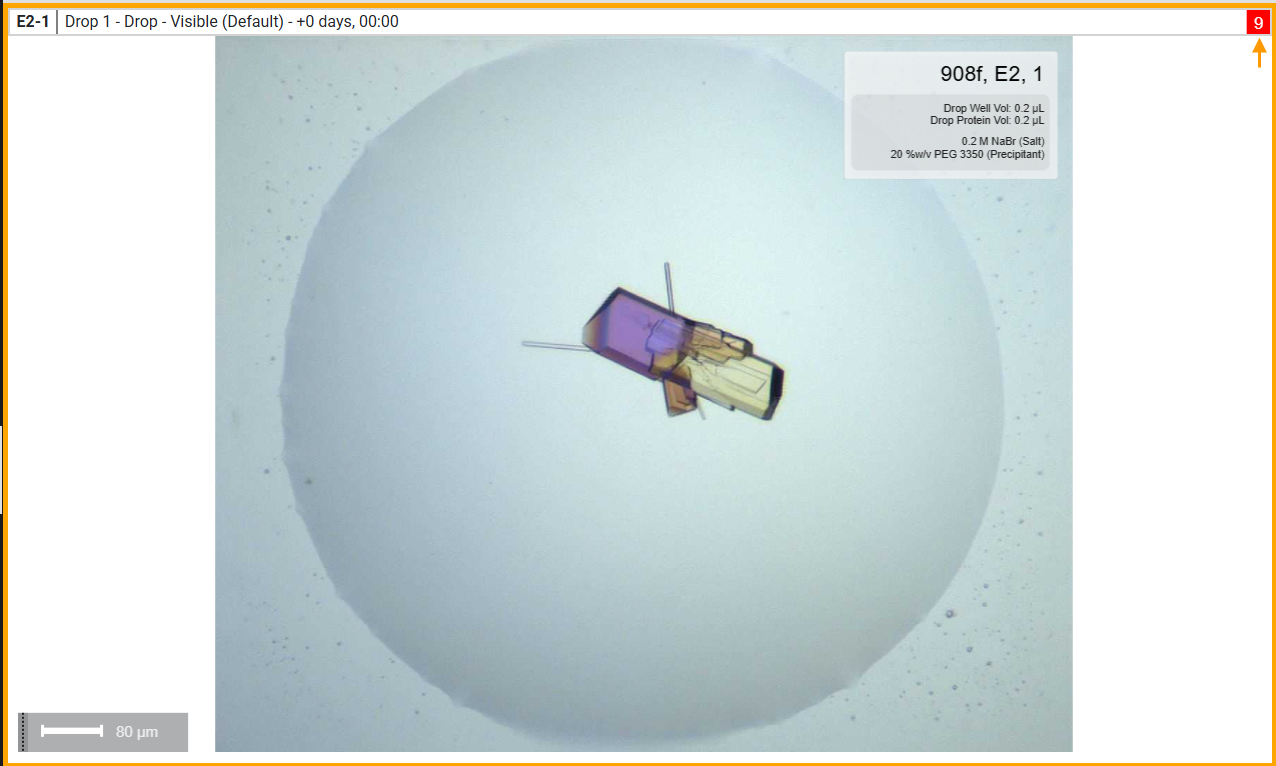
Manual Score
Note
To learn more about manual scoring, read Scoring Images.
To score another image, repeat the steps above.
Related Topics: