Using Explore Tab
To streamline the experiment design, use the Explore tab in the experiment page’s side panel. In this tab, you can create a layer on the corresponding plate by dragging a screen, fragment screen, protein, or seed into wells or drops, or by double-clicking them.
Double-clicking a screen or a fragment screen automatically applies the screen layer onto the plate.
Double-clicking protein or seed automatically selects drops and creates a corresponding protein, or seeding layer.
A screen can only be dragged to a well location.
A fragment screen, protein, or seed can only be dragged to a specific drop location across the entire plate. Once added, each one automatically creates its corresponding fragment, protein, or seeding layer.
Note
Double-clicking or dragging a screen on the screen experiment page creates a custom layer.
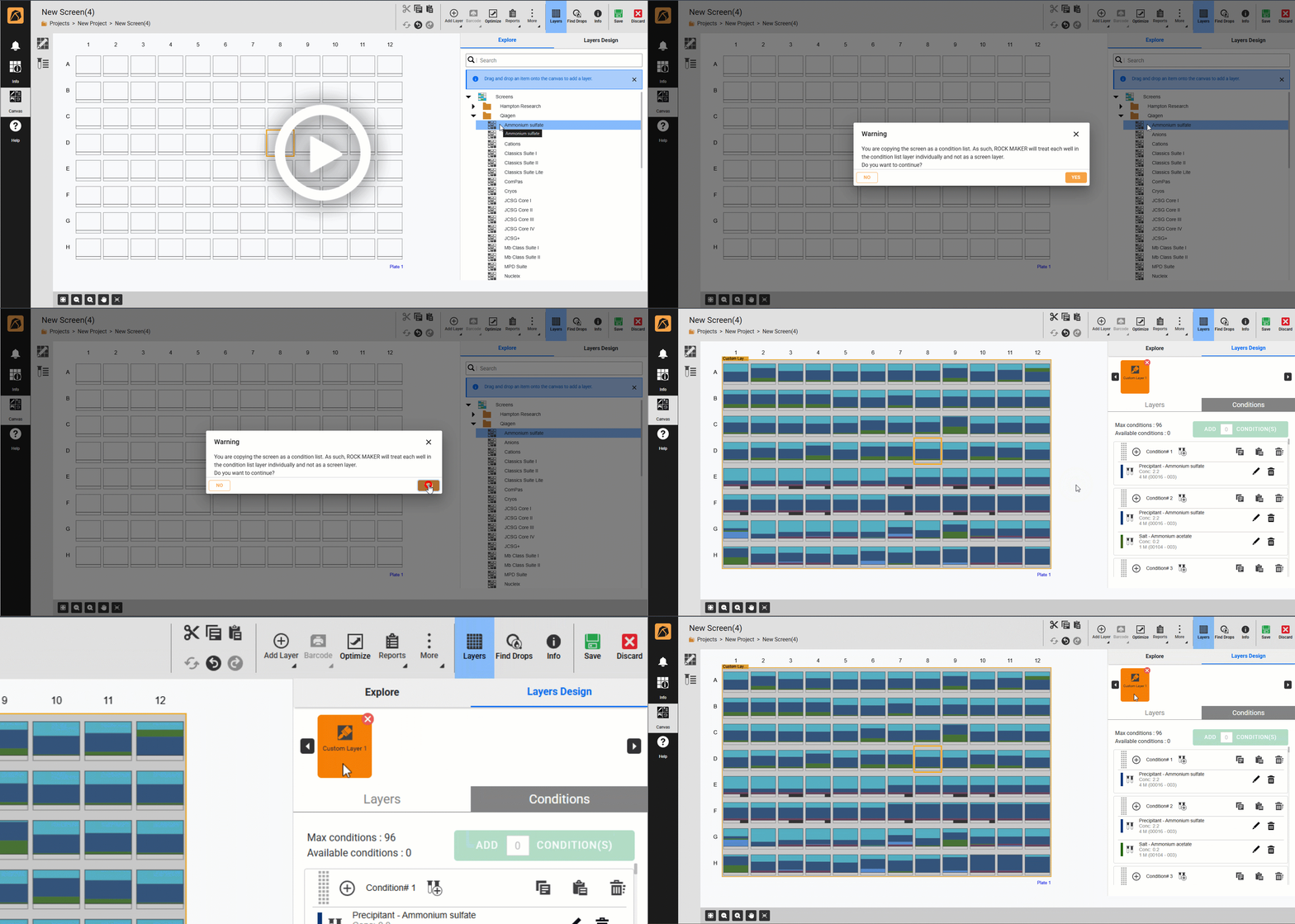
Double-Clicking a Screen in the Screen Experiment Page
To drag a screen, fragment screen, protein, or seed to the drops or wells in the experiment page:
Open an experiment or create a new one.
In the Canvas menu, go to the Design submenu and locate the Explore tab in the side panel or click Add Layer on the top bar and select Explore to display its side panel.
Note
If the side panel is not opened, click Layers
 on the top bar to display the Explore tab.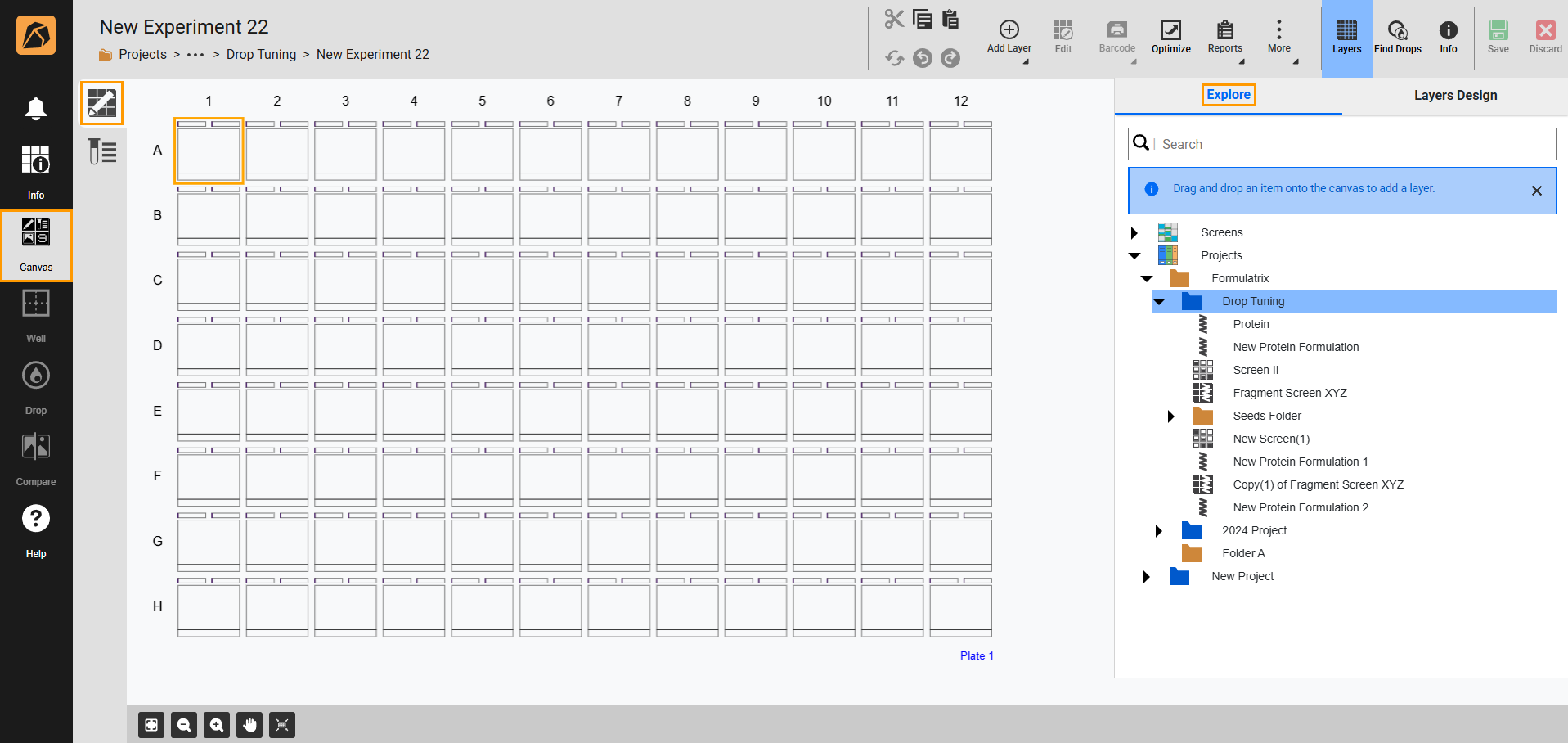
Explore Tab
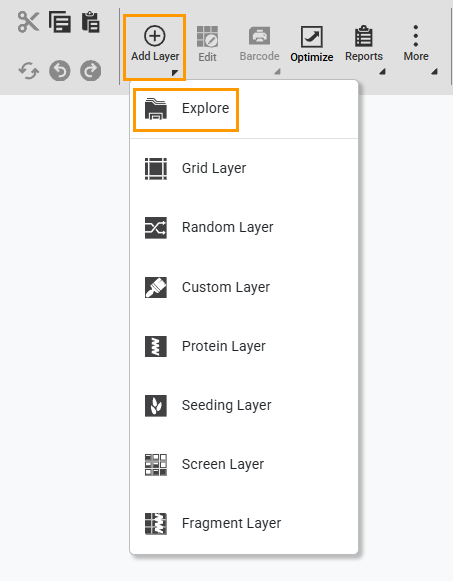
Opening Explore Tab
Select and drag a screen to wells, while a fragment screen, protein, or seed into a drop accordingly. Dragging them automatically creates a layer.
Tip
Use the Search field for a quick search.
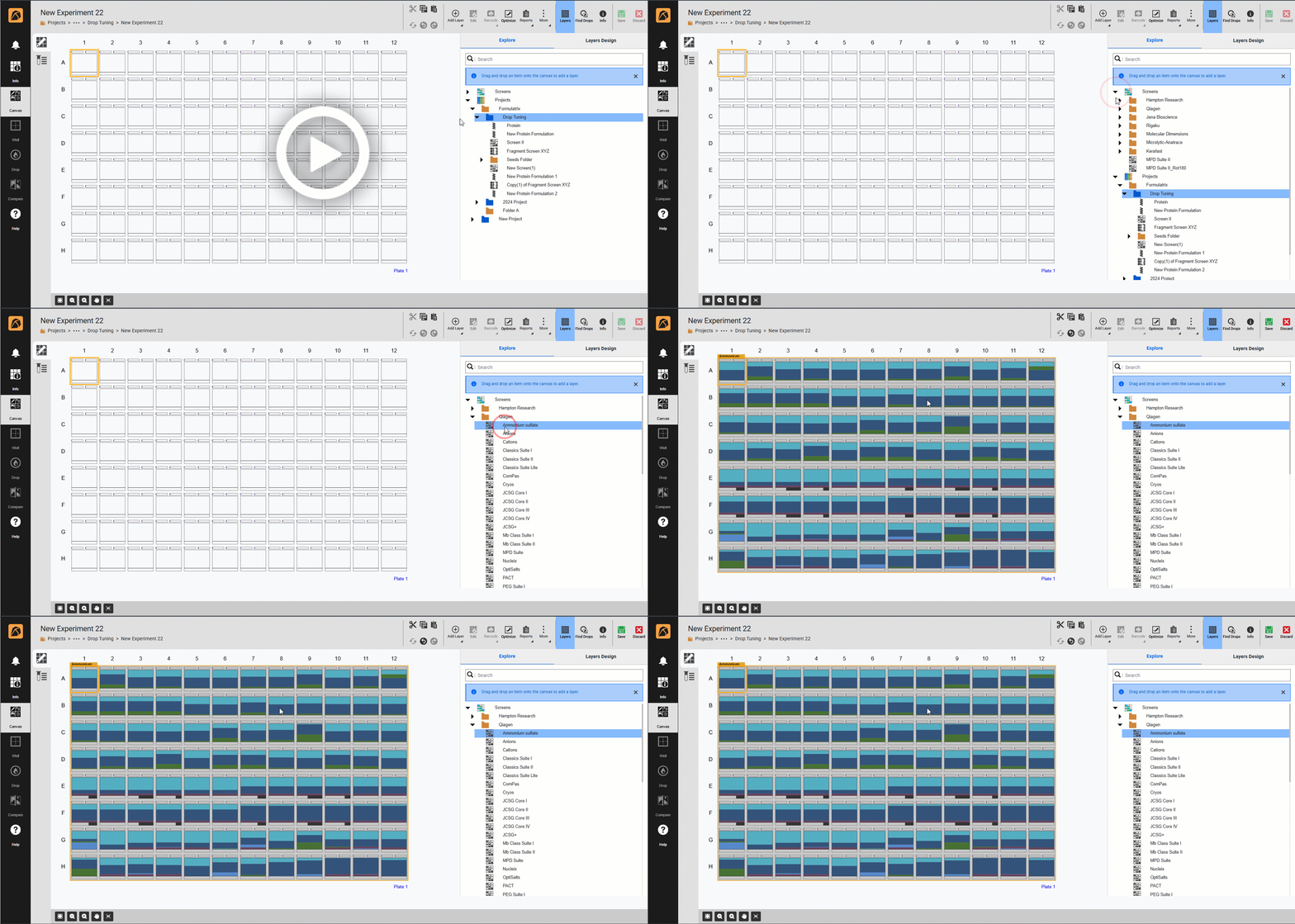
Dragging a Screen
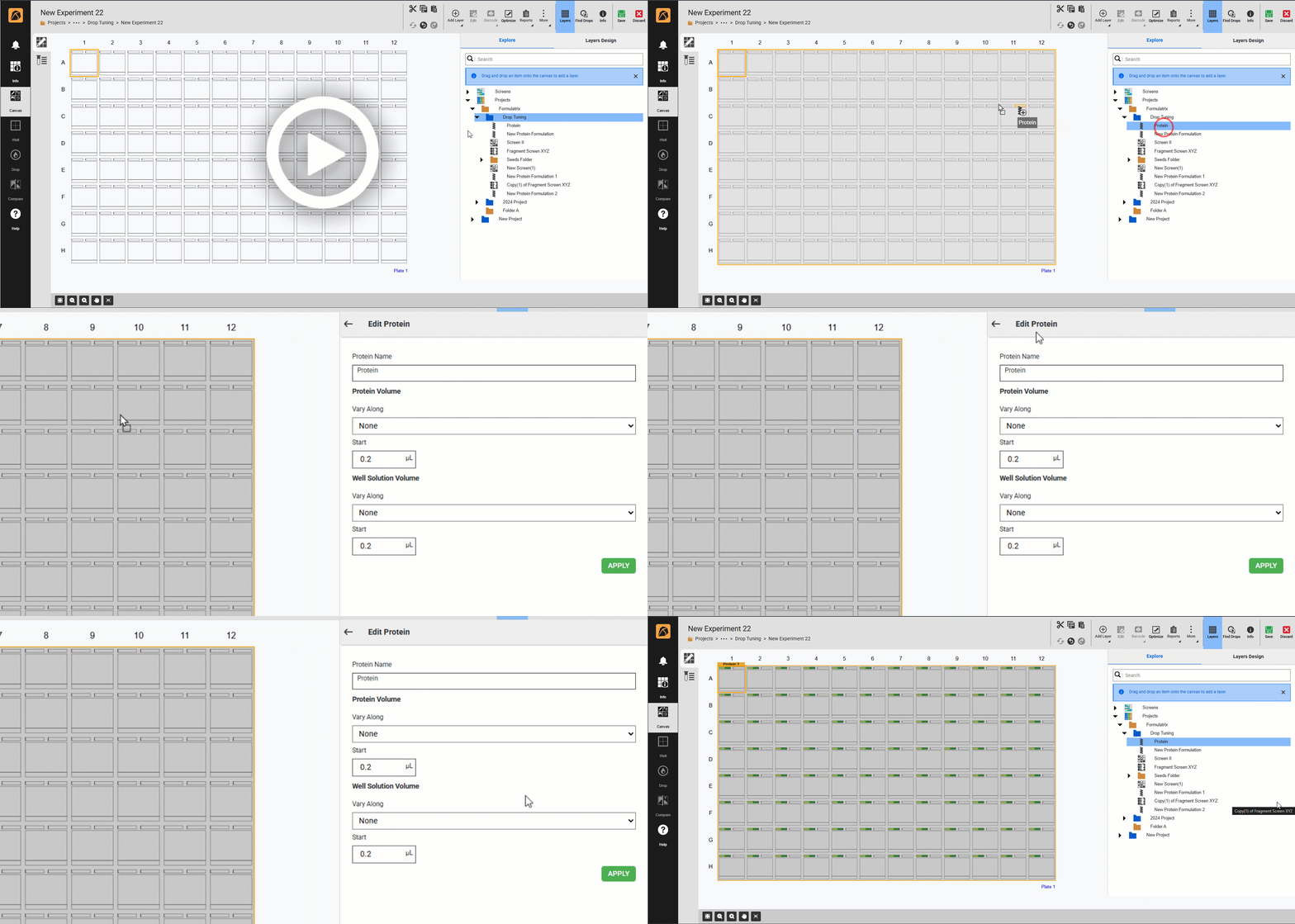
Dragging a Protein
Note
Dragging a protein, fragment, or seed layer directs you to the Edit side panel.
OPTIONAL: Once added, you can modify the settings in the Layers Design tab.
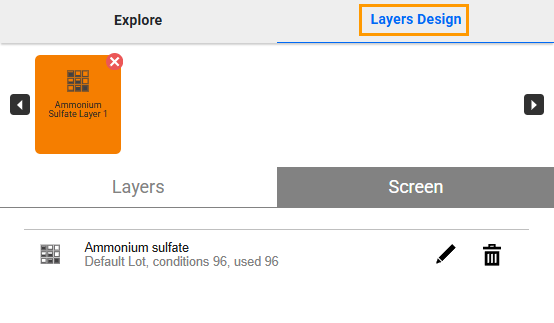
Layers Design Tab