Concepts
The Image Management Task tab in the Imaging submenu allows you to move and copy images from one image store to another and delete images. This tab includes the Task Option and Results subtabs.
Note
Copying images within the same storage is not applicable.
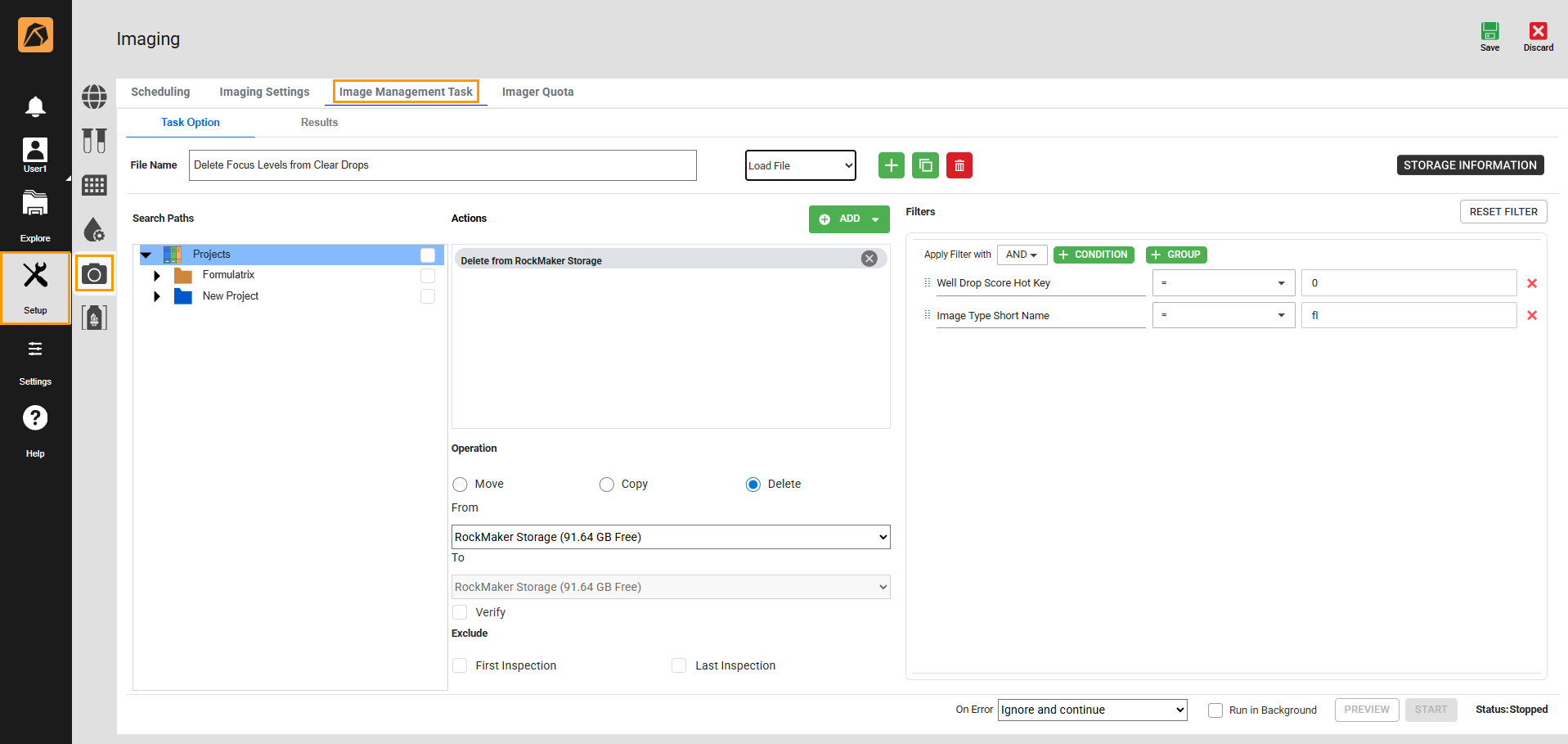
Image Management Task Tab
Task Option Subtab
The Task Option subtab is where you define the task name and its settings.
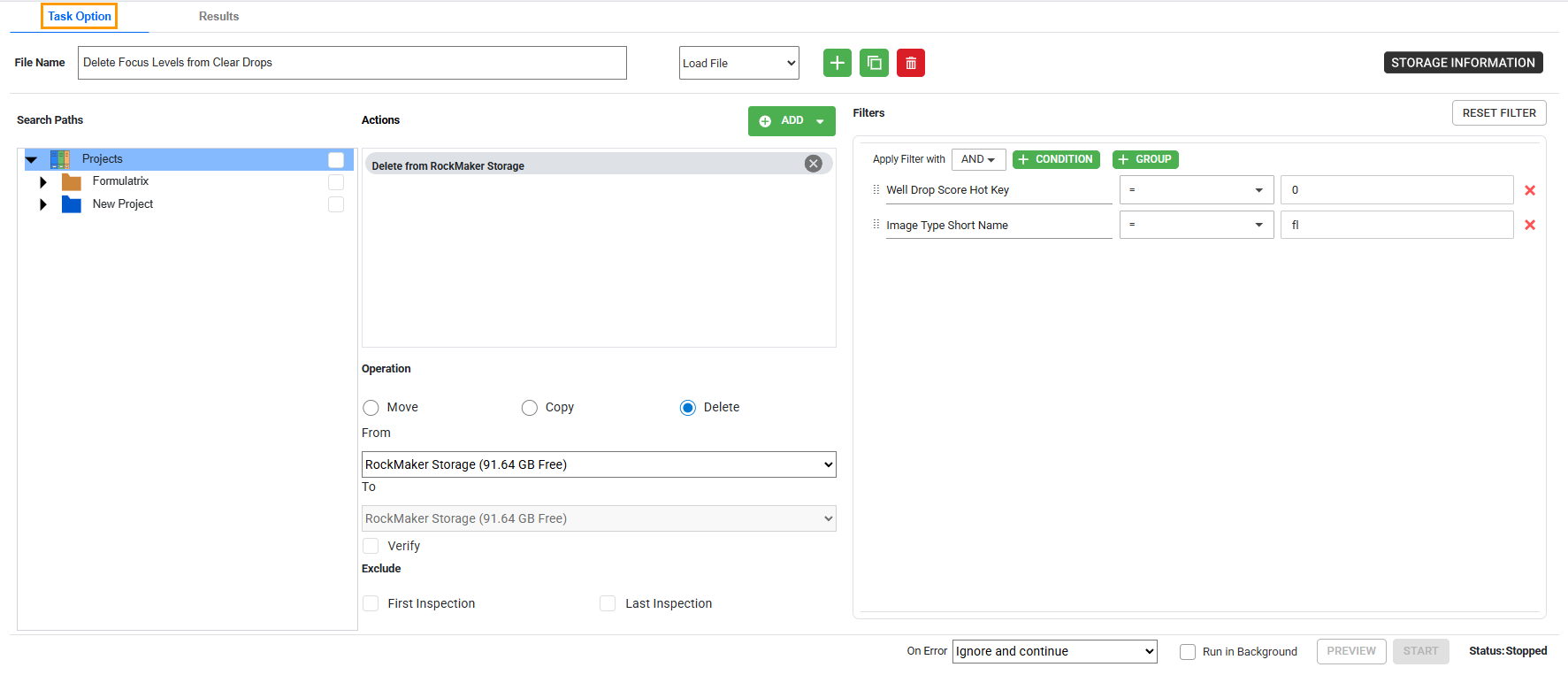
Task Option Subtab
Each field/button/dropdown in the Task Option subtab allows you to do the following actions.
The File Name field: name your task.
The Load File dropdown: choose a task to display.
The Add button
 : create an image management task.
The Duplicate button
 : duplicate an image management task.
The Delete button
 : delete an image management task.
The STORAGE INFORMATION button: view the information on space availability changes in your image stores.
The Search Paths field: select a folder/project/experiment where the images you want to execute using the task are located.
The Actions field: select an action (Move, Copy, or Delete) to perform. You can move, copy, or delete images based on various filters, such as image type, score, imaged date, and size.
The Operation field: select an operation to display corresponding actions in the Actions field. Below the field are the From and To dropdowns defining the source and target locations.
Note
Choosing the Delete action disables the To dropdown.
The Verify checkbox: prompt ROCK MAKER to compare the copy and original files to make sure they are identical before deleting the original files to prevent data corruption. This checkbox is optional.
The Exclude field: exclude the first and/or last inspection. This field is optional.
The Filters field: define the filters to specify the results. This field is optional.
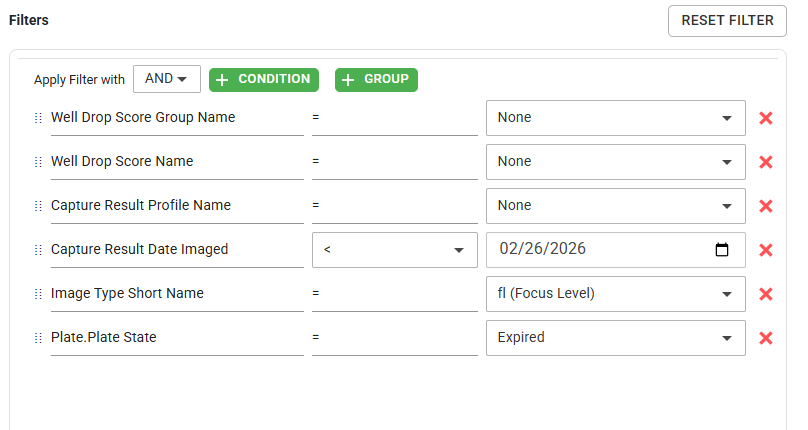
Filters Field
You can use the fields and buttons in the Filters field to do the following.
Field/Button
Description
Apply Filter with
Select the combinator: AND or OR.
CONDITION
Open the Filter dialog box to specify image management criteria using filters from the BASIC or ADVANCED tab. The selected filters will appear in the Filters field.
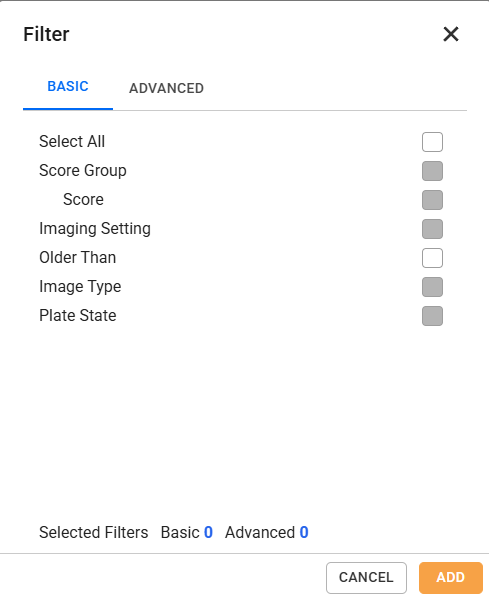
Filter Dialog Box
GROUP
Create a group within a filter to define more specific results tailored to that filter.
Note
Clicking the GROUP button places the Group row under the last filter. Use the drag handle
 to move the Group row to the desired filter.
RESET FILTER
Clear filter settings.
The On Error dropdown: select an option (Ignore and Continue, Abort after current action completes, or Abort Immediately) to determine how ROCK MAKER will proceed if an error occurs during an automated task.
Selecting Ignore and Continue prompts ROCK MAKER to ignore the error and continue with all scheduled tasks.
Selecting Abort after current action completes prompts ROCK MAKER to complete the current image management task but terminate other automated tasks.
Selecting Abort Immediately prompts ROCK MAKER to immediately terminate all automated tasks whenever an error occurs.
The Run in Background checkbox: automate the image management task if checked. This checkbox is optional.
Note
The start and end times for Run in Background are set in the Advanced property of the Global Preferences submenu.
The PREVIEW button: preview the images affected by the actions. You can verify whether a task targets appropriate images before executing it.
The START button: execute each action in the image management task. The completion duration depends on the number of moved, copied, or deleted images.
The STORAGE INFORMATION button: view the information on space availability changes in your image stores.
The Status field: view any occurring states when running the image management task.
Results Subtab
The Results subtab displays a record of each task. Once an image management task is executed, ROCK MAKER automatically opens the Results subtab.
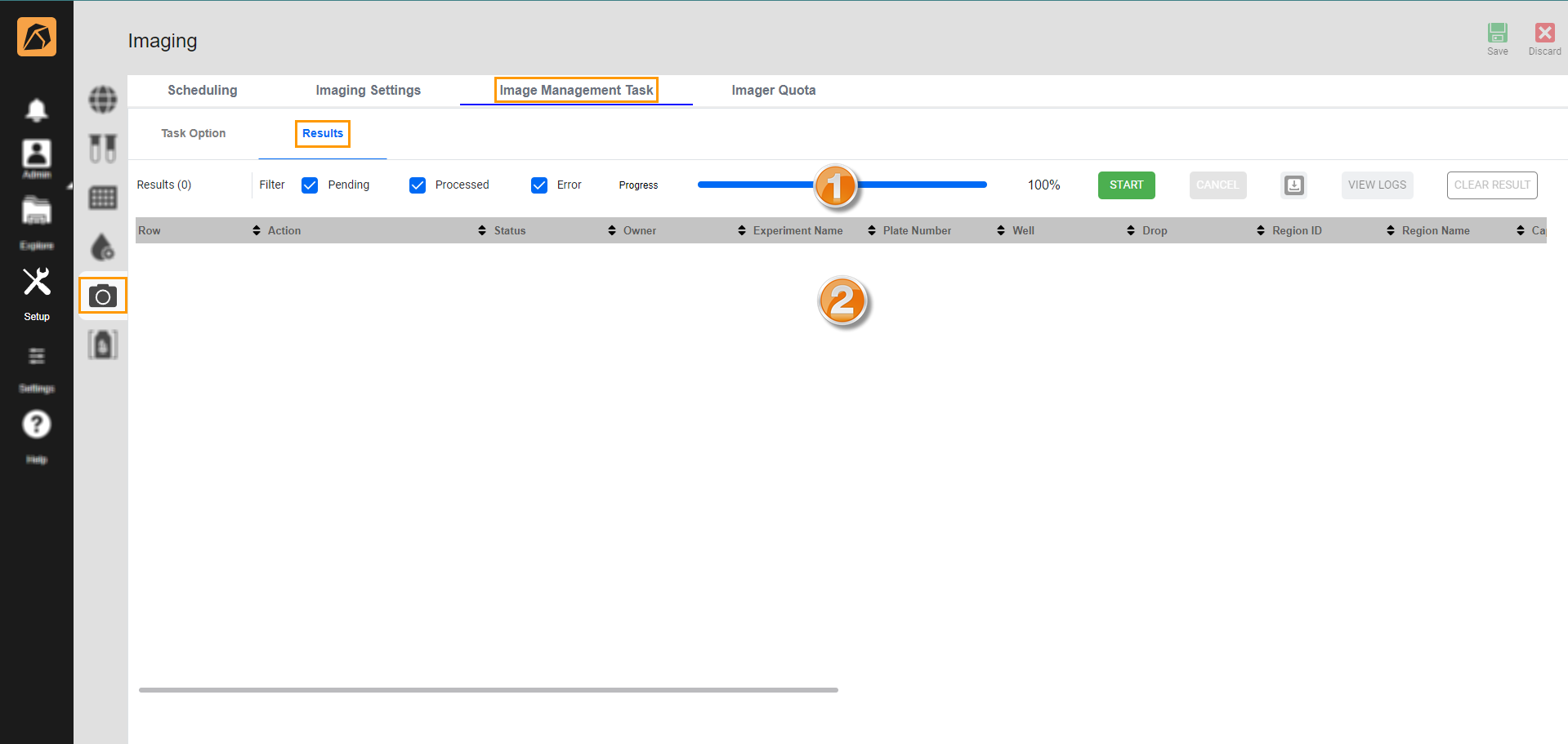
Results Subtab
Number
Field/Button
Description
Results [number]
Displays the total number of results in the image management task.
Filter
Provides three options to filter the action status.
Pending: The image is on hold.
Processed: The image is processed successfully.
Error: An error occurs when processing the image.
Progress
Displays the task progress indicated by a blue progress bar and a percentage.
START
Starts the image management task from the Results subtab without returning to the Task Option subtab.
CANCEL
Stops the current task and aborts the remaining tasks.
Download
Download the results in a TXT file.
VIEW LOGS
Displays tasks’ log files.
CLEAR RESULT
Clears the image management task’s results displayed in the result table.
Result Table
Displays the result data in a table with the following columns: Row, Action, Status, Owner, Experiment Name, Plate ID, Plate Number, Well, Drop, Region ID, Region Name, Capture ID, Batch ID, Date Imaged, Score Name, Image ID, Image Type, Image Index, Pixel Size, File Size, Store Name, and Store Base Path.





Related Topic: