Working with the Spare Part Compatibility Matrix
As hardware and spare parts evolve, you may need to create new Hardware Versions or Item versions, record their Spare Part Compatibility, or reuse existing compatibility information for other Hardware Versions.
This page provides procedures for the following tasks:
Create Spare Part Compatibility Automatically – for Engineering Managers, Item Processors, or Master Data Administrators who need TIGA to create compatibility records as part of another action (creating a Hardware Version, creating a new Item version, or copying from another Hardware Version)
Create Spare Part Compatibility Manually – for Engineering Managers who need to create or update a compatibility record directly in the Spare Part Compatibility table.
Create Spare Part Compatibility Automatically
TIGA can create Spare Part Compatibility records automatically when you perform one of the following actions.
When Creating a Hardware Version
You can create a new Hardware Version in TIGA and choose how records are carried over from a Prior Version.
Prerequisites:
You have access to the Hardware Versions, Items, and Spare Part Compatibility tables in the Bonded Zone, CRM, or Production application.
Note
The user role controls access to the Hardware Versions, Items, and Spare Part Compatibility tables. Contact the TIGA administrator at tigacrm.sw@formulatrix.com or the responsible TIGA team if you need access.
You are a member of the “Engineering Manager” group.
The Product Family for the Hardware Version already exists.
To create a hardware version:
Open the Hardware Versions table in the Bonded Zone, CRM, or Production application.
Fill in the version properties in the General Information section:
Product Family: Enter the product line name, such as Mantis.
Major Version: Enter the major version number of the hardware, from 1 to 9.
Minor: Enter the minor version number of the hardware, from 0 to 20.
Bugfix: Enter the bugfix version number of the hardware, from 0 to 20.
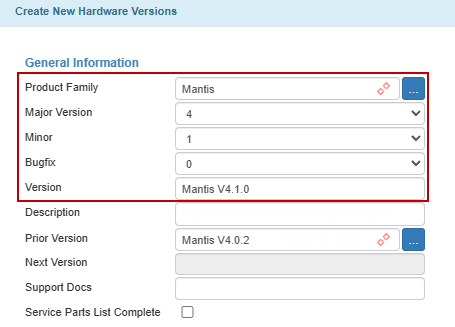
Version Properties
Review the Version field. TIGA automatically generates the name using the format: Product Family VMajor.Minor.Bugfix.
You can edit the generated Version name if needed.
Note
A Hardware Version cannot have the same Version name as another Hardware Version within the same Product Family.
If you change the Product Family, Major Version, Minor, or Bugfix fields, TIGA automatically regenerates the Version name.
In the Spare Part Compatibility (On Create Only) section, select a Data Inheritance Method:
Copy with Unknown Status
Copies Spare Part Compatibility records from another Hardware Version and sets their Compatibility Status to Unknown. Use this when the existing relationships may apply to the new Hardware Version but still need to be verified.
Copy and Keep Status
Copies Spare Part Compatibility records and keeps their existing Compatibility Status. Use this when the existing compatibility status also applies to the new Hardware Version.
Do Not Copy (Enter Manually)
Does not copy any Spare Part Compatibility records. You can add the compatibility records manually after creating the Hardware Version.
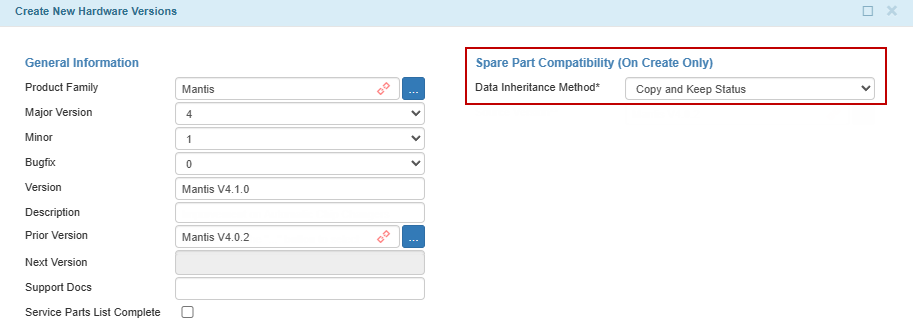
Data Inheritance Method
Important
For a new Major Version, TIGA automatically sets the Data Inheritance Method to Do Not Copy (Enter Manually). Compatibility records cannot be inherited for a new Major Version.
A Hardware Version is treated as a new Major Version when:
No other Hardware Version already exists with the same Major Version number, regardless of its Minor or Bugfix values.
No other Hardware Version already uses the same generated Version name within the same Product Family.
If you selected Copy with Unknown Status or Copy and Keep Status, review the Prior Version field. TIGA automatically fills Prior Version with the latest prior version of the same Product Family.
You can select a different Hardware Version if needed.
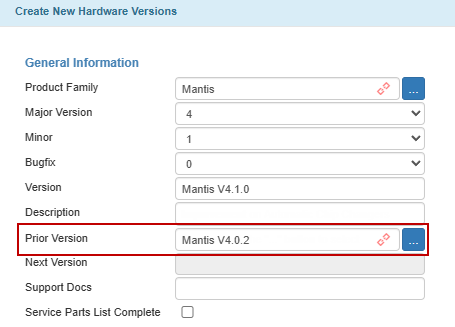
Prior Version
Fill in any other required fields.
Create the record.
Important
You cannot change the Data Inheritance Method once the record is created. These settings are only editable when creating or cloning a Hardware Version.
Post Conditions:
TIGA automatically:
Creates a new record in the Hardware Versions table.
Generates matching Spare Part Compatibility records based on the selected Prior Version, with or without their original status, depending on the Data Inheritance Method chosen.
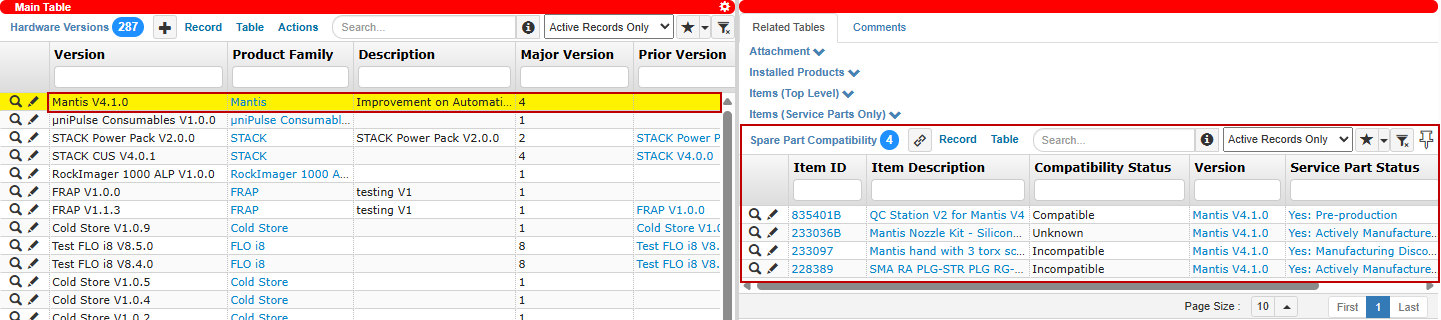
Hardware Version Record with Generated Spare Part Compatibility Records
Important
You can only delete a Hardware Version if it is not linked to any records in Related Tables.
When Creating a New Item Version
You can create a new version of an existing Item when the spare part itself is updated, or a new version is required. If the previous item version has Spare Part Compatibility records, TIGA uses those records to generate compatibility records for the new version.
Prerequisites:
You have access to the Hardware Versions, Items, and Spare Part Compatibility tables in the Bonded Zone, CRM, or Production application.
Note
The user role controls access to the Hardware Versions, Items, and Spare Part Compatibility tables. Contact the TIGA administrator at tigacrm.sw@formulatrix.com or the responsible TIGA team if you need access.
You are a member of the “Item Processor” or the “Master Data Administrator” group.
The Item you want to create a new version for already exists.
The selected Item is the latest version for the same Base Item ID.
To create a new item version:
Open the Items table in the Bonded Zone application.
Select the record for which you want to create a new version.
Select the Create New Version action.
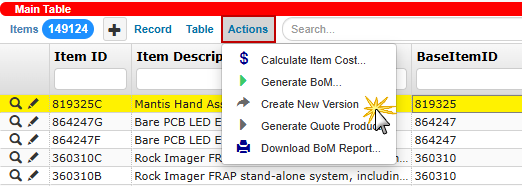
Create New Version Action
Review the Previous Version and New Version sections to compare them before creating the new version.
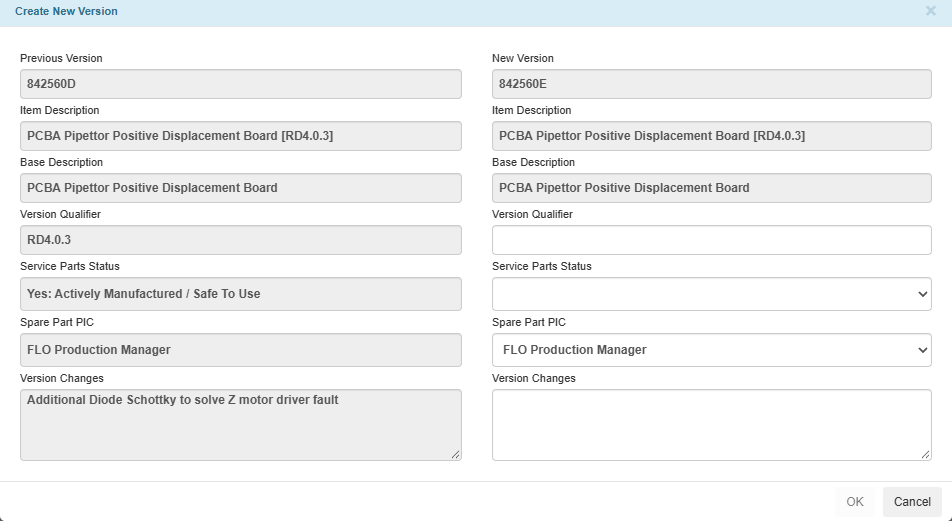
Previous Version and New Version
Note
The New Version field displays the automatically generated Item ID for the new version. TIGA increments the alphabetic version from the previous version, such as 123456A to 123456B.
If the Previous Version has a Version Qualifier, enter a Version Qualifier to describe what distinguishes the New Version from other versions.
Select the Service Parts Status for the New Version.
Specify the Spare Part PIC.
Note
If the Previous Version has a Spare Part PIC, TIGA automatically populates the same PIC for the New Version. You can change it if needed.
If Service Parts Status is No: Not A Service Part, you can leave Spare Part PIC empty.
For all other Service Parts Status values, Spare Part PIC is required.
Enter the Version Changes describing the changes made to the New Version.
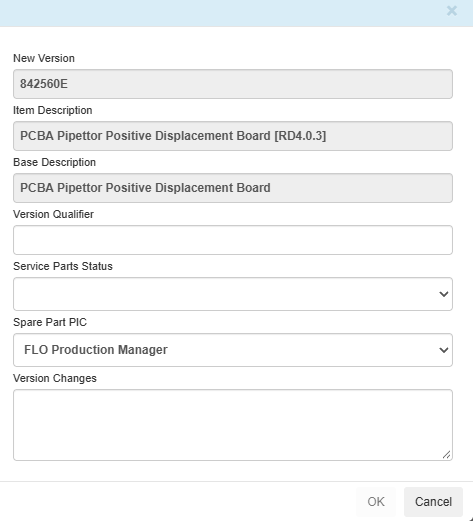
New Version Section
Select OK to create the new item.
Post Conditions:
TIGA automatically:
Creates the new Item record with the next alphabetic version.
Generates Spare Part Compatibility records for the new item version, based on the previous version’s records. The new Compatibility Status follows these rules:
Previous Item Version
New Item Version
Compatible
Compatible
Incompatible
Unknown
Unknown
Unknown
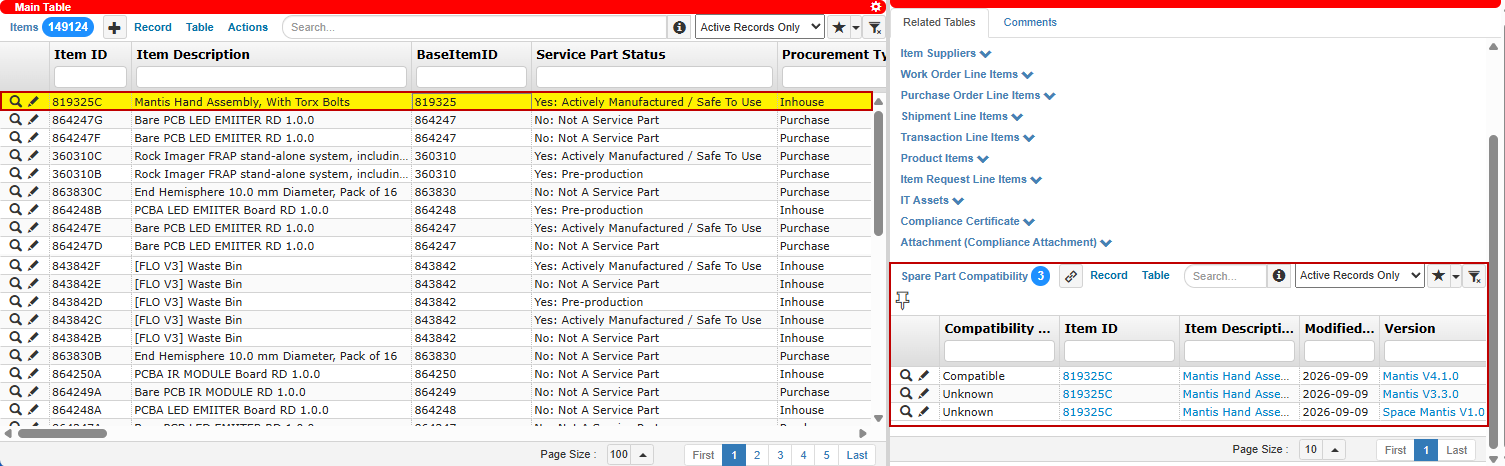
New Item Record with Generated Spare Part Compatibility
Clones and links the BoM from the previous item version when a BoM is available in the Item Sub Assemblies (Children) table.
When Copying a Spare Part Compatibility
You can reuse Spare Part Compatibility records across existing Hardware Versions that share the same spare-part requirements. TIGA retains the Compatibility Status of each selected record.
Prerequisites:
You have access to the Hardware Versions, Items, and Spare Part Compatibility tables in the CRM application.
Note
The user role controls access to the Hardware Versions, Items, and Spare Part Compatibility tables. Contact the TIGA administrator at tigacrm.sw@formulatrix.com or the responsible TIGA team if you need access.
You are a member of the “Engineering Manager” group.
The source Hardware Version must have at least one Spare Part Compatibility record.
The target Hardware Version records already exist.
To copy a spare part compatibility:
Open the Hardware Versions table in the CRM application.
Select the Hardware Version record that contains the Spare Part Compatibility records you want to copy.
Select the Copy Spare Part Compatibility action.
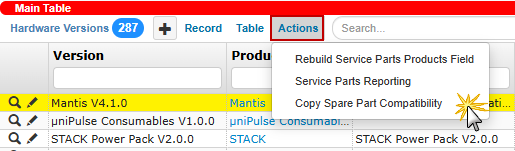
Copy Spare Part Compatibility Action
Review the Source Hardware Version field. This is automatically filled in based on your selection and is read-only.
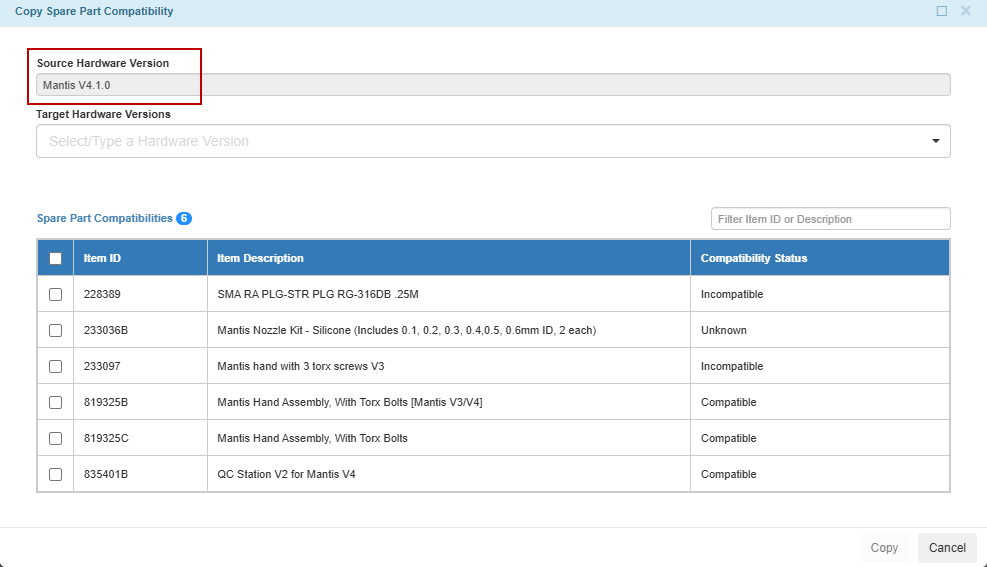
Source Hardware Version in the Copy Spare Part Compatibility Dialog
In Target Hardware Versions, select or enter one or more Hardware Versions you want to copy the compatibility records to.
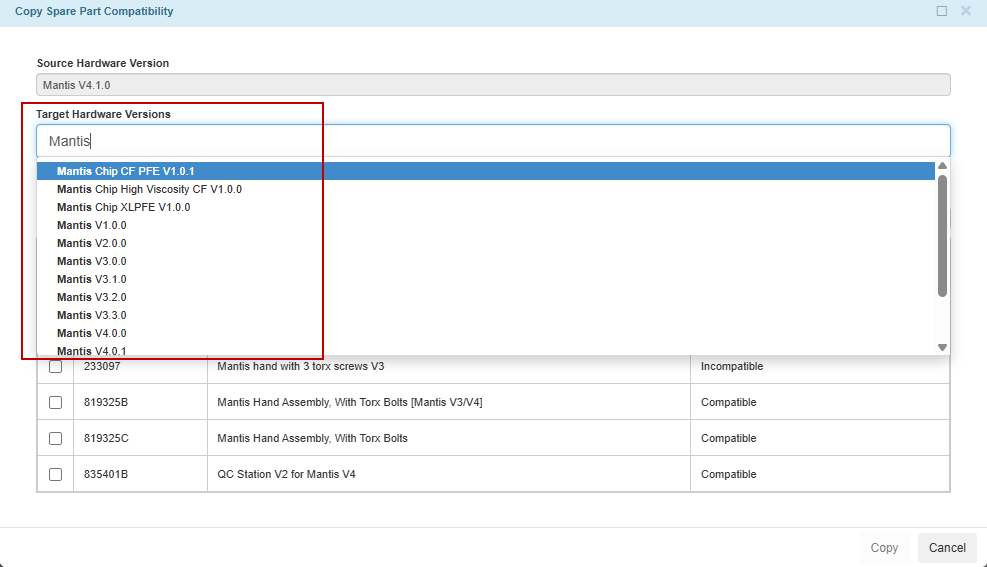
Target Hardware Version
Note
The selected Target Hardware Versions are displayed below the field.

Selected Target Hardware Versions
In the preview table, review the list of Spare Part Compatibility records from the Source Hardware Version. The table shows Item ID, Item Description, and Compatibility Status.
Select the checkboxes for the records you want to copy.
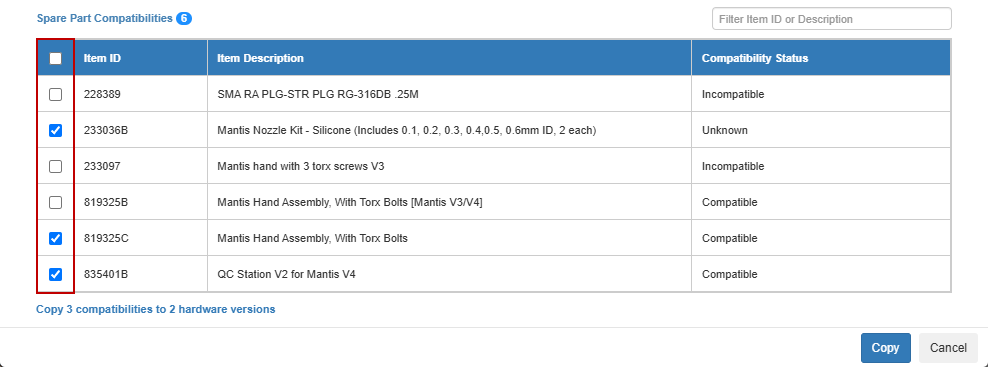
Selected Spare Part Compatibility Records
Tip
Use the Filter Item ID or Description to find specific spare parts.
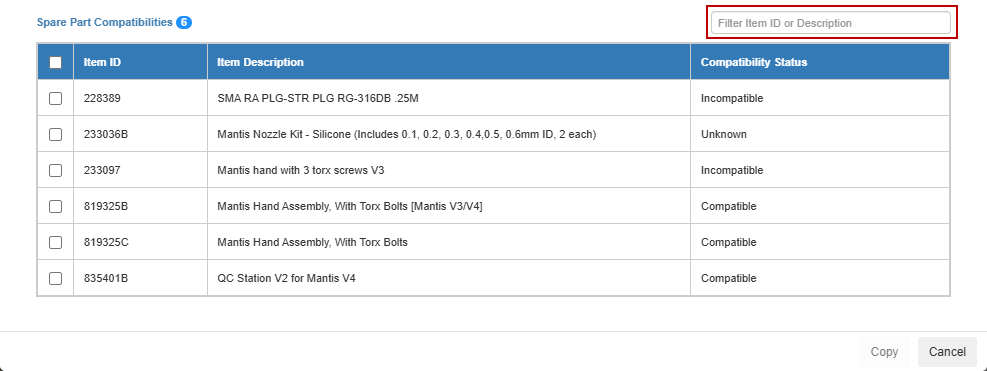
Filter Item ID or Description
Check the summary line to confirm the counts are correct.
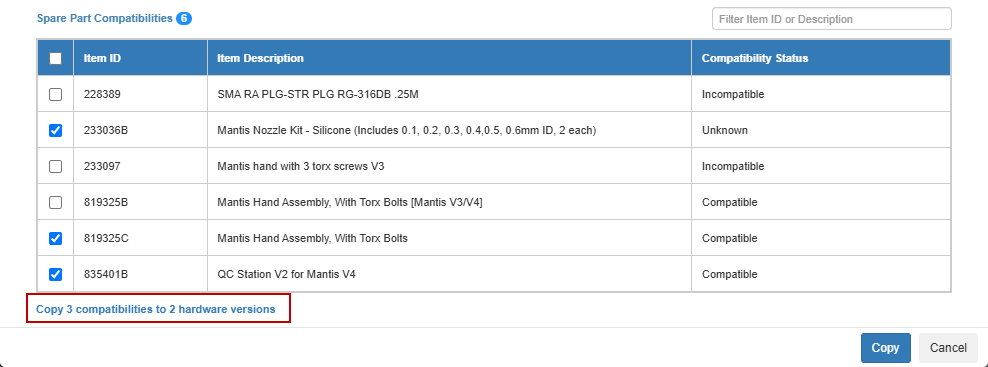
Summary Line
Select Copy to submit.
Post Conditions:
TIGA automatically creates the selected Spare Part Compatibility records for each selected Target Hardware Version. The copied records retain the Compatibility Status of the source records.
Note
This action adds records to the Target Hardware Versions. It does not remove or overwrite existing records.
If a Target Hardware Version already has a compatibility record for the same Item, TIGA skips that record.
The Source Hardware Version remains unchanged.
Create Spare Part Compatibility Manually
You can manually add or update compatibility information directly in the Spare Part Compatibility table. This is useful when compatibility changes for an existing Hardware Version, or when a relationship is not covered by the automatic methods.
Prerequisites:
You have access to the Hardware Versions, Items, and Spare Part Compatibility tables in the Bonded Zone, CRM, or Production application.
Note
The user role controls access to the Hardware Versions, Items, and Spare Part Compatibility tables. Contact the TIGA administrator at tigacrm.sw@formulatrix.com or the responsible TIGA team if you need access.
You are a member of the “Engineering Manager” group.
To create a spare part compatibility:
Open the Spare Part Compatibility table in the Bonded Zone, CRM, or Production application.
Select the Item ID for the spare part you want to evaluate. The Item Description is filled in automatically and cannot be edited.
Select the Compatibility Status:
Compatible
Incompatible
Unknown
Select the Hardware Version that you want to associate with the Item.
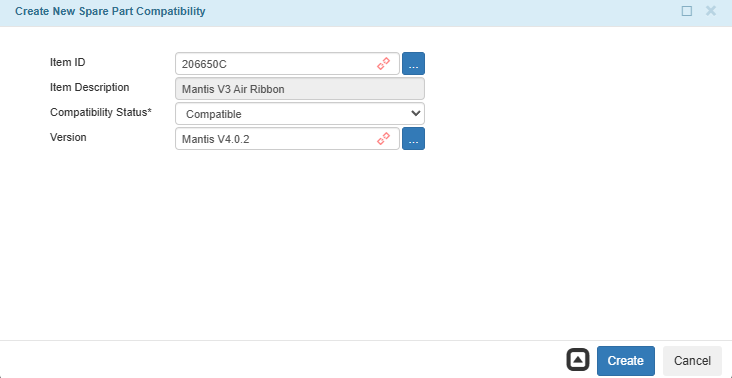
Create New Spare Part Compatibility
Create the record.
Post Condition:
TIGA automatically creates a Spare Part Compatibility record for the selected Item and Hardware Version with the specified Compatibility Status.
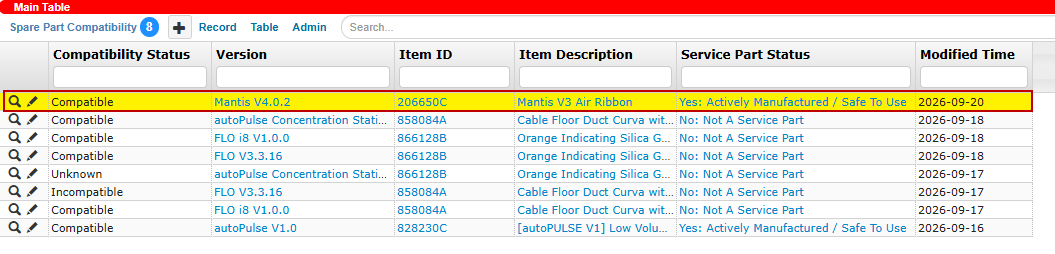
A New Record in the Spare Part Compatibility Table
Note
You can create a Spare Part Compatibility record from the Related Tables section of the Hardware Versions table or the Items table.
You can also create compatibility records by importing them from a CSV file or by using the Copy Spare Part Compatibility action.
You can link a Hardware Version to the same Item only once. However, an Item can be linked to multiple Hardware Versions.
Related Topics:
Spare Part Compatibility Matrix Overview for an introduction to the Spare Part Compatibility Matrix and its purpose.
Managing Spare Part Compatibility Matrix for an explanation of how Hardware Versions, Items, and Spare Part Compatibility relate to each other, and how compatibility information is handled.