Managing Reports
aµtoPULSE provides several report options in the Report menu, including:
Event Log: A record of system events, including operational activities and errors, used for support and troubleshooting.
Audit Trail: A record of user actions and instrument logs for compliance and traceability. This feature is only available to Administrator users.
Protocol Result: Results of chip cleaning and executed protocol for review and download.
Note
Generate Event Log report before contacting FORMULATRIX Support. The information in the log helps our team troubleshoot and resolve issues more quickly.
This topic describes how to export and download these reports.
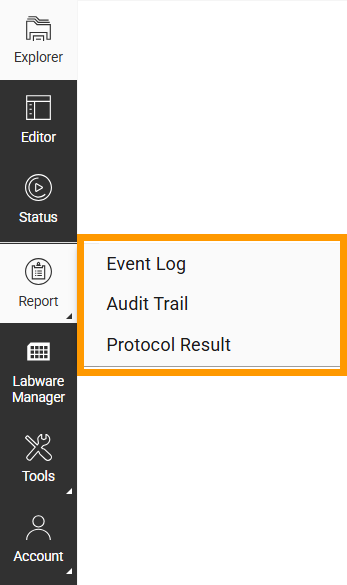
Options in the Report Menu
Exporting Event Log
From the Report menu, select Event Log.
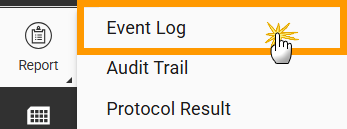
Click Event Log
Select the time range using the calendar icon
 . Then, click EXPORT to export the log file in .txt format. You can send this file to support@formulatrix.com to provide our team with detailed information to troubleshoot issues.
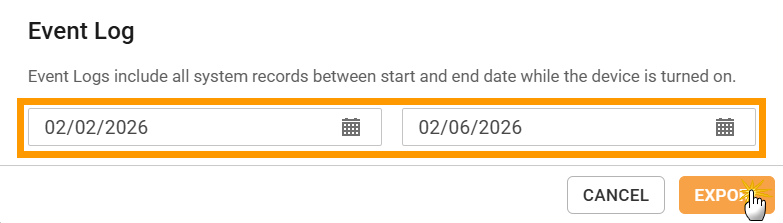
Exporting Event Log
Exporting Audit Trail
On the Report menu, select Audit Trail.
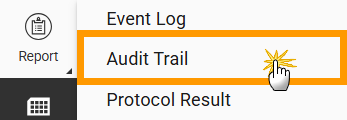
Click Audit Trail in the Report Menu
On the Audit Trail page, select the time range using the calendar icon
.OPTIONAL: Select Separate files to export the audit trail into separate daily files.
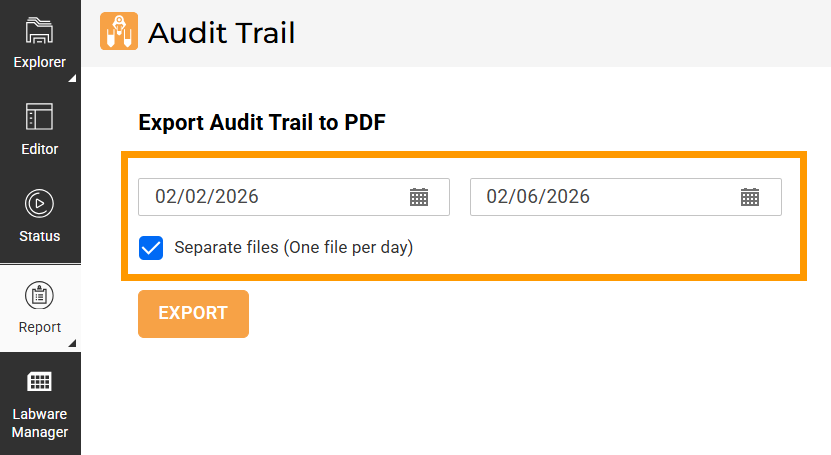
Settings on Audit Trail Page
Click EXPORT to export the audit trail file in .pdf format.
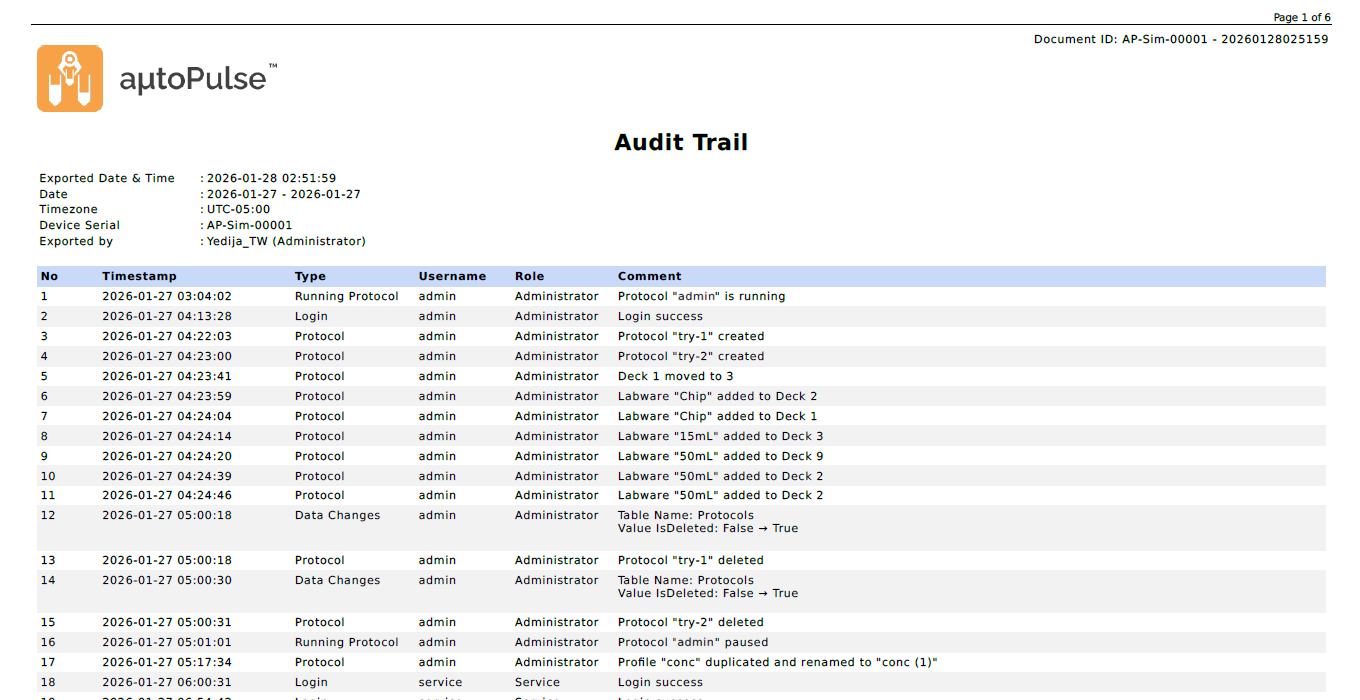
Exported Audit Trail File
Managing Protocol Result
The Protocol Result page includes results from all users. On this page, you can open, download, and delete the existing results.
To download the protocol result:
Click the Report menu, then select Protocol Result.
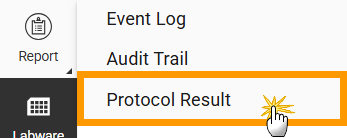
Protocol Result in the Report Menu
Choose from the following options:
To download protocol results from the list view:
Select the protocol names to download, then click DOWNLOAD.
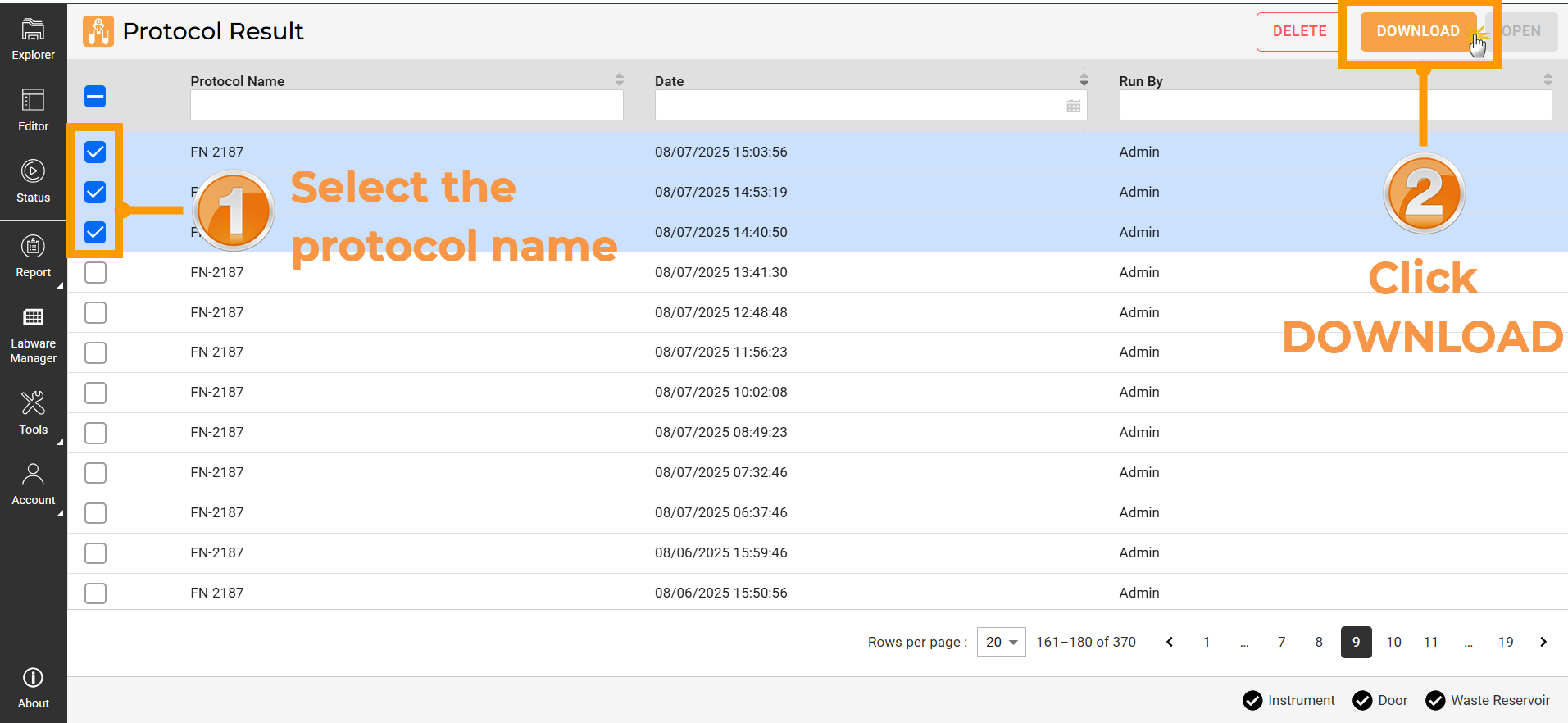
Selecting Multiple Protocol Names
To view a protocol’s summary and download the protocol result:
Select a protocol name from the list and click OPEN.

Selecting Specific Protocol Name
The page will display the executed profiles, a graphic, and protocol parameters.
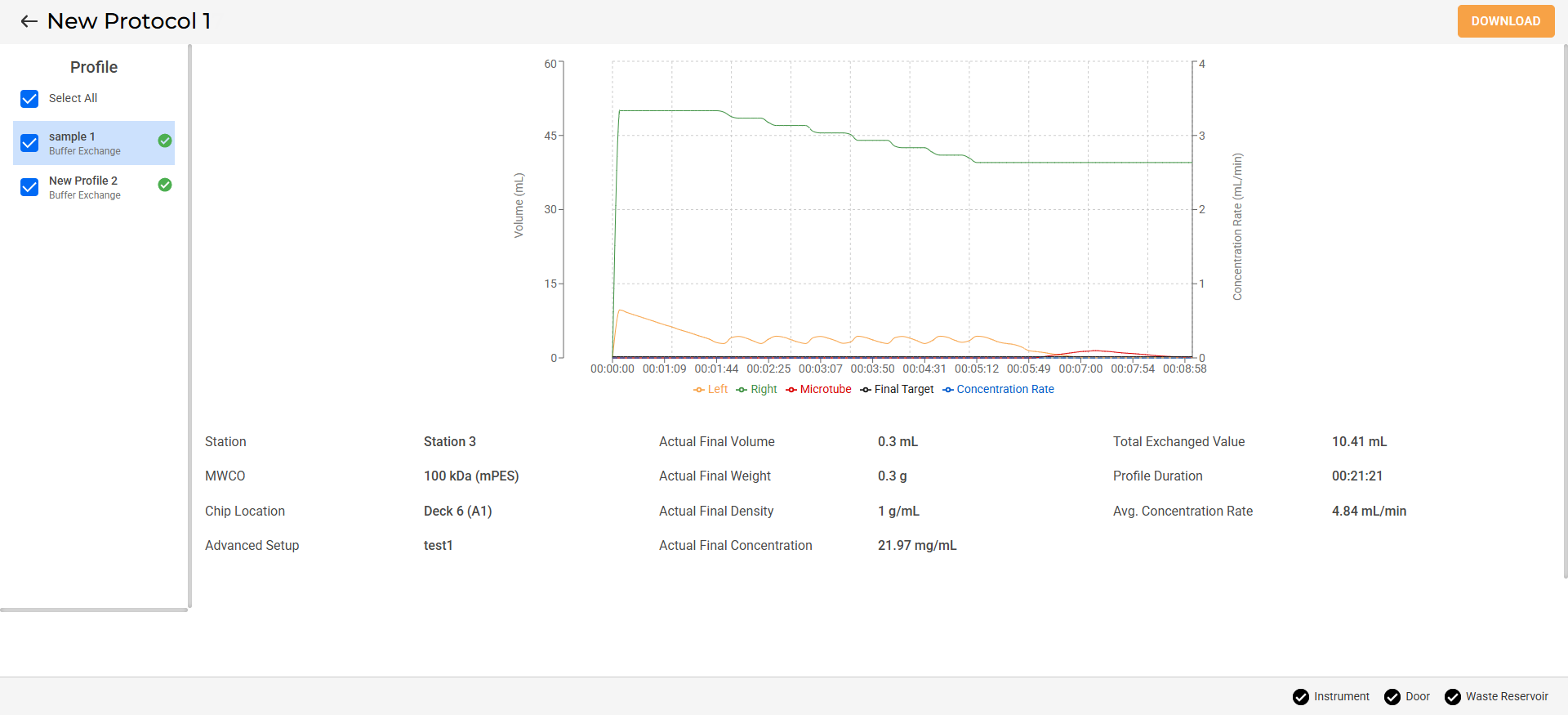
Protocol Data Result
OPTIONAL: Unselect the profiles you want to exclude from the report.
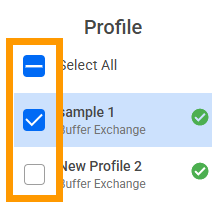
Unselecting Profile
Click DOWNLOAD.
Select the file format from the available options, then click CONFIRM.
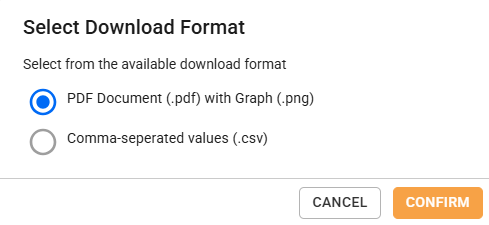
Select File Format
To delete the protocol results
Important
Check the Run by column to identify the owner before deleting a protocol result.
Select one or multiple protocol result names from the list, then click DELETE.
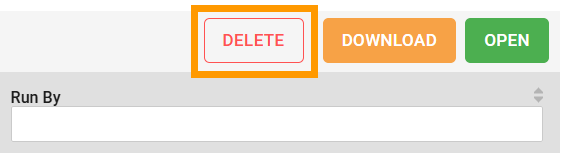
DELETE Button on the Protocol Result Page
Click REMOVE in the confirmation dialog.
Important
Clicking REMOVE permanently delete the protocol results from the database. This action cannot be undone.
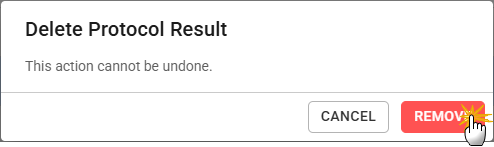
Delete Protocol Result Confirmation