Running a Protocol
You can run your protocol from the Editor page when the labware and profile definitions are ready. While running the protocol, you can monitor the progress from the Runtime Status page. See the following instructions to run a protocol.
Prerequisites:
You have set up the aµtoPULSE.
You have defined labware on stations and deck and created profiles, or imported CSV files.
You have placed the required labware on the deck according to your labware definition and deck arrangement.
Important
Ensure tubes, chips, and tube/chip racks are correctly positioned and aligned to prevent errors.
The aµtoPULSE system is available and ready to run, indicated by a black check mark on each icon in the Status Bar.
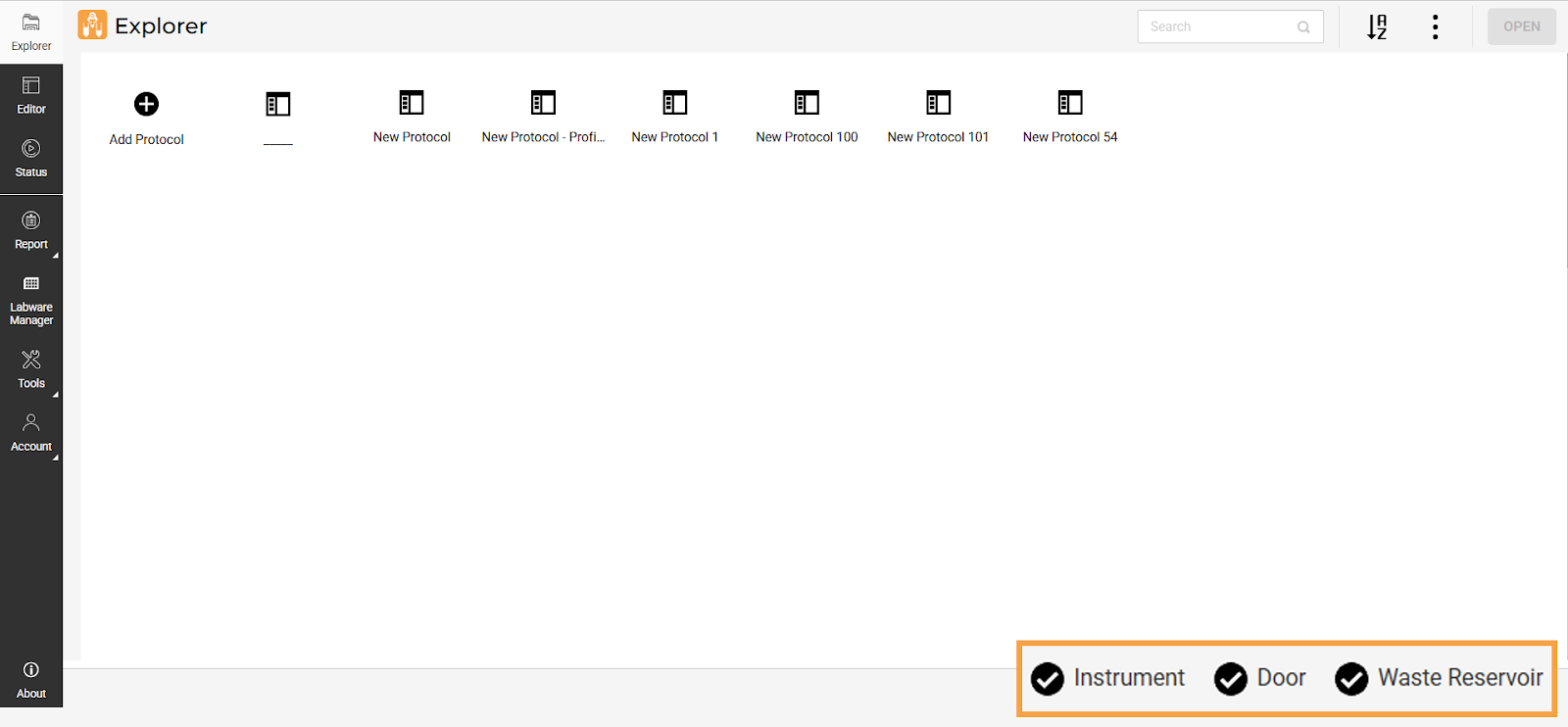
All Components Ready to Run
To run the protocol:
On the Editor page, the system automatically selects all ready-to-run profiles, but you can manually unselect specific ones before starting the run. Any excluded profiles will be highlighted in gray.
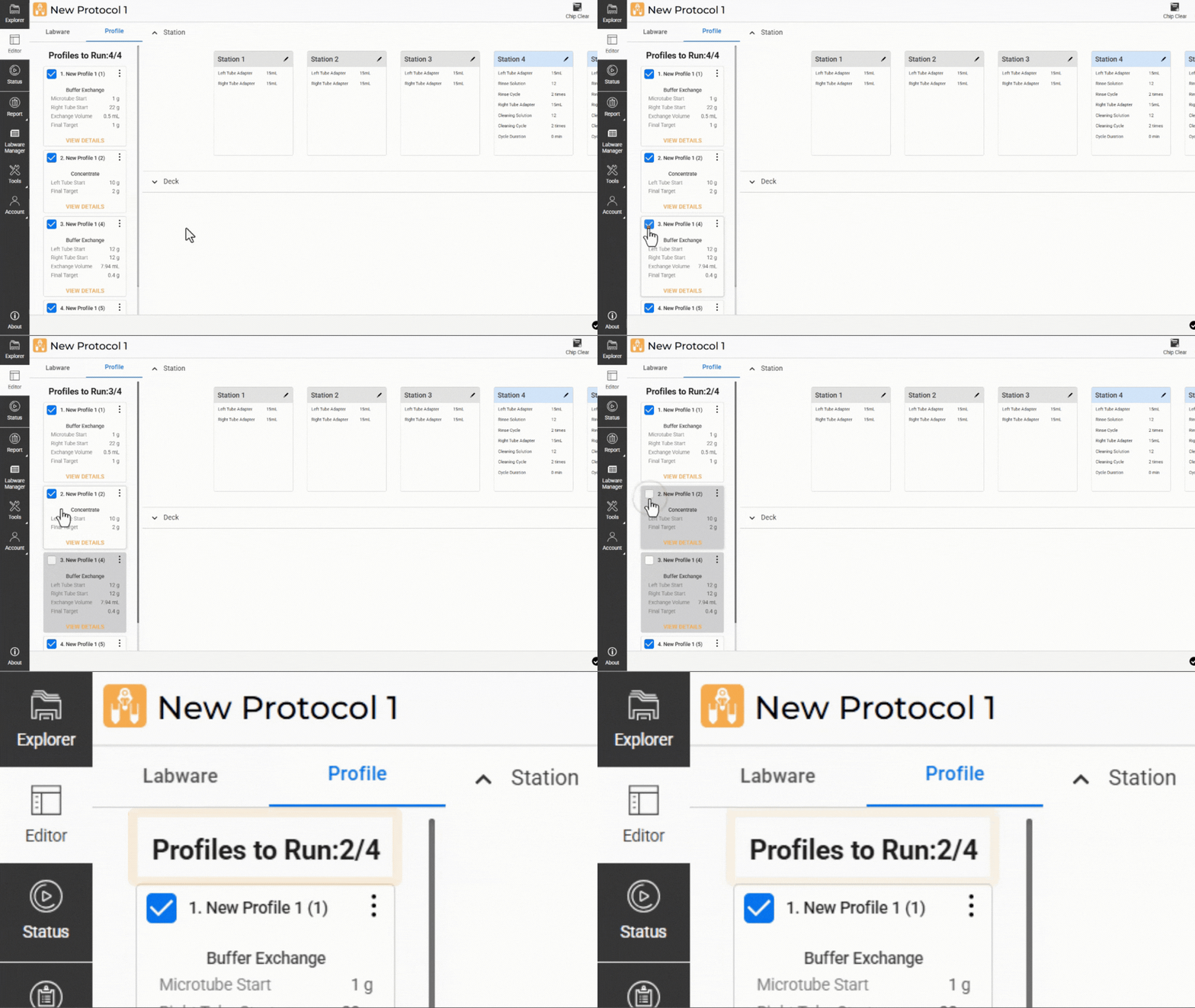
Unselecting Profiles
When your labware and profiles are set, click RUN.
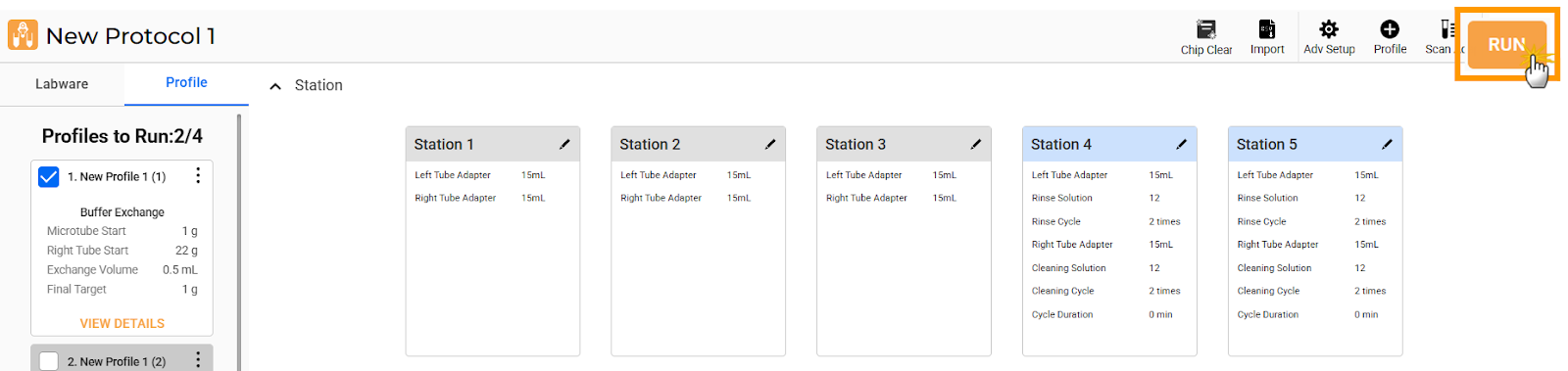
Click RUN
Once the protocol starts, you will be directed to the Status page where you can view the protocol progress and status:
Monitor the progress on each profile card.
See the progress (%) on each Station.
Click the Info button
 on the station card to display
the status in the graph. You can also see the profile parameters.
on the station card to display
the status in the graph. You can also see the profile parameters.Note
You can pause the protocol by clicking the PAUSE button on the station card or PAUSE ALL to pause all running profiles. Click CONTINUE to resume the protocol or click STOP to terminate the run early.
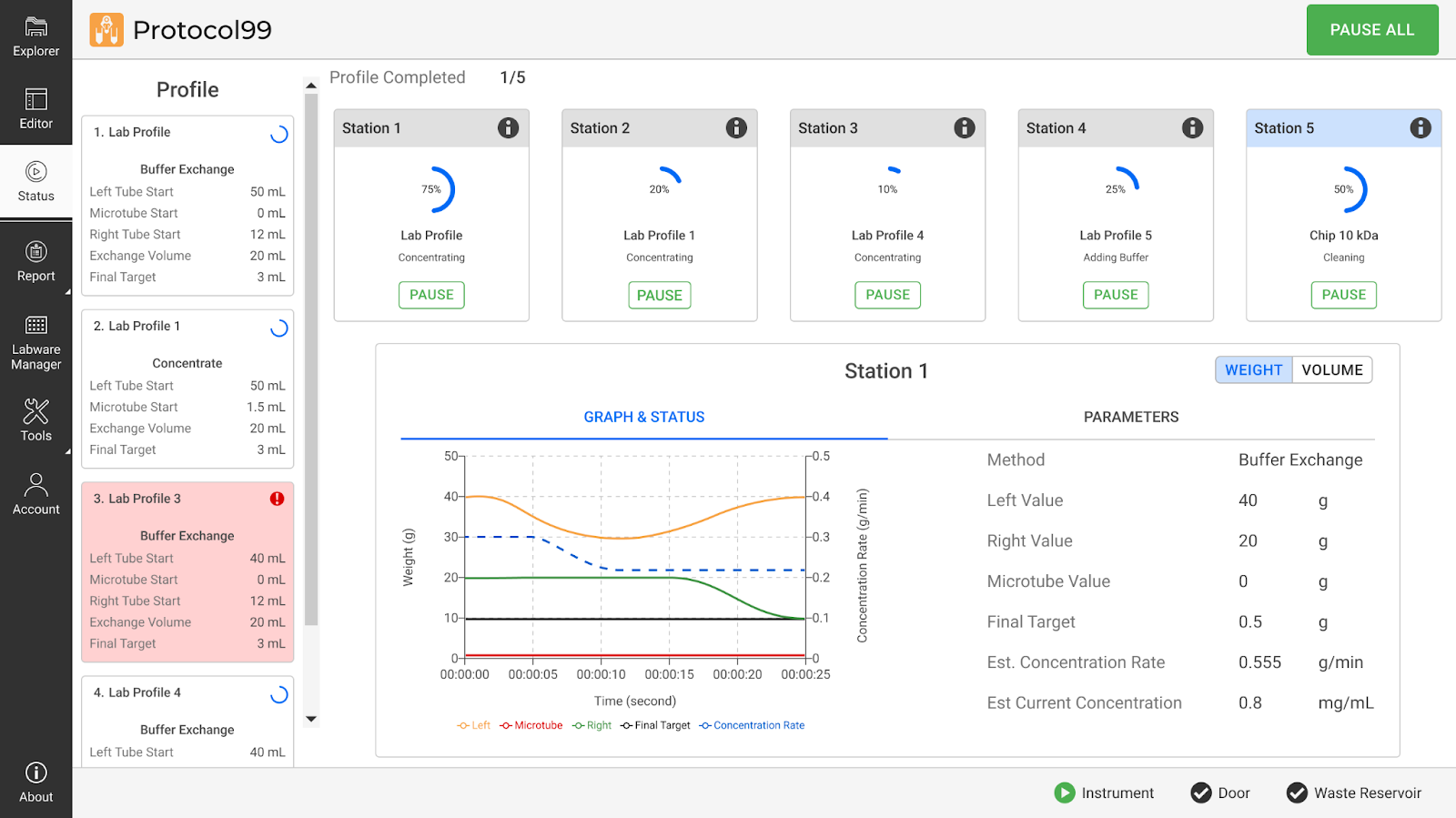
Status Page
For more information, see Runtime Status Page.
When the protocol is finished, click SUMMARY to preview the protocol report or click CLOSE to return to the Editor page.
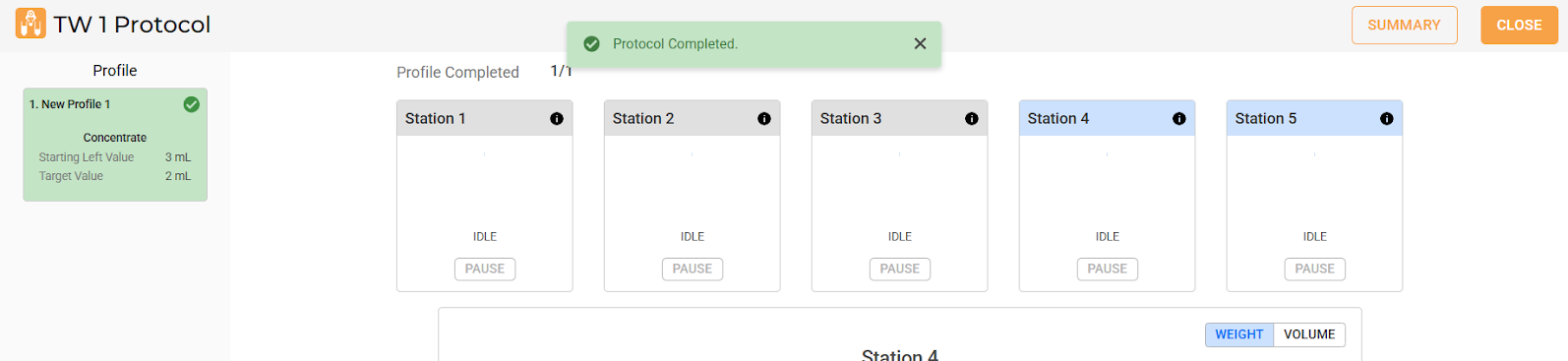
Protocol is Successfully Completed
Note
On the Summary page, click DOWNLOAD to save the protocol report in PDF or CSV file to your drive. Alternatively, go to the Protocol Result page to access all protocol reports. See Protocol Result for more information.
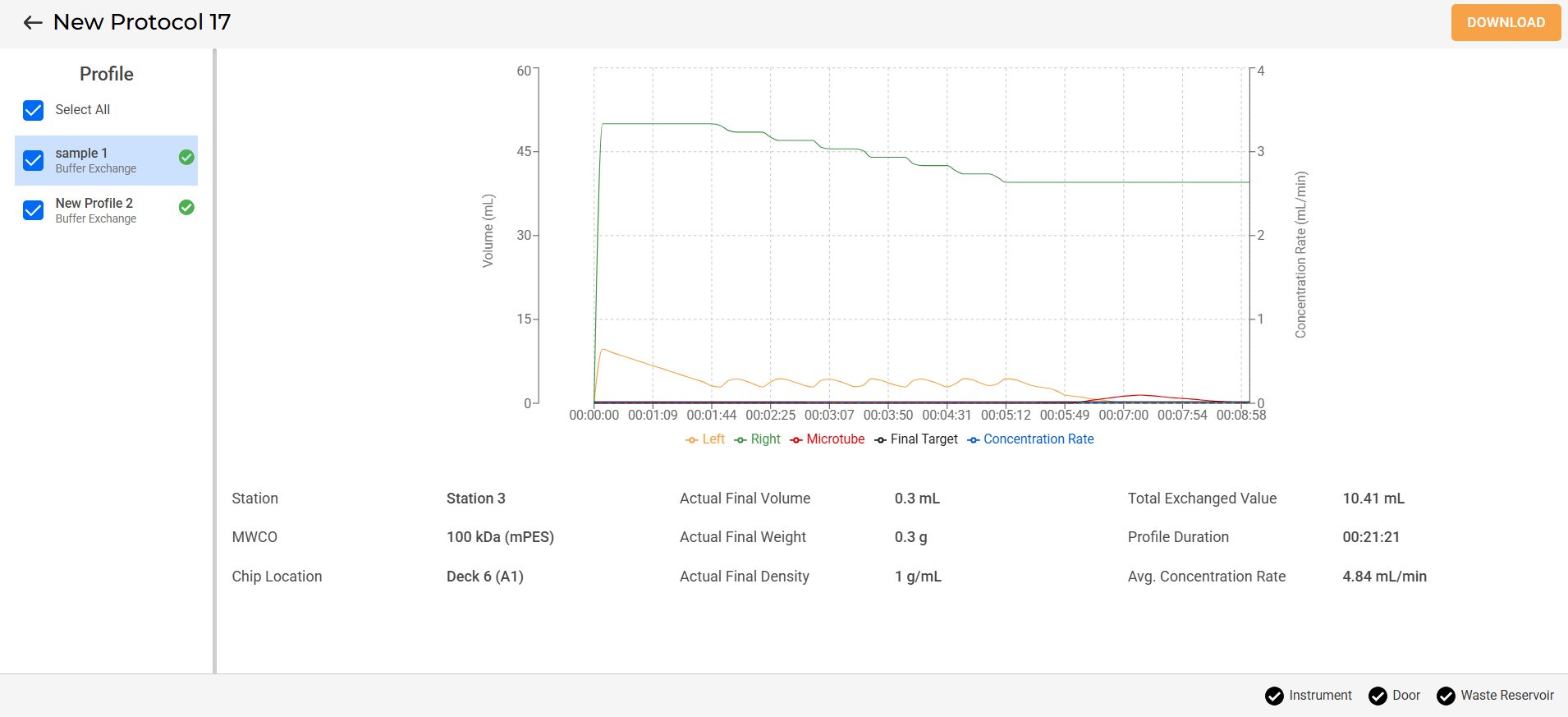
Protocol Summary Page