Creating Profiles
Once the labware is set up, create profiles by configuring the tube and chip parameters needed in the protocol.
Prerequisite:
To create a profile:
At the top right of the Editor page, click Profile
 .
.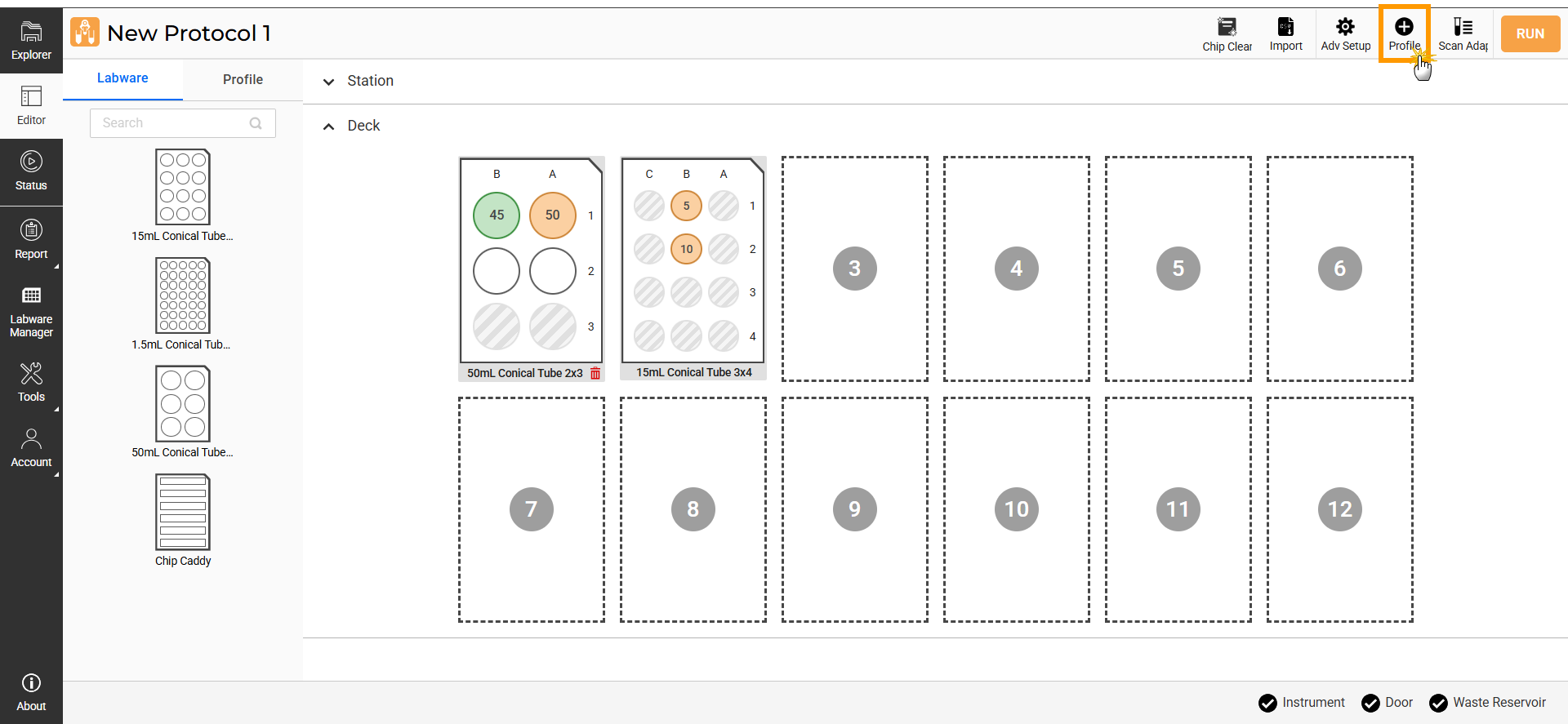
Click Profile Button
OPTIONAL: Click the profile name at the top left to rename it, then click on empty space to save the new profile name.
Specify the profile parameters as follows:
Note
Settings marked with asterisk (
*) are required.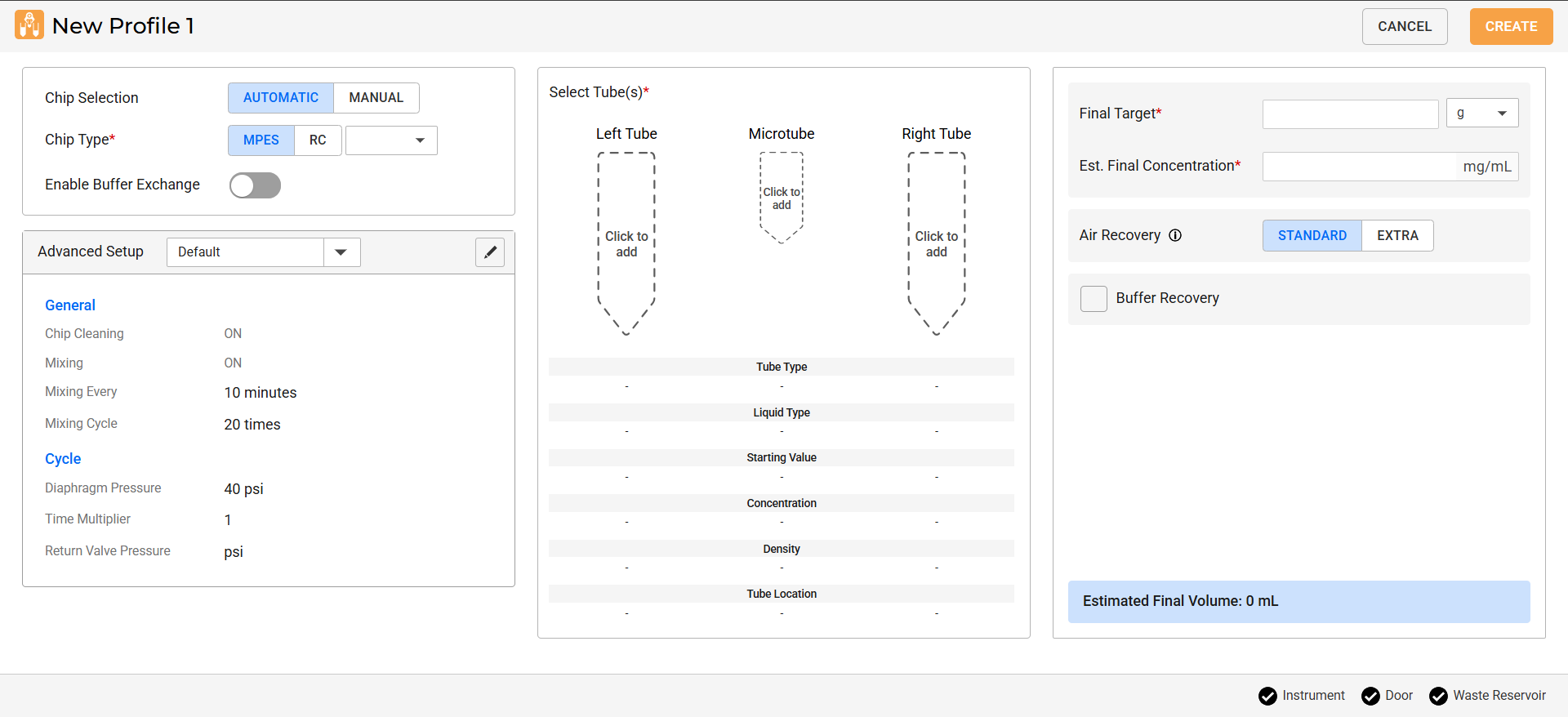
Parameters in the New Profile Page
Define the chip configuration from the Chip Selection and Chip Type options:
AUTOMATIC: Lets the aµtoPULSE pick an available chip on the deck based on your selected Chip Type.
MANUAL: Choose a specific chip directly from the rack by clicking SELECT CHIP.
See the video below for reference.
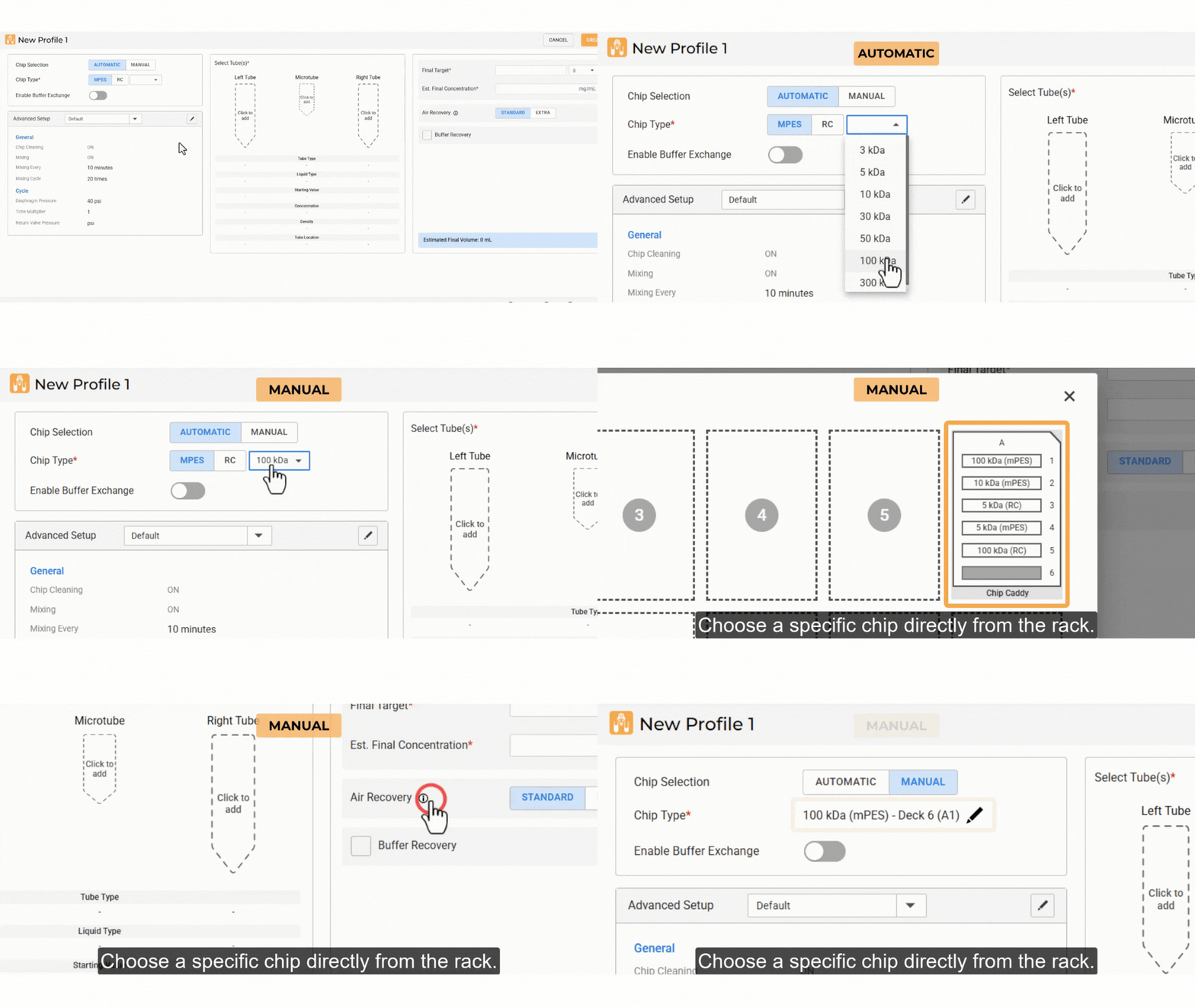
Chip Selection Setup
OPTIONAL: To add a buffer exchange sequence, activate the Enable Buffer Exchange toggle and select the Buffer Exchange Source from the provided options (TUBE or RESERVOIR).
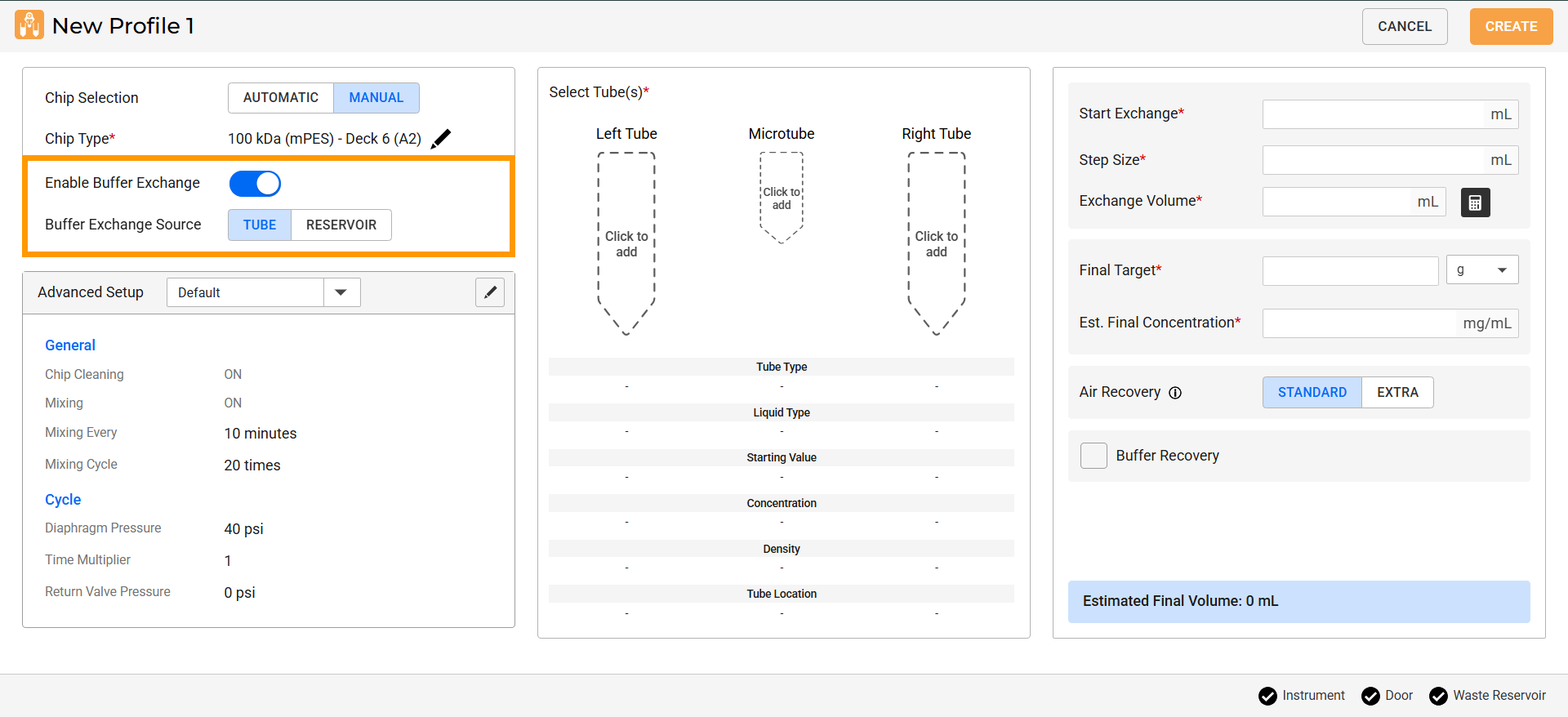
Buffer Exchange Option
OPTIONAL: Assign a custom chip setup from the Advanced Setup panel. If left unchanged, the Default setup will be applied.
Note
You can edit or create new setups from the Advanced Setup page. See Using the Advanced Setup for details.
Select tubes according to the profile requirements and deck layout. For example, ensure at least one sample is assigned, place buffer in the Right Tube if Buffer Recovery is enabled.
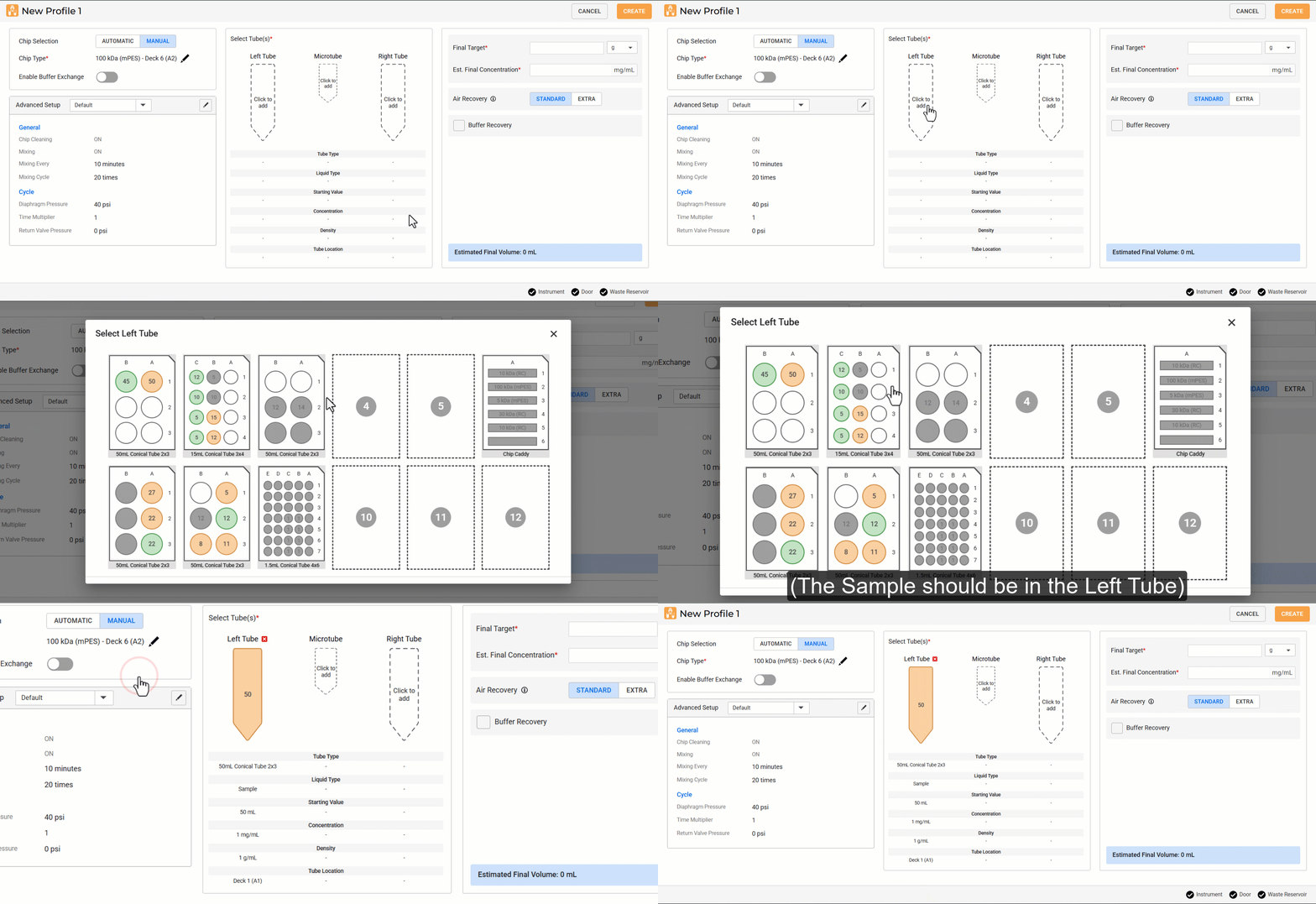
Selecting Tube According To Profile Requirements
Tip
To remove or change the tube selections, click the red cross icon
on the selected tube.
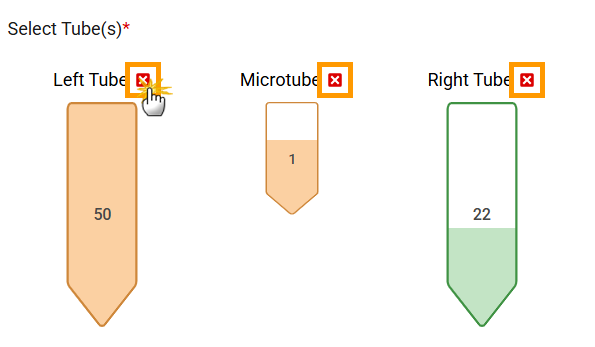
Remove Tube Selection
Specify the volume parameters as follows:
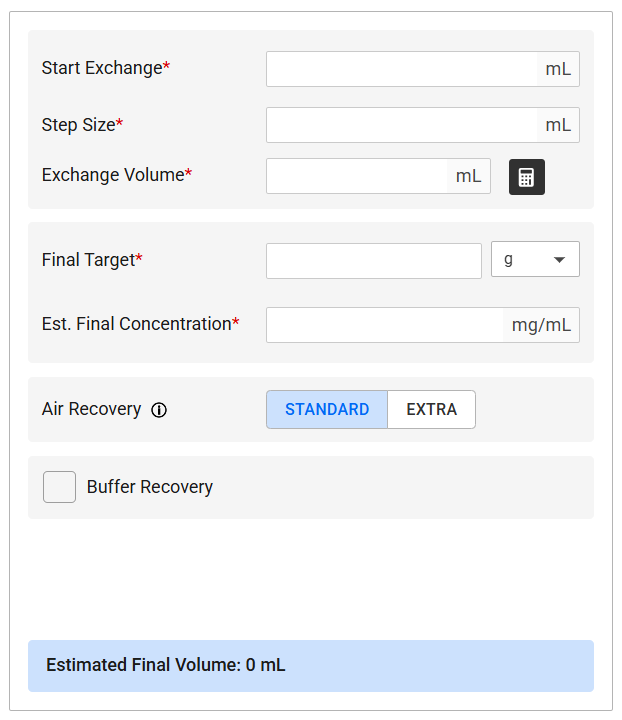
Volume Parameter Panel
Required if Enable Buffer Exchange is selected:
Start Exchange: The volume at which the system begins adding the new buffer.
Step Size: The amount of buffer added at a time during the buffer exchange.
Exchange Volume: The total volume of buffer used during the buffer exchange process.
OPTIONAL: Use the Buffer Exchange Calculator feature
to calculate the required exchange volume for buffer exchange. Specify the parameters in the provided fields, then click APPLY to save the values.
Exchange Percentage: Percentage of buffer relative to the total tube volume (sample + buffer added).
Necessary Exchange Volume: Total buffer volume required to complete the buffer exchange.
Note
Start Exchange and Step Size values in Buffer Exchange Calculator are synced with volume parameters for buffer exchange.
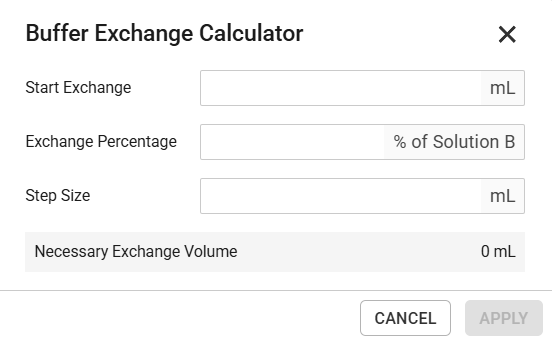
Buffer Exchange Calculator Dialog
Final Target: The final amount (in g or mL) you want the sample to achieve after the process.
Est. Final Concentration: The estimated concentration (mg/mL) after the profile is executed.
Note
Final Target and Est. Final Concentration parameters are linked. Enter one of the settings, and the system calculates the other.
Select the Air Recovery option:
STANDARD: The default air recovery setting that uses a fixed pumping cycle.
EXTRA: Adds some air to the sample tube, suitable for higher-viscosity samples.
OPTIONAL: Select the Buffer Recovery option to flush a specified Amount of buffer volume for more efficient recovery.
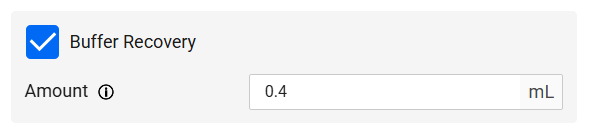
Amount Field on Buffer Recovery Option
Estimated Final Volume: The approximate volume in the target tube after the profile is executed.

Estimated Final Volume Panel
Click CREATE to complete your profile setup. Once a profile is created, it will appear in the Profile tab. Repeat steps 1-4 to create more profiles.
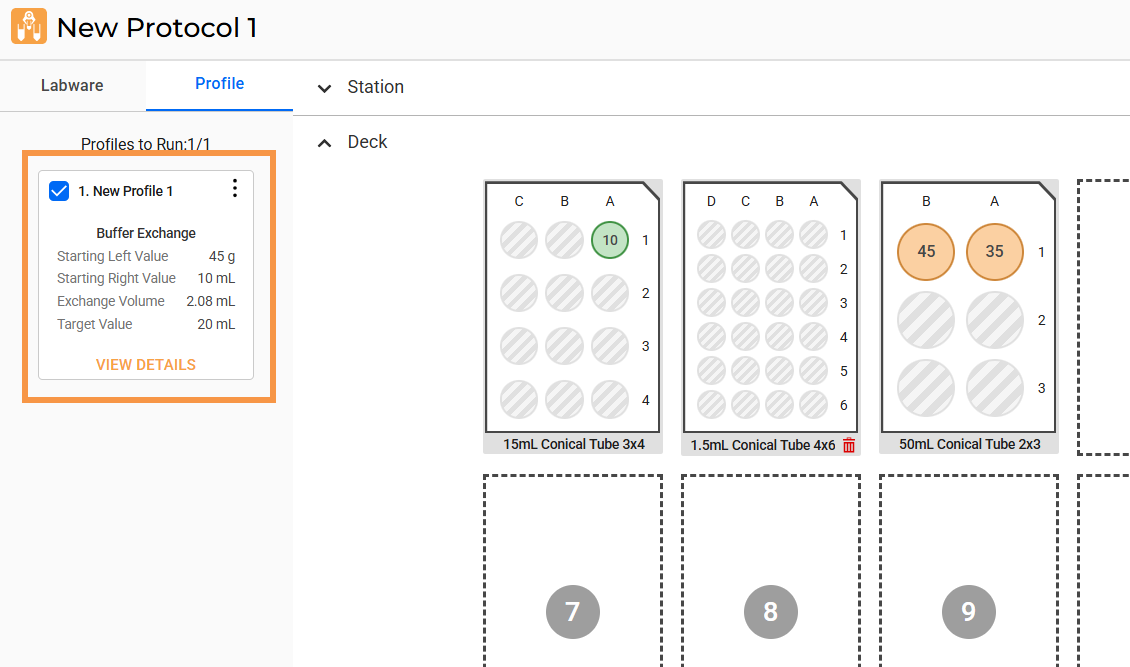
New Profile Created
Repeat steps 1-4 to create more profiles.
Note
You can duplicate and/or remove a profile using the menu button on its card. After duplicating, update the tube selection to match the profile setup.
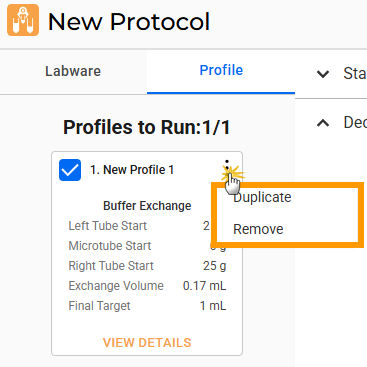
Duplicate or Remove a Profile
Your protocol is ready to run. For more information, see Running a Protocol.
The Profiles to Run indicator updates automatically to show the number of selected profiles out of the total.
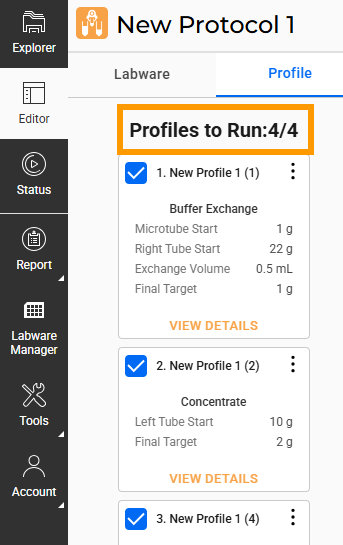
Number of Profiles to Run
A warning icon  on a profile card indicates an issue that requires action. Click VIEW DETAILS to open, make necessary changes, and then click SAVE. Refer to the specifying profile’s parameters (step 3) for instructions.
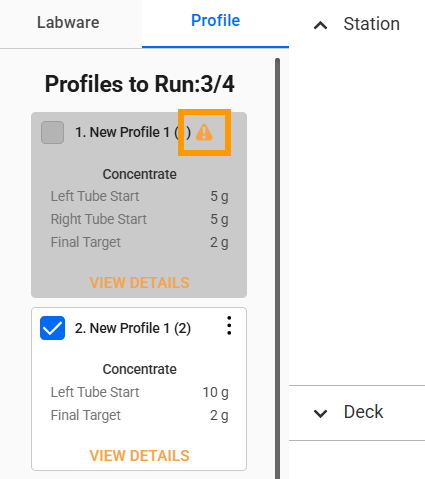
Profile with Warning Indicator