Software Overview
To connect to the instrument, use a web browser from a computer either directly connected to or on the same network as the instrument using the URL: http://autopulse-[device serial #].local. e.g., http://autopulse-4.local for instrument AP-1-0004, then log in with your username and password.
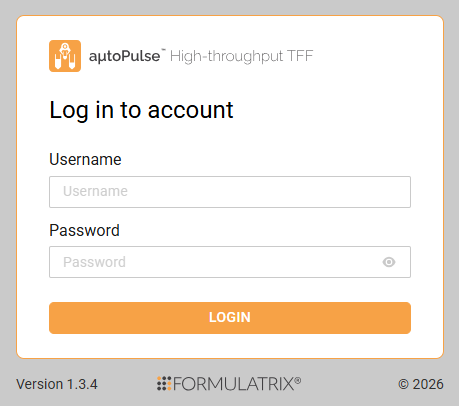
aµtoPULSE Login Page
After login, aµtoPULSE opens the Explorer page as the landing page, which includes the Navigation Bar (1), Command Bar (2), Protocol List Panel (3), and Status Bar (4).
Note
Page layouts may vary across the interface; this topic provides an overview of the Explorer page layout.
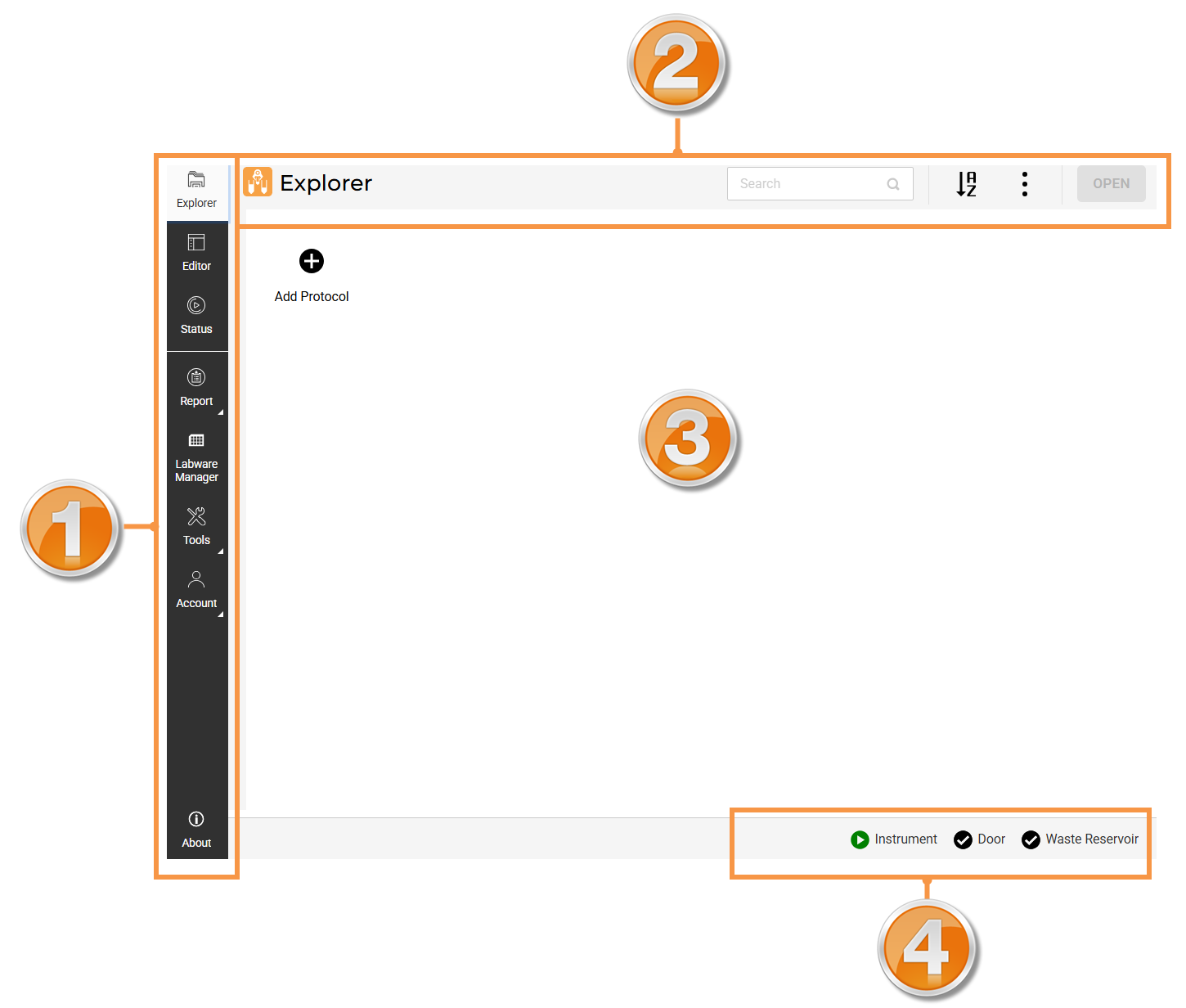
aµtoPULSE Explorer Page
Section 1: Navigation Bar
The Navigation Bar allows you to navigate within the aµtoPULSE software interface.

aµtoPULSE Navigation Bar
Button |
Description |
|---|---|

|
Manage existing protocols or create a new one. |

|
Edit the active protocol or create a new one. |

|
View the status of the current or most recent protocol. See Runtime Status Page for details. |

|
View reports related to instrument operation, including:
See Managing Reports for details. |

|
View the generic labware and recalibrate the instrument grip position for them. Note Administrator privileges are required to access this page. See Labware Manager for details. |

|
Click Tools to access options for instrument calibration, maintenance, and troubleshooting:
|

|
Change settings related to the user account, including:
For more information, see User Account Management. |

|
See detailed information about the instrument, including the serial number, firmware version, software version, and license. Note Administrator privileges are required to update the software version or activate a license. |
Section 2: Command Bar
The Command Bar lets you access functions related to the page you are on. For example, the available buttons in the Explorer page allow you to manage the protocols inside the list.

Explorer Page’s Command Bar
Button |
Description |
|---|---|
|
Search for the protocol you want to find in the database. |
|
Switch between ascending and descending alphabetical order. |
|
Manage your protocols.
|
|
Open the selected protocol. This will take you to the Editor page. |



Section 3: Protocol List Panel
The context panel varies by page. The Protocol List Panel displays existing protocols and allows you to create new ones. To create a new protocol, double-click Add Protocol.
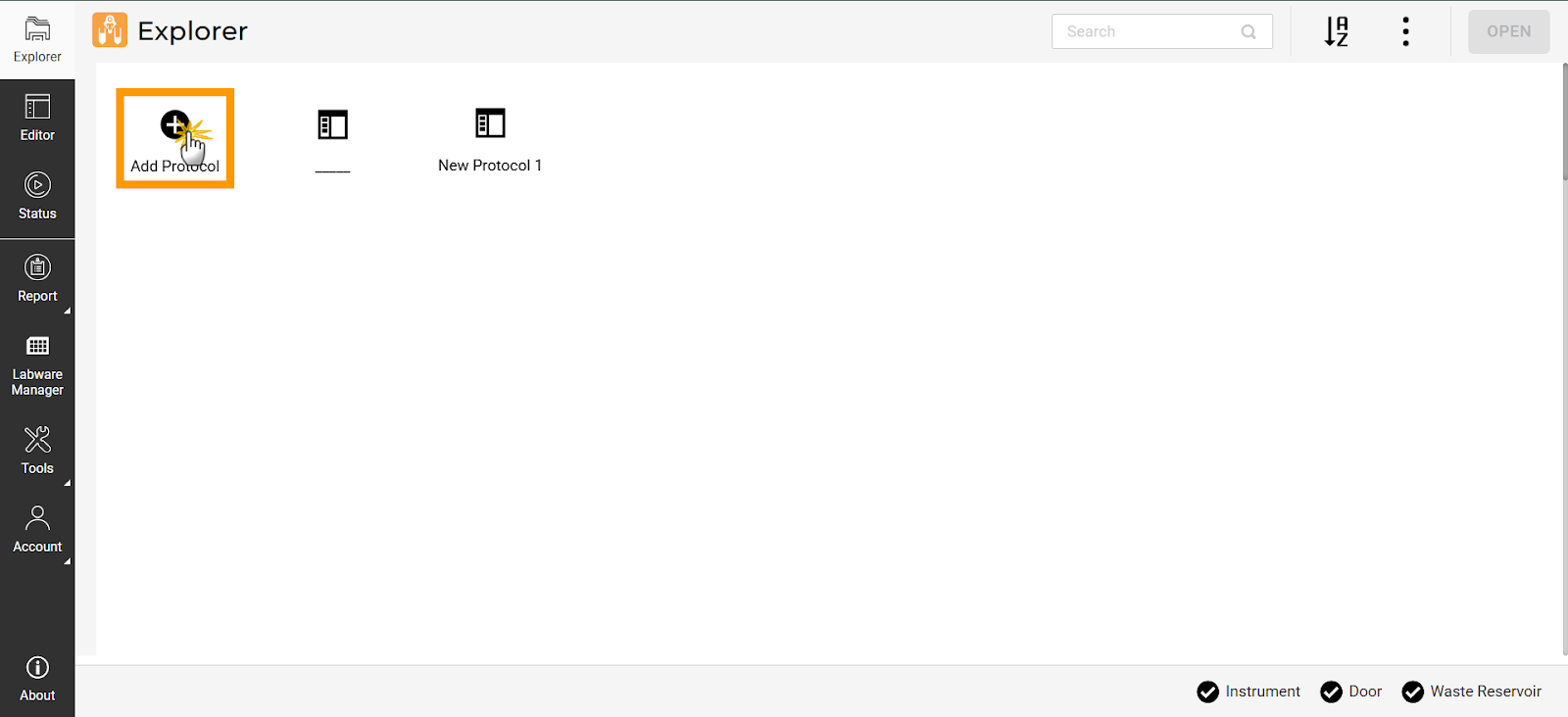
aµtoPULSE Protocol List Panel
Section 4: Status Bar
In the lower right corner of the display, the Status Bar shows the overall status of the instrument.

aµtoPULSE Status Bar
Indicator |
Description |
|
|---|---|---|
Instrument |
|
The instrument is idle and ready. |
|
A protocol is running. |
|
|
The instrument is paused. |
|
|
The instrument has detected an error. Recovery is required. Note During error recovery, the Status Bar displays the recovery status. 
Error Recovery in the Status Bar |
|
|
The instrument has encountered an unrecoverable error. Contact support@formulatrix.com for assistance. |
|
Door |
|
The door is closed. |
|
The door is open. The instrument pauses ongoing operations. |
|
Waste Reservoir |
|
The waste reservoir has sufficient space, or the sensor is not used. |
|
The waste reservoir is full. Empty the contents and reattach it. |
|


