Runtime Status Page
The Status page provides a real-time view of protocol and chip cleaning activities, including the status of active stations. It allows you to monitor, manage, and review ongoing processes. The page opens automatically when a protocol is running or can be accessed from the Status menu.
See the following sections to break down each panel.
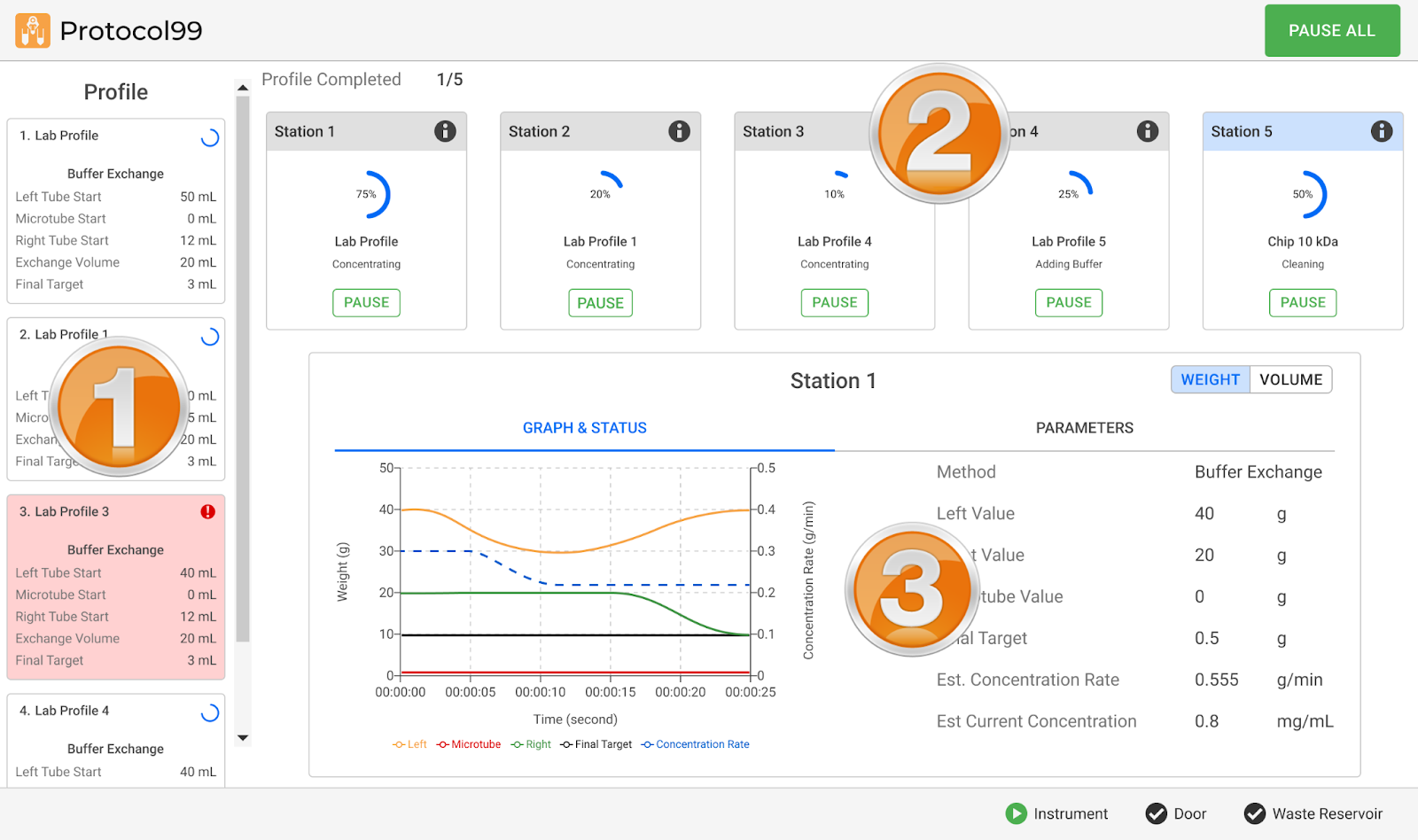
Protocol Runtime Status Page
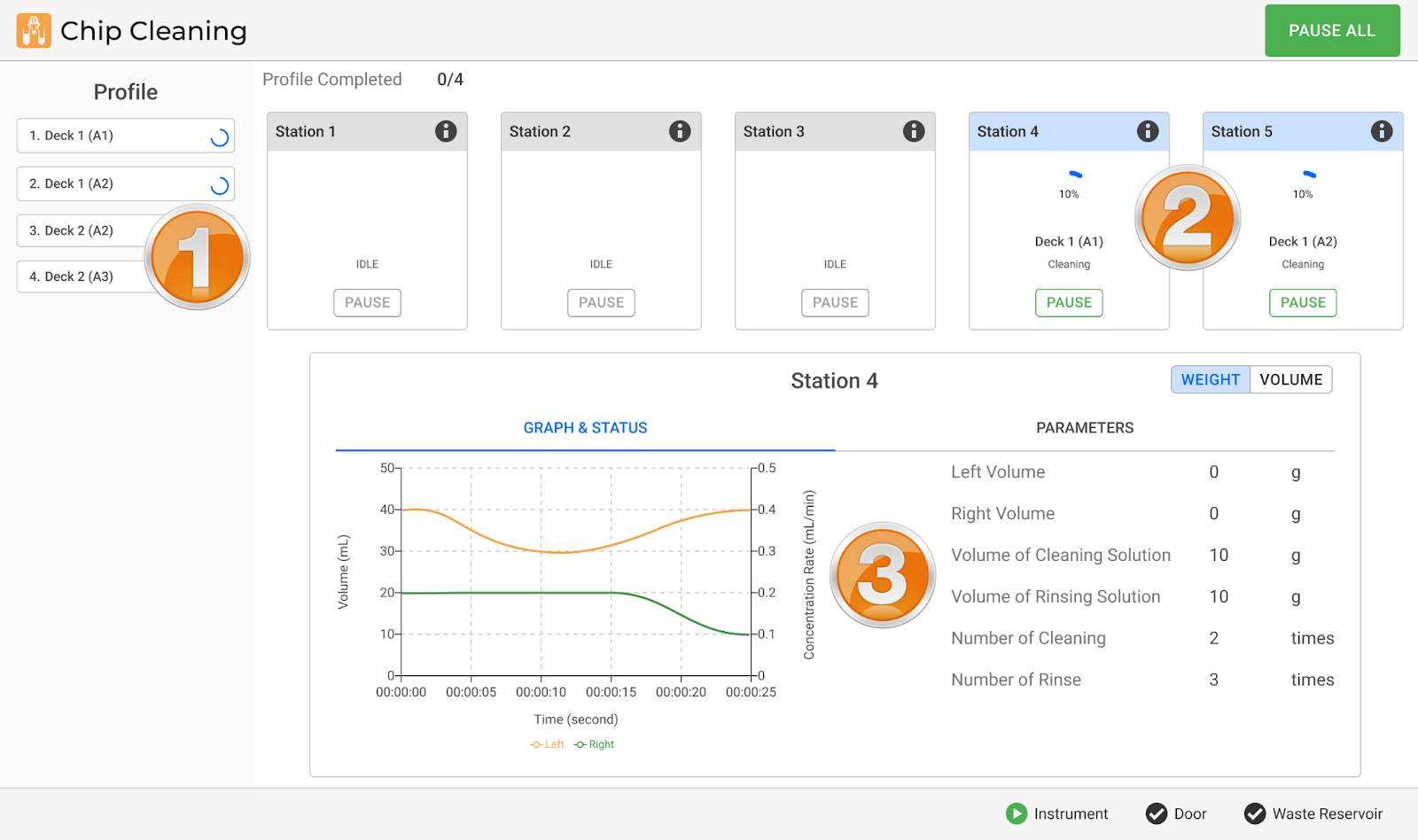
Chip Cleaning Status Page
Section 1: Profile List
The Profile List panel displays scheduled profiles selected from the Editor page. It provides a quick overview of the profile’s progress and status. Profiles are color-coded for easier identification:
Green: Completed.
Red (with a warning icon): Stopped, aborted, or encountered an error.
White: Pending or not started. A progress indicator appears when the system is preparing, running, or completing the profile.
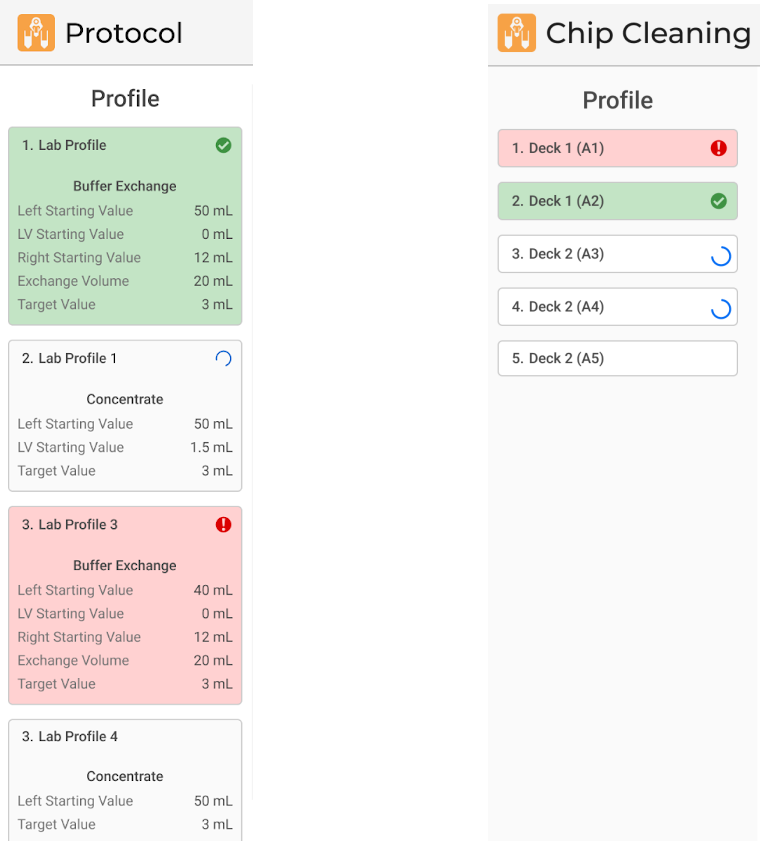
Profile List in the Status Page (Left); Cleaning Profile List in the Status Page (Right)
Section 2: Station Card Panel
The Station Card panel provides an overview of all active stations. Each active card displays real-time status, making it easy to track system activity at a glance. This panel consists of two main components:
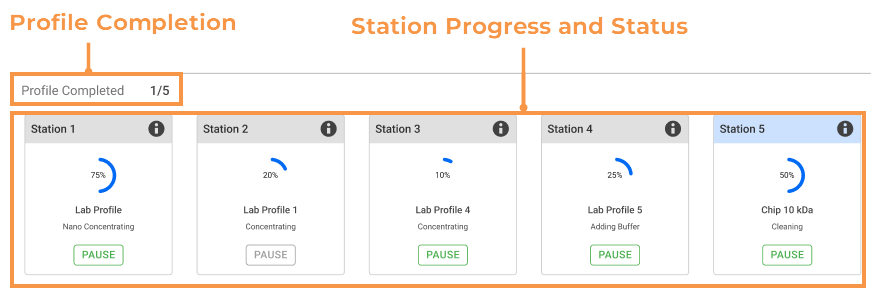
Station Card Panel
Note
Stations in gray represent Concentration Stations, while blue represents Cleaning Station(s).
Profile Completion
Located at the top left of the panel, Profile Completion provides the number of profiles completed compared to the total scheduled. The progress is displayed in the format: Completed Profiles / Total Profiles.
For example:
1/5 means one completed profile out of five.
0/0 indicates no profiles are currently running.
Station Progress and Status
The section provides a visual representation of all active stations during profile execution. Each station card displays the following details:
Circular Progress Indicator
The progress indicator appears with the completion percentage of the running profile. This allows you to monitor the station’s progress without opening additional menus.
Statuses in Concentration and Cleaning Stations
Stations operate in different modes depending on the profile being executed, indicated by the following statuses:
Status |
Concentration Station |
Cleaning Station |
Description |
|---|---|---|---|
IDLE |
✔ |
✔ |
The station is not in use and is available for the next operation. |
Loading Chip |
✔ |
✔ |
The system is transferring the chip. |
Cleaning |
- |
✔ |
The station is undergoing a cleaning cycle. |
Purging |
✔ |
✔ |
The station is removing residual liquid from the permeate line. |
Stopping |
✔ |
✔ |
The station is in the process of halting all operations. |
Processing Error |
✔ |
✔ |
The station has encountered an error or is recovering from one. |
Stopped |
✔ |
✔ |
The station has been manually or automatically halted. |
Paused |
✔ |
✔ |
The process is temporarily halted but can be resumed. |
Preparing |
✔ |
- |
The tube and chip are placed, and the system is performing validation checks before executing the profile. |
Waiting Chip |
✔ |
- |
The Concentrating Station is waiting for the Cleaning Station to finish the chip. |
Loading Tubes/Unloading Tubes |
✔ |
- |
The system is transferring tubes to or from the station. |
Concentrating |
✔ |
- |
The station is filtering the sample. |
Unloading Chip |
✔ |
- |
The system is transferring the chip from the station to the rack. |
Priming |
✔ |
- |
The station is filling the chip with liquid to remove any residual air. |
Adding Buffer |
✔ |
✔ |
A buffer solution is being added to the tube. |
Transferring |
✔ |
- |
The chip on the station is transferring liquid between tubes. |
Recovery |
✔ |
- |
The system is recovering the filtered sample or the remaining liquid from the chip. |
Mixing |
✔ |
- |
The station is recirculating the sample to reduce sample gradients. |
Note
The PAUSE button is enabled when the station starts running the profile. Clicking this button pauses the running profile at that station. Click CONTINUE to resume the profile execution or STOP to stop the profile and return the labware to the deck.
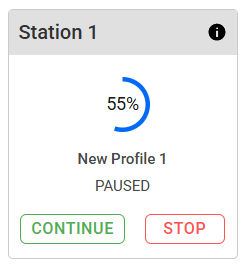
Available Buttons in the Station Card
Section 3: Station Detail
This panel presents each station’s current process data in graphical and
numerical formats. Click the More info icon  on a station
card to display its real-time detailed view. This helps analyze
performance metrics and ensure proper station functionality.
on a station
card to display its real-time detailed view. This helps analyze
performance metrics and ensure proper station functionality.
See the Station Detail key components below.
Graph & Status
The Graph & Status tab displays a real-time graphical representation of key station parameters. The X-axis represents running time, while the Y-axis represents volume or weight.
Different colors indicate key values in the graph:
Orange: Left sensor measurement
Green: Right sensor measurement
Red: Microtube measurement
Black: Final Target
Blue: Concentration Rate
Click the WEIGHT or VOLUME button to view data based on the measurement unit:
WEIGHT displays data value in grams (g).
VOLUME displays data value milliliters (mL).
A summary of the graphical data will be displayed on the right side, including:
Concentration Station
Method – The process currently in use.
Left Value – The weight or volume recorded by the Left Conical Tube Scale.
Right Value – The weight or volume recorded by the Right Conical Tube Scale.
Microtube Value – The weight or volume recorded by the Microtube Scale.
Final Target – The expected final target for the process.
Estimated Concentration Rate – The current membrane concentration flow rate in g/min.
Estimated Current Concentration – The calculated concentration level in mg/mL.
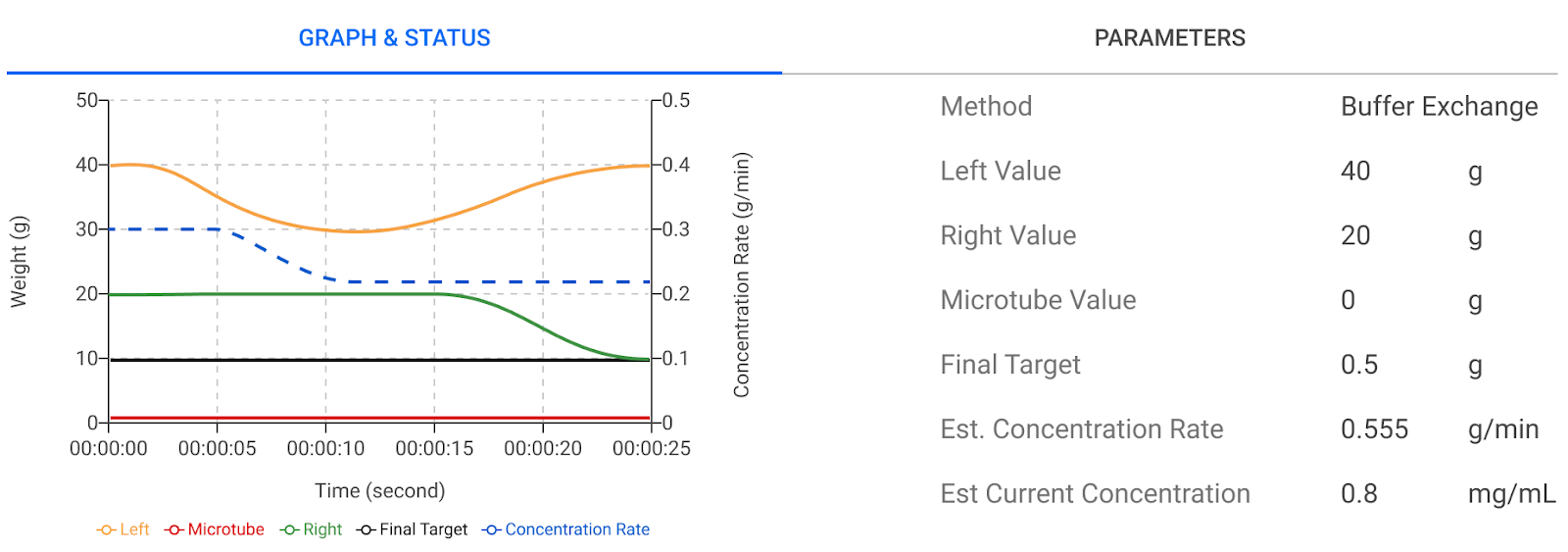
Concentration Station’s Detail Panel
Cleaning Station
Left Volume – The detected liquid volume on the left side of the station.
Right Volume – The detected liquid volume on the right side of the station.
Volume of Cleaning Solution – The total amount of cleaning solution used during the process.
Volume of Rinsing Solution – The total amount of rinsing solution used to remove residual contaminants, measured in grams.
Number of Cleaning – The number of cleaning cycles performed during the process.
Number of Rinse – The number of rinse cycles executed after cleaning to ensure complete removal of residues.
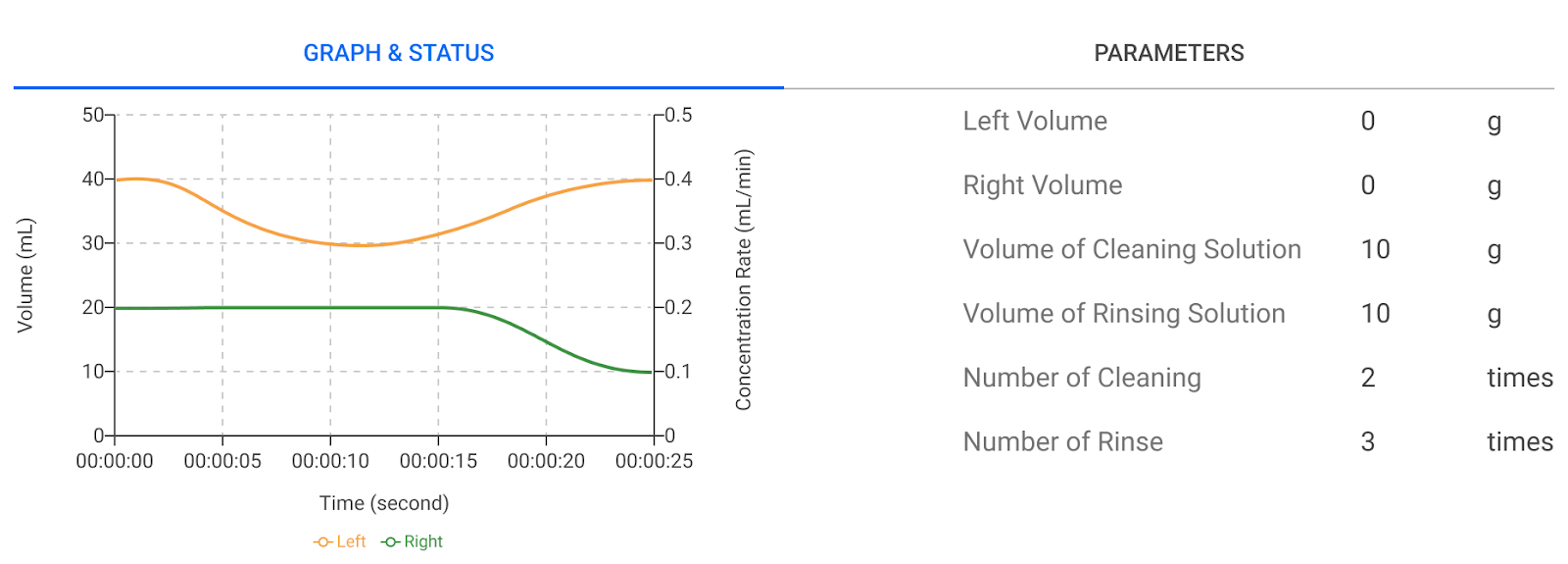
Cleaning Station’s Detail Panel
Parameters
Select the Parameters tab to view the station’s pressure/vacuum settings for the ongoing profile. These include:
Measurement Unit in psi |
Measurement Unit in ms |
|
|
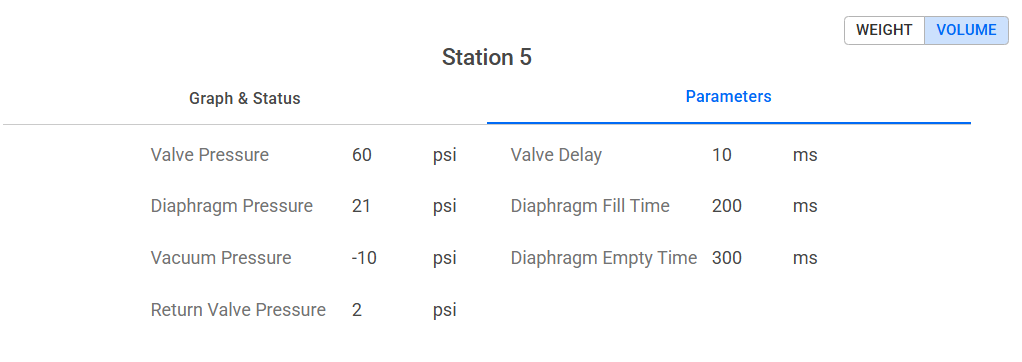
Parameters Tab
Once the protocol is complete, you can click the SUMMARY button to review protocol execution details and/or the CLOSE button to exit the Status page and return to the main menu.
Note
Clicking the CLOSE button is required if you want to start a new protocol.
Pausing and Stopping a Protocol
The Status page provides the PAUSE ALL button in the top right corner. Clicking this button pauses all stations currently in operation.
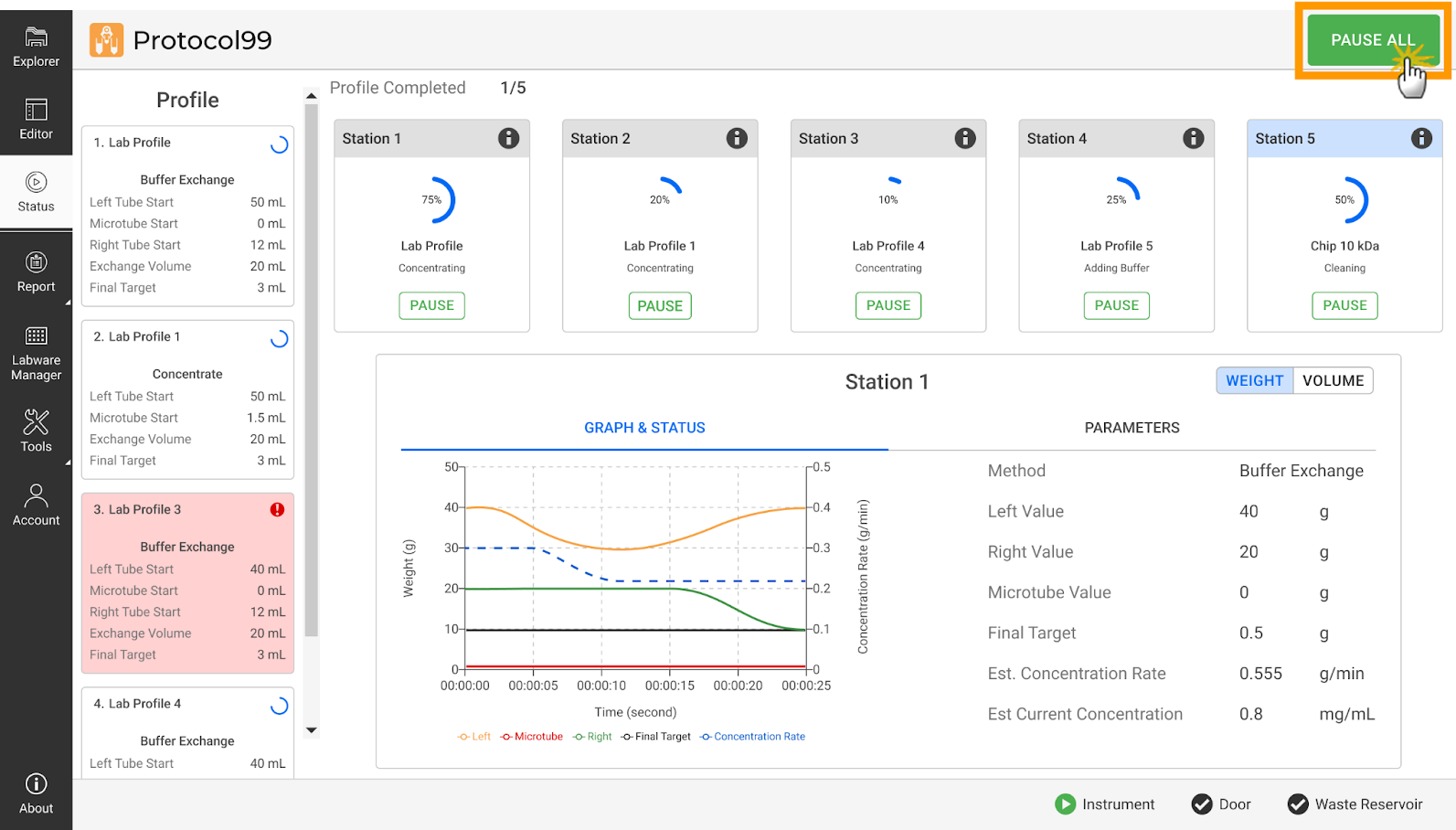
PAUSE ALL Button in the Status Page
You can return to the last action or stop the protocol by clicking these available buttons:
CONTINUE – Resumes the process without interruption.
STOP – Ends the process and presents additional options.
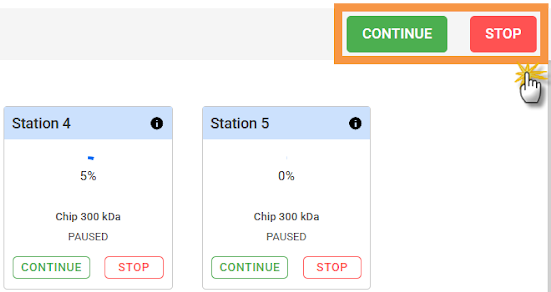
CONTINUE and STOP Buttons
If STOP is selected, the following buttons appear:
RETURN LABWARE – Moves the labware back to its starting position, ensuring that samples and chips are safely returned.
SUMMARY – Opens the Protocol Summary page to review protocol execution details, including completed steps, errors, and logs.
CLOSE – Exits the Status page and returns to the main menu.
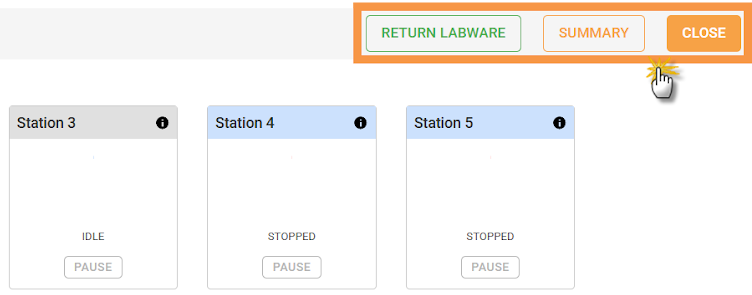
RETURN LABWARE, SUMMARY, and CLOSE Buttons