Automating Work Order for Intercompany Purchase Orders
The Purchasing team can fulfill an item request either by acquiring items directly from an external supplier or by obtaining them from another Formulatrix company through an intercompany Purchase Order (PO).
Intercompany purchasing is often preferred when it provides a more effective solution than buying directly from a supplier. The Purchasing team may choose to pursue this option in the following situations:
The required items are already available in another company’s warehouse.
Purchasing directly from the supplier would require meeting a Minimum Order Quantity (MOQ) that exceeds the actual demand.
Obtaining the items from another company allows the requester to receive them sooner.
Fulfilling an intercompany PO requires the supplier company to have a Work Order (WO) to issue the requested items from the warehouse before they can be shipped to the requester, as mandated by bonded zone regulations. TIGA automates this WO creation to simplify the process. Once an intercompany PO is sent, TIGA generates the corresponding WO intercompany, adds Work Order Line Items (WOLIs) based on available stock, and notifies the relevant teams to proceed.
Configure Automatic Work Order Creation
You can enable automatic intercompany Work Order (WO) creation while creating a new Purchase Order (PO) or editing an existing PO with a status of Draft, Multi, or Revised.
Prerequisites:
You have access to the Purchase Orders table in the Bonded Zone application.
Note
Access to the Purchase Orders table is controlled by the user role. Contact the TIGA administrator at tigacrm.sw@formulatrix.com or the responsible TIGA team if you need access.
You must be a member of the “Purchasing” group.
The Purchase Order Type is Inventory.
PO is in Draft, Multi, or Revised status if you are editing an existing record.
The PO is not marked as Sub Contract.
The supplier you are ordering from is marked as Intercompany Status in the Suppliers table, with the Company field filled in.
Note
This allows TIGA to identify the supplier’s company and populate the intercompany WO with the correct details.
A Supplier Recipient Mapping record already exists for the selected supplier.
Note
Supplier Recipient Mapping links an intercompany supplier to the recipient warehouse on the buyer company’s side to determine which warehouse receives the items. If no mapping exists for the selected supplier, contact the “Purchasing Manager” group members to create one before continuing.
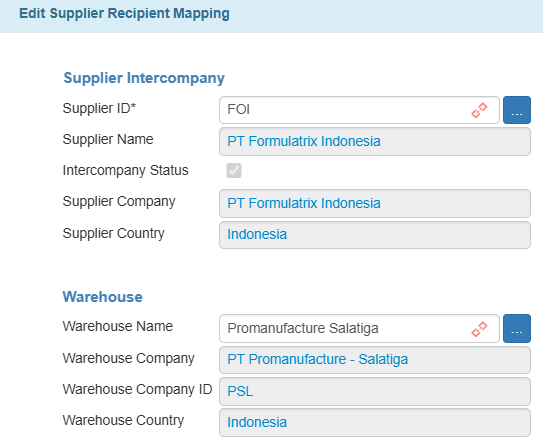
Supplier Recipient Mapping Record
To configure automatic work order creation:
Open the Purchase Orders table in the Bonded Zone application.
Add a new record or edit an existing one with Draft, Multi, or Revised status.
In the Supplier section, enter the Supplier ID of the supplier you are ordering from. Ensure that the supplier has the Intercompany Status checked.
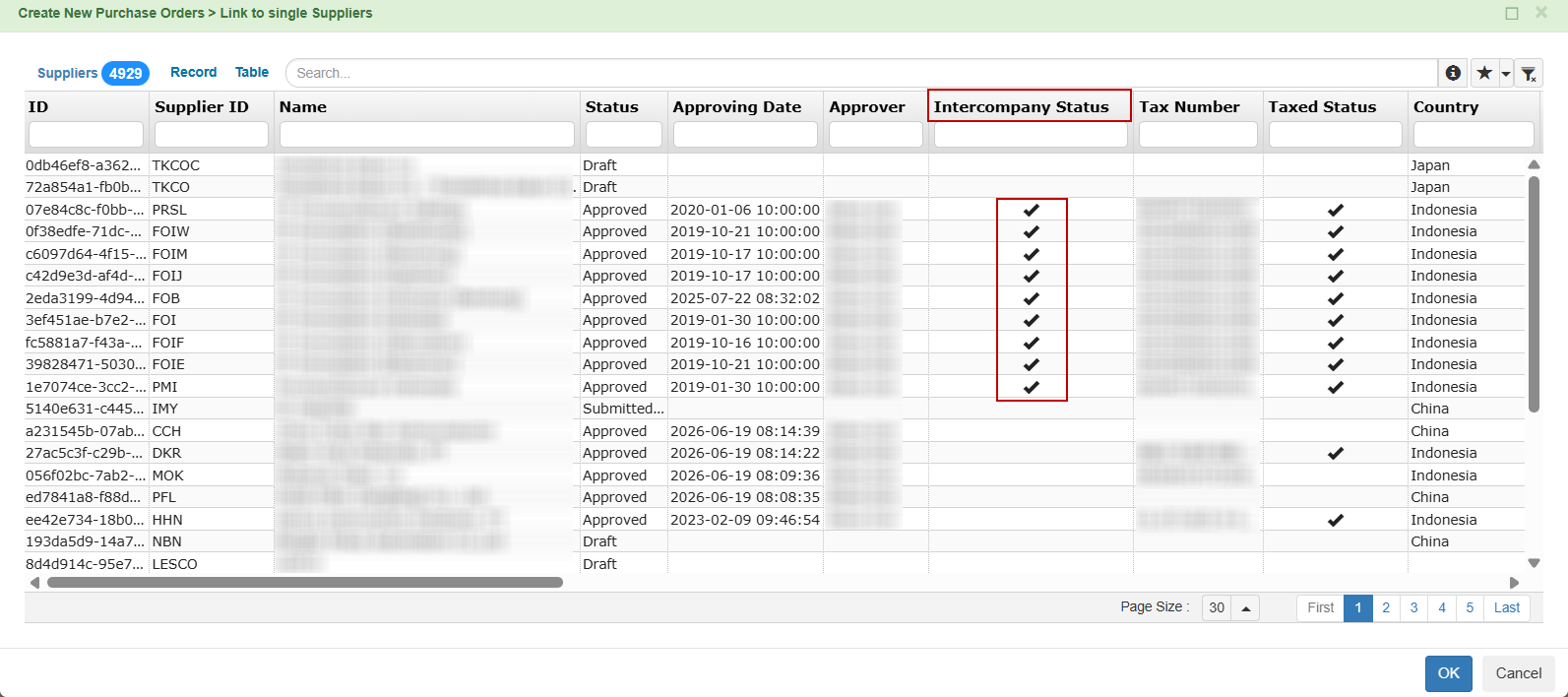
Supplier with Intercompany Status Checked
Check the Auto Create Intercompany WO checkbox.
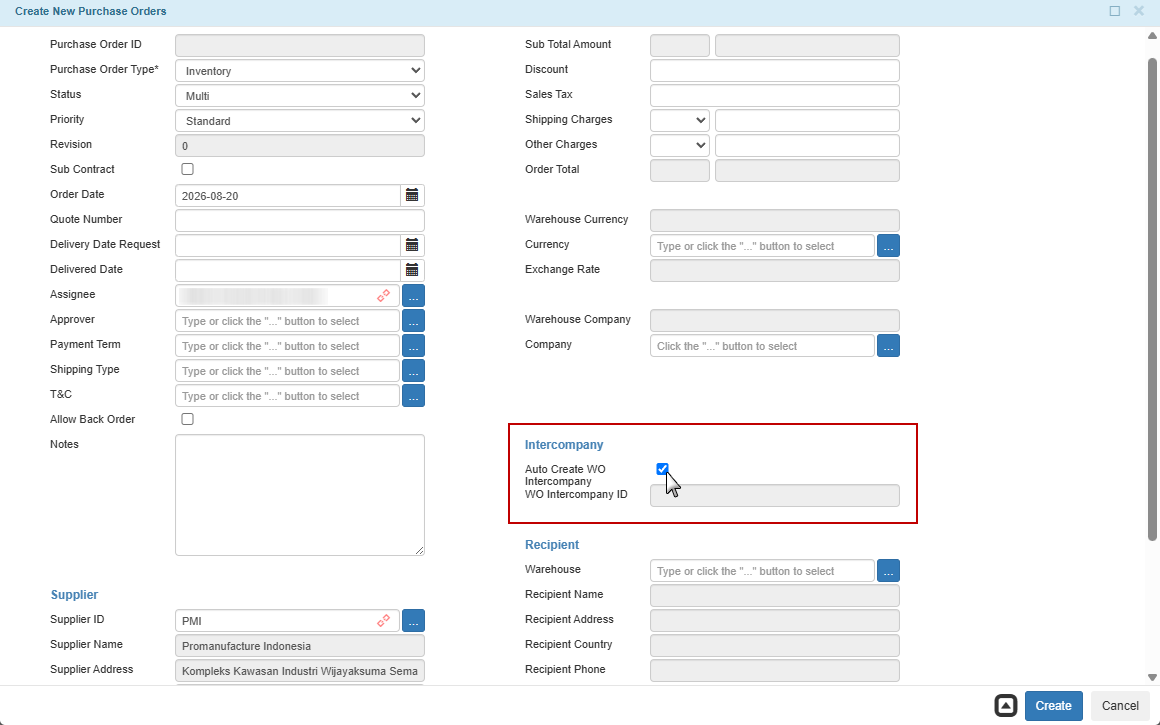
Auto Create Intercompany WO
Fill out any remaining information necessary for the PO.
Create or Update the record.
Post Condition:
TIGA automatically creates or updates a record in the Purchase Orders table.
Important
If you select a Supplier ID that is not set up with Intercompany Status checked, TIGA shows an error and asks you to choose a correct one.
If you check both Sub Contract and Auto Create Intercompany WO options, or select PO Type Non Inventory along with Auto Create Intercompany WO, TIGA shows an error and does not save the record until the issues are resolved.
If you edit an existing PO that is not in Draft, Multi, or Revised status, the Auto Create Intercompany WO checkbox is disabled and cannot be modified.
With the PO created, the next step is to add the required Purchase Order Line Items (POLIs) records. The POLIs you add are what TIGA will use to check stock availability and create the intercompany Work Order later.
Once the PO is complete, submit it for approval. The PO status changes to Approved once the approver has reviewed and approved it, and you can then proceed to set it to Sent. See Approving or Rejecting Purchase Orders for the full approval process.
Start Automatic Work Order Creation
After the Purchase Order (PO) is approved and has an Approved status, members of the “Purchasing” group can initiate the automation by updating the PO status to Sent.
Note
Multiple POs can also be updated simultaneously using Bulk Update. The selection can include both intercompany POs with Auto Create Intercompany WO enabled and regular POs without it. For regular POs, the status is updated to Sent, and the shipment confirmation dialog appears as usual.
When you update the PO status to Sent, TIGA checks the actual stock physically available for all Purchase Order Line Items (POLIs) in the supplier company’s warehouses, excluding inventory in the Scrap, Subcontract, and Finished Goods warehouses. Stock that is still In Transit or currently On Order is not included in this calculation.
If any POLI has insufficient or no stock available, TIGA displays a confirmation dialog showing the affected POs and their stock availability.
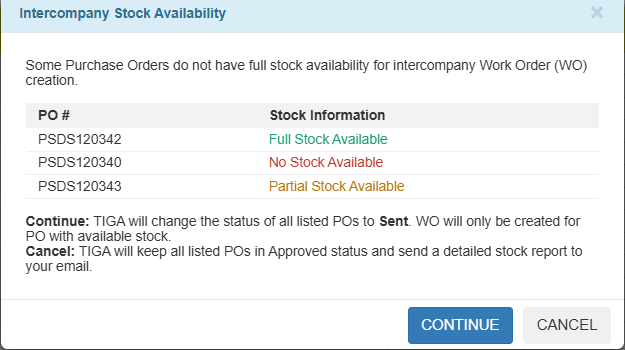
Intercompany Stock Availability
You can choose one of the following options:
Continue updates the PO status to Sent and continues the automation based on the available stock.
Note
After selecting Continue, TIGA also displays the shipment confirmation dialog. Creating the shipment is optional and does not affect the automatic WO creation process.
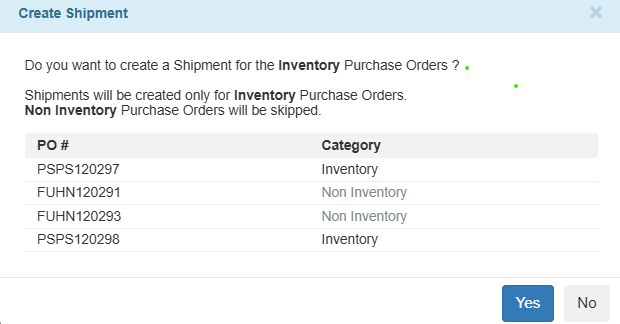
Create Shipment
Cancel keeps the PO status as Approved, stops the automation process, and sends an “Intercompany PO Stock Information” email to the WO Requester and the Purchasing team. The email includes:
Affected items
Available stock
Requested POLI quantity
Current total requested quantity across the POs being processed simultaneously
This information helps the Purchasing team review the stock situation and determine the appropriate sourcing action.
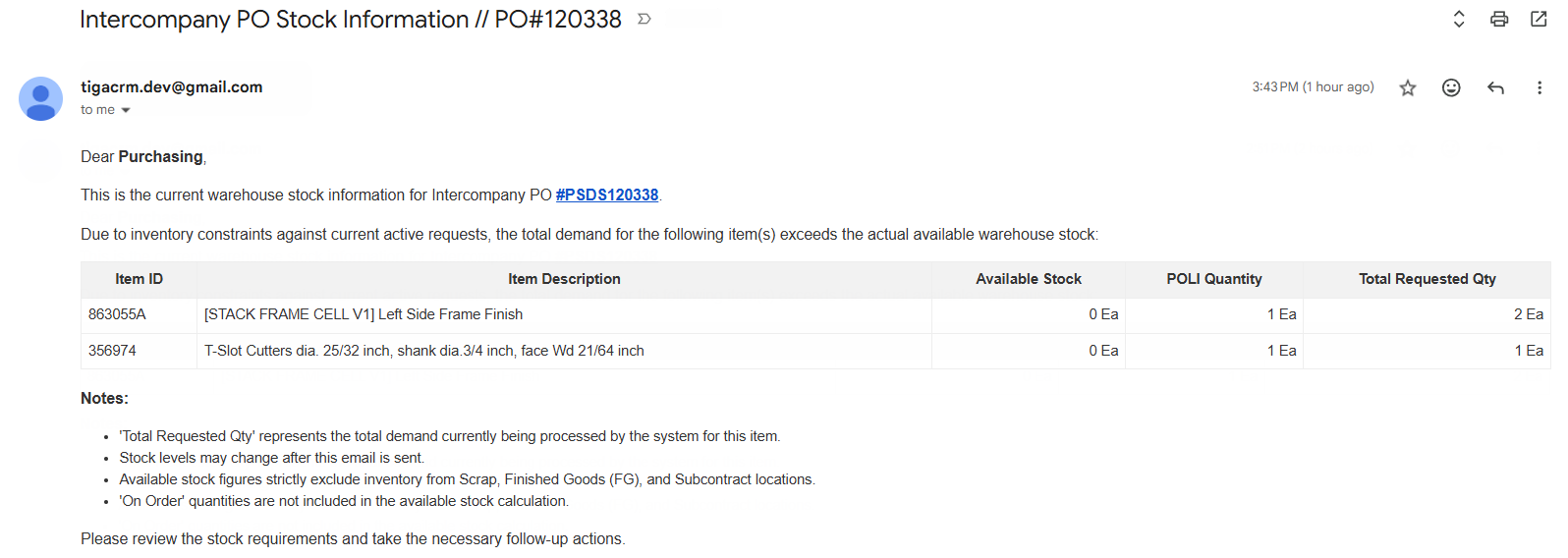
Intercompany PO Stock Information Email
If you choose Continue, TIGA automatically:
Updates the PO status to Sent and sends a “PO SENT” email notification.
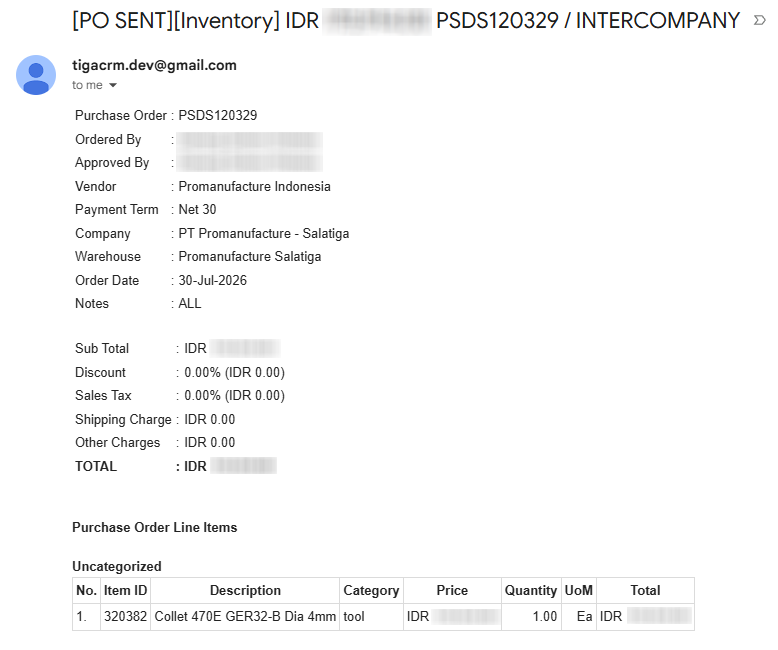
PO Sent Email
Creates an intercompany Work Order record with Open to Buy status, populated with the following information:
Job ID, in the format “Intercompany_PO#[PO Number]”.
Company, assigned from the PO’s supplier company.
Order Date, set to the current date.
Required Date and Scheduled Date, both set to 14 days after the Order Date.
Division, set to Purchasing.
Product Family, assigned based on the supplier company.
Note
Promanufacture: Common - Protein Crystallization
Promanufacture Salatiga: Common - Liquid Handling
Formulatrix Indonesia: Hydrofoil
All other companies: Other - General
Requester and Approver, assigned to the user who updated the PO status to Sent.
Description and Notes, generated using the PO number and supplier company information.
Creates Work Order Line Items (WOLIs) according to the inventory availability.
Inventory Availability
Result
All Stock Is Available
Creates WOLIs for all requested POLIs.
Partial Stock Is Available
Creates WOLIs only for the available quantities. POLIs with no available stock are excluded from the WO.
No Stock Is Available
Does not create a WO or any WOLIs. TIGA displays a dialog box informing the user that the PO status was updated to Sent, but no intercompany WO was created because the requested items are out of stock.
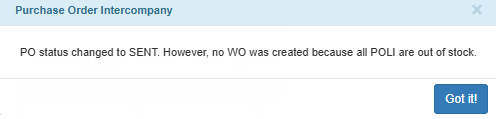
No WO Created Notification
Populates the Intercompany WO ID field on the Purchase Order record with the ID of the newly created WO.
Updates the On Order quantity in the Item Inventories table of the supplier’s warehouse.
Updates the In Stock, Committed, and Available quantities in the Item Inventory Summaries table of the supplier’s warehouse.
Sends email notifications to the appropriate stakeholders according to the inventory availability.
Inventory Availability
Email Notifications
All Stock Is Available
Sends the “Intercompany” email to the WO Requester, Warehouse, Purchasing, Accounting, and Exim teams. The email includes the PO number, WO number, and processing instructions.
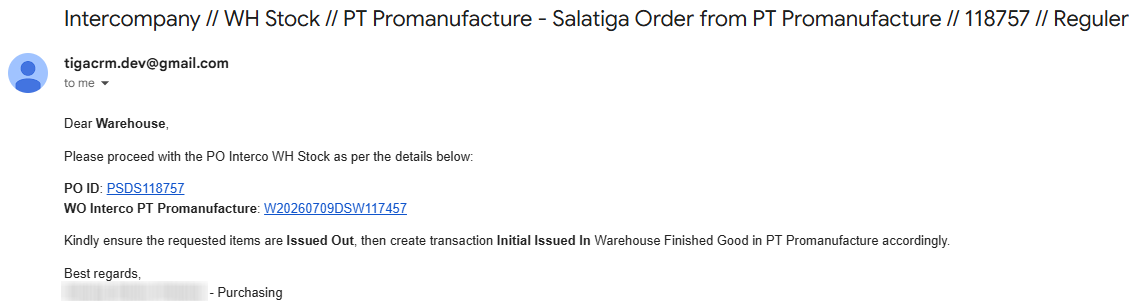
Email Notification of Intercompany WO
Partial Stock Is Available
Sends the “Intercompany” email to the WO Requester, Warehouse, Purchasing, Accounting, and Exim teams with an additional table listing unavailable or partially fulfilled items.
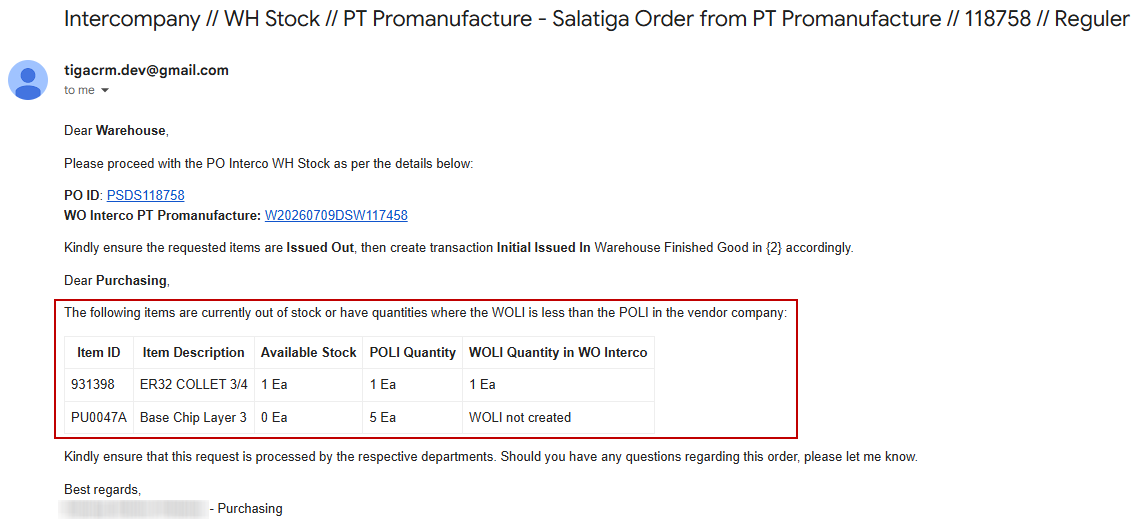
Email Notification of Intercompany WO with Unavailable Items
The Purchasing team can decide whether to create a separate PO for the remaining quantities or cancel the affected POLIs.
No Stock Is Available
Sends a “[NO WO CREATED]” email notification to the WO Requester and the Purchasing team.
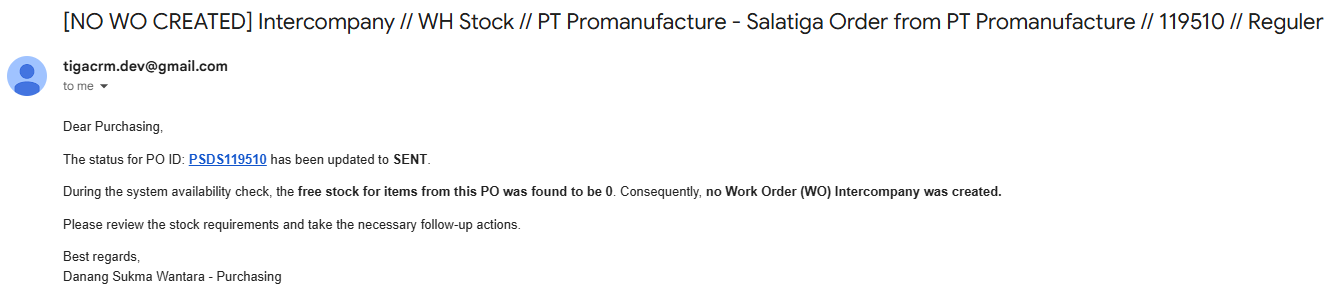
No WO Created Email Notification
The Purchasing team should review the stock situation and take the necessary follow-up actions, such as purchasing the items from another vendor or waiting for stock to become available.
At this point, the Purchasing team’s role in this process is finished. The next process is handled by the supplier company’s Warehouse team, who will create the Issued Out transaction for the WO and the Initial Issued In transaction to transfer the requested items to the Finished Goods warehouse.