Managing Feature, License Feature, and License Computer
Customers who purchase a Formulatrix product may receive different system capabilities depending on the features included in their purchase agreement. To ensure the software reflects those entitlements before it is used in the lab, the Admin team configures the available features, assigns them through the license, and restricts usage to a specific computer when required.
Feature
A Feature defines a type of functionality that belongs to a specific Product Type, such as the “MantisRfid” feature for Mantis. It represents functionality that can potentially be licensed, but is not yet assigned to any system. Product features are included in license files to control what functionality customers can access.
Features are created and maintained in the Feature table by the “Feature Editor” group members. When creating a Feature record, they select the Product field to choose the Product Type and enter a Feature Name to identify the functionality.
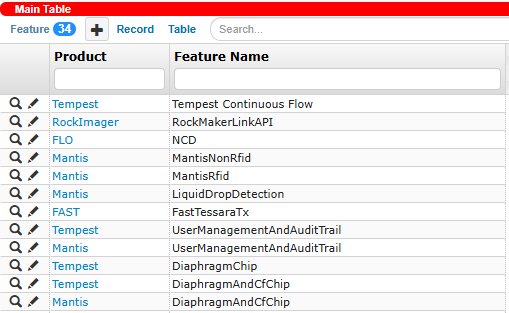
Feature Records
Note
One Product can have multiple Features.
The same Feature Name can be used across different products.
Duplicate feature names are not allowed within the same Product.
Example:
A Feature named “DiaphragmAndCfChip” can be created for multiple Mantis and Tempest product types. However, two features named “DiaphragmAndCfChip” cannot exist under the same Mantis.
License Feature
A License Feature represents a Feature that has been assigned to a specific system. It determines which functionality is enabled and included in the generated license file, and which system receives that functionality.
License features can be created or linked from the License Feature related table of:
The Installed Products table for Permanent and Limited Permanent License.
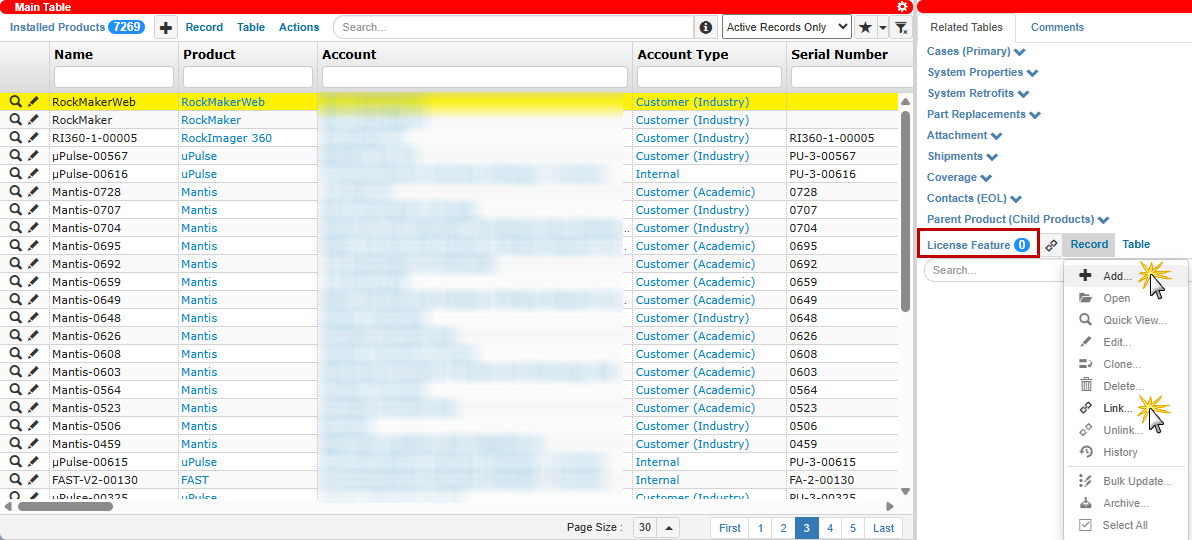
Adding or Linking License Feature from the Installed Products Table
The Temporary License table for Temporary License.
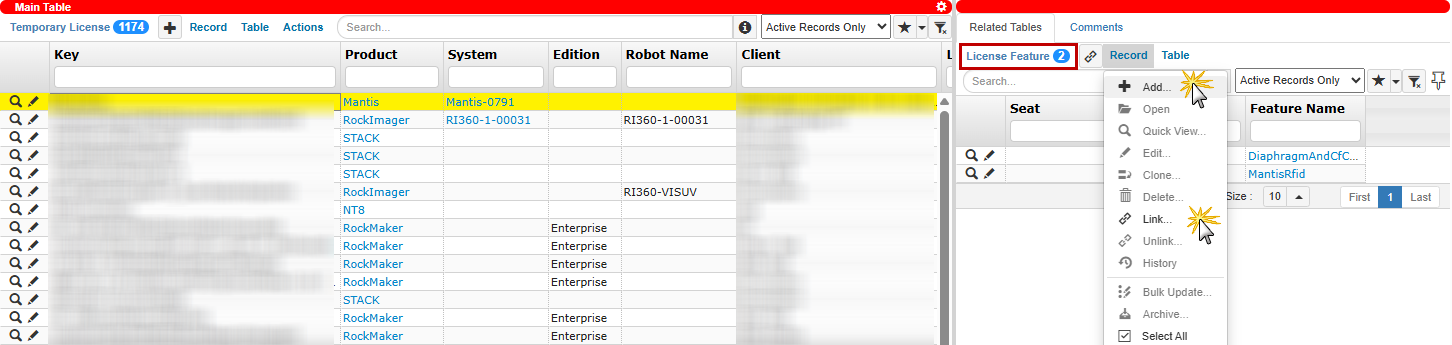
Adding or Linking License Feature from the Temporary License Table
There are two ways to associate a License Feature: adding or linking records.
The user adds a License Feature record by selecting a Feature Name from the Feature table. Only features that have already been defined are available for selection.
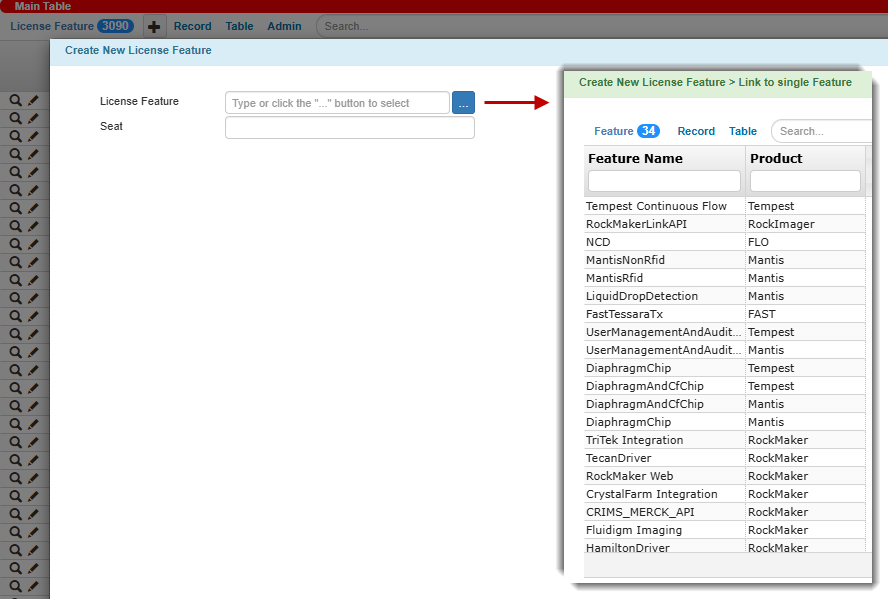
Select Feature Name
The user links a License Feature record in the Features table by selecting an existing License Feature record that has not yet been assigned to an Installed Product Name.
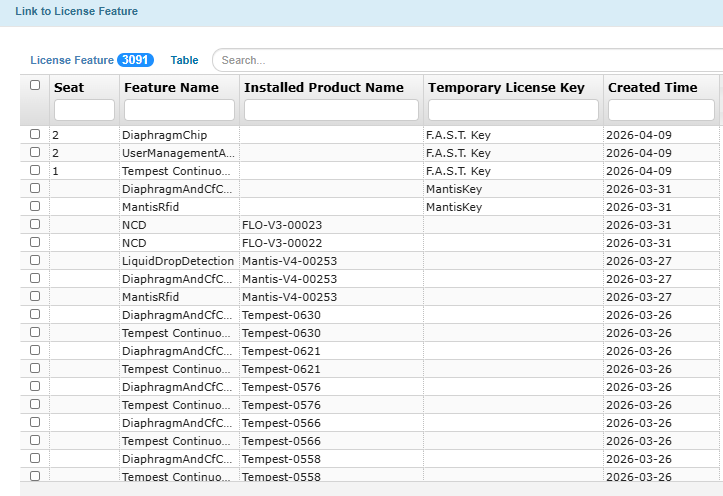
Link License Feature
Note
One Installed Product or Temporary License record can be linked to multiple License Features. For example, Mantis-001 can have both “MantisRfid” and “UserManagementAndAuditTrail” linked as its active license features.
Editing a License Feature from the Temporary License table is not allowed if it has been linked to an Installed Product record. Any changes must be made to the Installed Products table.
A License Feature linked to an Installed Product record cannot be reused for another installed product or temporary license. For example, the specific MantisRfid linked to Mantis-001 cannot be assigned to Mantis-002.
License Computer
A License Computer represents a computer name authorized to use a license. This mechanism is used only for certain products where license usage must be restricted to specific computers, such as RockMaker.
License Computer records are created from the Coverage table through the License Computer related table. Each record contains a single Computer Name, which is embedded into the generated license file. If a computer is not listed, the software will not recognize the license on that machine.
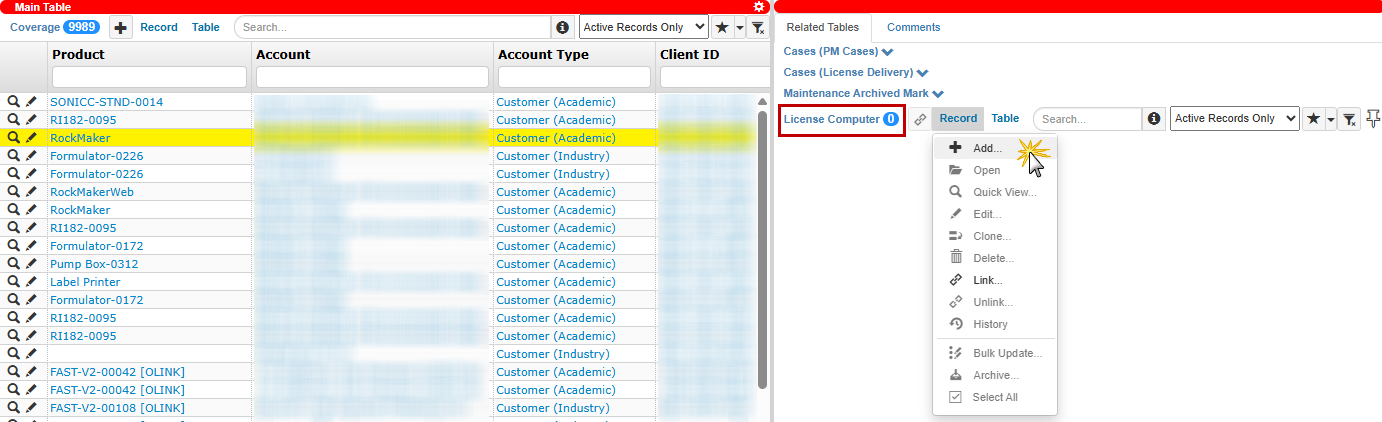
Adding License Computer from the Coverage Table
Note
One Coverage record can be linked to multiple License Computer records.