Creating a Work Order Child
Sometimes, while a Work Order (WO) is in progress, you may find that you need additional items to complete the project. For instance, you might require two extra screws because the original quantity was insufficient, or a replacement part due to damage during assembly.
To request these extra items, you can create a Work Order Child (WO Child) associated with the existing WO, which serves as the parent. The WO Child tracks any additional work, costs, and materials related to the same project.
Note
A WO Child follows the same WO process as a General/Engineering WO and is identified by its Work Order Parent field.
Prerequisites:
You have access to the Work Orders table in the Bonded Zone application.
Note
Access to the Work Orders table is controlled by the user role. Contact the TIGA administrator at tigacrm.sw@formulatrix.com or the responsible TIGA team if you need access.
The WO Parent already exists and meets one of the following conditions:
A WO For Production with Open to Buy or Issued status.
A General/Engineering WO with Open to Buy, Issued, or Closed status.
The WO Parent is not a WO Subcontract.
The WO Parent is not itself a WO Child.
Note
A Work Order is considered a WO Child if the Work Order Parent field is filled with the Work Order ID of another WO.
A WO Parent can have multiple WO Child.
A WO Child must always have one WO Parent.
A WO Child cannot become the parent of another WO Child.
A WO Child cannot be cloned.
To create a work order child:
Open the Work Orders table in the Bonded Zone application.
Select the record you want to use as the WO Parent.
Note
A WO Parent record has an empty Work Order Parent.
In the Actions menu, select Add Work Order Child. TIGA opens a form dialog for the new WO Child.
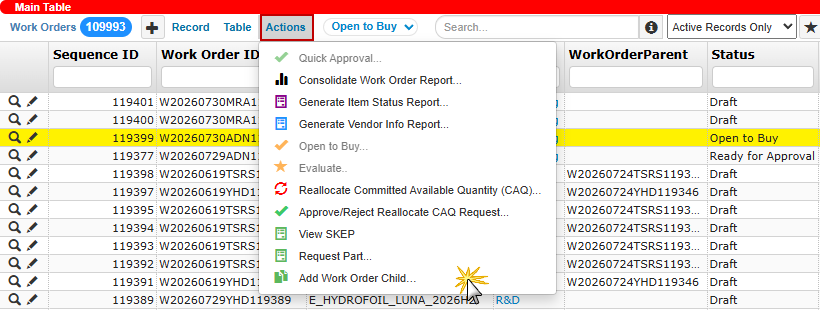
Add Work Order Child Action
Enter information in the following fields.
Note
Fields marked with an asterisk (*) are mandatory.
Order Date*: The system automatically populates with today’s date, indicating the creation date of the Work Order Child. You can adjust this date if necessary.
Required Date*: Enter the date by which you need all requested items to be available.
Scheduled Date*: Enter the expected date for receiving the items.
Close Date: Leave the field blank. The system automatically populates it when the Work Order Child status changes to Closed.
Received Date FUSA: Leave the field blank. The system automatically populates it when the items are received at the FUSA (Formulatrix USA) warehouse.
Assignee*: Select the employee responsible for the WO. The logged-in user is selected by default.
Requester*: Select the employee who requested the WO.
Approver*: Select the employee responsible for approving the WO. For WOs valued under USD 500, a Division Manager can approve.
Approver 2: Select a second approver if required. For WOs valued between USD 500 and USD 2,000, a Product Manager is required.
Approver 3: Select a third approver if required. For WOs valued above USD 2,000, the FORMULATRIX CEO must approve.
Description*: Enter a clear description of the purpose of this Work Order Child.
Notes: Enter any additional information or context related to this Work Order Child.
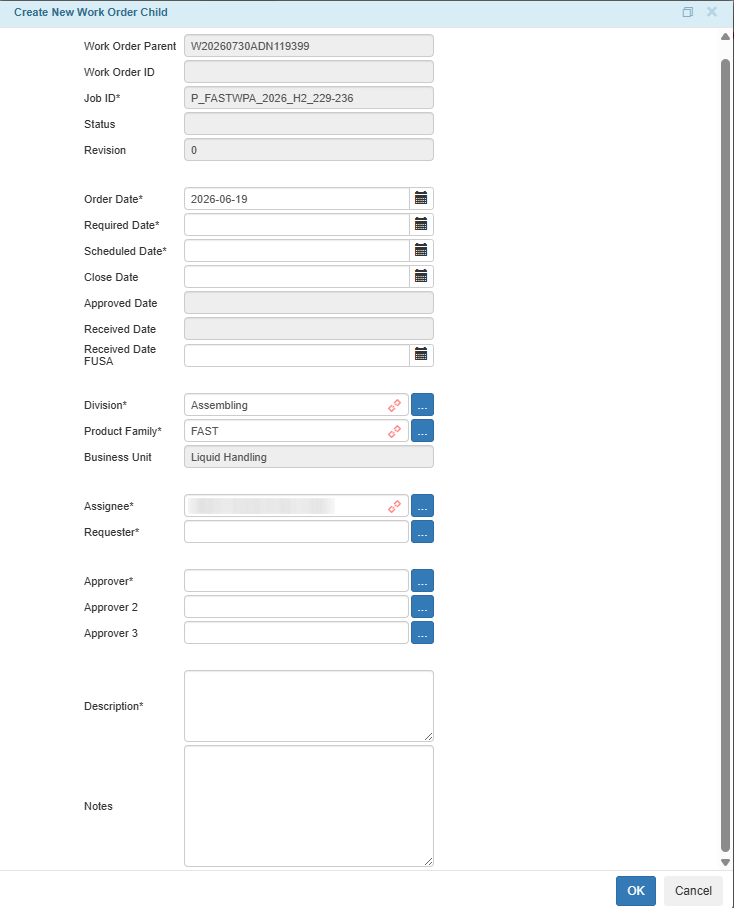
Create New Work Order Child Form
Select OK to create the record.
Post Conditions:
TIGA automatically:
Creates a new Work Order record and generates a Work Order ID for the WO Child.
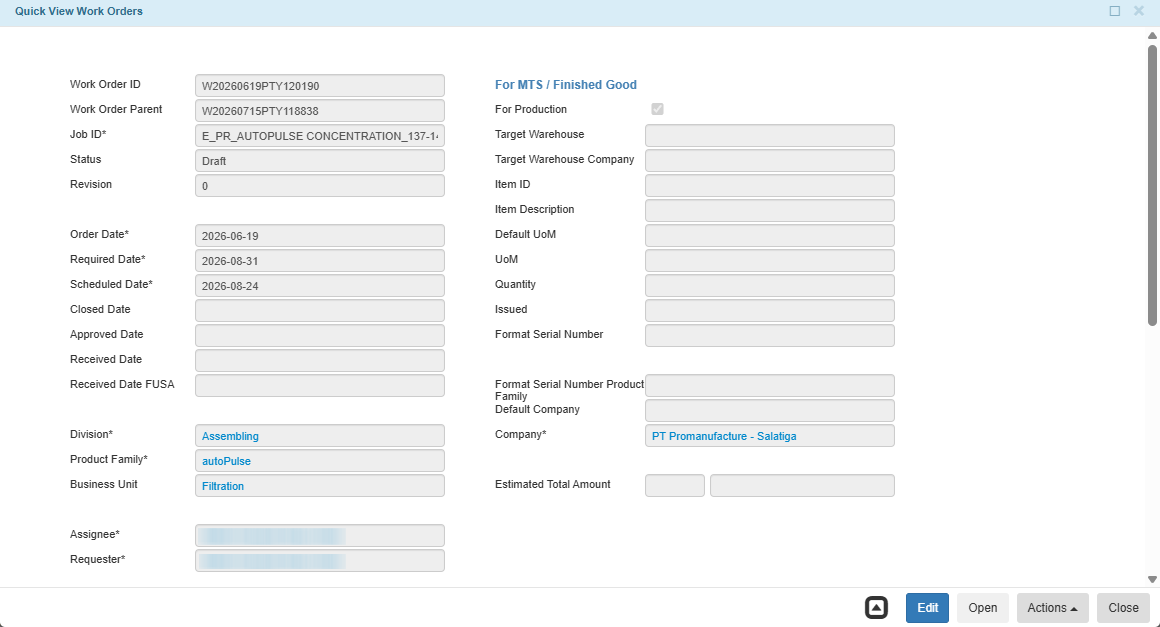
Work Order Child Record
Note
If the WO Parent is marked as For Production, TIGA also marks the WO Child as For Production. However, the For MTS / Finished Good section does not contain the production data from the parent.
The Estimated Total Amount is empty when the WO Child is created. TIGA automatically calculates this amount after the related Work Order Line Items are added.
Adds the Work Order ID of the WO Parent in the Work Order Parent column of the newly created WO Child.

Work Order Parent Column of the WO Child
After successfully creating the WO Child, you can add the required materials as Work Order Line Items (WOLIs), following the same process as a General/Engineering Work Order. Once all line items are added, change the status from Draft to Ready for Approval to submit the WO Child for review.