Keeping Images
The Keep Images feature protects experiment images from being automatically deleted due to low disk space. When enabled, experiment images are starred as important, ensuring they are safe from the auto-deletion process. The auto-deletion feature automatically removes old, unstarred images when the disk storage is low to free up space for new ones. Refer to the Disk Storage section below to monitor the storage space.
When users create an experiment method involving cell confluency or counting, the Imager captures images according to the selected imaging profile. These black-and-white images can be accessed anytime via View Image.
To keep cell experiment images:
Navigate to Cell Experiments > Experiments.
Select an active experiment on the Folder Tree panel. The right column should show the details of the selected experiment.
In the Active Labware tab, click the Star
 in the Keep Images column. A notification pops up in the bottom right corner, confirming that the chosen experiment images are protected from auto-deletion, and the star turns fully orange.
Disk Storage
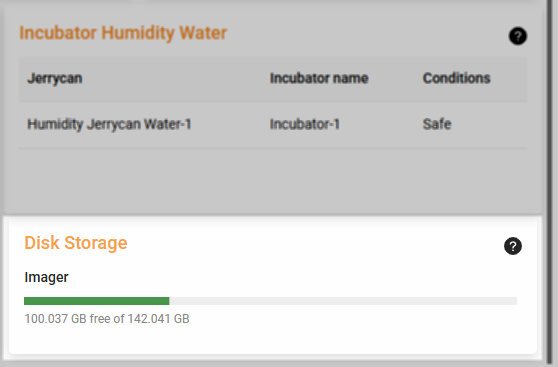
The Disk Storage Feature
The Disk Storage on the Dashboard displays the available storage space for saving images. When capturing a region, the Imager generates a black-and-white image (4-6 MB).
To ensure uninterrupted operation during imaging, the system actively monitors disk capacity using predefined Storage Thresholds. When storage reaches specific levels, the system transitions through different states to protect data integrity.
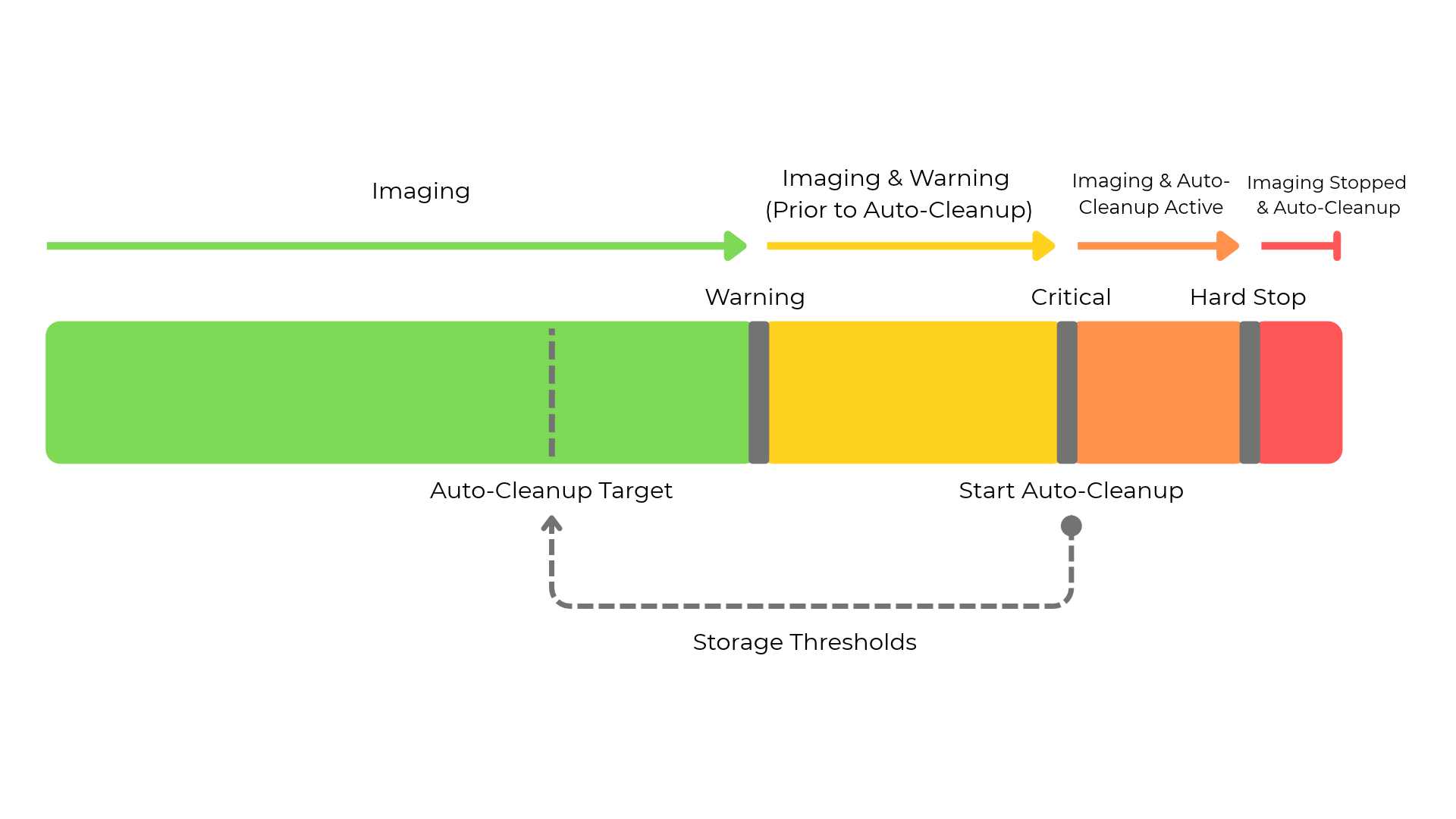
Storage Threshold Management
Threshold Definitions
Safe (Green Zone): The disk storage has plenty of space available and the imaging works normally.
Warning (Yellow Zone): The disk space becomes limited. Imaging continues normally, but the user receives a notification about the auto-cleanup feature.
Critical (Orange Zone): The system enters the intervention zone. At this stage, auto-cleanup is triggered. The system begins deleting the oldest non-locked data until reaching the auto-cleanup target while imaging continues.
Hard Stop (Red Zone): The disk storage is nearly full. To prevent system instability, the imaging is stopped. The system remains in a Hard Stop state until the cleanup process reaches the designated target. To prevent images from being automatically deleted, enable the Keep Images feature.
Users can adjust the storage threshold values via Settings > Config > Imager-1 > CellImager > Storage.
Related Topics: