Understanding Experiment Status
The Experiments page provides two types of statuses: experiment status and plate status. The experiment status reflects the current state of the overall experiment, while the plate status indicates the condition of individual plates within the experiment. Refer to the tables below to understand what each status signifies.
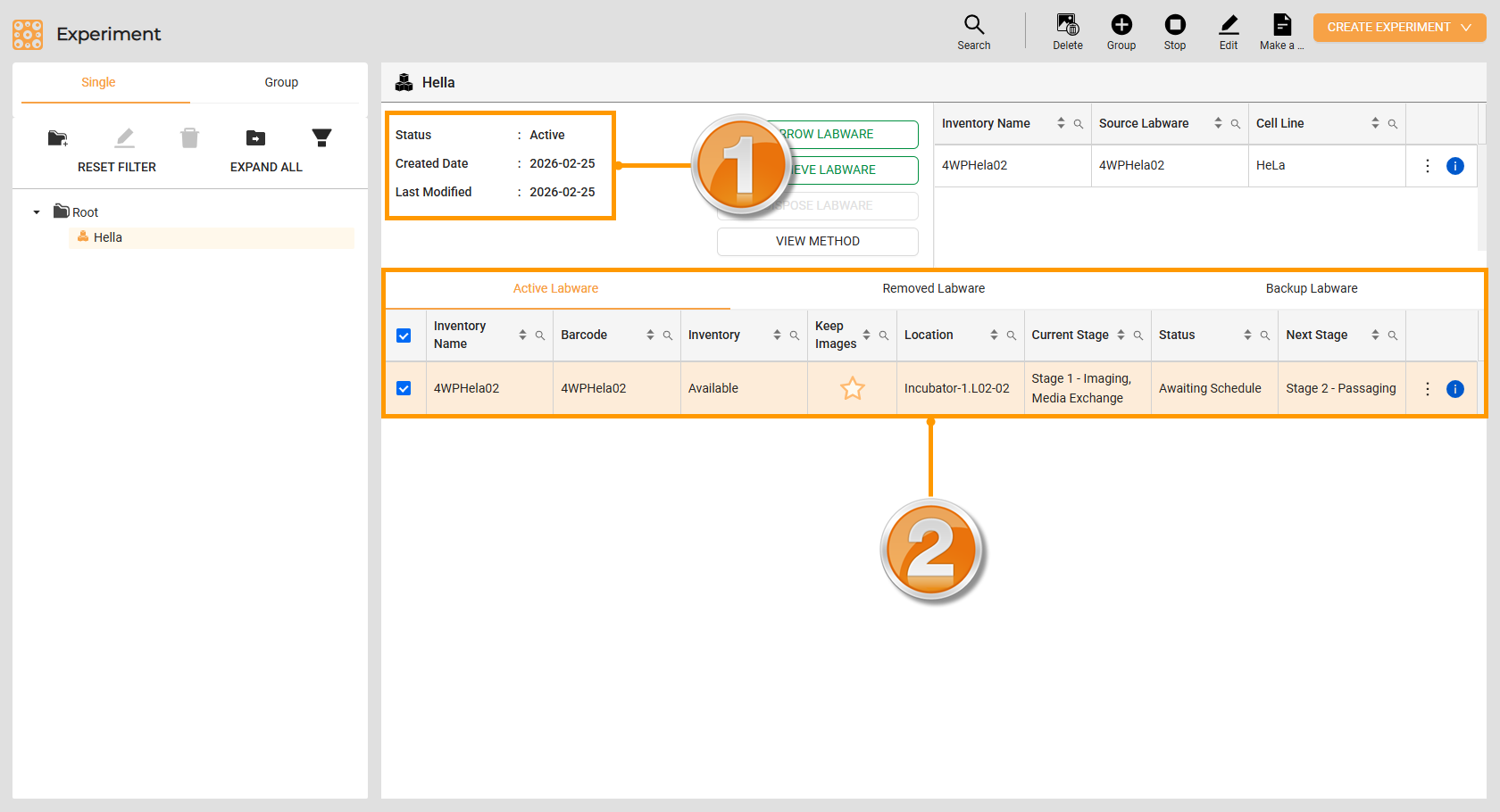
Statuses in the Experiment Page
Experiment Status
Status
Description
Active
The experiment is in operation.
Failed
The experiment fails to do a task or stops working and cannot be resumed, and the cells may have been compromised or damaged beyond recovery.
Canceling
The experiment is finishing the current task before cancellation.
Canceled
The experiment is revoked and stopped.
Completed
The experiment has finished all stages.
Note
The Experiment icon in the Tree Folder turns orange when the status is Active or Canceling. Otherwise, it turns gray.
Plate Status
Status |
Description |
|---|---|
Awaiting Schedule |
The plate is waiting for the upcoming schedule to be executed |
Executing |
The plate is running a task. |
Completed |
The plate hs finished the tasks in the stage and can continue to the next stage. |
Pausing |
The plate is finishing the current task before being paused. This status appears when the user requests to borrow a plate while it is still running a task. |
Paused |
The plate is halted because the user borrows it outside the system. |
Canceled |
Users retrieve the plate when it has not completed all stages or users request to remove the plate when it is borrowed. |
Failed |
The plate encounters an unrecoverable issue or does not meet the requrements for the next stage. |
Error |
The plate experiences a recoverable issue while executing a task. |
Waiting User Action |
The plate is awaiting user action. The user should determine the next task to execute. |
Discarded |
It applies to the daughter plate that is automatically removed from the system when a sibling is passaged. This ensures that the total number of stock plates remains consistent within the system. |
Interacting with Ongoing Experiments
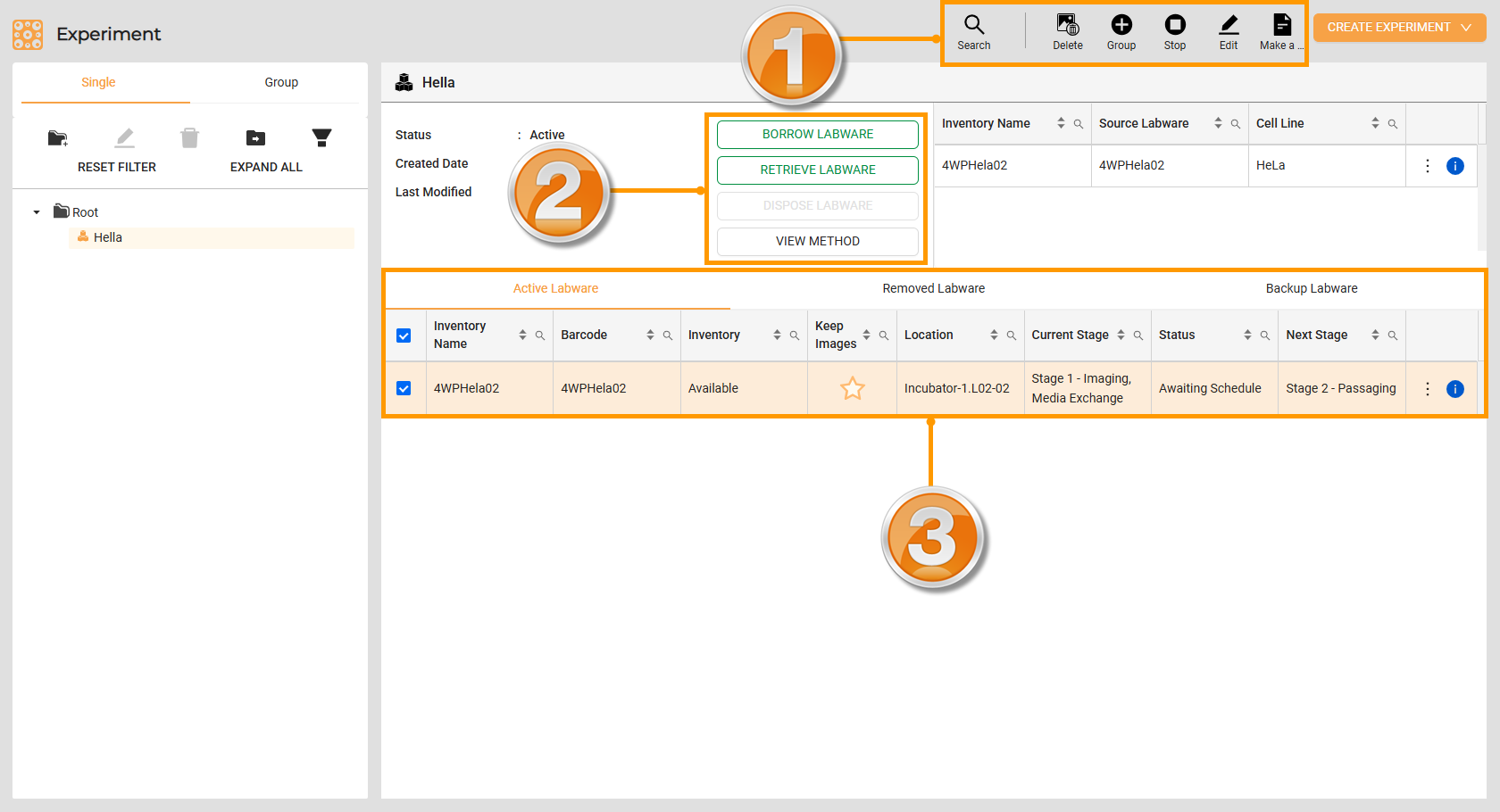
Features on the Experiment Page
Item |
Function |
|---|---|
1. Toolbar |
|
Search |
Locates experiments within the database. Enter relevant keywords and use filters to narrow down search results. |
Delete Image |
Removes all images associated with the selected experiment. To include deleting the Keep Images, select the checkbox in the confirmation meessage. |
Add to Group |
Moves the selected experiment to the existing group. Ensure that the selected experiments have the same stages or task structure as those in the group. |
Stop |
Terminates the ongoing experiment and updates its status to Canceled. Once stopped, the plate stays in the Incubator until the user tells the system what to do next. |
Edit |
Adjusts the stages, tasks, or parameters of the saved experiment. Users can edit the unexecuted stages or tasks (shown in black). For the executed stages (shown in orange), users can only modify the parameters. |
2. Experiment Action Button |
|
Borrow Labware |
Removes registered labware with cells from the system temporarily without interrupting the schedules. Once it’s done, the plate has to return to the system again. Read more about Borrow Labware for more information. |
Retrieve Labware |
Removes the ongoing or completed experiment from the system. See Retrieving Plates with Cells for more information. |
View Method |
Shows the complete stages of the experiment. |
3. Experiment Menu |
|
View Lineage |
Displays a family tree of plates with cells as well as the well map. Read more on View Lineage . |
View History |
Shows the detailed activities of a plate. Learn more on Plate History. |
Go to Next Stage |
Continues the experiment to the subsequent stage. This feature can’t move the experiment to a stage that requires different labware than what is currently in use. Read more about Go to Next Stage for more information. |
Related Topics: