Controlling Rover and the Elevator Manually via Rover Dashboard
Section 1: Controlling Rover Manually
Open the Cellmatic Suite software and go to Instrument Control > Fleet Manager-1.
On the Dashboard page, select the Rover that you want to control manually.
Click the Three Dots
 on the top right of the Rover Detail panel (the panel on the far right, highlighted in the image below).
Select Manual Control.
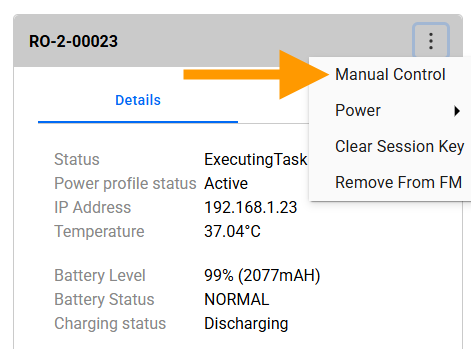
Selecting the Manual Control
Select one of the Manual Action options to command the Rover manually:
Move To: Moves the Rover to the target location.
Spatula Action: Picks up or handovers labware, and homes the spatula.
Set Barcode: Manually adds or removes a barcode.
Transfer Plate: Moves a plate from the source location to the target location.
Select Execute to proceed.
Section 2: Restarting or Homing the Elevator Manually
On the Dashboard page, select the Elevator tab and select the elevator that you want to operate.
Click the Three Dots
on the top right of the Elevator Detail panel (the panel on the far right) and select Manual Homing to proceed.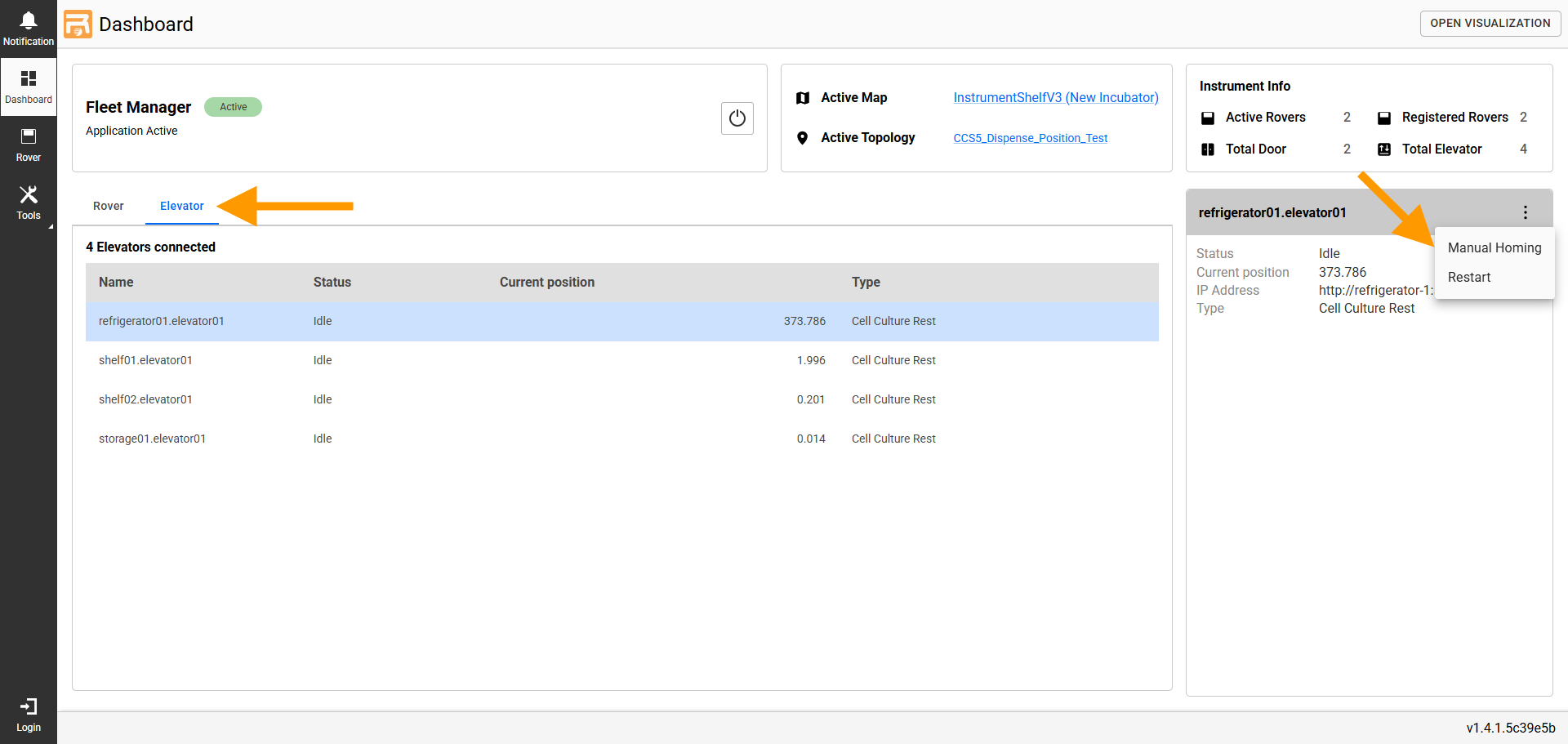
Selecting the Three Dots on the Elevator Detail Panel
Related Topics