Retrieving Labware With Cells
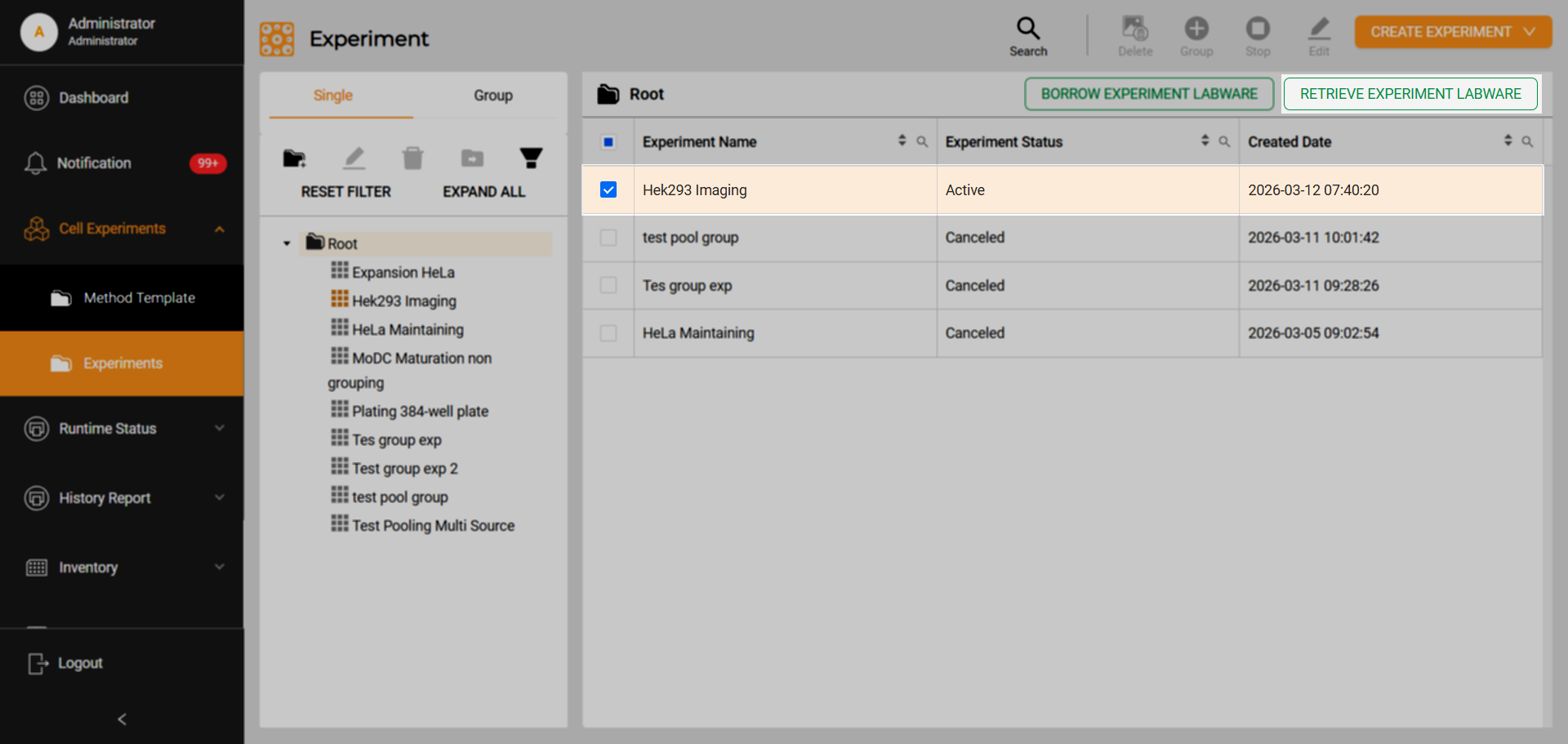
The Retrieve Experiment Labware Button
Users can remove ongoing or completed experiments from the system via two locations:
Experiments page: Click Retrieve Experiment Labware.
Experiment Detail panel: Click Retrieve Labware.
The system handles plate retrieval and status updates based on the experiment’s final state:
Current State |
Transport Destination |
Experiment Status |
Inventory Status |
|---|---|---|---|
Completed |
Incubator load port (immediate) |
Completed |
Unavailable |
Ongoing |
Designated location (post-task) |
Cancelled |
Unavailable |
Important
Retrieved plates cannot be reinserted into the system with the same barcode. They must use new barcodes.
To Retrieve Labware with Cells:
Navigate to Cell Experiments > Experiments.
Retrieve labware:
A group of experiments
In the Folder Tree panel, select an experiment folder. A list of experiments will appear on the right column.
Mark the desired experiment.
Click Retrieve Experiment Labware. All labware within the selected experiment will be retrieved.
Individual labware
In the Folder Tree panel, select the desired experiment. The experiment details will appear on the right column.
Mark the desired labware in the Active Labware column.
Click Retrieve Labware next to the experiment status to proceed.
Once proceed, the Rover should transport the plate to the incubator load port. The Inventory status updates to Unavailable. For ongoing experiments, the status becomes Canceled, and for completed experiments, it remains Completed. The Location column should display the position of the labware.
Related Topics: