Software Overview

Cellmatic Suite is a web-based software that enables you to create cell experiments to run on your Cellmatic or Cell Culture System (CCS).

When you first open the Cellmatic Suite software in your browser, sign in to your account by entering your Username and Password in the fields on the Sign In page.
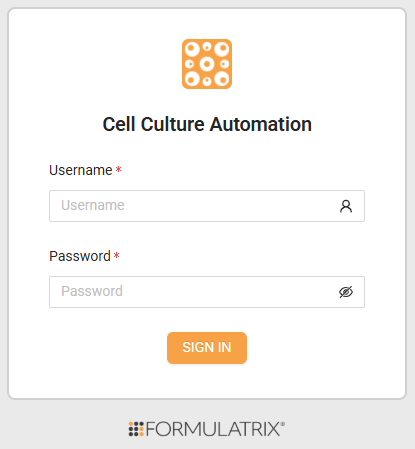
Cellmatic Suite Software Sign In Page

Cellmatic Suite Software Sign In Page

After signing in, you will be taken to the Dashboard page, which is divided into three panels: (1) the Navigation Bar, (2) the Consumables tab, and (3) the Instruments tab.
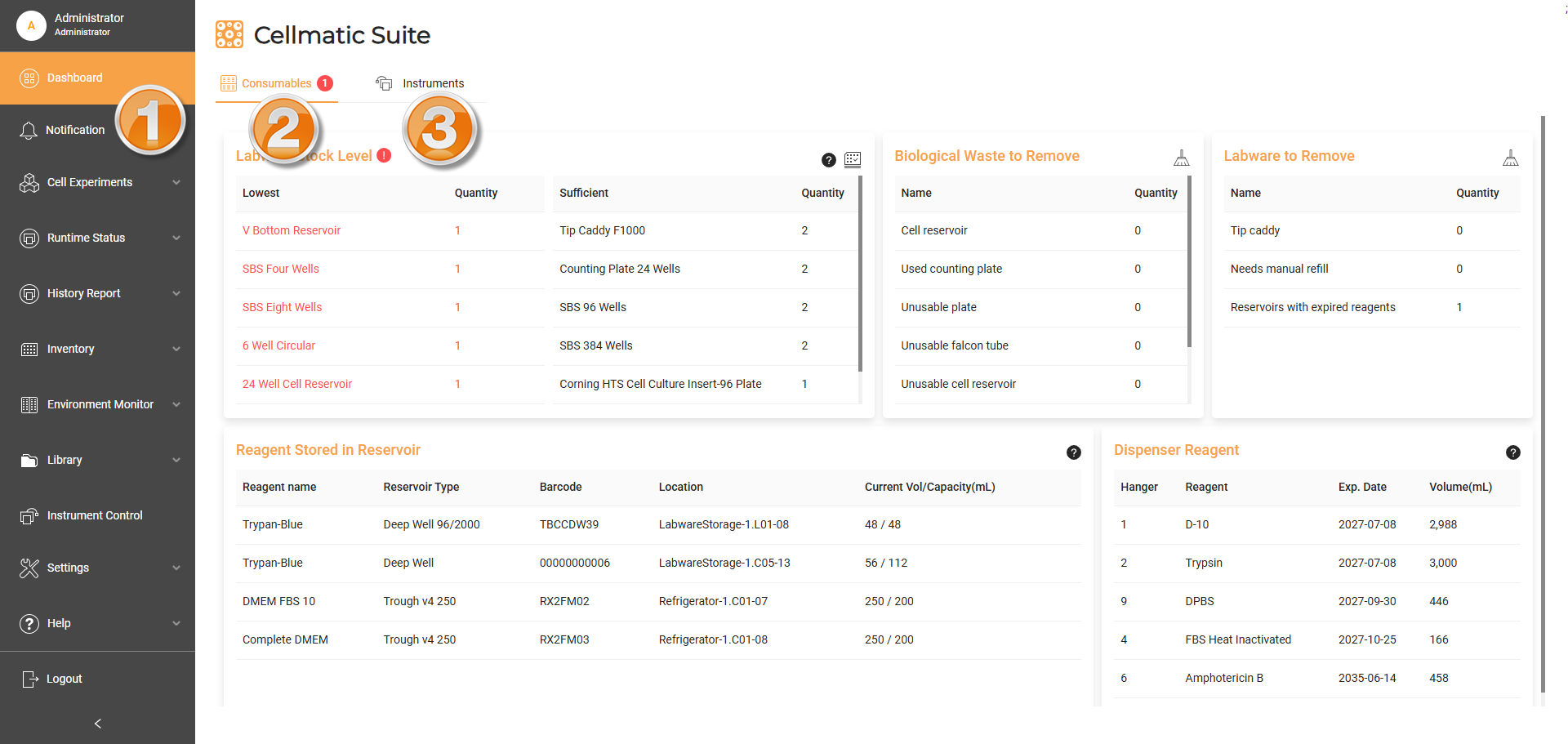
Cellmatic Suite Software Dashboard Page

Cellmatic Suite Software Dashboard Page

Section 1: Navigation Bar

The Navigation Bar allows you to navigate within the Cellmatic Suite software interface.

Menu/Button

Function

Administrator Icon

Administrator

Shows the account username and role.

Dashboard Icon

Dashboard

Displays a quick, real-time view of Consumables and Instruments statuses.

Notification Icon

Notification

Displays informational messages, errors, and warnings related to consumables, instruments, and experiments.

Cell Experiments

Cell Experiments

Contains menu options for managing cell experiments:

  • Method Templates: Creates reusable templates for cell experiment methods.

  • Experiments: Creates cell experiment methods from scratch.

Runtime Status

Runtime Status

Tracks running experiment statuses via:

  • Schedule Viewer: Provides comprehensive, real-time visibility into the system’s task management.

  • Transient Labware: Offers real-time tracking capabilities for labware as it is moved from its starting location to its destination.

  • Failed Tasks: Monitors system errors.

  • Instrument Error: Reports malfunctions across five instruments: Refrigerator, Labware Storage, Media Warmers 1 and 2, and Imager.

History Report

History Report

Provides historical transaction records of used labware via:

  • Labware Report: Displays the details of executed experiments within the system.

  • Execution Report: Displays a detailed overview of tasks executed within a specific time range.

Inventory

Inventory

Monitors consumables, reagents, and storage within the system via:

  • Labware: Registers consumables and monitors their usage over time.

  • Dispenser Reservoirs: Registers up to 10 reagents for use in cell experiments.

  • Incubator Storage: Displays current usage of Incubator storage.

  • Labware Storage: Displays current usage of Labware Storage.

  • Refrigerator Storage: Displays current usage of cold storage in the Refrigerator.

Environment Monitor

Environment Monitor

Displays a real-time overview of environmental conditions:

  • Incubator: Monitors temperature, CO2 level, and humidity.

  • Refrigerator: Monitors temperature.

Library

Library

Serves as a comprehensive database for:

  • Reagent: Maintains a database of reagent ingredients to create culture reagents.

  • Reagent Vessel: Lists reagent containers by priority for use in cell culture protocols.

  • Culture Reagent: Maintains a database of culture reagents, active reagents used in the system.

  • Labware: Stores information on labware utilized within the system.

  • Cell Line: Stores information on cell lines utilized within the system.

Instrument Control

Instrument Control

Accommodates direct access to manual controls for all instruments in Cellmatic: Instrument Shelves, Labware Storage, Media Warmers, Reagent Exchanger, Refrigerator, Fleet Manager, Imager, Incubator, and Flo.

Settings

Settings

Provides configuration options for:

  • Config: Sets general configuration parameters for the software, each instrument, and cabinet.

  • Profile: Sets imaging and transport speed parameters.

Help

Help

Provides an About page that displays the system’s information (serial number, firmware, software, and hardware versions), including the Formulatrix support contact.

Logout

Logout

Ends your current session on the Cellmatic Suite software.

Collapse Button

Collapse Button

Collapses and expands the navigation bar.

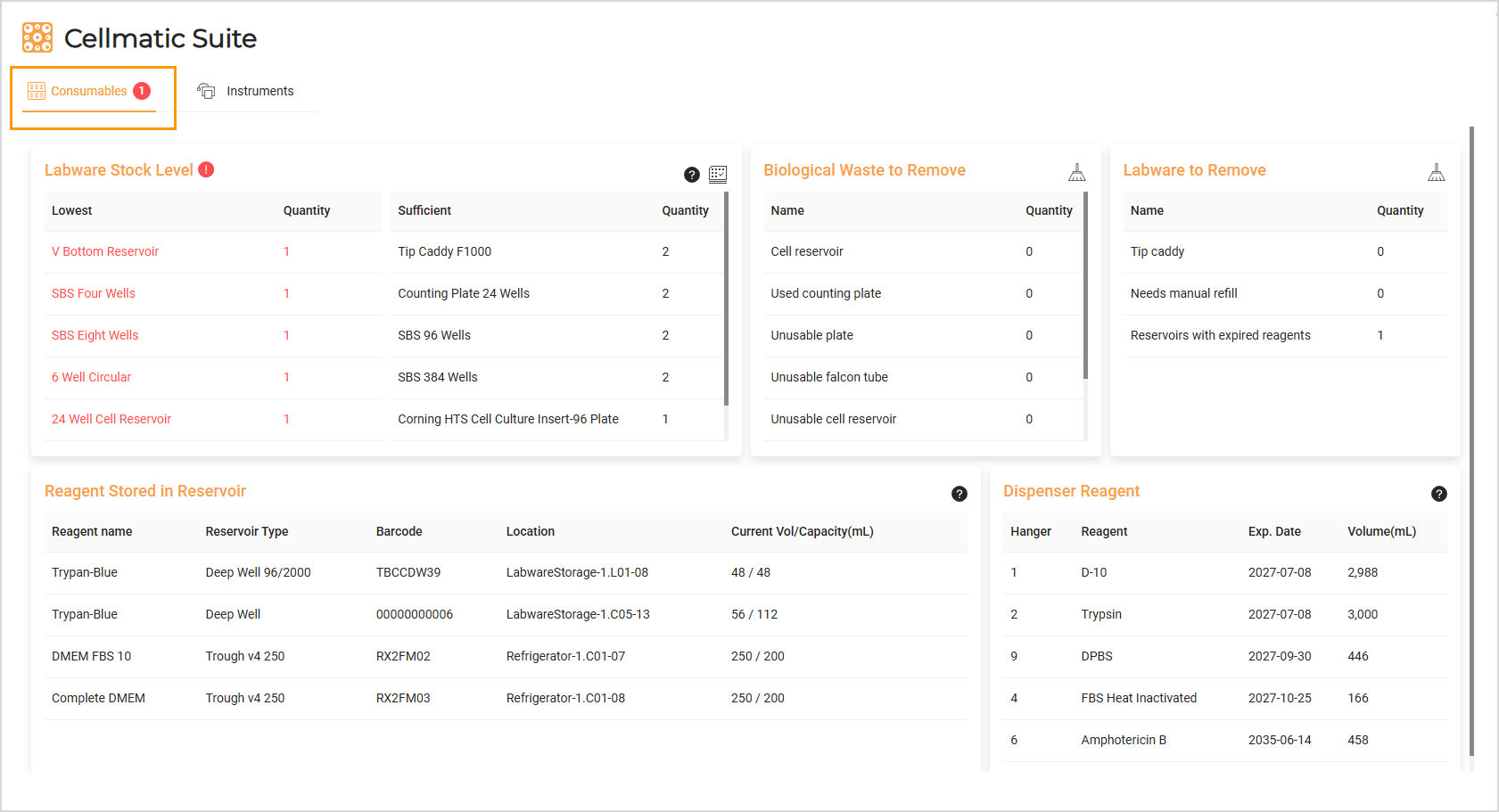
Section 2: Consumables

Consumables Tab on the Cellmatic Suite Dashboard

Consumables Tab on the Cellmatic Suite Dashboard

Menu/Button

Function

Labware Stock Level Interface

Labware Stock Level

Displays the availability of ready-to-use labware (plates, deep wells, tips, and reservoirs). The counter classifies the stock level into two categories: Lowest and Sufficient.

Click the grid icon labware to register the labware on the Labware Inventory page.

A red caution icon red_notice indicates the labware is nearly empty and requires immediate restocking.

Biological Waste to Remove

Biological Waste to Remove

Lists unused and expired biological waste marked for disposal.

Click broom to remove the items listed in the Cleanup section on the Labware Inventory page.

Labware to Remove

Labware to Remove

Lists the tip caddies and reservoirs that need to be restocked or removed.

Click broom to remove the items listed in the Cleanup section on the Labware Inventory page.

Reagent Stored in Reservoir

Reagent Stored in Reservoir

Tracks reagents stored in manual-fill reservoirs.

A red caution icon red_notice indicates the reagent volume is below the threshold and requires manual refilling. See Refilling Reagent Reservoirs Outside the System.

Dispenser Reagent

Dispenser Reagent

Tracks reagents stored in the dispenser reservoirs within the Refrigerator.

The system uses color-coded highlights to indicate reagent status:

Tip

Hover over the Help Tooltip in the top right corner of Labware Stock Level, Reagent Stored in Reservoir, and Dispenser Reagent to view the information.

Section 3: Instruments
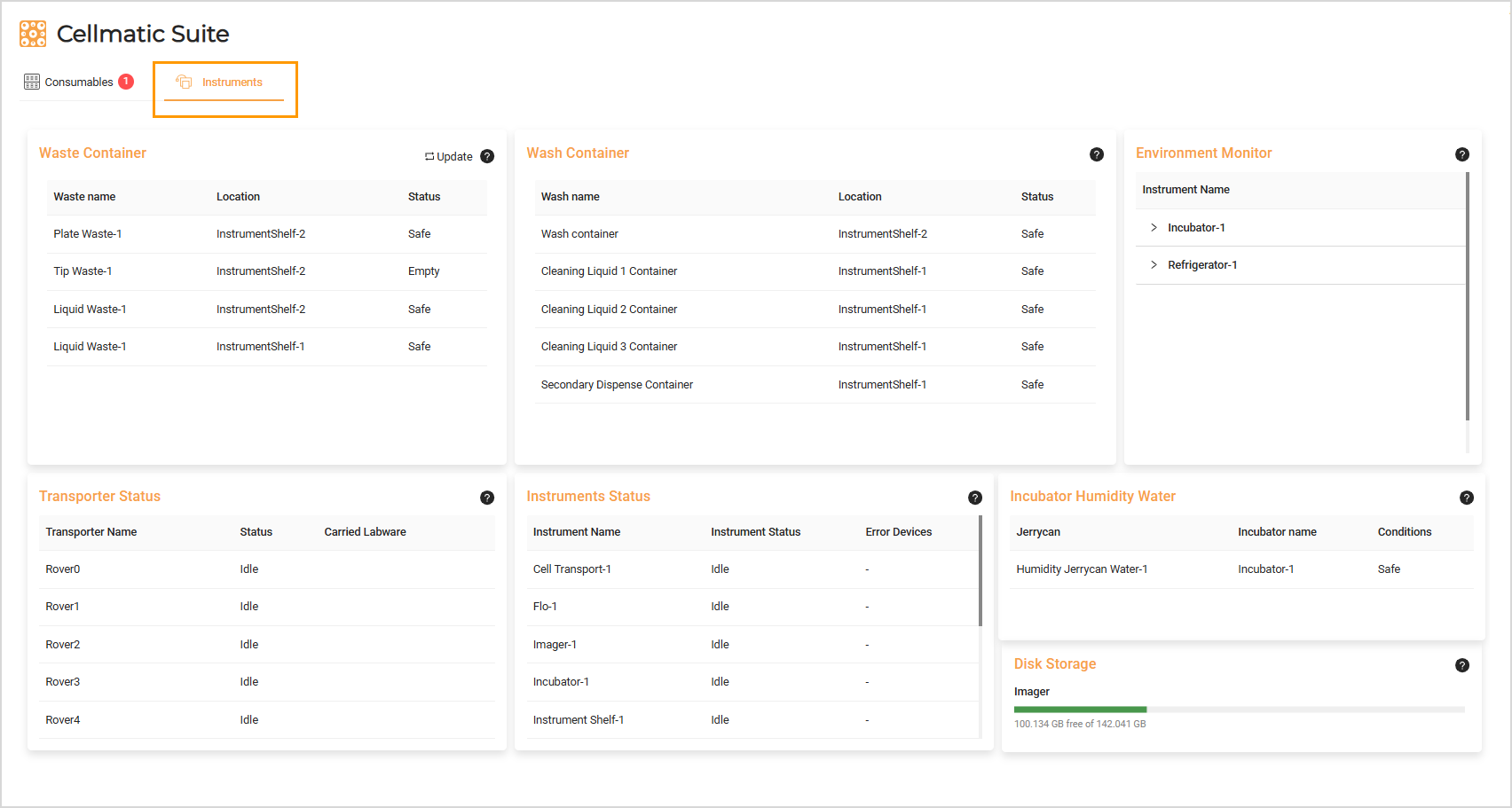
Instruments Tab on the Cellmatic Suite Dashboard

Instruments Tab on the Cellmatic Suite Dashboard

Menu/Button

Function

Waste Container

Waste Container

Displays the real-time capacity of liquid, plate, and tip waste containers in the Instrument Cabinets.

  • Empty: The container is unfilled.

  • Safe: The container has sufficient space for more waste.

  • Almost Full: The container’s capacity is nearly full.

  • Full: The container requires immediate emptying and a red caution red_notice appears. Upon emptying, click update to reset the counter manually. See Physical Waste for the instructions.

Wash Container

Wash Container

Displays the real-time capacity of liquid containers in the Instrument Cabinets.

  • Safe: The container has sufficient liquid.

  • Almost Empty: The liquid is nearly empty.

  • Empty: The container requires immediate refilling and a red caution red_notice appears.

Environment Monitor

Environment Monitor

Displays a real-time overview of environmental conditions:

  • Incubator: Monitors CO2 levels, humidity, and temperature using internal top, middle, and bottom sensors.

  • Refrigerator: Monitors temperature within the Refrigerator.

A red caution red_notice indicates a critical status that the environment needs to be evaluated.

Transporter Status

Transporter Status

Displays real-time monitoring of active transporters with the following status levels:

  • Maintenance: The transporter is in an error state.

  • Idle: The transporter has just completed a task or is at the charging dock, waiting for a new task.

  • Executing Task: The transporter is actively running a task.

  • Busy: The transporter is assigned or booked for a task.

  • Inactive: The transporter is at the charging dock and unable to accept any task.

A red caution red_notice indicates a transporter error, halting task execution.

Instruments Status

Instruments Status

Displays the real-time operational status of each instrument with five states:

  • Disconnected: The instrument is not connected to the system, probably turned off. In this state, the Cellmatic Suite doesn’t show the number of devices.

  • Idle: The instrument is not performing any tasks.

  • Assigned: The instrument is assigned for a task, but has not yet started.

  • Executing: The instrument is actively performing a task.

  • Error: The instrument has encountered a problem or is in an error state. In the event of a non-critical error, the number of affected components will appear in the Error Devices column. The instrument remains operational but is visually flagged to indicate an active issue.

A red caution red_notice indicates a disconnected instrument requiring maintenance.

Incubator Humidity Water

Incubator Humidity Water

Monitors the water supply level required to maintain the Incubator humidity, with three status levels:

  • Safe: The water supply is sufficient to maintain humidity.

  • Almost Empty: The water supply is running low.

  • Empty: The jerrycan requires immediate refilling.

A red caution red_notice indicates a critical humidity status that the water supply needs to be evaluated.

Disk Storage

Disk Storage

Displays the Imager’s available storage space for saving images, with four predefined storage thresholds displayed by the bar color:

  • Green Zone (Safe): The disk storage has plenty of space available, and the imaging works normally.

  • Yellow Zone (Warning): The disk space becomes limited. Imaging continues normally, but users receive a notification about storage auto-cleanup.

  • Orange Zone (Critical): The systementers the intervention zone. At this stage, auto-cleanup is triggered. The system begins deleting the oldest non-locked data until reaching the auto-cleanup target while imaging continues.

  • Red Zone (Hard Stop): The disk storage is nearly full. To prevent system instability, the imaging is stopped. The system remains in this state until the cleanup process reaches the designated target. To prevent images from being automatically deleted, enable the Keeping Images feature.

A red caution red_notice indicates the storage has reached the critical level (orange). Free up some space to save more images.

Tip

Hover over the Help Tooltip help_tooltip in the top right corner of each table to view the information.